
How to Add a Shopify Email & Newsletter Popup (2026 Guide)
Pop-ups, when done right, are one of the fastest ways to grow your Shopify subscriber list without paying for ads.
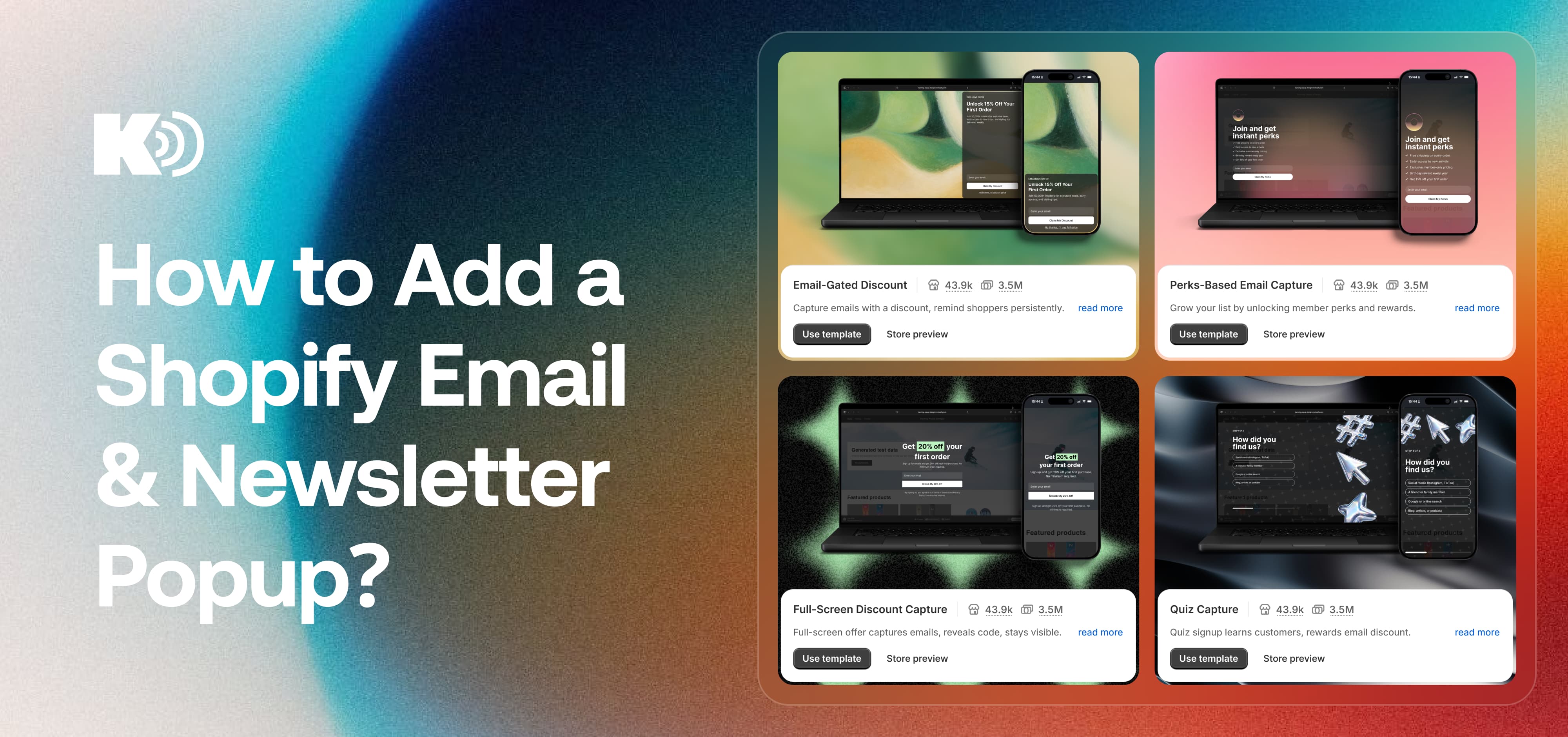
In this guide, I’ll show you how to add an email and newsletter popup to your Shopify store, step by step.
Benefits of email & newsletter popups for Shopify stores
- You own your email list. Unlike the audience you get from paying for ads, once someone signs up, you get to keep the email addresses.
- A welcome discount can turn signups into first sales. Sometimes all it takes is a 10% discount on the first purchase to encourage visitors to sign up.
- They work with any traffic source. Whether visitors come from Google, social media, paid ads, referrals, or direct traffic, they can see your sign-up offer and convert.
How to add an email popup on Shopify
The easiest way is to install a pop-up app, choose an email capture template, set your pop-up triggers and targets, and publish it.
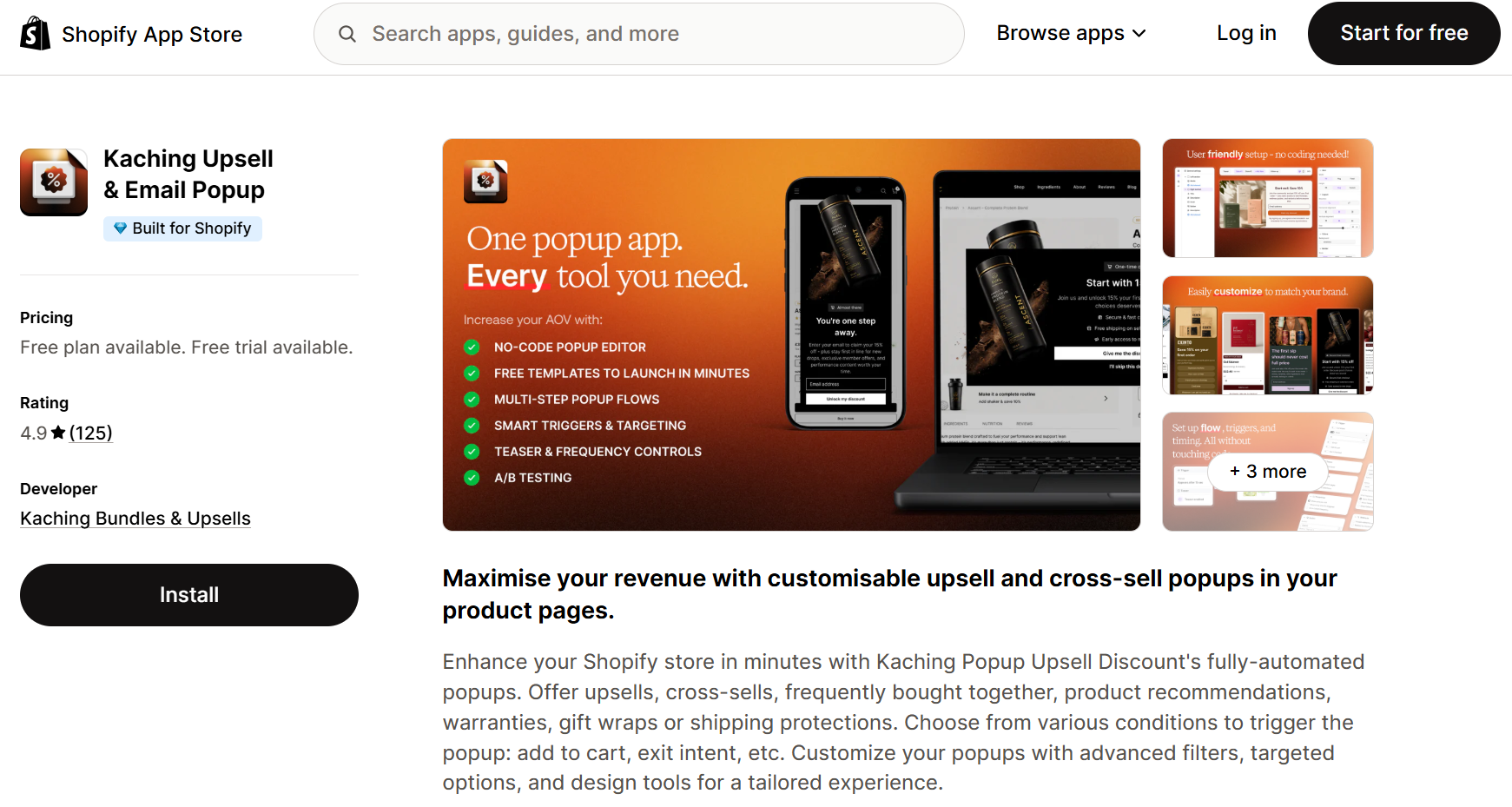
Step 1: Install the Kaching Upsell & Email Popup app on Shopify
Visit the Shopify App Store and install the Kaching Upsell & Email Popup app. It's a no-code tool currently rated 4.9 out of 5 on the App Store. It features a no-code popup editor so you can esily change the design, triggers, and offers without touching your theme code or rebuilding the popup whenever you want to try something new.
Step 2: Choose a template
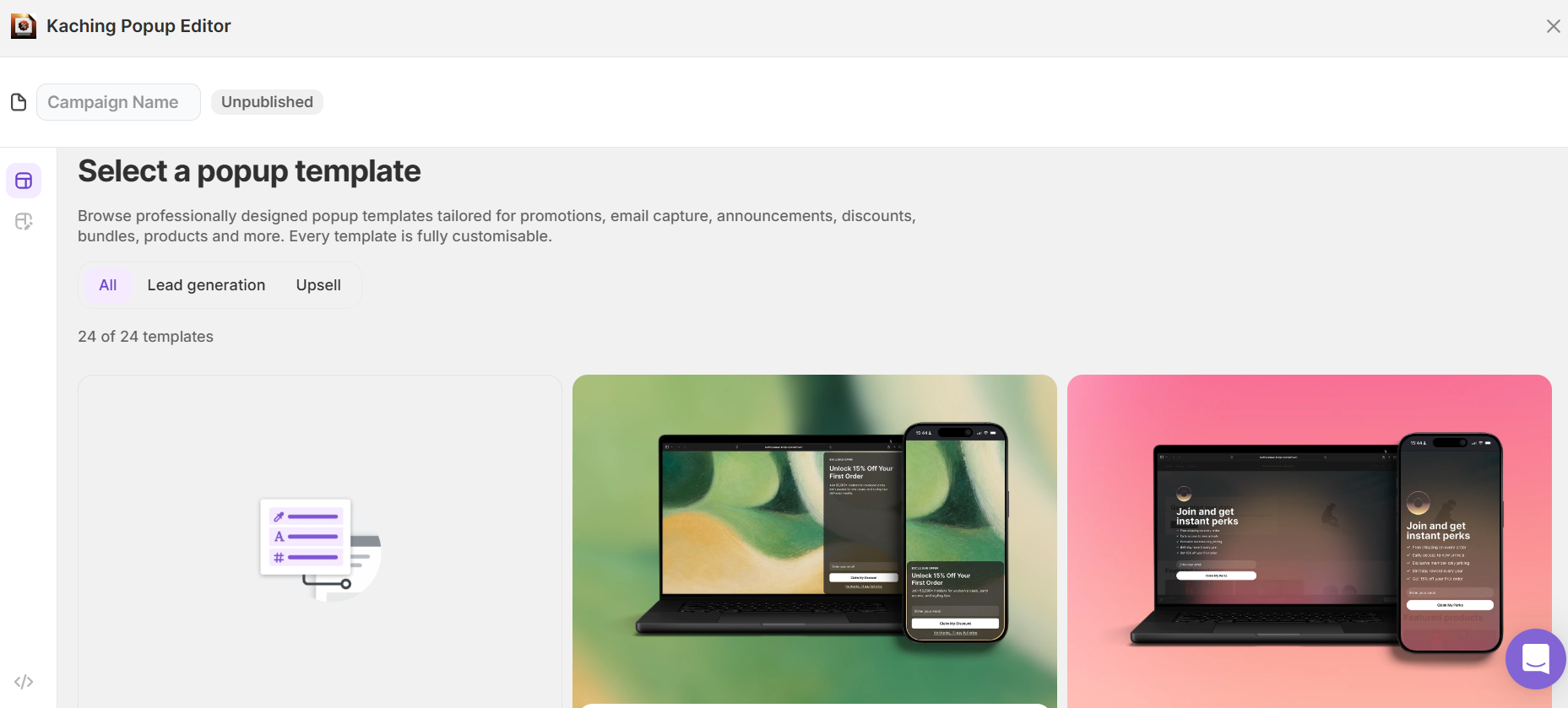
Click Create popup and select Email Capture.
Kaching gives you different template options to start with. Pick the one that fits your store, or you can create one from scratch.
For a standard newsletter popup, I’d start with a simple design with:
- A clear headline
- One short supporting line
- An email field
- One CTA button
- Your logo or product image
Step 3: Customize your popup
Now customize the popup to look like it belongs in your store.
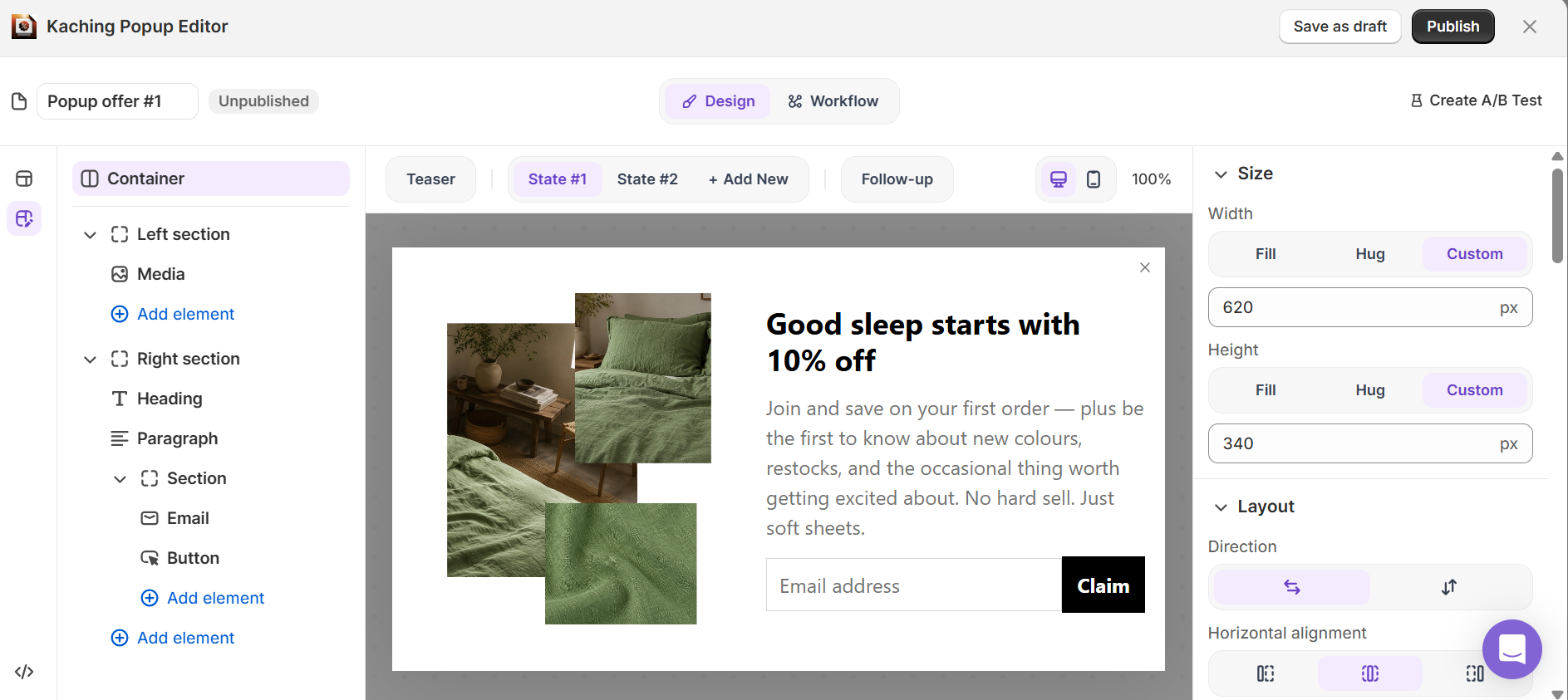
You can customize elements like:
- Colors
- Fonts and text sizes
- Logo
- Images
- Headline and supporting copy
- Button text
- Discount offer
You need to give visitors a reason to subscribe as well, so your incentive is probably the most important thing here. Keep the headline focused on the offer, not just your brand. Using something like "sign up for product drops and get 10% off your first purchase" beats "Join our newsletter" every time.
Before you move on, check the mobile preview. A popup that looks good on a desktop can easily become too large or difficult to close on a phone.
Step 4: Set display rules
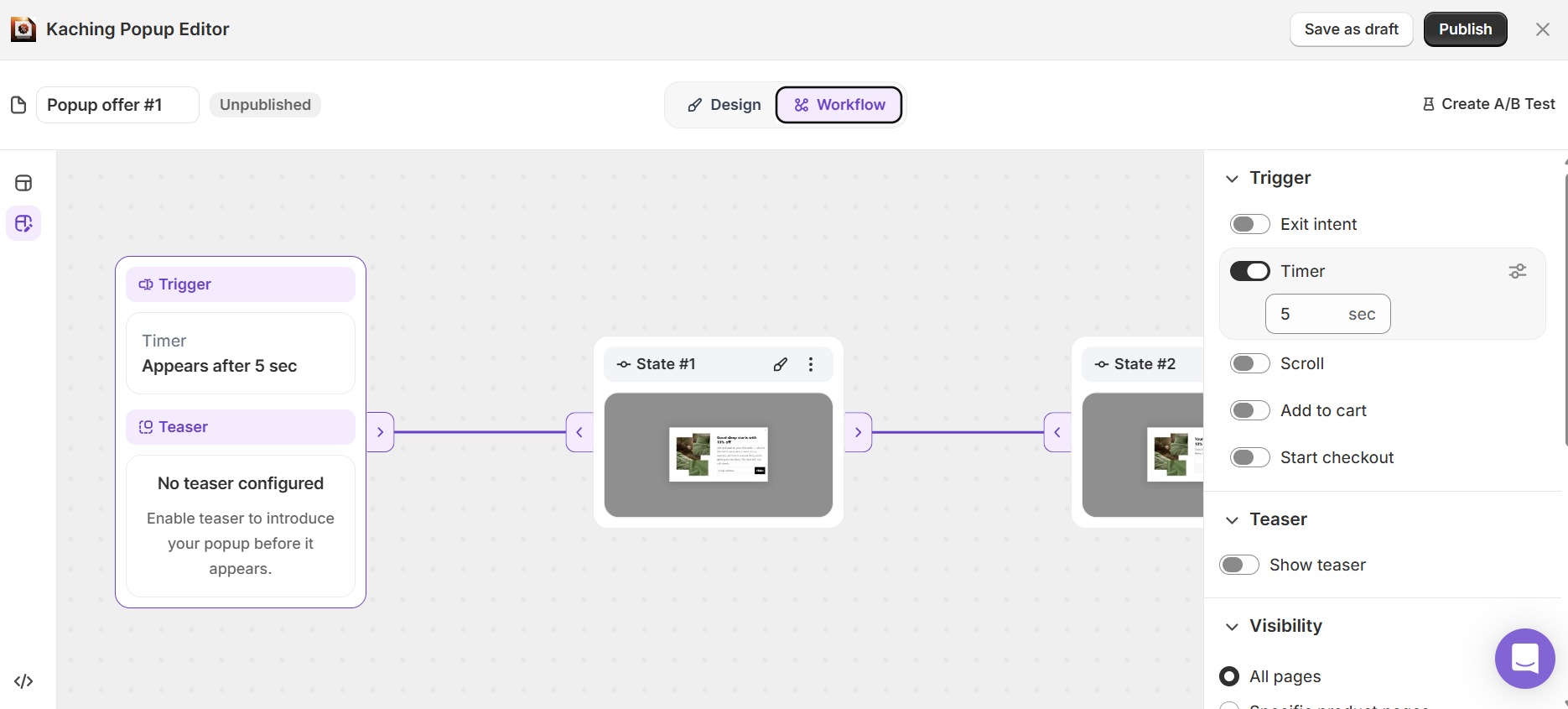
Now you decide when and where this thing actually shows up. Kaching supports Exit Intent, Scroll, and Timer triggers for Email Capture popups.
Here’s how I’d use them:
You can also target which pages show the popup. Running it on your homepage and collection pages usually makes sense. Showing it on every single product page starts to feel repetitive if someone's already got several tabs of your store open. It’s also best to exclude checkout or other pages where an interruption could get in the way.
Set the popup to show once per visitor. Having the same popup appear every time someone visits can quickly become annoying. And don't forget to check your mobile settings separately.
Step 5: Sync with your email provider and publish
When someone submits the popup, Kaching's Email Capture features app automatically adds their email straight into your Shopify customer list.
From here, you will be able to use your marketing email system to reach out to new subscribers. Shopify has marketing tools like Shopify Messaging, but store owners can link their subscribers to marketing platforms like Klaviyo and Mailchimp.
Also, you need to do a test sign-up before publishing:
- Check if the pop-up shows up at the right time.
- Enter an email and see if it gets captured in your Shopify customers' list.
- Confirm the welcome discount or follow-up email works.
- The pop-up behaves properly on mobile.
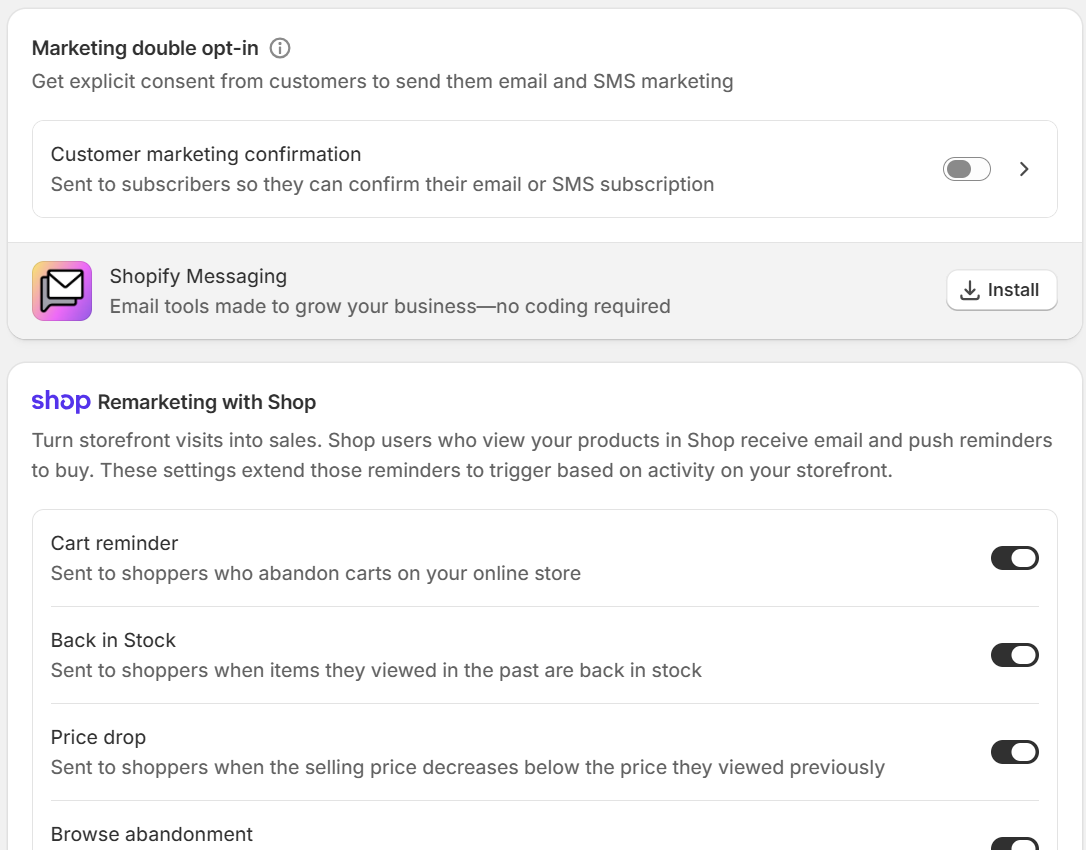
If you sell into the EU, check whether double opt-in is required for your store and configure it where appropriate. This sends a confirmation email before someone is added as a confirmed subscriber.
How to add a newsletter popup on Shopify without an app
Don't want an app at all? Fair enough. If all you need is a plain signup box, Shopify has two free options.
Most themes include a newsletter section you can drop into your footer or homepage through the theme editor - no app, no cost. Shopify also has a free built-in Forms app (find it under Apps in your admin) that lets you build a basic popup form and collect emails directly into your customer list.
Shopify Forms is perfectly fine if all you need is a basic email signup box. If you're trying to actually grow your list and convert visitors into buyers, I’d say using a dedicated Shopify popup app gives you better results. If you would like to see a comparison of different apps, read our guide on the best Shopify popup apps.
Email & newsletter popup best practices
If you're trying to improve your email popup conversion rate, focus on when the popup appears, what you're offering, and how much effort you're asking from the visitor. These 6 common tips usually cover most of best practices:
- Don't show pop-ups immediately: Give visitors about a 5-8 second delay, or use a trigger on exit intent, so it doesn't interrupt someone who just landed on your site.
- Show one pop-up per session: Don't keep interrupting the same visitor with the same offer as it may hurt your sales and user experience.
- Make the value obvious: Tell visitors exactly what they get from the offer
- Ask for as little as possible: An email-only field is more than enough. Extra fields like name, phone number, and birthday are likely to harm your signup rate. Add those later through a preference center if you need them.
- Design for mobile: Keep the popup compact, make the text readable, and leave a clear close button. Using large pop-ups that obstruct mobile users from accessing page content can affect search performance, on top of just annoying whoever's trying to read your page.
- Test the offer: If 10% off isn't producing enough signups, try a different discount, free shipping, a gift, or a non-discount incentive.
That would be all and I hope you have a better idea on how to add well-converting email & newsletter popups to your Shopify store!

Start your free trial
Join over 30,000+ merchants already growing with Kaching Appz®.

