


New badge styles for your deals
 Bundles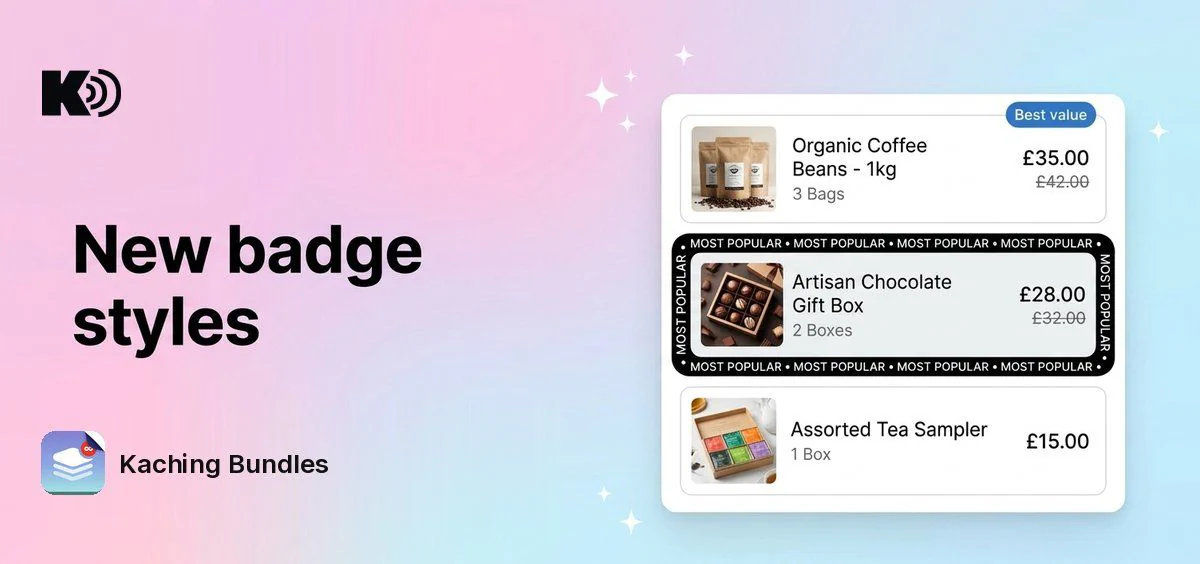
Before, a deal bar could carry one small label, set bar by bar. Now badges have their own section in the deal editor, with four styles and more places to put them.
What's new
- Four styles: Simple (a text label), Most popular (a ready-made ribbon), Custom (your own image) and Border (a band of text along an edge of a bar).
- Border strips and a ring: put the band on the top, bottom, left or right edge, or around all edges. The ring can repeat its text, show a character such as • between the repeats, and spin clockwise or counterclockwise at the speed you set.
- More places: attach a badge to one deal bar, to all bars at once, to an upsell inside a bar, or to a checkbox upsell.
- Your own text and colors: write any text and set the text and background color for each badge.
Why it matters
A badge tells shoppers which offer to pick. A clear "Most popular" or "Best value" on the right bar moves them to the bigger bundle.
How to use it
Open your deal and find the Badges section. Turn it on, click Add badge, then choose the style and what the badge is attached to.
Badges show on the Vertical layout only. The Badges section is hidden on the Horizontal, Grid and Plain layouts, and switching a deal to one of them removes its badges.
Badges you already set on your deal bars keep working.