







Style your subscription widgets in your store's colors
 Subscriptions
Your subscription widgets can now match your store, so you no longer have to copy each color by hand. If you use Kaching Bundles, Kaching takes your colors and corner radius from your Bundles deals. Otherwise it reads them from your theme. Either way, they're saved as your brand colors.
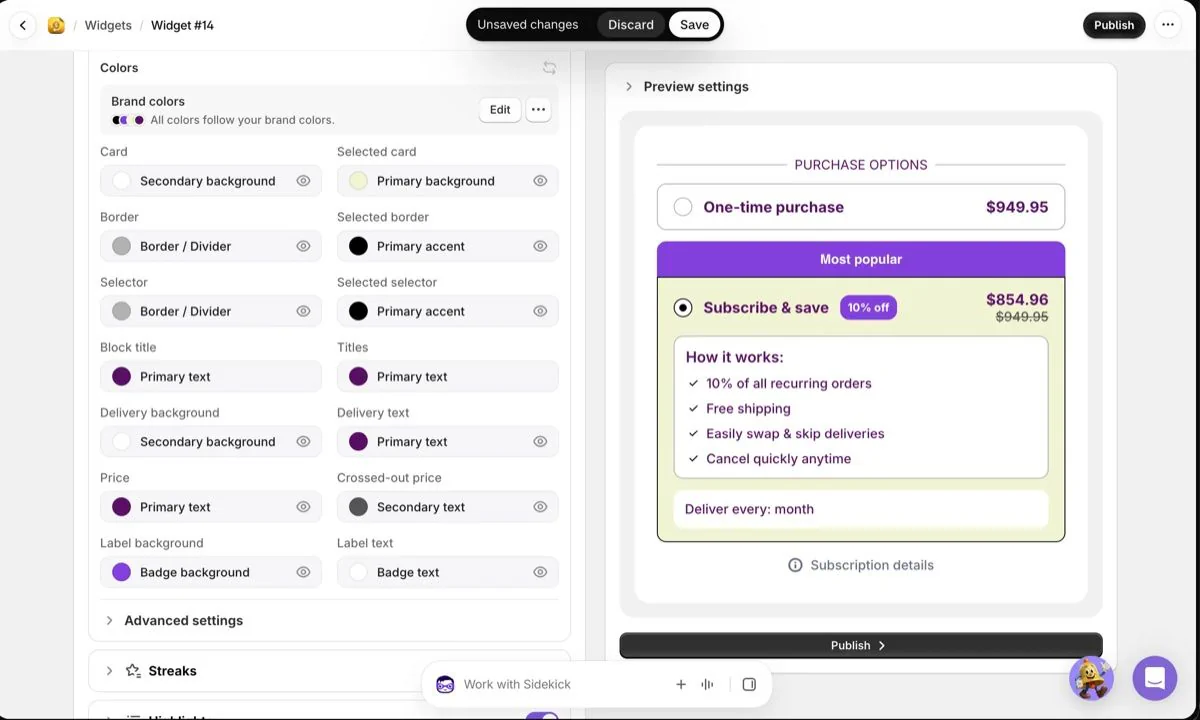
- Apply them in one click. At the top of the widget editor's Design tab, a banner offers to apply your theme colors. You see them in the preview first. Nothing goes live until you publish.
- Review and adjust them. Open Brand colors from the widget editor's header. You can check the colors we found, change any of them, set the corner radius or rescan your theme.
- Change once, update everywhere. When you change a brand color, every widget that uses it updates. Each color picker now has Brand colors and Custom colors tabs, so a single setting can still have its own color.
- Start new widgets on brand. At the setup wizard's widget step, switch on Use theme colors to build your first widget in your store's colors.
Your existing widgets don't change until you apply brand colors and publish them. If you don't want a widget to follow your brand colors any more, choose Unlink brand colors. The widget keeps its current look.
You'll find it under Widgets: open a widget, then go to the Design tab.