







Change many deals at once
 Bundles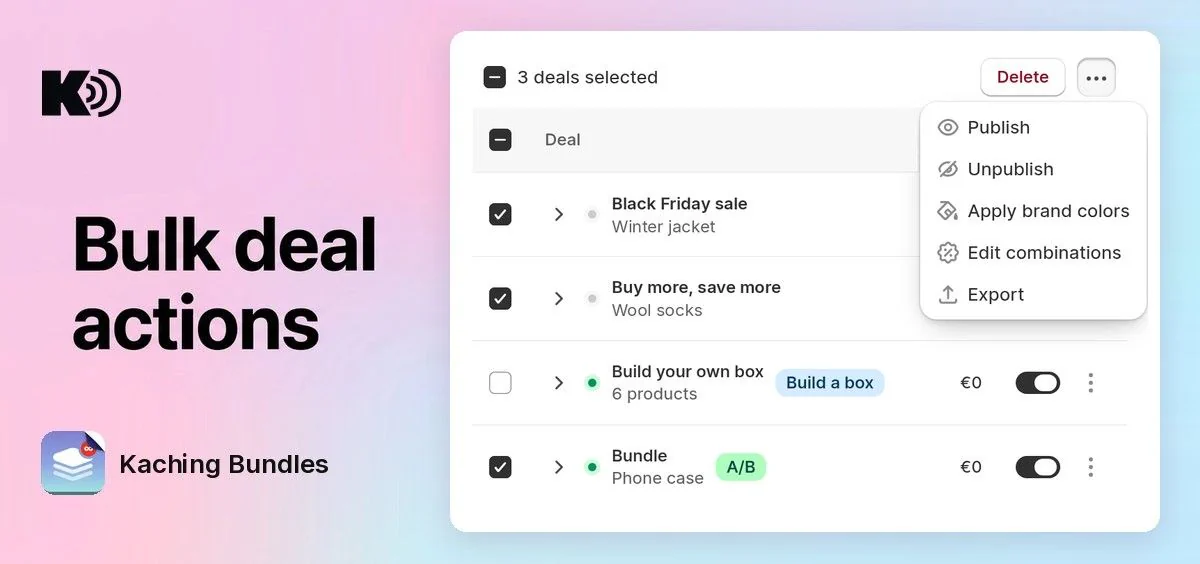
Before, the only thing you could do with many deals at once was delete them. To turn deals on or off, or to change a color or a discount setting, you had to do it deal by deal. Now you select the deals in the list and change them all in one step.
What's new
- Publish and Unpublish: turn the selected deals on or off together, for example when a sale starts or ends. A draft with a future start date gets scheduled.
- Apply brand colors: paint the selected deals with your store's brand colors, the same as the Brand colors button in the deal editor.
- Edit combinations: choose which discounts the selected deals combine with (Product, Order and Shipping discounts) for all of them together.
- Export: download the selected deals as a
.jsonfile. Open Import deals at the bottom of the deals page in your other store to add them there as drafts.
Why it matters
A store with 20 deals no longer needs 20 clicks or 20 editor saves for one change. You start and stop a sale in seconds, keep every deal in the same style and with the same discount rules, and set up a second store in minutes.
How to use it
Go to the deals list and tick the deals you want to change, or tick the box at the top to select all of them. In the bar that opens, click More actions (the ⋯ button) and pick an action.
Deals that are already live are skipped when you publish, and drafts are skipped when you unpublish. Recommended deals that wait for your review are not published. Brand colors and combinations update live deals on your store right away; draft, scheduled and paused deals keep the change for the next time you publish them.
To apply brand colors, set your brand colors first. Build a box deals are skipped for brand colors and combinations. Imported deals keep their design and texts; products that do not exist in the new store are removed, so pick them again before you publish.