





Restore deleted deals and earlier deal versions
 Bundles
Before, a deleted deal was gone, and a change you regretted had to be undone setting by setting. Now you can get a deleted deal back for 30 days, and take any deal back to one of its earlier published versions.
What's new
- Undo a delete: after you delete one deal or several, the message that confirms it shows Undo for 10 seconds.
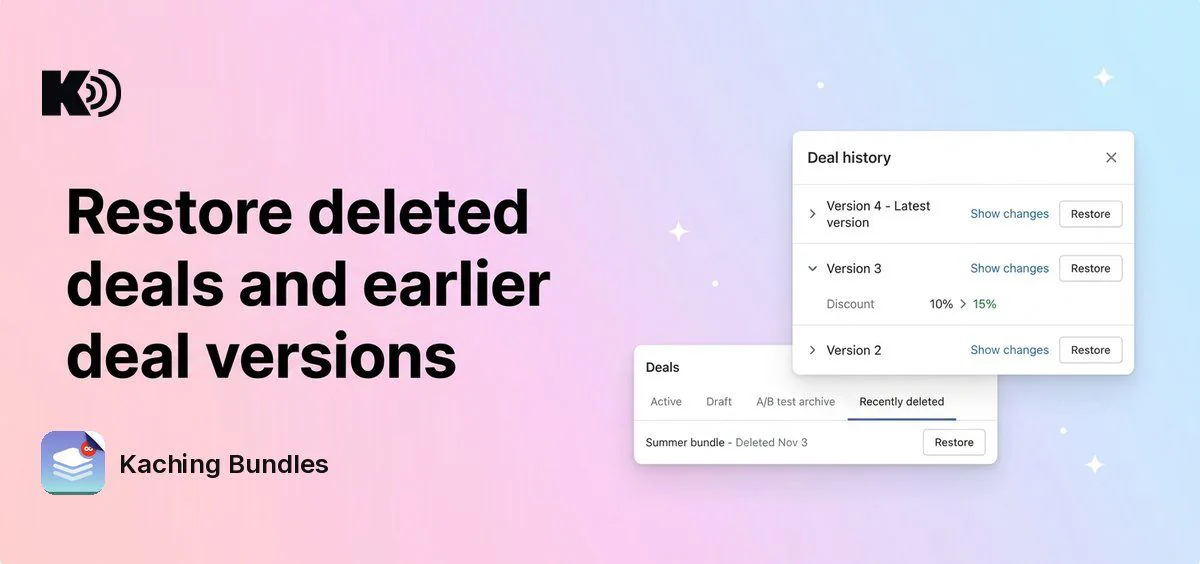
- Recently deleted: a new view in the deals list, next to A/B test archive, lists the deals you deleted in the last 30 days. Click Restore to get one back.
- Deal history: click History at the top of the deal editor to see each published version of the deal, newest first, with its date and time. The newest one is marked Latest version.
- See what changed: click Show changes on a version to see each setting that changed from the version before it, with the old and the new value.
- Restore a version: click Restore on a version and confirm. The deal goes back to the settings it had then, and your current settings stay in the history, so you can switch back.
Why it matters
A deal deleted by mistake, or an edit that hurt sales, no longer means building the deal again from memory. You get its exact settings back in a few clicks.
How to use it
To get a deleted deal back, open the deals list, click Recently deleted and click Restore next to the deal. A restored deal comes back as a draft, so check it and publish it when you are ready.
To go back to an earlier version, open the deal, click History, find the version and click Restore. On a published deal, the restored version can go live on your store right away.
History keeps a version each time you publish, not when you save a draft, and shows the last 50. If you saved a draft since your last publish, restoring a version drops those draft changes, and the confirm step tells you so. To restore a version, first save or discard your edits in the editor, and end the deal's A/B test if one is running.