


Popup Upsells in the deal editor
 Bundles
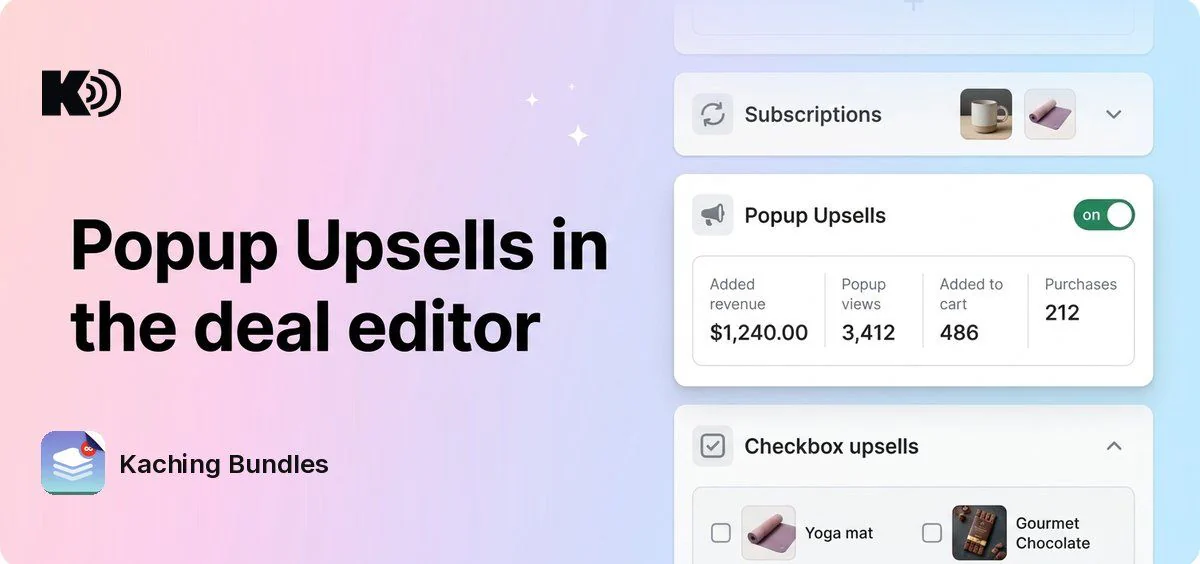
With Kaching Upsell Popup, your deal can show again in a popup after shoppers add to cart. The new Popup Upsells card in the deal editor turns it on and shows you how the popup does for that deal.
What's new
- Turn it on from your deal: use the switch on the Popup Upsells card. It applies to all your deals, not only the one you have open.
- Results for this deal: once it is on, the card shows Added revenue, Popup views, Added to cart and Purchases for the deal you are editing.
- Turn it off any time: switch it off and confirm in Turn off Popup upsells?. This turns Popup upsells off for all your deals.
How to enable it
Open a saved deal and find Popup Upsells, below Subscriptions.
- Don't have Kaching Upsell Popup yet? Click Install Kaching Upsell Popup.
- No plan in Kaching Upsell Popup? Click Choose plan and pick one.
- Then turn on the switch on the card.
The card shows when Kaching Upsell Popup supports Popup Upsells for your store, so you may not see it yet. A new deal, or a copy of a deal, gets the card after you save it.