






Export and import translations, with smarter Auto-translate
 Bundles
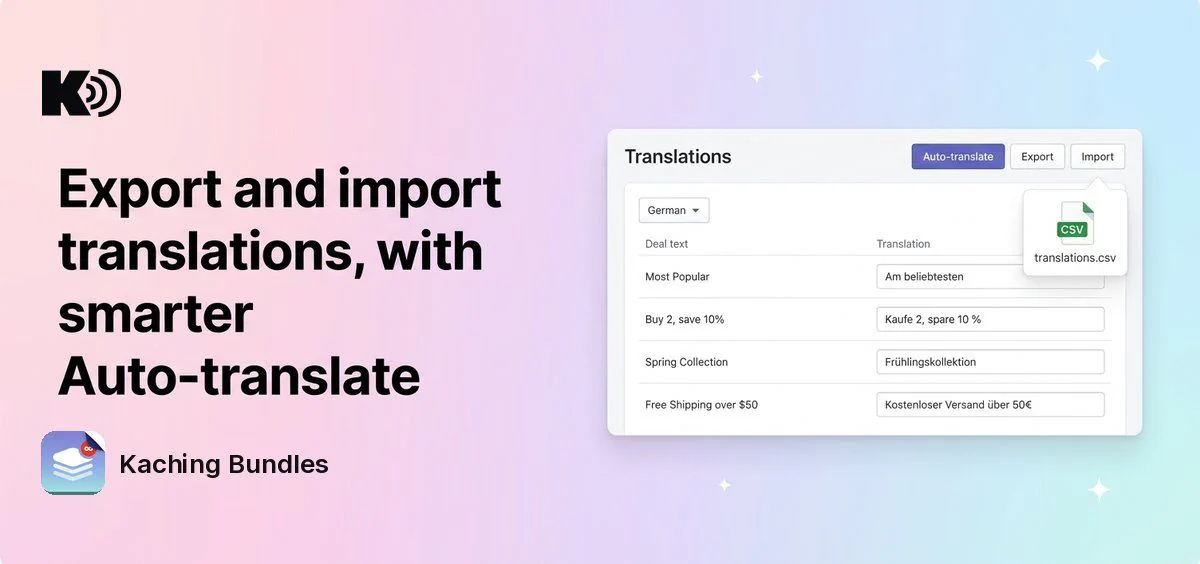
Before, you translated your deals one text field at a time. Now you can export all your translations to a spreadsheet, fill them in or send them to a translator, and import them back in one go. Auto-translate also writes better translations: it knows which deal each text belongs to and reuses the wording your store already has.
What's new
- Export: downloads one CSV file with every text of every deal, plus the general texts, in all your store's languages except the default one. It has the columns Type, Deal ID, Deal name, Key, Locale, Default content and Translated content.
- Import: fill in the Translated content column and drop the file into Import translations. The translations are saved right away. An empty cell changes nothing, so the translation you already have stays.
- See what was skipped: after an import you see how many translations were imported and how many rows were skipped, with the row number and the reason, for example a text that changed since the export or a deal that no longer exists.
- Works with your spreadsheet app: files saved with commas or with semicolons both import. A file can be up to 5 MB and 50,000 rows.
- Smarter Auto-translate: texts of one deal are translated together, so they read consistently. Auto-translate follows the translations you already saved in that language, so your product names, brand terms and tone stay the same across deals.
Why it matters
A store with many deals and several languages can be translated in one spreadsheet instead of field by field, and a translator can work on the file without access to your admin.
How to use it
Open Kaching Bundles and click Translations in the app menu, or open a deal and click Translations at the top of the deal editor. Auto-translate, Export and Import are at the top of the page.
- Auto-translate fills the empty texts of the language you have open. Check them and click Save.
- To import, first save your edits, then click Import and choose the file you exported and filled in. Keep the other columns as they are: they tell Kaching Bundles where each translation goes.