





Build a box: let shoppers build their own bundle
 Bundles
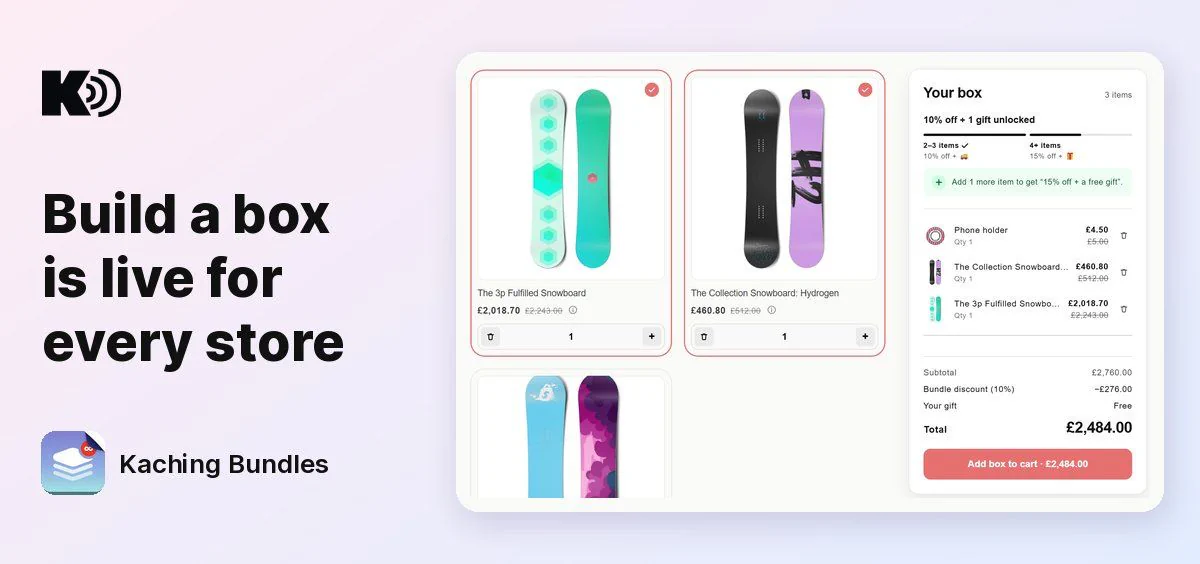
Build a box gives your store its own bundle page. Shoppers pick any mix of products into one box, and every item gets cheaper as the box grows. Build a box is now available in every store.
How to create one
- From the templates: click Create bundle deal and open the Build a box tab. Start with Create from scratch, or pick a ready-made Build a box card, built from one of your largest collections.
- From the home page: the Build a box banner takes you to the same templates.
- In your deals list: the new Build a box view shows only your Build a box deals. Use Copy page URL or publish a box right from the list.
- With AI: Claude, ChatGPT or another AI tool connected to Kaching MCP can create a Build a box as a draft. In the editor, the in-app AI chat or Shopify Sidekick can change the Build a box you have open.
The page shows through the Kaching Bundles app embed, so keep the app embed on in your theme.
What you can set up
- Products: pick one collection, or choose products by hand. With a collection, a product you add to it later joins the box. Drag products to set their order on the page. Use Show variants as separate cards to give each variant its own card and image.
- Discount tiers: add up to 4 tiers by box quantity. Choose Percentage off (1 to 90%) or Fixed box price. With percentage off, any quantity from a tier upwards gets that tier, or turn on Only sell these box sizes to sell exact sizes only. A fixed box price always sells at its sizes. Tips warn you when a bigger box isn't a better deal.
- Gifts and free shipping: each tier can unlock gift products, free shipping or both.
- Discount combinations: choose which other discounts the box can combine with, in the Discount tiers section.
- Page and placement: under Create the box as, choose New collection or New page. Set the Page title and Description, and an image for a collection. The title and description also become the page's SEO title and description. The default texts start in your store's language for English, German, French, Spanish, Italian, Dutch, Swedish, Turkish, Portuguese, Lithuanian and Chinese, and in English for other languages: edit them or use Translations.
- Product cards: turn on Show product details, Show product rating and Show product subtitle (from a product metafield you pick).
- Card prices: with percentage off, set Product price to Current box price, Always full price, Price range or Hide, and turn on Show tier price table tooltip. With Current box price, you can also turn on Show crossed-out price.
- Style: set text, border and box background colors, the Primary button, the Badge and the Corner radius, or apply your brand colors in one click.
- Product page promotion: a banner above add to cart on the product page of every product in the box. Write its Title with box size, discount and price variables, and style the banner and its arrow button. To show it elsewhere, add the Build a box promotion block in the theme editor. A shopper who clicks it lands on your Build a box with that product already in the box.
- Translations: the Translations button opens the title, description, promotion title and box texts, to translate them into your store's other languages.
- Preview and publish: a live Mobile preview sits next to the editor. Open Desktop preview before you publish, and View in store once it's live. After publishing, Help buyers find your Build a box offers Add to menu to put the box in your store's menu. To share the link in ads or posts, use Copy page URL in your deals list.
What your shoppers see
- A product grid in your order. Sold out and subscription-only products are hidden.
- Product details: a click on a product's picture or title opens its photos and description, with a link to the full product page.
- Variant pickers on each card, with sold out options marked, and a photo that follows the picked variant.
- Add, then a quantity stepper on each product to add more or take some out.
- The box summary with every item, a tier track and nudges like "Add 2 more items to get 15% off everything." It shows the subtotal, the saving, gifts and the total.
- Gift choices: a gift with several variants asks the shopper to pick one.
- On mobile, the box is a bottom sheet shoppers drag open and closed.
- Add to cart adds the whole box. The cart drawer opens with Kaching Cart, UpCart, Corner, Unicorn Cart and Buildora, Dawn-style cart drawers, and the Fastor and Boundless themes. With any other cart, shoppers go to the cart page.
- In the cart, each variant is its own line with its own discount, and each gift is a line too.
- The shopper's language: the page's own texts come in 15 languages, and products load in the shopper's language.
- Sign-in stores: a store that requires customer login asks shoppers to sign in to see the offer.
Results
- Bundle orders: a box order counts as a bundle order once the box reaches a tier.
- Per tier: analytics show how each tier performs.
- Products: every product of a box shows in the Products table.
Good to know
- A box fills from one collection, or from products you pick.
- Up to 4 tiers per box, based on item quantity, not order value.
- Tiers count the total items in the box: any mix, and several of one product count too.
- A Build a box can't run an A/B test.
- The discount applies only to items added from the Build a box, and not on POS.
- Subscriptions aren't supported: subscription-only products are hidden, and items are added as one-time purchases.