






Orders metric and analytics in your store's time zone
 Bundles
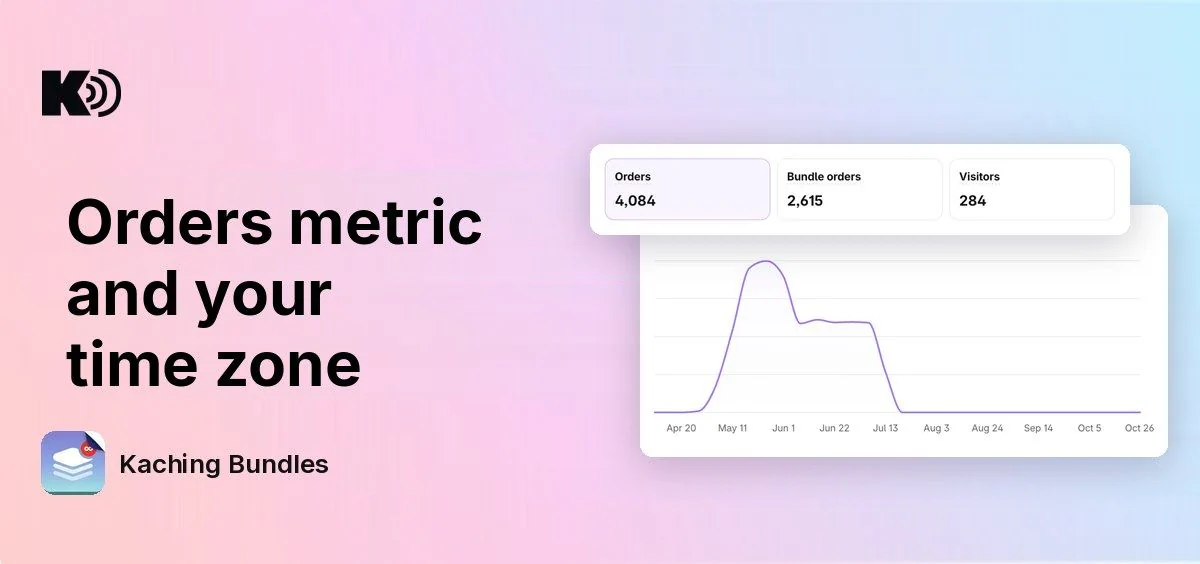
Before, the deals list counted an order twice when a customer added the same deal to it from two product pages, and you could not see a plain orders count for a deal. Analytics days also started at midnight UTC, so an evening order could show on the wrong day. Now each order counts once, you can see Orders next to Bundle orders, and Analytics uses your store's time zone.
What's new
- Orders in the deals list: click Performance metrics above the deals list and turn on Orders or Bundle orders. Orders counts every order with a product bought through the deal, with or without a discount. Bundle orders counts only the orders where the customer took a bundle from the deal.
- Orders in the A/B test archive: the Performance metrics picker in A/B test archive has Orders and Bundle orders too.
- Orders in Analytics: Metrics over time has an Orders card with its own chart, and the Bundles table has an Orders column that you can sort.
- Each order counts once: an order with the same deal from two product pages is one order. AOV, CR and the share of bundle orders in the deals list and in A/B tests now match the Analytics page.
- Your store's days: Analytics days, hourly charts, visitors, date presets such as Today and Yesterday, Export as CSV and the Last refreshed time use the time zone of your Shopify store. Your day totals now follow the same days as Shopify Analytics.
How to use it
Nothing to set up. To add the new columns, open your deals list, click Performance metrics and turn on Orders or Bundle orders. The time zone comes from your Shopify store settings. If you change it there, open the app and reload the page once: Analytics then uses the new time zone.