






Bulk edit deals with Ching
 Bundles
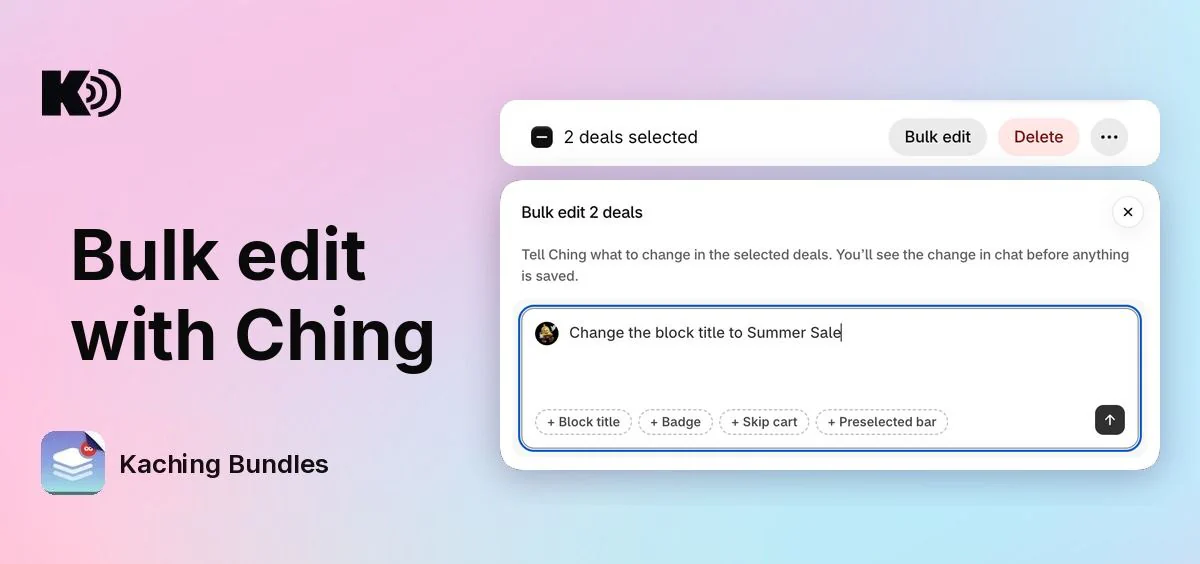
Before, changing the colors, the block title or the discount on many deals meant opening each deal in the editor and saving it, one by one. Now you select the deals in the deals list, tell Ching what to change in your own words, and Ching changes them all at once.
What's new
- Bulk edit button: tick deals in the deals list and click Bulk edit, next to Delete. Write the change, for example "Change the block title to Summer Sale", and Ching opens with your message.
- Quick starts: the Block title, Badge, Skip cart and Preselected bar chips add a ready sentence that you can finish or edit.
- You see the change first: Ching shows each setting's before and after, on how many deals, how many of them are live, and how long the change takes. Nothing is saved until you say yes.
- Live deals stay up to date: on your yes, drafts are saved and stay drafts, and live deals get the change and are published in the same step. Scheduled deals show it from their scheduled start.
- Ask in the chat too: with deals ticked, open Ching and ask it to change "the selected deals". You can also name the deals, or describe them, like "all my Black Friday deals".
What you can ask for
Most settings you can change in the deal editor, in your own words. Merchants ask most often for these:
- Colors and style: "Make the bar border and the badge #1E88E5", "Set the corner radius to 0 and the bar title font size to 20".
- Copy the style of one deal: "Copy the style of my Summer deal to the selected deals". Colors, fonts, corner radius, spacing, swatches and image sizes then match that deal, with no settings to copy by hand.
- Discounts: "Set the last bar to 25% off".
- Countdown timer: "Add a countdown timer that ends on November 30".
- Texts and badges: block title, bar titles, subtitles and badges, for example for a seasonal sale.
- Checkout behavior: skip the cart, or change which bar is selected by default.
Brand colors or Bulk edit?
- Brand colors on the deals list change your palette once, and every deal that follows your brand colors updates. A color that you set by hand on a deal stays as it is, so a deal with its own colors keeps them when you change your brand colors.
- Bulk edit sets exact colors on the deals you pick, for example for one campaign.
- To make deals follow your brand colors again, tick them, click More actions (the ⋯ button) and pick Apply brand colors.
Why it matters
One change across 10 deals is now one message instead of 10 editor saves. You check the exact change before it is made, so every deal ends up with the same style, title, badge or setting, and no deal is missed.
How to use it
Go to the deals list and tick two or more deals. Click Bulk edit, write what you want to change or start from a chip, and send it. Ching shows you the change: answer yes to make it, or tell Ching what to fix and it shows the corrected change.
Bulk edit works on two or more deals. With one deal, Ching opens it in the deal editor, where you save the change yourself.
Ching does not publish drafts or turn deals on or off. Do that in the deals list: tick the deals, click More actions (the ⋯ button) and pick Publish or Unpublish, as in the earlier update Change many deals at once.
Deals that can't take the change are left out, and Ching tells you which and why: for example paused or expired deals, a Build a box deal for a setting it doesn't have, or a deal that already has the change. If a live deal has earlier changes you haven't published yet, Ching names it before you say yes, as those changes go live together with this one.