





AI pack photos for your featured images
 Bundles
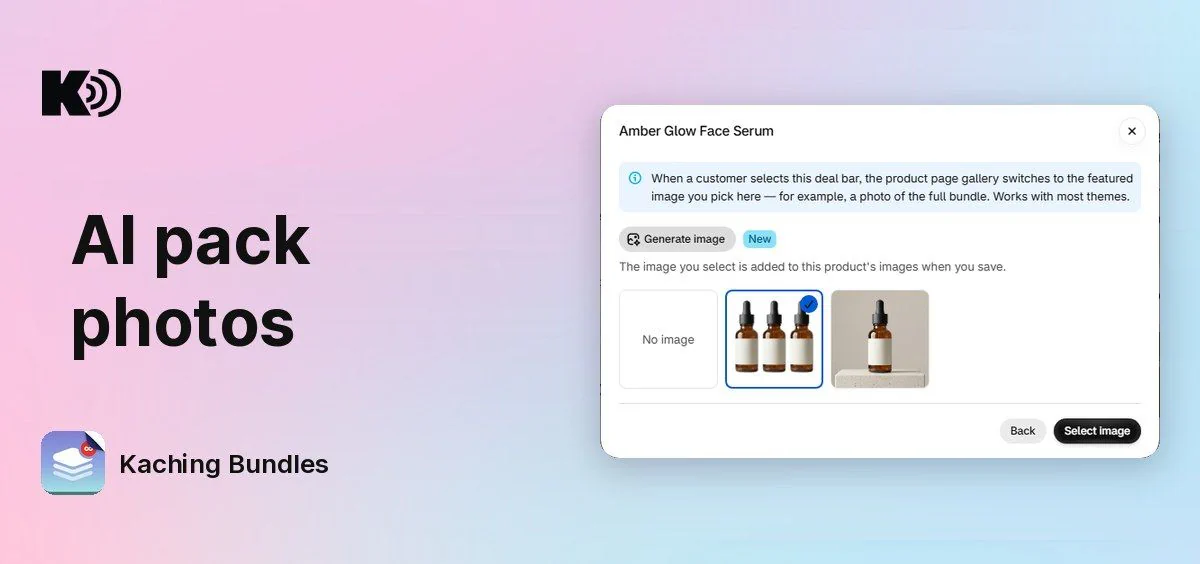
A featured image changes the product page gallery to a photo of the deal when a shopper selects a deal bar. Before, you could only pick a photo that the product already had, and most products have only a photo of one unit. Now Kaching can make the pack photo for you.
What's new
- Generate image in Featured image: pick a product and click Generate image. Kaching makes a photo of the product in the bar's quantity, for example 3 bottles together for a "Buy 3" bar. It usually takes up to 30 seconds.
- Bundle and mix and match bars: the photo shows the products of the bar together.
- Your product images stay clean: the new photo is shown first and selected. It is added to the product's images only when you save, and only if it is still the selected featured image. A photo that you do not use is not added.
Why it matters
Shoppers see what they get in the pack before they add it to the cart, without a photo shoot for each deal.
How to use it
Open your deal and, on a quantity break, BXGY, bundle or mix and match bar, click Featured image. Click Select image next to a product, then click Generate image. Not happy with the result? Click Generate image again for a new version. Click Select image, then Save in the Featured image window, and save your deal.
The photo is added to the product's images in Shopify, so it also shows in the product's own gallery. Keep it there while the deal bar uses it as its featured image.