





Product tabs for Build a box
 Bundles
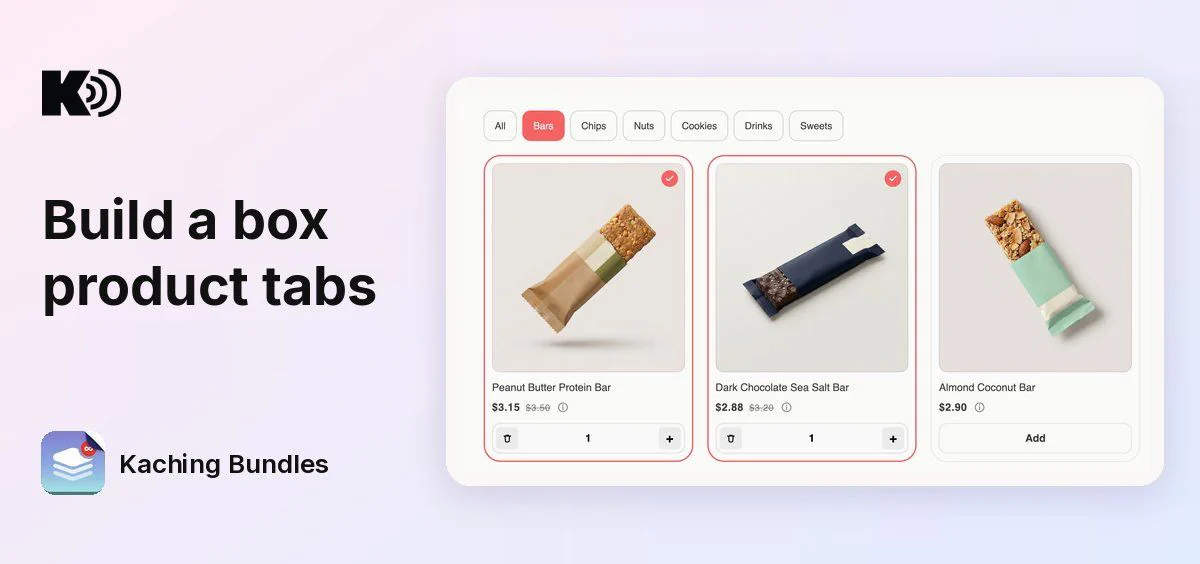
A Build a box with many products is a long grid to scroll through. Now you can add a row of tabs above the product cards. Shoppers tap a tab and see only that group of products, while the box, the tiers and the discount stay the same.
How to set it up
Open your Build a box and find the Product tabs card. Turn on its switch.
- Quick setup: before you add your first tab, click Quick setup and pick Category, Tag, Collection or Product type under Create a tab for each. Kaching creates one tab for each of them in one click.
- Add tab: give each tab a Tab name, choose what to Filter by (Category, Tag, Collection or Product type) and pick the Values. When the name is empty, the first value you pick fills it in.
- Products: this column shows how many products of your box each tab holds.
- The All tab: it always comes first and shows every product. You can change its name.
- Products in no tab: a note tells you how many products aren't in any tab. They show only under the All tab.
- Order: drag tabs to set their order on the page.
- Translations: the tab names and the All name show on the Translations page.
While the switch is on, you can't publish while a tab has no name, two tabs share a name, or a tab has no values.
What your shoppers see
- A tab row above the product cards, with All first. A tap on a tab shows only its products.
- On desktop, arrows scroll the tab row. On mobile, shoppers swipe it sideways.
- Only tabs with products: a tab with no products in your box is hidden.
- A link to each tab: the page address follows the open tab, for example
?tab=bars. Share that link in ads, menus or posts, and the page opens on that tab. The link uses the tab name in your store's default language, so one link works in every language.
Good to know
- Up to 7 tabs, plus All.
- A product's first 50 collections decide which collection tabs it shows in.
- Product tabs are off until you turn them on in each Build a box.