






Sell your Build a box as a subscription
 Bundles
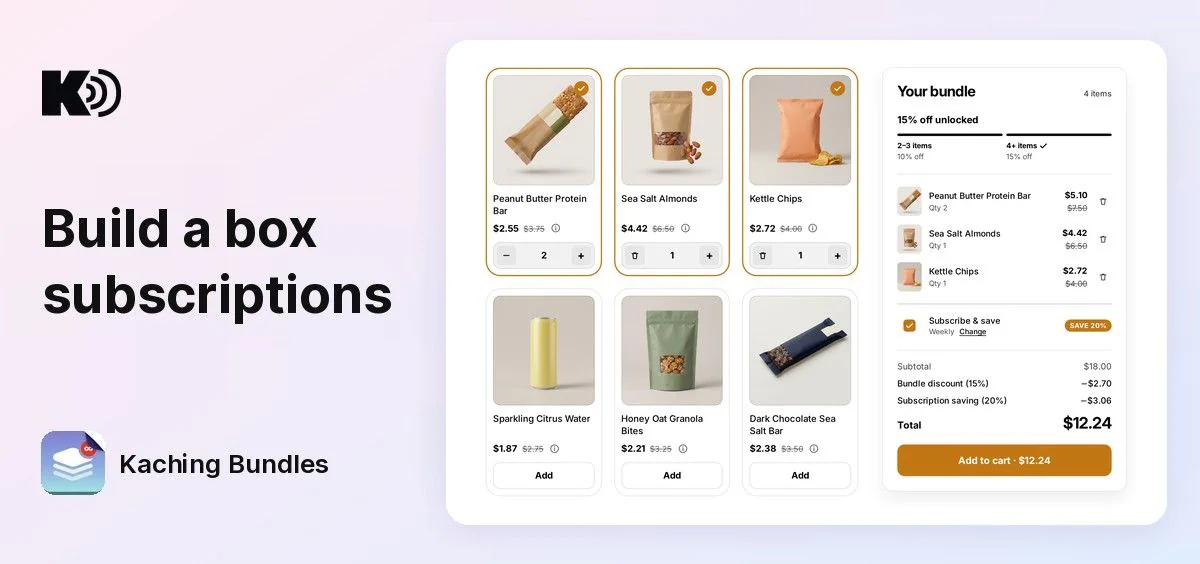
Before, a Build a box sold the box as a one-time purchase only. Now shoppers can subscribe to the whole box with one tick in the box panel. They pick how often it comes and see what subscribing saves, next to the bundle discount.
How to set it up
Open your Build a box and find the Subscriptions card. Turn on Sell subscriptions.
- Purchase options: pick One-time + subscription to let shoppers choose, or Subscription only to sell the box only as a subscription.
- Subscribe selected by default: with One-time + subscription, check it to have Subscribe ticked when the page opens.
- Subscribe title and Subscribe subtitle: the texts of the Subscribe row. They are filled in when you turn the switch on, and you can change them. The subtitle is only for One-time + subscription.
The frequencies come from the selling plans that your subscription app adds to your products. While the switch is on, you can't publish when some products have no selling plan, or when the products have no selling plan with the same name. The error lists the products to fix.
What your shoppers see
- A Subscribe row in the box panel, above the total. On One-time + subscription pages it has a checkbox. On Subscription only pages it has a calendar icon, and the box is always a subscription.
- The frequency: when subscribing, the row shows the name of the selling plan, for example "Deliver every month". With more than one frequency, a Change link lets shoppers pick another. The list holds the frequencies that the products in the box share.
- A saving badge: the row shows Save 10% for what subscribing saves on the box. Before anything is in the box, it shows Save up to 15% when your products save different amounts.
- Subscription saving in the summary: when subscribing, the box summary shows a Subscription saving (10%) line below the bundle discount.
- A line in the price tip: the price tip next to a product's price adds "Subscribe to save 10% more", or "Includes 10% subscription discount" once Subscribe is ticked.
Good to know
- Subscriptions are off until you turn them on in each Build a box.
- A product in the box without the picked frequency shows One-time only in the box and goes to the cart as a one-time purchase.
- A product that your subscription app sells only as a subscription shows Subscription only while the shopper buys once. Shoppers can add it once they tick Subscribe.
- Works with a percentage off and with a fixed box price.
- Shopify checkout shows the Recurring subtotal before the bundle discount. Renewals are still charged with the discount.