







Schedule a cart to go live
Pick the day and time when a cart goes live, and an optional end when another cart goes live again. Kaching Cart makes the switch for you.
Prepare a sale cart days before your sale. Pick when it goes live, and Kaching Cart turns it on at that time, even in the middle of the night. You can also pick an end: then another cart goes live again when the sale ends.
Your store shows one cart at a time. A schedule changes which cart that is, at the times you pick.
Schedule a cart
- On the app's main page, find the cart in Your carts.
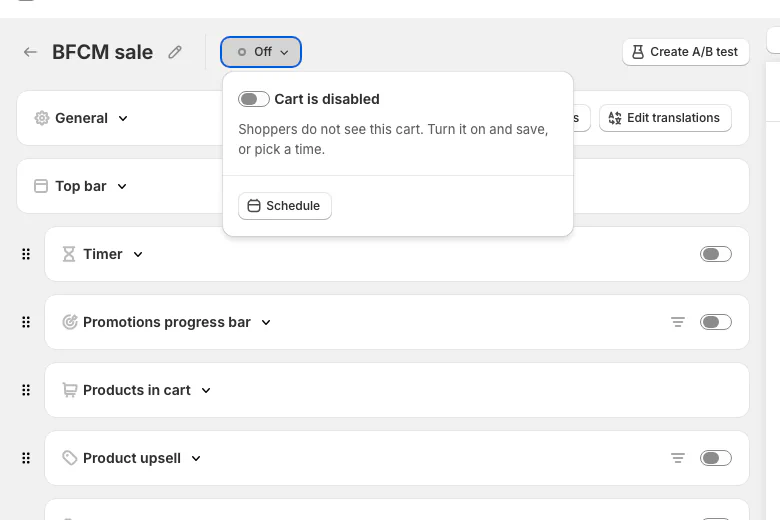
- Click the ⋮ button in its row, then click Schedule. In the cart editor, you can also click the status button at the top of the page, then Schedule.
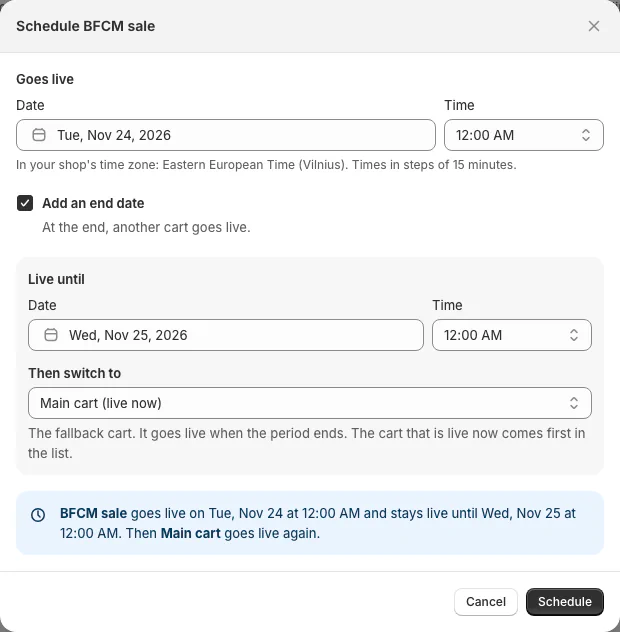
- Pick the date and the time when the cart goes live. Times are in your shop's time zone, in steps of 15 minutes.
- Optional: select Add an end date. Pick when the cart stops being live, and pick the cart that goes live then in Then switch to.
- Read the summary at the bottom of the dialog, then click Schedule. When something must change first, the summary turns red, says what to change, and the field to change turns red too.
See what happens next
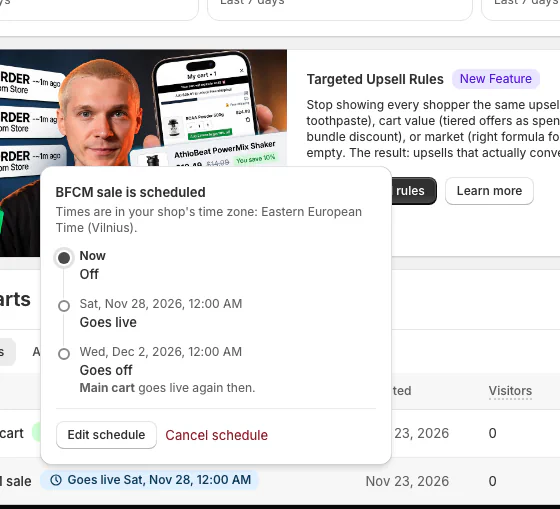
A badge beside the cart's name says its next change, for example Goes live Sat, Nov 28, 12:00 AM or Live until Wed, Dec 2, 12:00 AM. Click the badge to see the timeline of the schedule: what happened, where you are now, and what comes next.
The cart editor shows the same information in the status button at the top of the page.
Change or cancel a schedule
Click the ⋮ button in the cart's row, then Edit schedule or Cancel schedule. You can also use the buttons in the timeline.
When the cart is live by its schedule, its start is in the past, so it cannot change. You can still move the end, pick another cart for the end, or remove the end date. Without an end date, the cart stays live until you change it.
When you turned the cart off while its schedule runs, you can cancel the schedule. No cart changes then, and the cart for the end does not go live.
Good to know
- A turn on or off by hand does not change a schedule. At each time you picked, the planned cart goes live. When you turn off a cart that is live by its own schedule, we ask if you want to stop its schedule too.
- Two schedules cannot overlap. One sale can end at the same time as the next one starts, when the first sale's end turns on the next sale's cart.
- You can have 10 waiting schedules at most.
- A cart that a schedule needs cannot be deleted. The delete dialog lists each schedule that needs the cart, with a button for each. Change or cancel them, then delete the cart in the same dialog.
- A/B tests: when the cart that goes off runs an A/B test, the test pauses while the other cart is live. It goes on when that cart is live again.
- Your plan: a cart goes live only when your shop has a plan. The schedule dialog warns you when your shop has none.
- If a cart did not go live, its badge turns red, and the timeline says why.
Need help? Message us in the in-app live chat, and we'll sort it out together.