





How to Set Up the Klaviyo Integration
Trigger email flows with subscription, payment and renewal events.
 Klaviyo · Marketing5 min read
Kaching Subscriptions connects with Klaviyo using Klaviyo Flows.
Whenever something important happens with a customer's subscription (like when they create a new subscription, pause it, or have a successful payment), Kaching automatically sends that event along with detailed customer and subscription data to Klaviyo.
Once these events arrive in Klaviyo, you can create powerful automation flows that trigger emails based on specific events.
Supported events
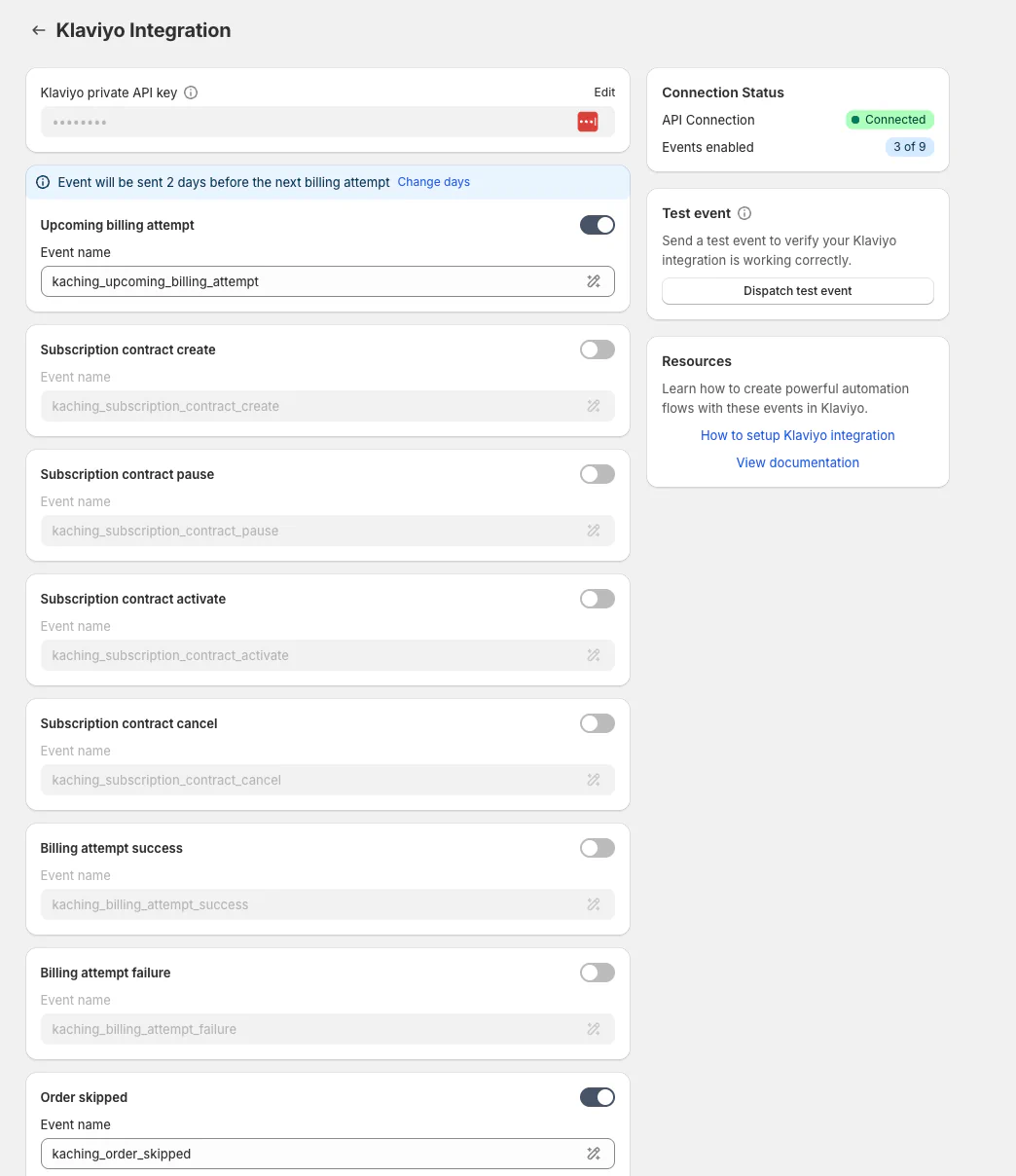
Kaching Subscriptions currently supports 9 different subscription events that you can use to trigger Klaviyo flows:
Subscription Lifecycle Events
- Subscription contract create: Triggered when a customer creates a new subscription.
- Subscription contract pause: Triggered when a customer pauses their subscription.
- Subscription contract activate: Triggered when a customer resumes a paused subscription.
- Subscription contract cancel: Triggered when a customer cancels their subscription.
Billing & Payment Events
- Billing attempt success: Triggered when a subscription renewal payment is successfully processed. You can use this to confirm the payment and let customers know when to expect their order.
- Billing attempt failure: Triggered when a subscription renewal payment fails. Critical for notifying customers about payment issues so they can update their payment method before their subscription is affected.
- Upcoming billing attempt: Triggered one day before subscription renewal date. Number of days before the next billing attempt can be adjusted.
Order Management Events
- Order skipped: Triggered when a customer skips an upcoming order.
- Order unskipped: Triggered when a customer unskips a previously skipped order.
Setting up your first Klaviyo flow: Subscription Cancelled
Let's walk through creating a Klaviyo flow for when a customer cancels their subscription.
Before You Start
Make sure you've already:
- Connected your Klaviyo account to Kaching Subscriptions by entering your Klaviyo private API key: How to create Klaviyo private API key
- Enabled the "Subscription contract cancel" event in your integration settings
- Noted the event name you're using (the default is
kaching_subscription_contract_cancel)
Step 1: Create a New Flow in Klaviyo
- Log in to your Klaviyo account
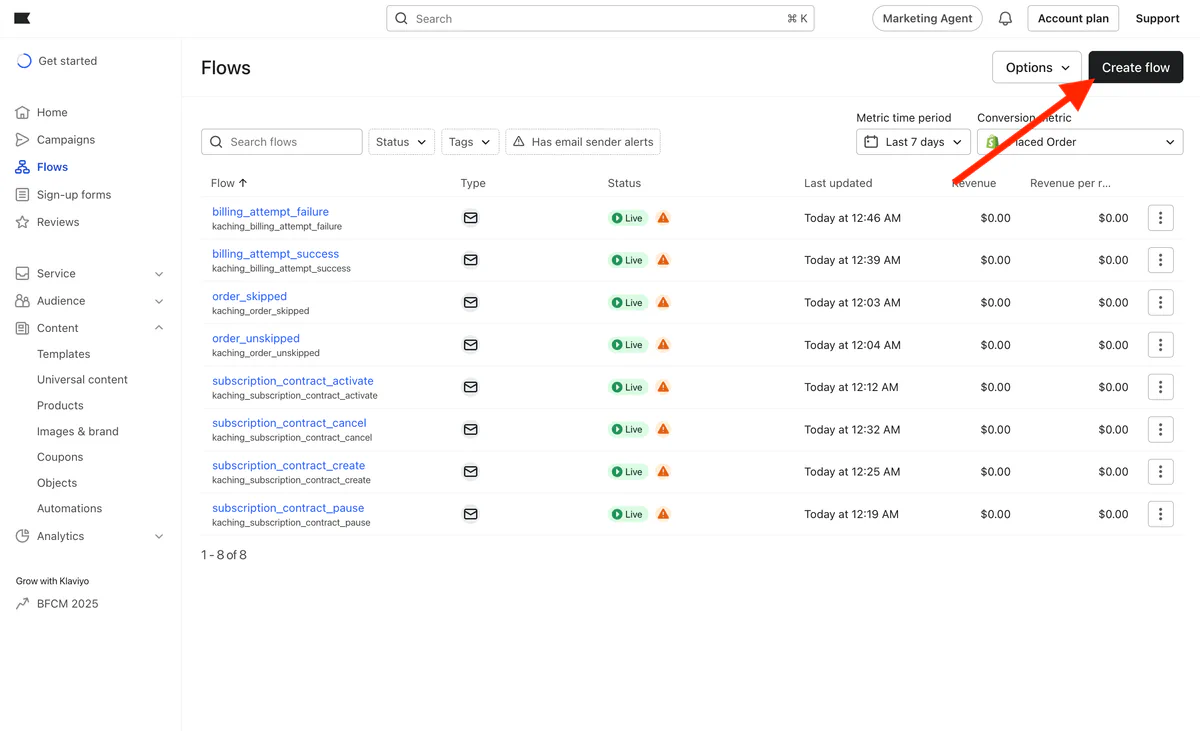
- Navigate to Flows in the left sidebar
- Click Create Flow in the top right corner
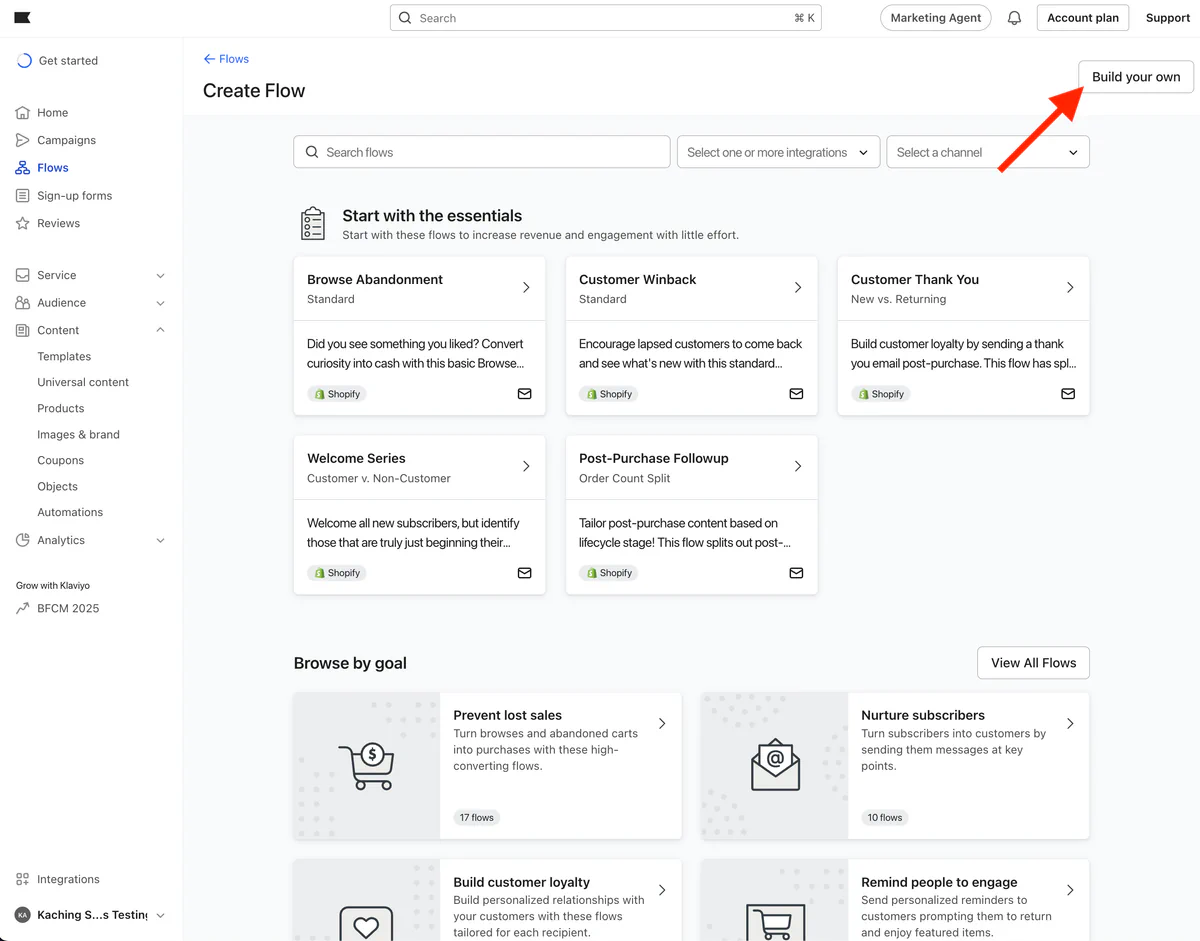
- Select Build your own (this gives you full control)
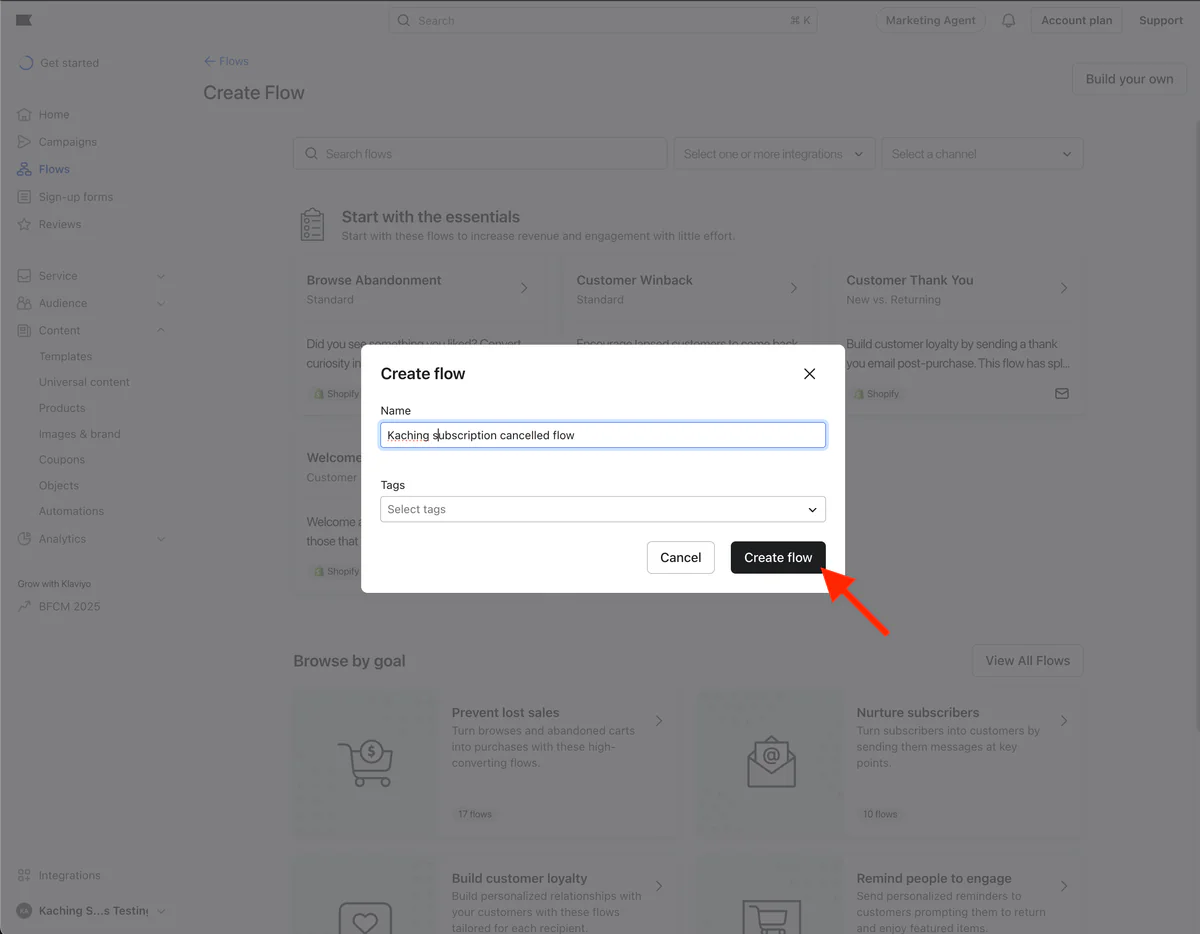
- Give it a name "Kaching subscription cancellation flow" and click Create flow:
Step 2: Add the event trigger
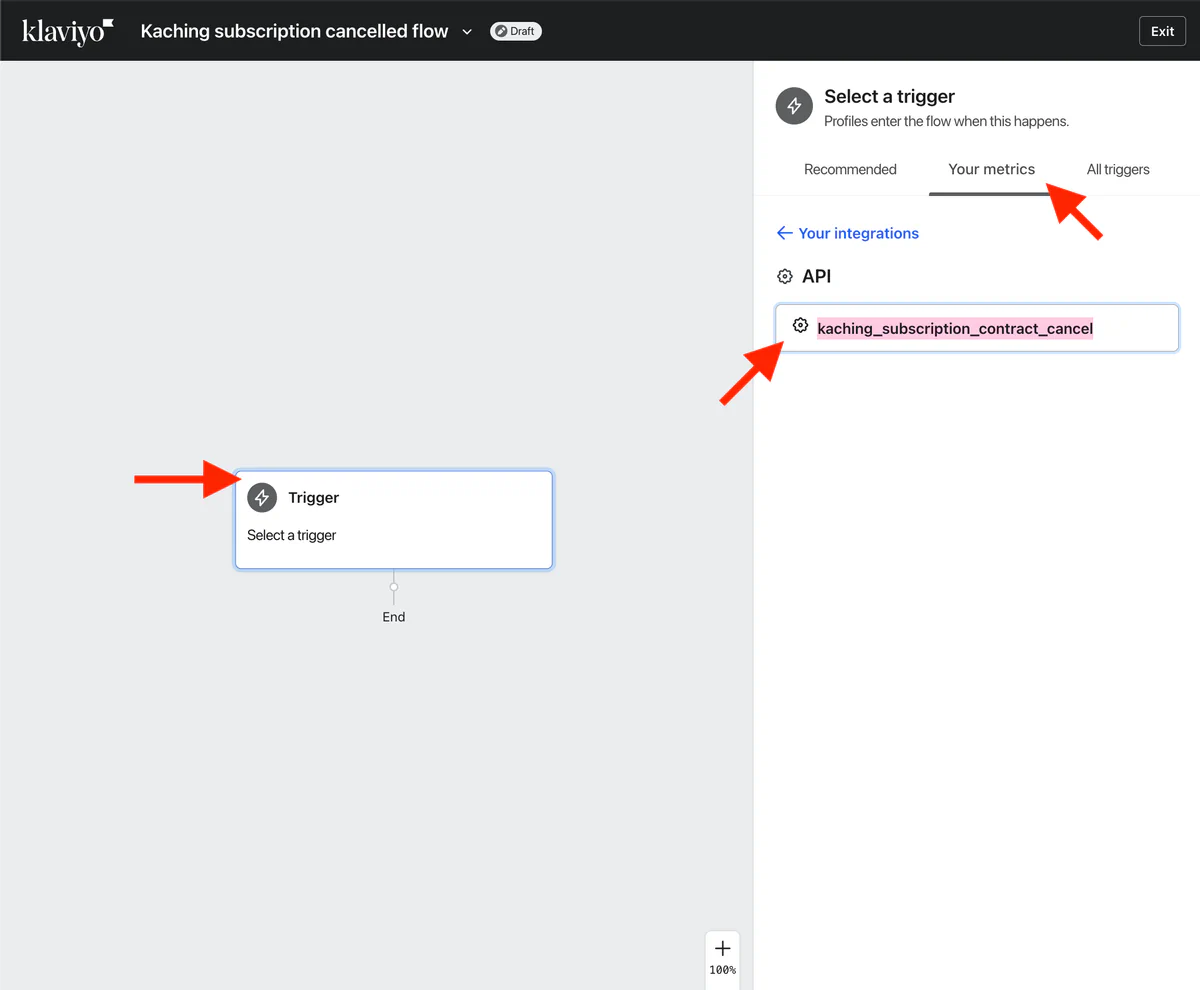
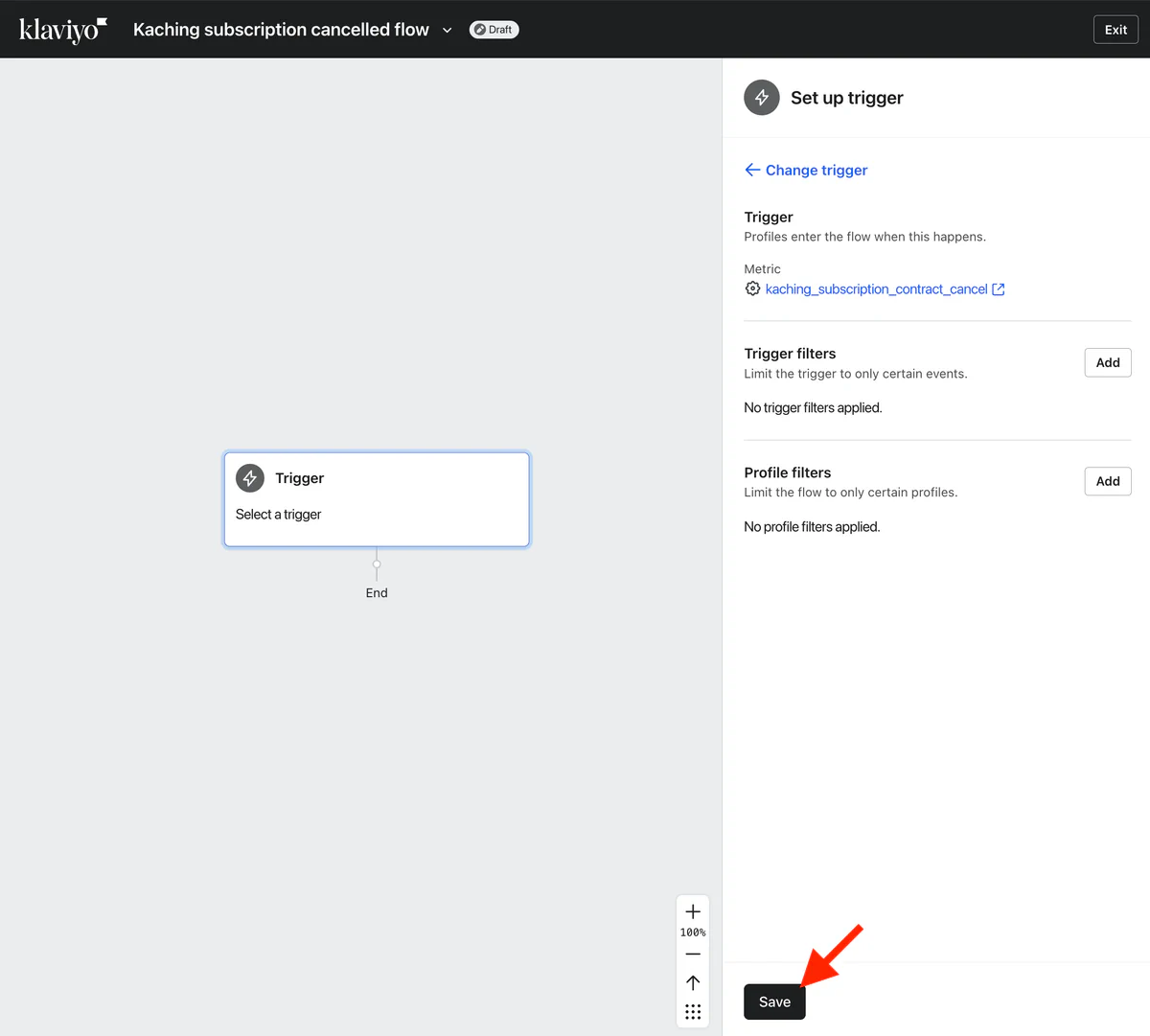
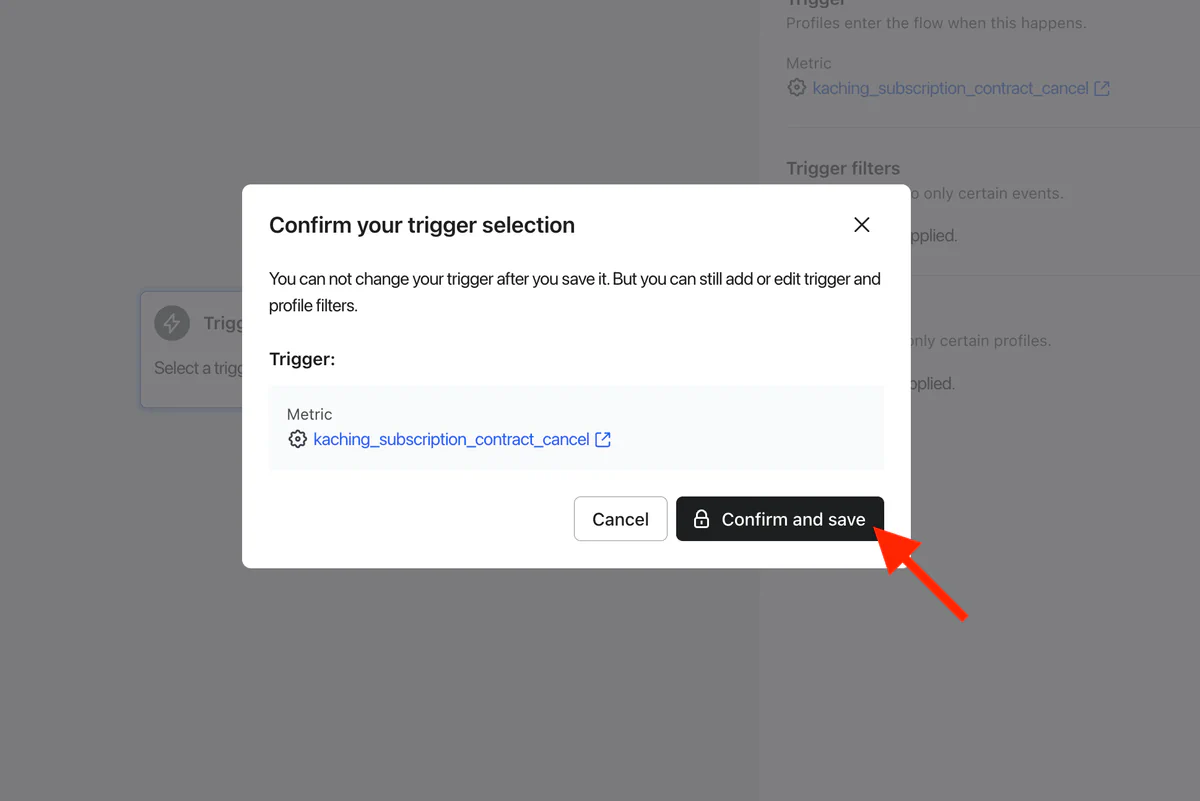
- Click on the trigger block that appears in your new flow
- Select Your Metrics > API as the trigger type
- Find the event name you configured in Kaching Subscriptions (e.g.,
kaching_subscription_contract_cancel)
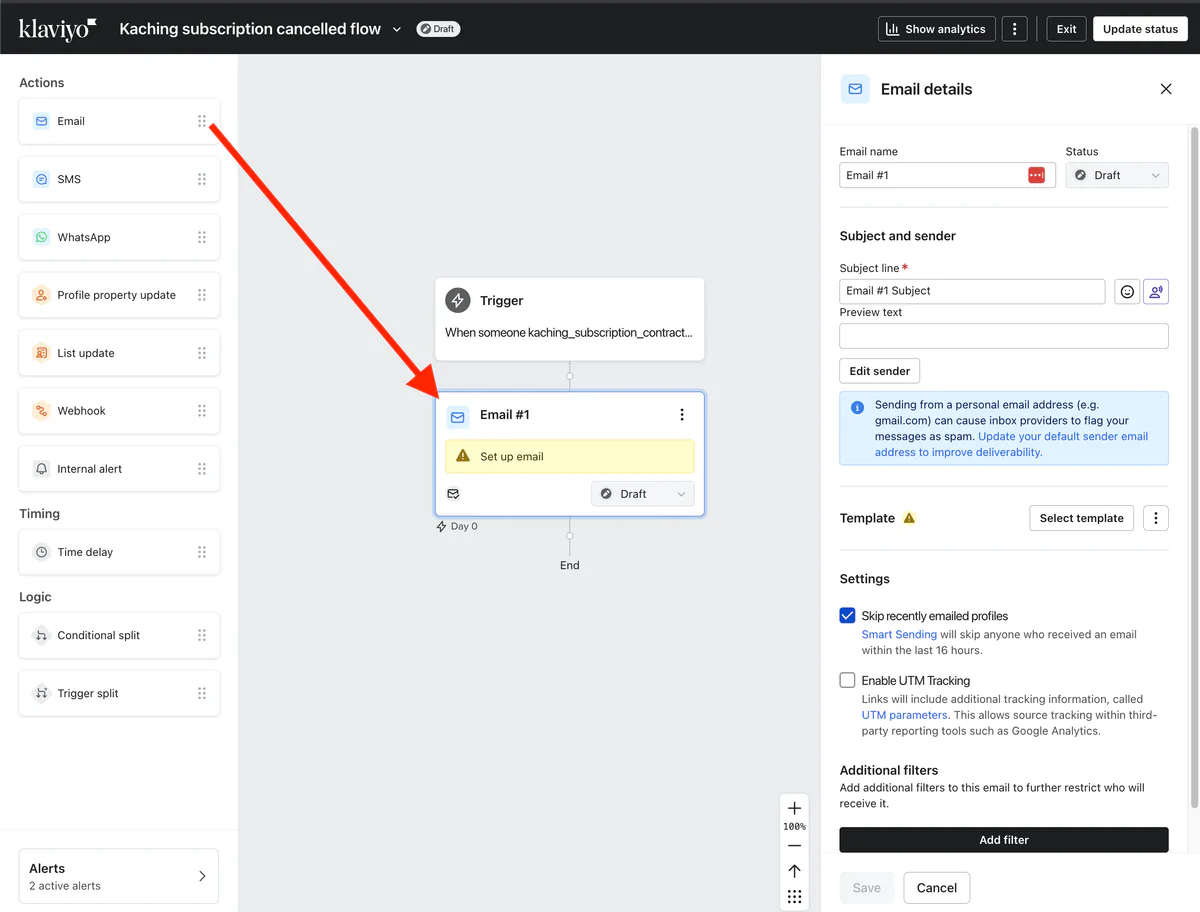
Step 3: Add an email action
- Drag & drop Email from the actions menu
Step 4: Import the pre-designed email template
Good news! You don't have to design your email from scratch. We've created professional email templates for all 9 events that you can use right away.
Download the Template:
- Visit our templates repository: https://github.com/kachingappz/subscriptions-integrations/tree/main/Klaviyo/templates
- Find the template for "subscription_contract_cancel"
- Copy the HTML
Import the Template into Klaviyo:
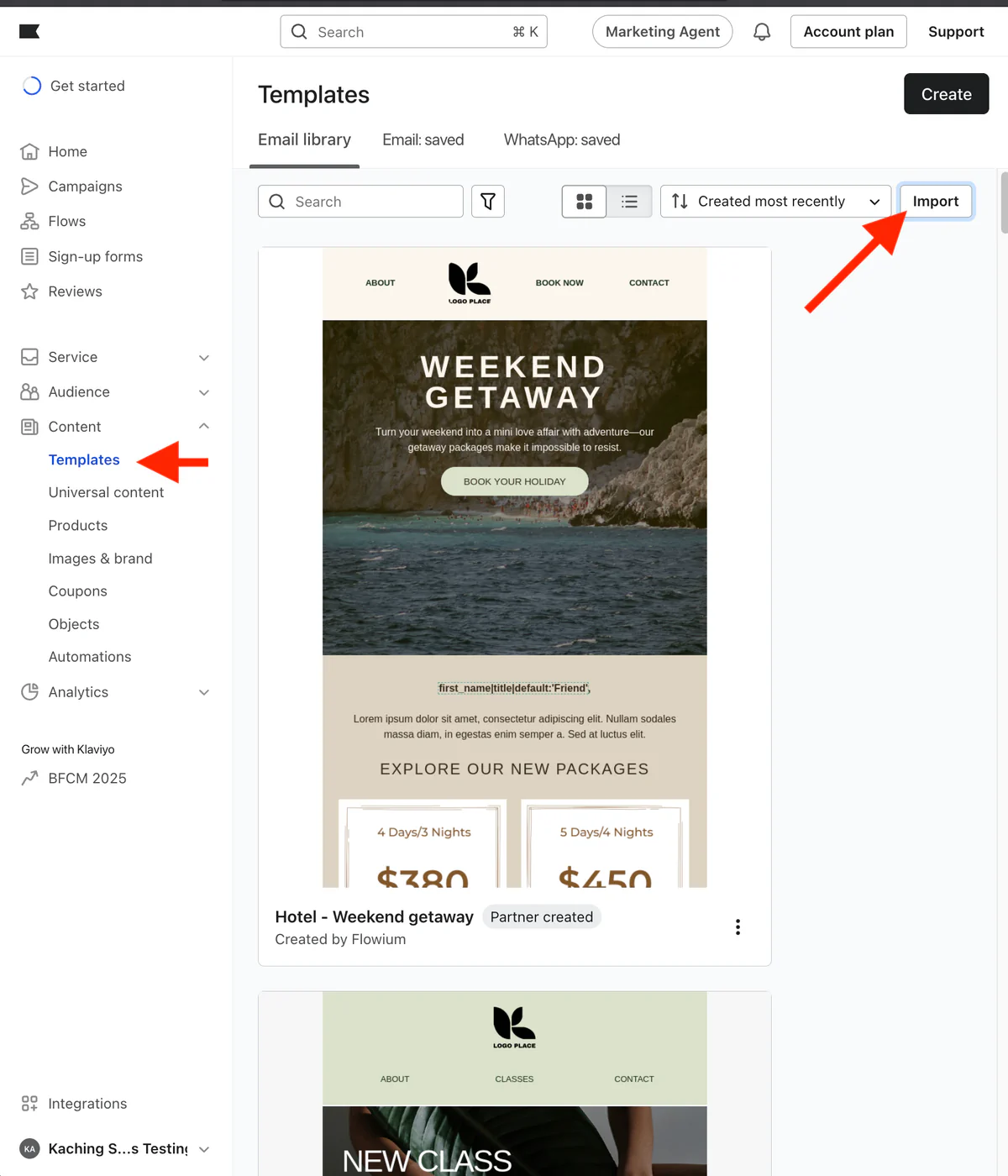
- Open Templates
- Click Import
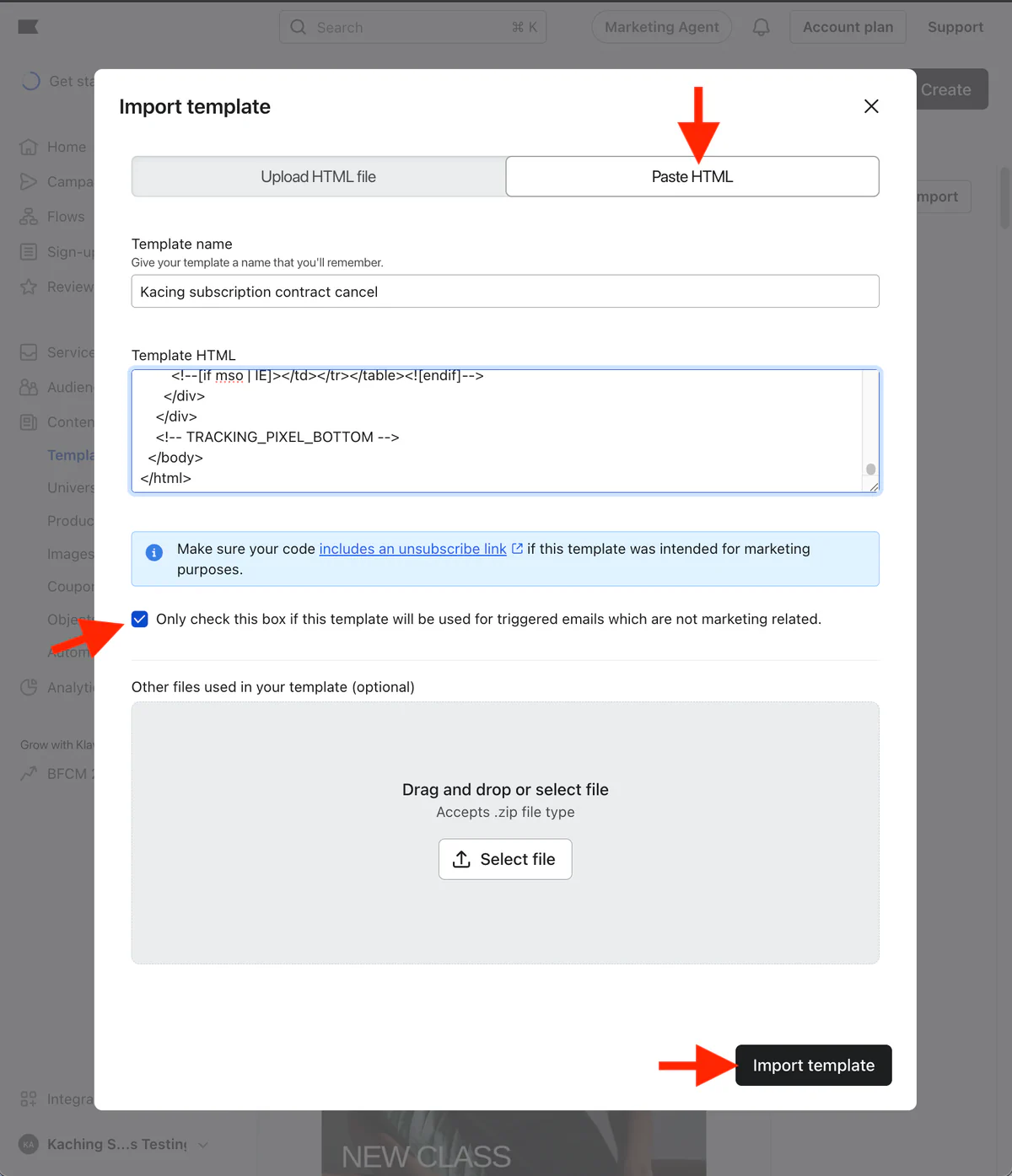
- Select Paste HTML tab
- Give template name "Kacing subscription contract cancel"
- Paste HTML into the Template HTML field
- Check the "Only check this box if this template will be used for triggered emails which are not marketing related." checkbox and click Import template
Step 5: Use template in the email action
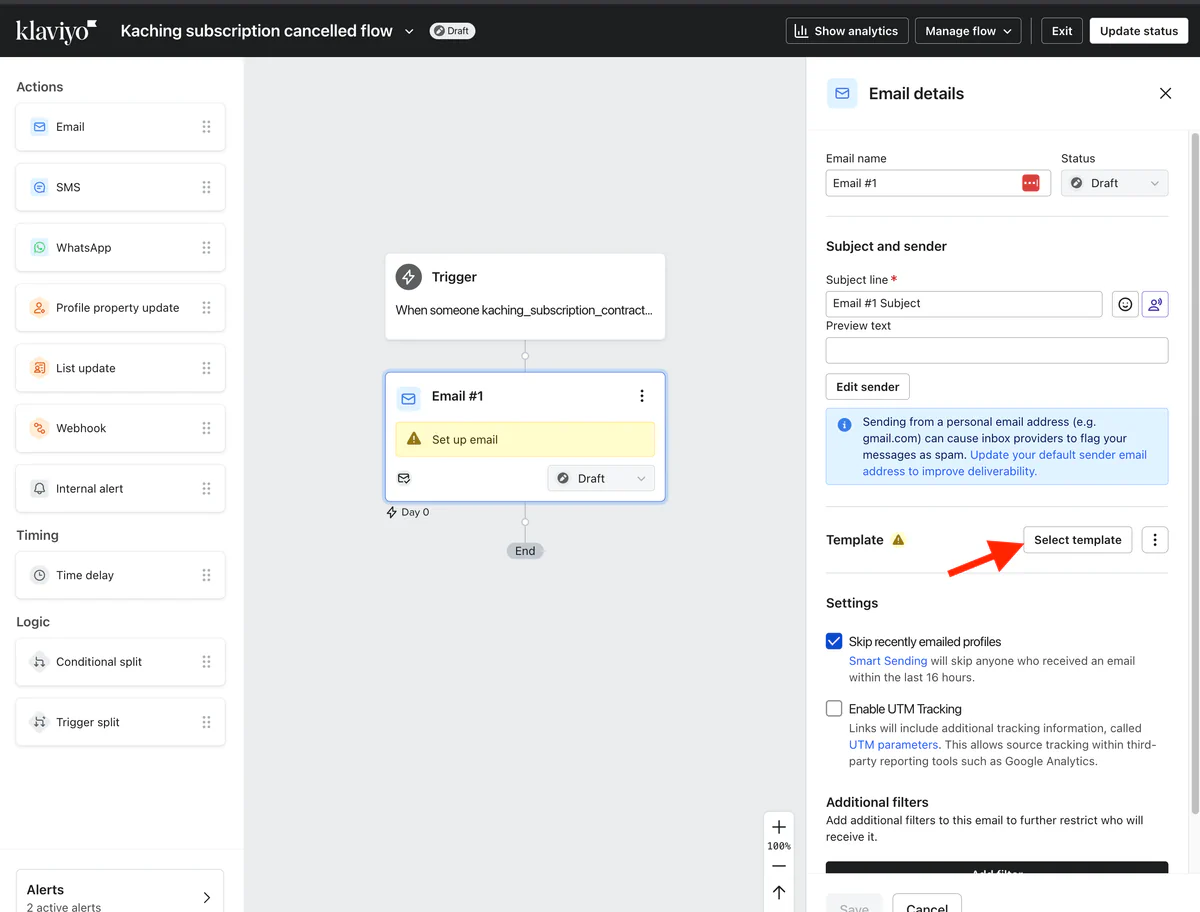
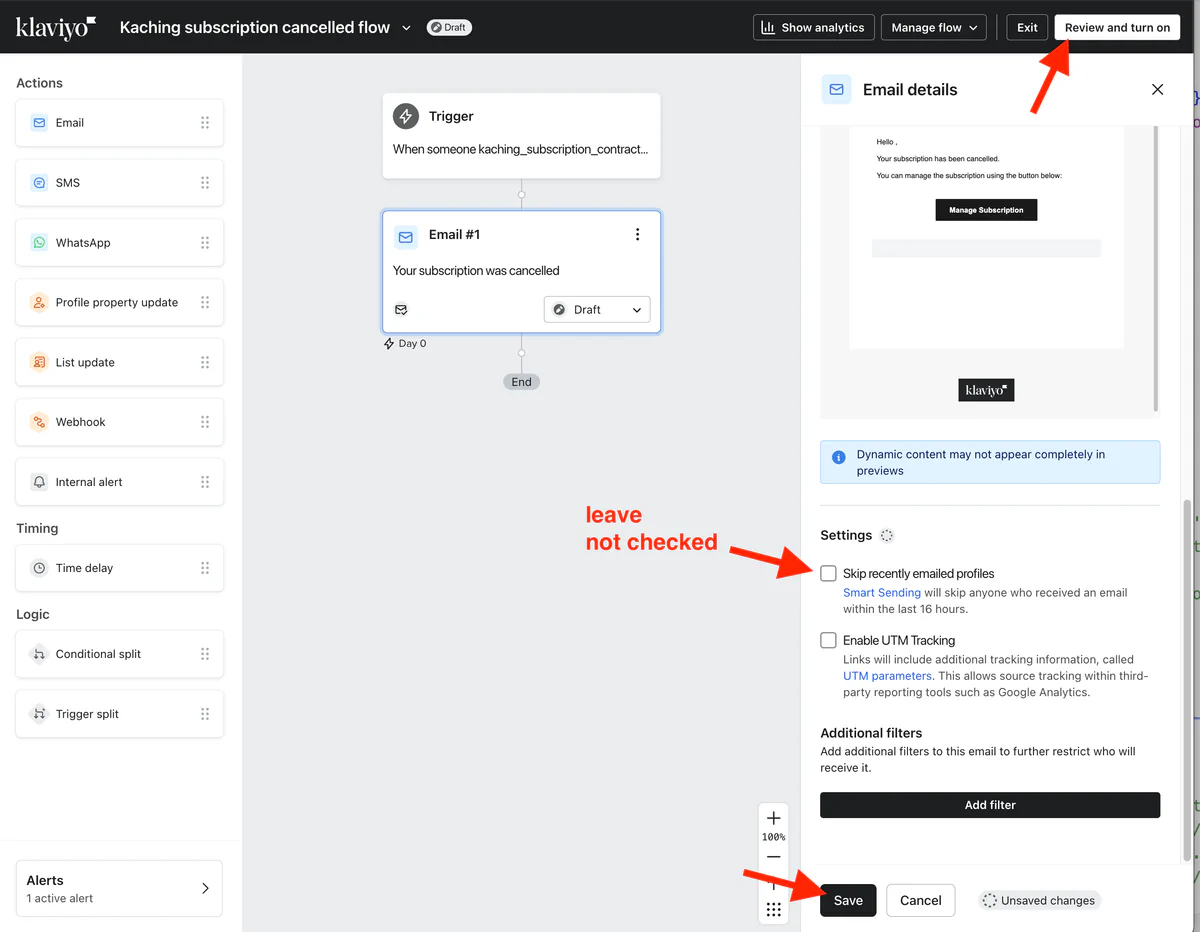
Now that you've created a template, you can fill out the email details for the action:
- Set the email name
- Set the subject line
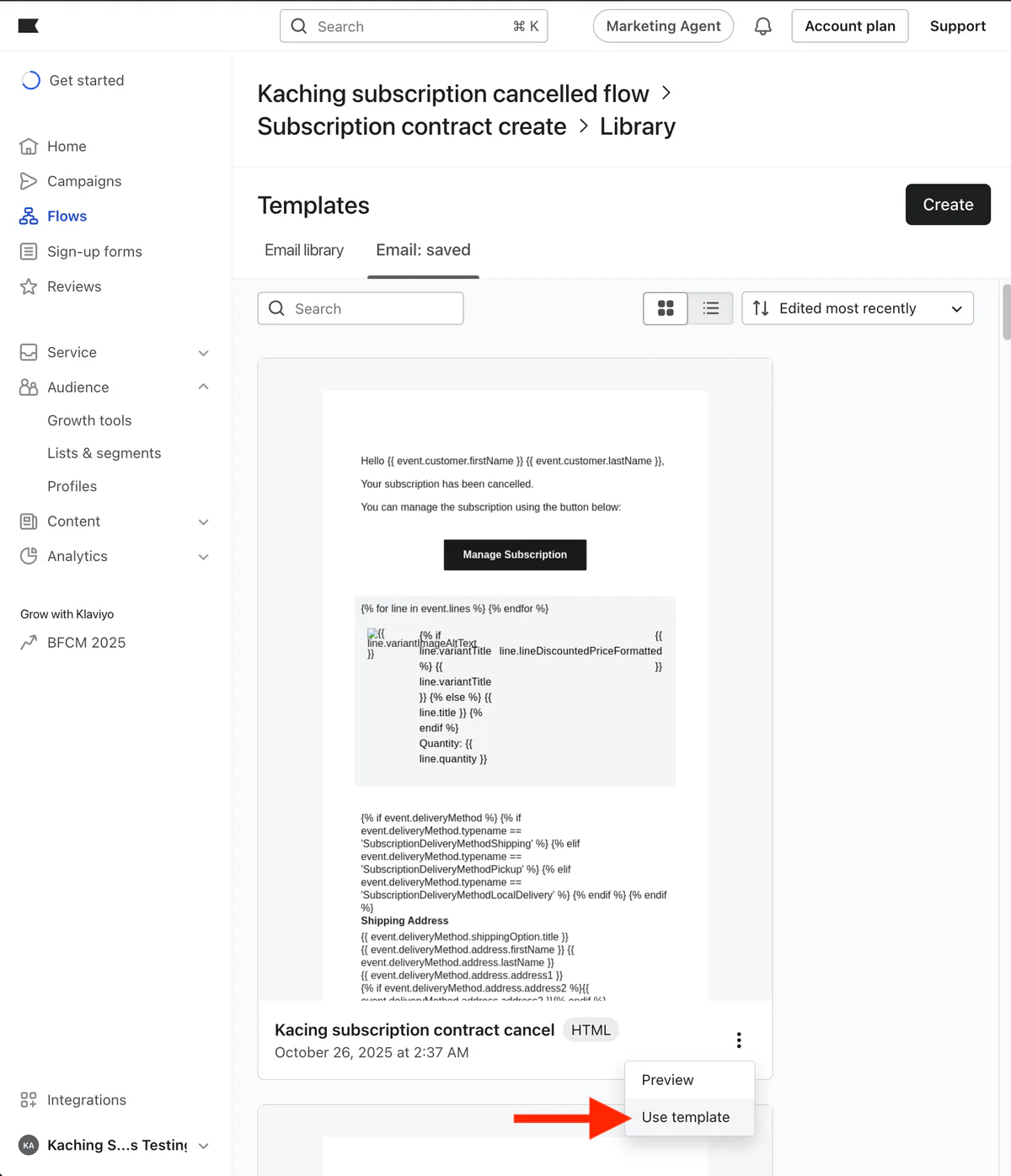
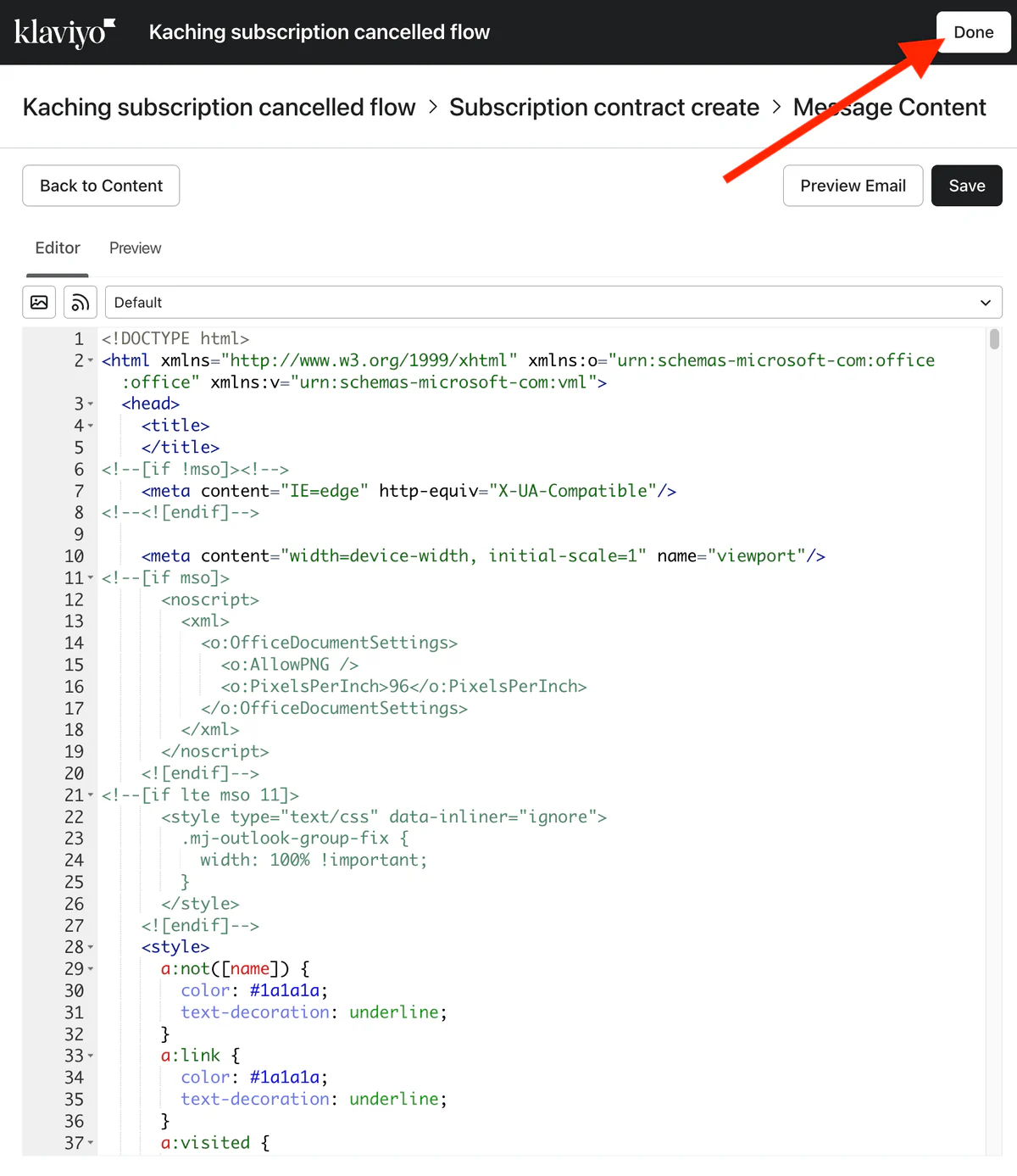
- Select the template
- Uncheck the "Skip recently emailed profiles" setting
- Click Save
- Click Review and turn on > Save
Verify your flow is working
After completing these steps, your Klaviyo flow should be live! But before you call it done, let's make sure everything is working correctly.
Test your flow:
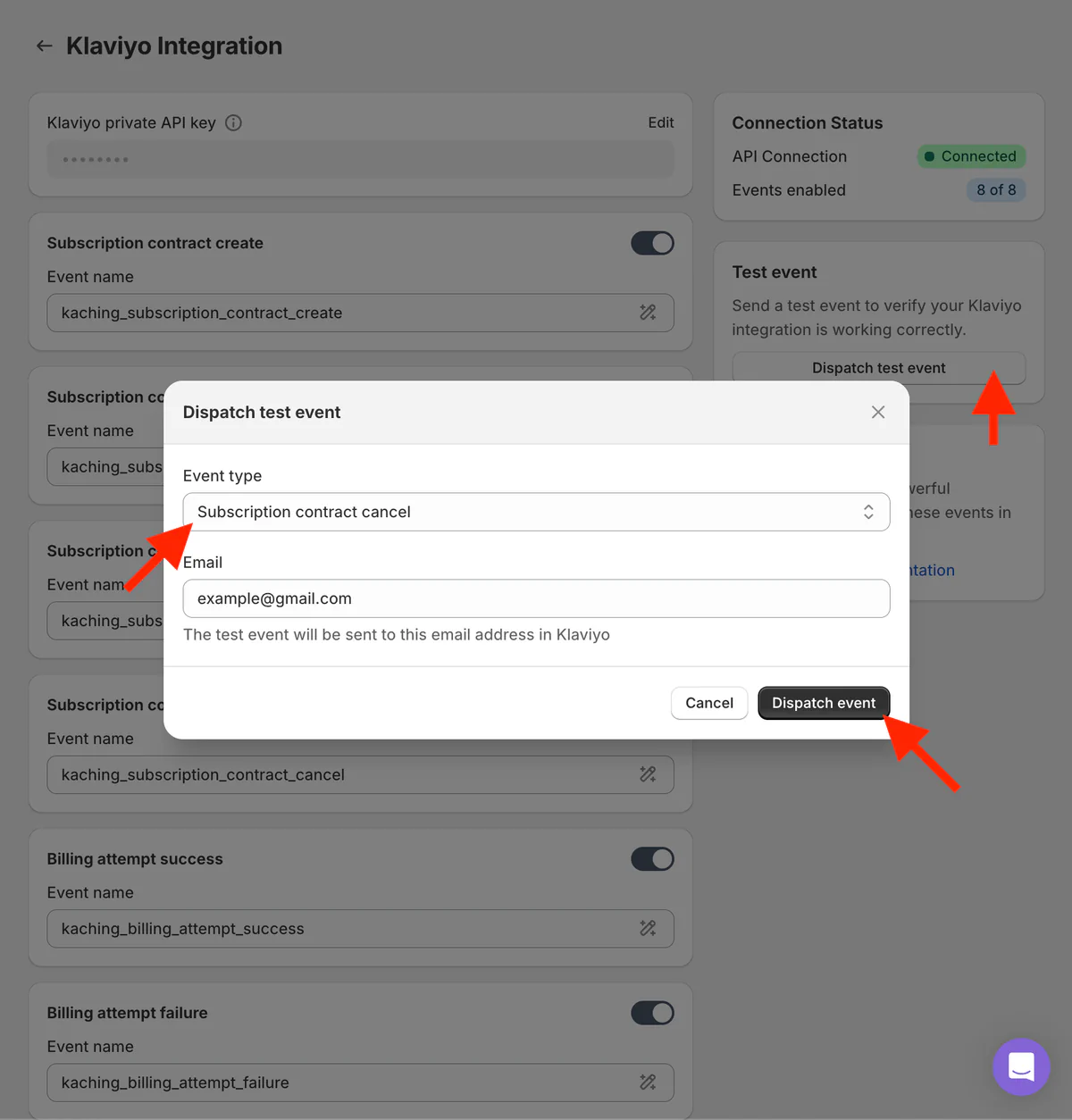
- Go back to your Kaching Subscriptions dashboard
- Navigate to Settings > Integrations > Klaviyo
- Click Dispatch test event
- Select "Subscription contract cancel" as the event type
- Enter your email address
- Click Dispatch event
Within a few moments, you should receive the email. Don't forget to check your spam folder if it doesn't appear in your inbox right away!
Monitor Flow Activity:
To see if your flow is being triggered properly:
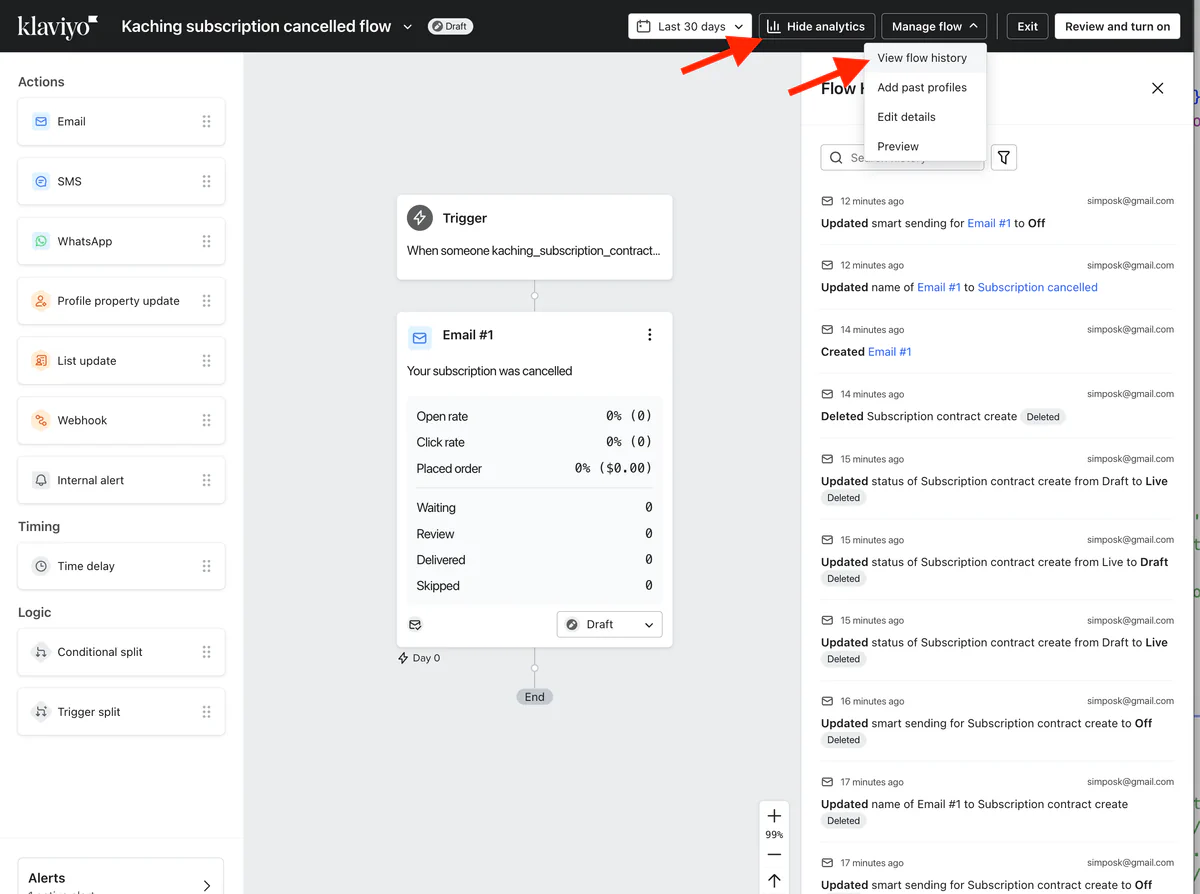
- In Klaviyo, go to your flow and click on it
- Turn on Analytics (if not already enabled) to track performance metrics like open rates and click rates
- Enable Flow History to see a real-time log of when the flow triggers and for which customers
- Check the flow history after sending your test event - you should see it listed there
View Event Data in Klaviyo:
Want to see the actual event data that Kaching sent to Klaviyo?
Here's how:
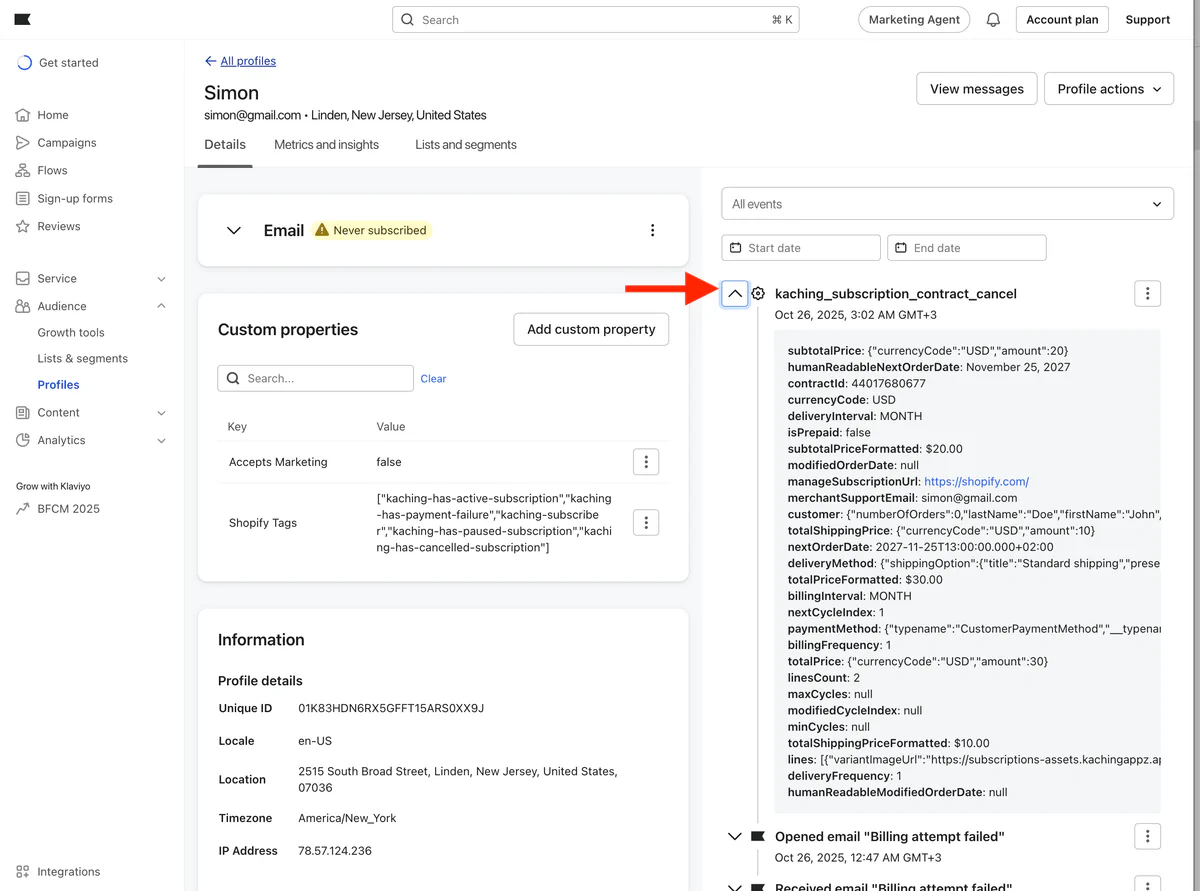
- Exit the flow editor and go to Audience > Profiles in Klaviyo
- Search for and click on the email address you used for the test event
- On the right you should see events feed section
- Look for the
kaching_subscription_contract_cancel event(or whatever you named it) - Click on the event to see the complete payload with all the subscription data
If you want to see all the available data fields and their types for each event, check out our comprehensive guide: Klaviyo Event Payload Structure
Congratulations! 🎉
You've successfully set up your first Klaviyo flow with Kaching Subscription.