




How to Set up Subscriptions on Shopify: Step-by-Step Guide
Shopify subscriptions let a customer buy a product once and get it again on a schedule, with the card charged automatically each time. Shopify can't do the scheduled billing on its own. A subscription app handles it, either the free Shopify Subscriptions app or a third-party one that runs on top of Shopify's purchase options.
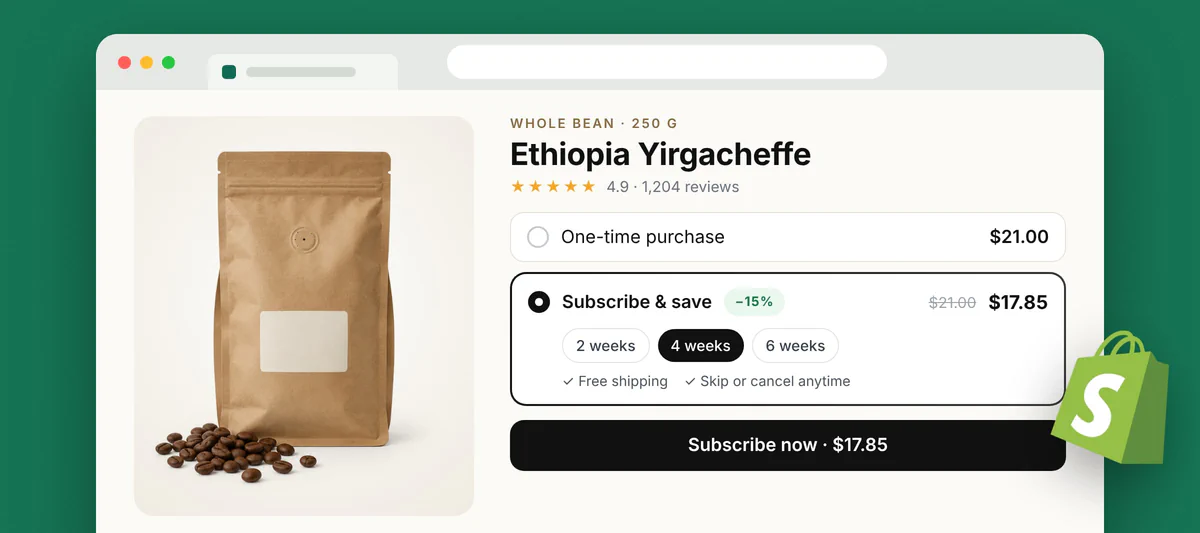
Below is how to set up subscriptions on Shopify in six steps: install a subscription app, create your plans, add the widget to product pages, turn on the customer portal, set up emails and payment retries, and place a test order. My worked example is Kaching Subscriptions.
Why should you offer subscriptions on Shopify?
You should offer subscriptions on Shopify because a subscriber keeps buying until they cancel, while a one-time buyer has to be won back with ads or email every single time. If you sell goods like coffee, pet food, supplements or skincare, a subscription model shows up in your margins within a few months.
Predictable recurring revenue
Subscription revenue is usually recurring each month, which makes it easy to predict next month's revenue and plan stock accordingly. Cash flow also improves, because a predictable monthly revenue stream replaces the guesswork that comes with one-time sales.
Higher customer lifetime value (LTV)
Six deliveries from one subscriber means six orders from a single acquisition cost. That math is why subscription brands can spend more to win a customer in the first place.
Bigger first orders with prepaid plans
Prepaid plans let a customer pay for several deliveries upfront. IntegroPet, a pet supplement brand that runs Kaching Subscriptions next to Kaching Bundles, saw subscription customers match a typical customer's annual revenue within their first two months.
What do you need before you set up subscriptions on Shopify?
Before you set up subscriptions on Shopify, you need a payment gateway that supports subscriptions, a subscription app, and a sales channel that can sell subscription products. Sort the gateway first. Changing it after launch can mean asking every subscriber for new card details.
A supported payment gateway
Shopify lists five gateways for subscription products in its subscription considerations: Shopify Payments, PayPal Express, Authorize.net, Adyen and Stripe. Availability depends on your region. Klarna, iDEAL and other buy now, pay later or local methods won't process renewals, so if you sell abroad, check which of the five works in your country before picking an app.
A subscription app
The free Shopify Subscriptions app covers basic subscribe and save. It sits at 3.8 stars from 880 reviews on the App Store, and a lot of the poorly rated reviews come from merchants whose customers couldn't edit or cancel on their own. Third-party apps add features such as retention offers, deeper analytics, bundles and better customer portals.
Sales channels
Shopify supports subscription products on the online store, Shopify POS, Shop and custom storefronts. Marketplace channels connected through other apps won't sell them. If a big slice of your orders comes from somewhere else, plan for that now.
How to create subscriptions on your Shopify store?
To create subscriptions on your Shopify store, you install a subscription app, attach plans to products, place the widget, switch on the customer portal, configure emails and retries, and run one test order through the whole flow.
Step 1: Install a subscription app
Install a subscription app of your choice from the Shopify App Store.
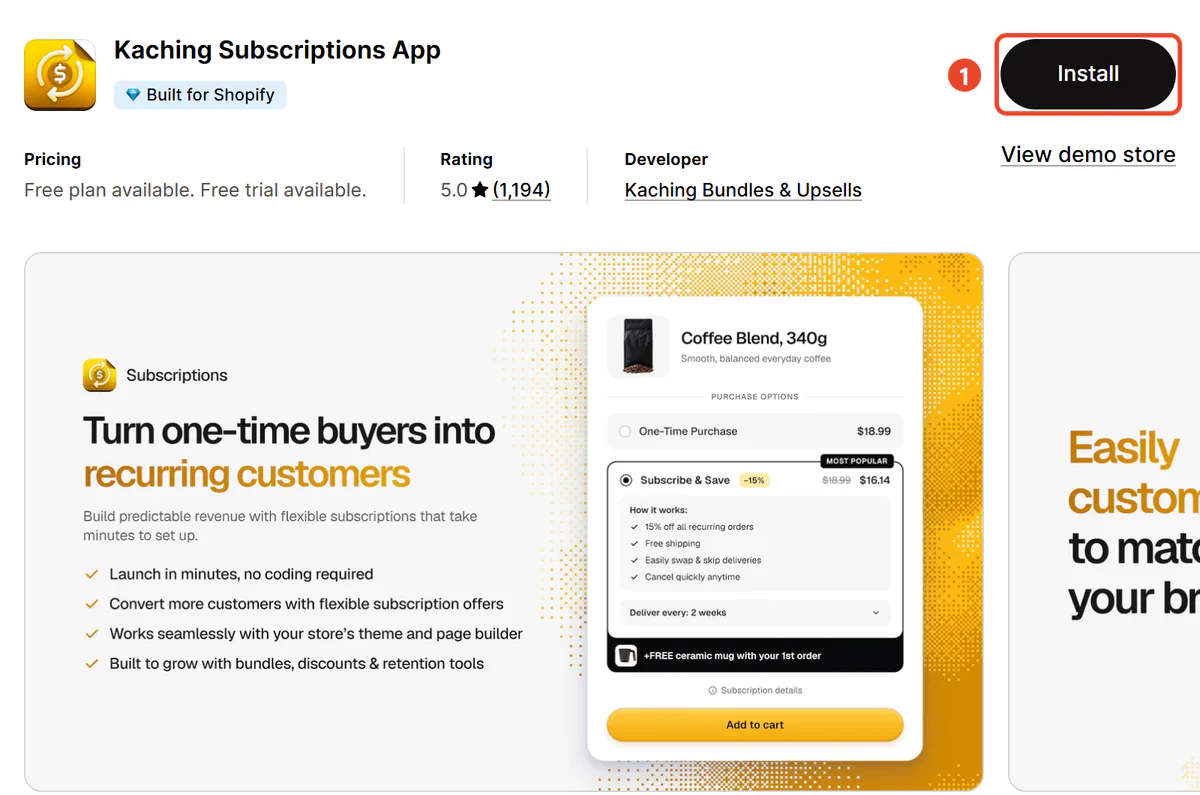
Step 2: Create your subscription plans
Attach a subscription plan to your products or collections and set its delivery frequency, discount and duration, for example monthly at 10% off. Add more options, such as every two months or a prepaid plan, if you want to give customers a choice.
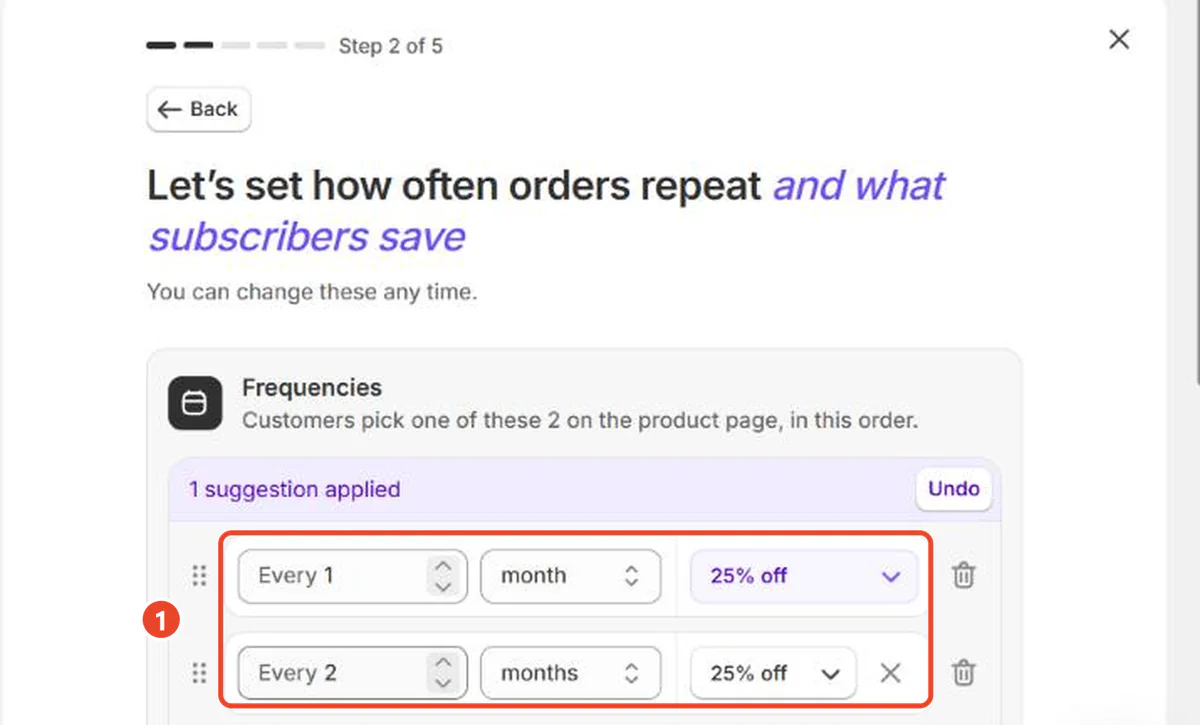
Step 3: Add the subscription widget to product pages
In the Shopify theme editor, open App embeds, switch Kaching Subscriptions on and click Save to place the widget on your product pages. Then edit the widget's default text and show the saving, such as "Save 15%", next to the subscription option.
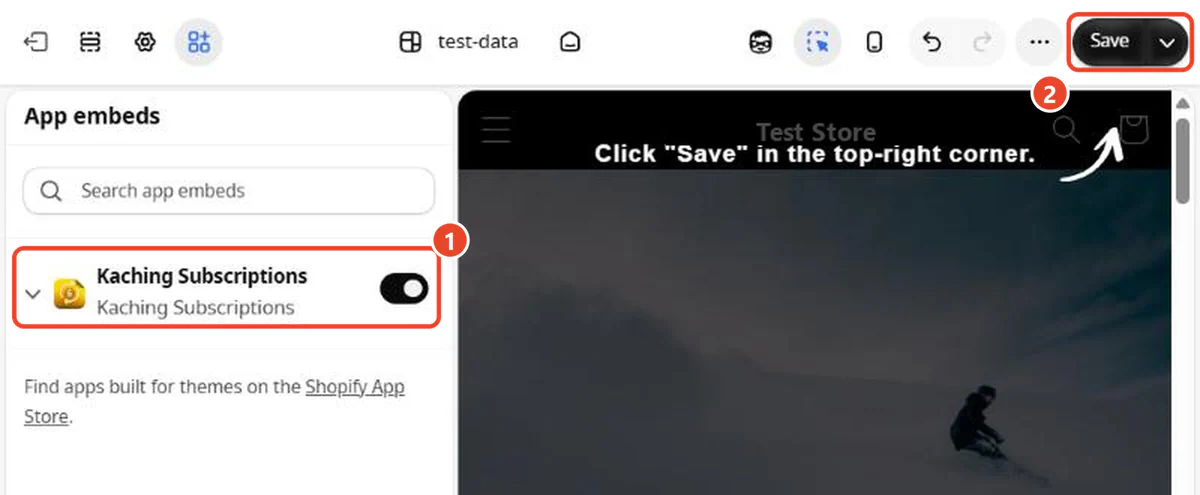
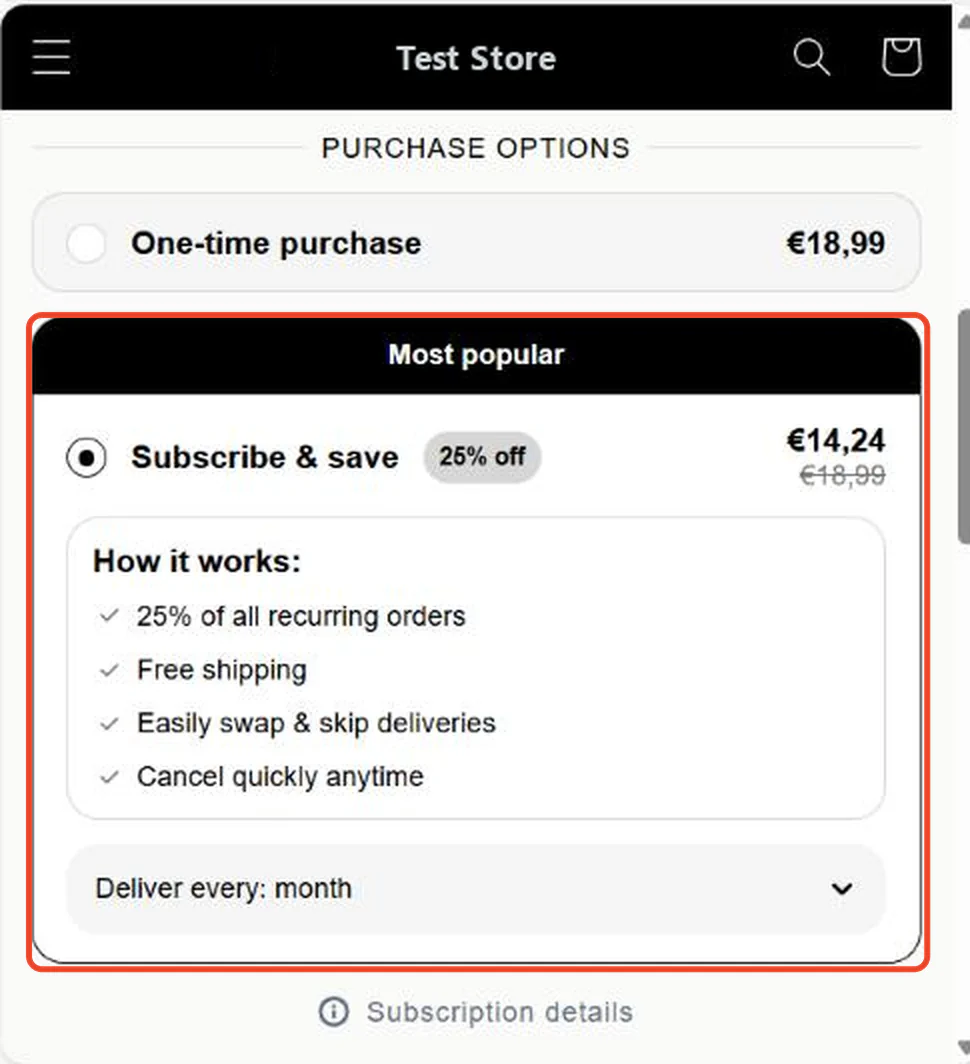
Step 4: Turn on the customer portal
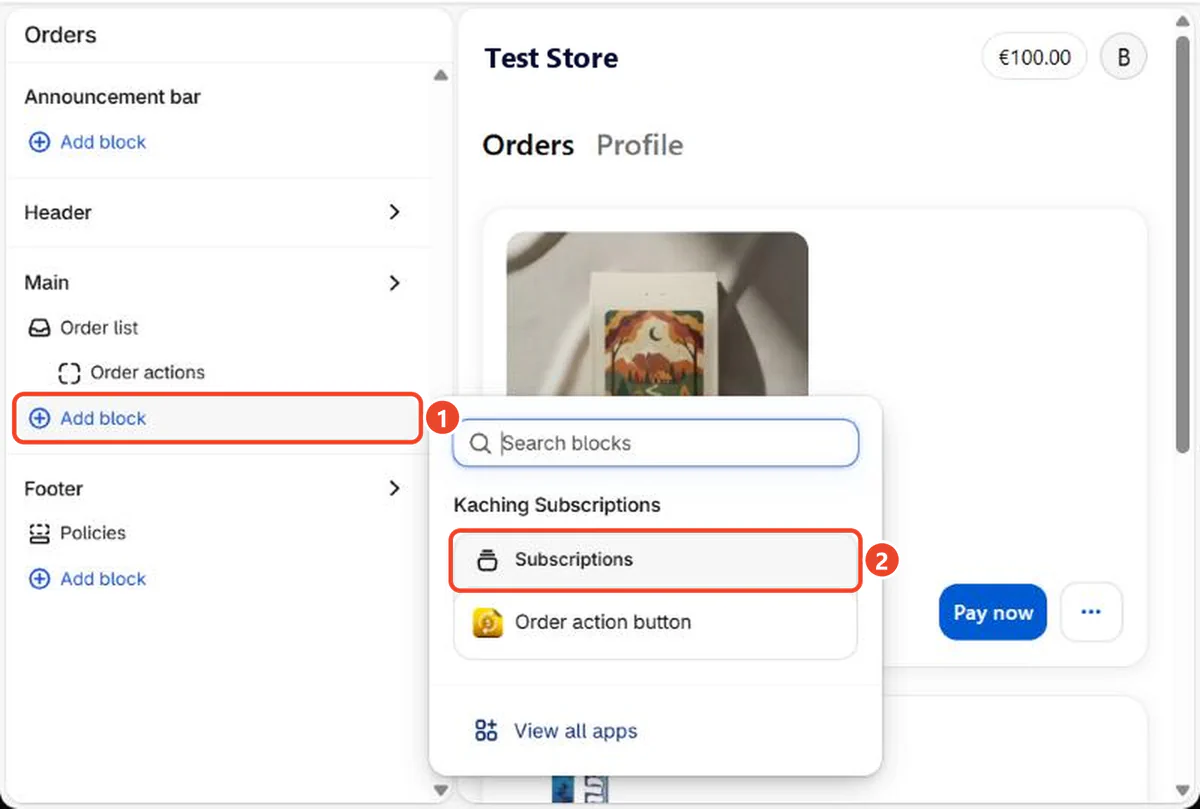
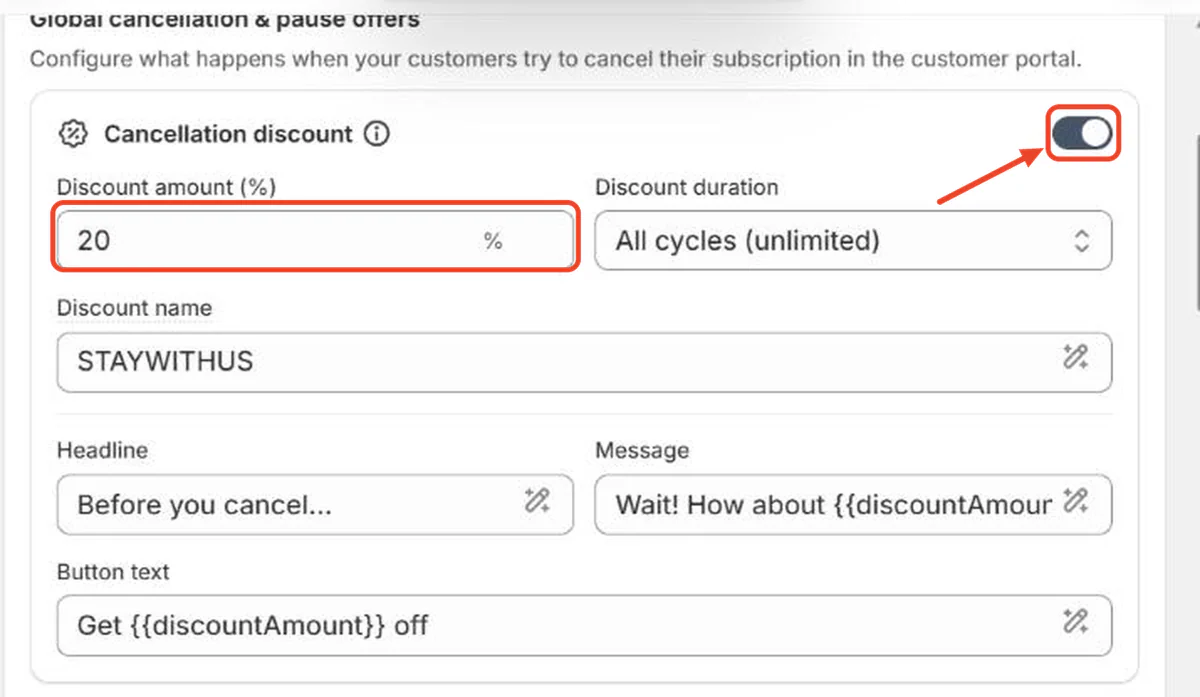
Go to Settings, then Checkout, open the editor, switch to a customer accounts page and add the Kaching Subscriptions block so subscribers can skip, pause, swap or cancel on their own. Then choose what subscribers may change and set up cancel and pause offers under Customer portal.
Step 5: Set up subscription emails and failed payment retries
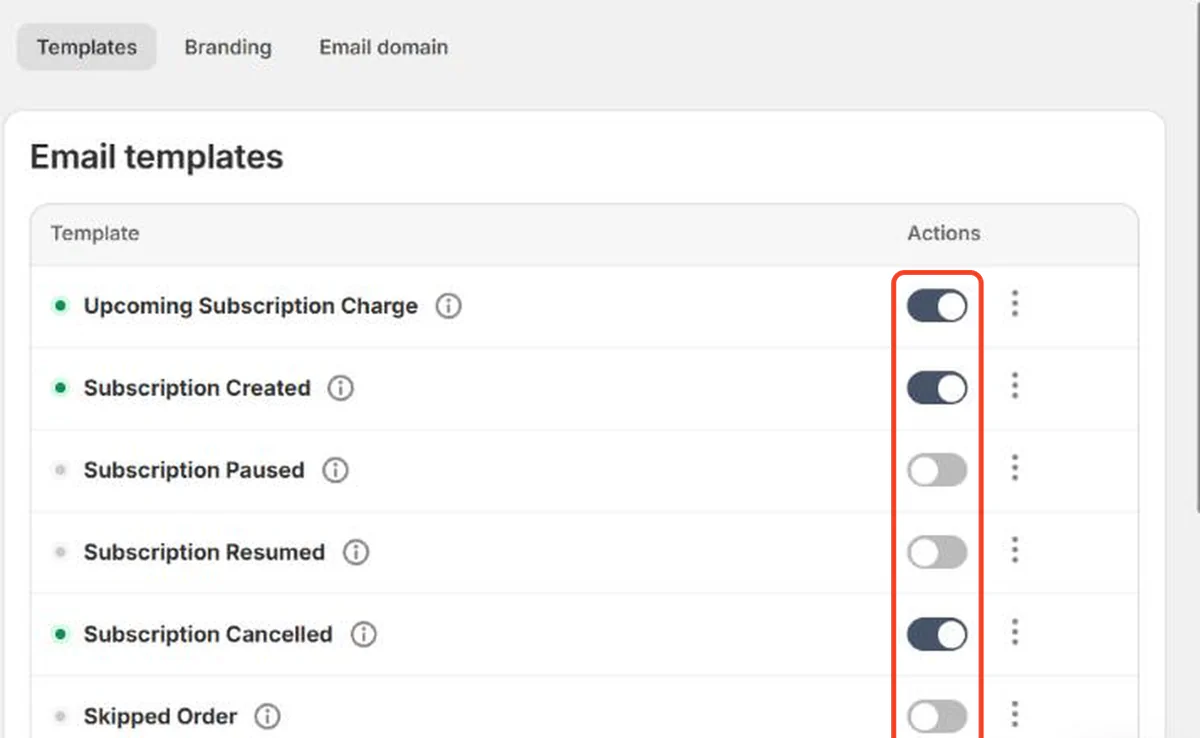
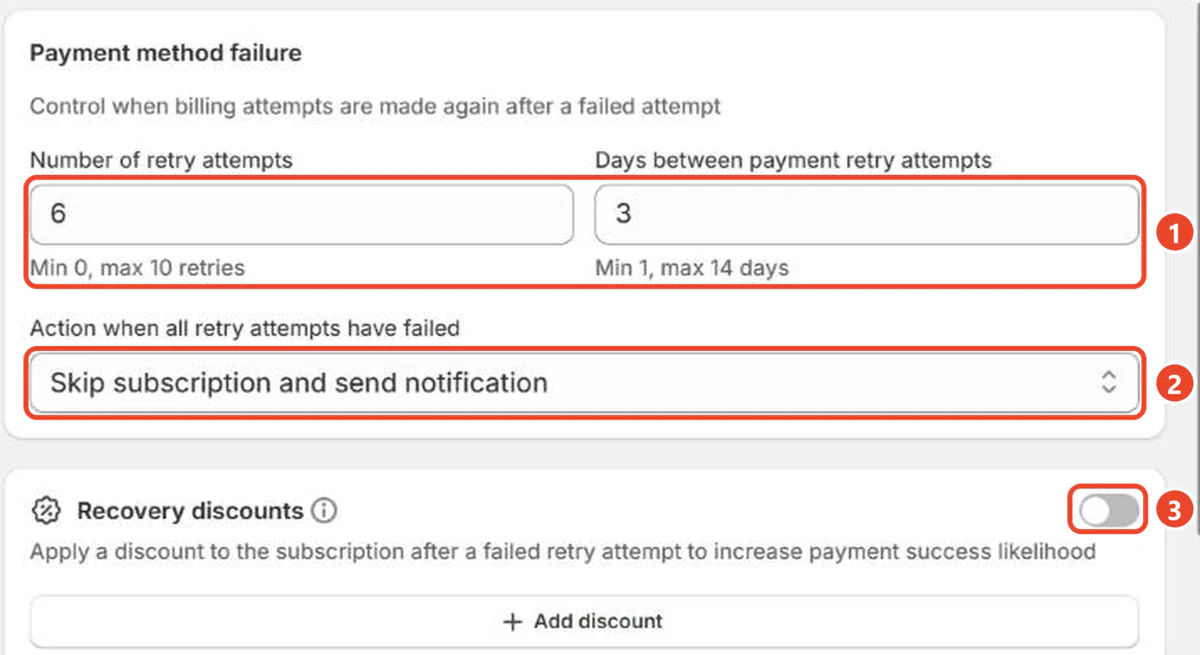
Switch on the subscription emails you need, such as upcoming charge and subscription created, and rewrite the default copy in your brand's voice. Then open the Payment Recovery page and set the number of retries, the days between them and what happens when all retries fail.
Step 6: Place a test subscription order
Place one real subscription order on your store and check that the subscription appears in the app, the order carries the subscription tag and the customer portal lets you skip and pause. When everything works, cancel the test subscription and refund the order.
How to track your subscription business analytics
Track your subscription business analytics from the first week. Five numbers cover most decisions: monthly recurring revenue (MRR), active subscribers, churn rate, retention by cohort and retention by order number.
Shopify Analytics counts subscription orders in your normal sales reports, and filtering by the app's order tag pulls them out on their own. The app dashboard goes further. Kaching Subscriptions reports average order value (AOV), average revenue per user (ARPU), LTV, cohort retention, retention by order number and a revenue calendar of charges due in the next 30 days. Shopify Subscriptions sticks to the basics: revenue plus active, new and cancelled subscriptions over a period.
Small stores see only a handful of renewals a day. Look at the numbers weekly for the first three months, since a single day tells you very little.
Reducing churn rate based on analytics data
Reducing churn rate starts with knowing which kind you have. Recurly's network puts median ecommerce churn at 4.25%, of which 2.87% is voluntary and 1.38% involuntary, according to its churn rate benchmarks. Voluntary means the customer chose to leave. Involuntary means a payment failed and nobody fixed it.
Your dashboard tells you where to act:
- A drop-off at one order number. Say many subscribers leave after order three. Put a reward right before it. Kaching Subscriptions streaks can unlock a discount or a free product after a set number of orders.
- One cancellation reason dominating. Match the retention offer to the reason. "Too much product" calls for a skip or a lower frequency, "too expensive" for a discount.
- A high share of failed payments. Revisit the retry schedule and add a recovery discount for customers who update their card.
The guide on reducing Shopify subscription churn goes through each fix in detail.
How to take care of taxes and VAT while running Shopify product subscriptions
You take care of taxes and VAT on Shopify product subscriptions much like you do for one-time orders, because each renewal creates a regular Shopify order and your Shopify tax settings calculate the tax on it. The checkout disclosure Shopify shows on subscriptions even tells customers they'll pay the recurring amount "plus shipping and taxes". The difference is volume. One sale turns into twelve taxable orders a year, sometimes shipped under different rules from one month to the next.
Get these right before launch:
- Sales tax in the US. You owe sales tax in the states where you're registered or where your sales create an obligation, and renewals count toward those sales. Shopify's guide to US sales tax liability shows how to find where you're liable and turn on collection.
- VAT in the EU. When cross-border sales of goods to EU consumers pass EUR 10,000 a year, VAT is due at the customer's country rate. The EU's One Stop Shop lets you declare and pay that VAT in one quarterly return instead of registering in every country.
- Tax on discounted renewals. Tax applies to the price the customer actually pays. Some apps keep the prices from the first order, which can leave later renewals taxed on the wrong amount, so check what your app passes to Shopify.
- Prices with or without tax. If some Shopify Markets show tax-inclusive prices, the widget should show the same price the customer pays at renewal.
- International payments and currency. Renewals should bill in the currency the customer subscribed in. Kaching Subscriptions bills each renewal in the subscription's own market and currency. Ask your gateway what it charges for currency conversion on cross-border cards.
Shopify Tax calculates tax for the US, EU, UK and Canada and can file US returns automatically for eligible stores. Rules shift by country and by year, and I'd still run the setup past an accountant before the first renewals go out.
FAQ
Can Shopify do subscriptions?
Yes, Shopify can do subscriptions through a subscription app. The free Shopify Subscriptions app handles basic subscribe and save. Third-party apps such as Kaching Subscriptions add prepaid plans, retention offers and deeper analytics.
Is Shopify Subscriptions free?
Yes, the Shopify Subscriptions app is free. You still pay for your Shopify plan and payment processing, plus third-party transaction fees if you don't use Shopify Payments.
Does Shopify have a subscription app?
Yes. Shopify's own app is called Shopify Subscriptions and it's free on the Shopify App Store. It covers weekly, monthly and yearly plans with discounts, and customers manage their subscriptions in their Shopify account.
How much does it cost to add subscriptions to Shopify?
Adding subscriptions to Shopify costs $0 with the native app and up to several hundred dollars a month with enterprise apps. Kaching Subscriptions starts at $9.99 a month on a flat fee with no transaction fees. Apps that take a percentage of revenue get pricier as your subscription sales grow.