How to Import and Export Shopify Subscriptions
You import and export Shopify subscriptions as contracts in a CSV file, from Apps > Subscriptions > Contracts in the Shopify Subscriptions app.

Reviewed by Mantas Petruškevičius, Organic Growth Lead at Kaching Appz
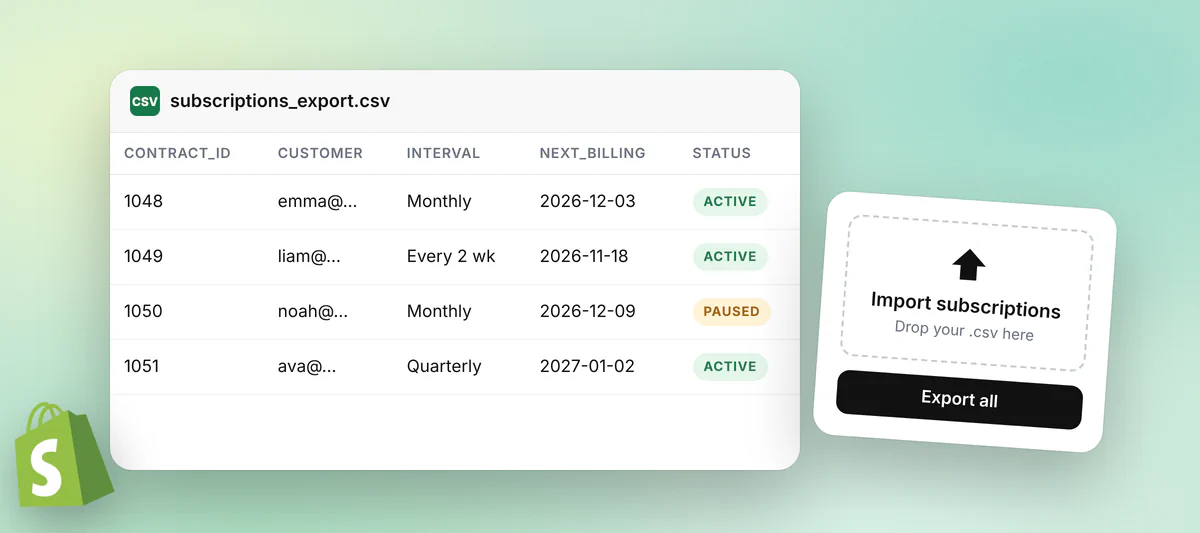
The file holds a payment method ID that points to a card Shopify or the gateway already stores without the need to hold or export user Card numbers. That is why most subscribers can be moved without re-entering anything or risking personal customer data. Below we will cover the core topics of how to import and export Shopify subscriptions using CSV to move between different Shopify subscription apps.
What data does a subscription export include?
A subscription export includes one row per contract: the customer, the next billing date, the delivery schedule, the payment method reference, shipping details and the products. Shopify's contract CSV guide sorts this into four groups (contract name, customer and billing, delivery, items), and its sample template has 28 columns.
Shopify pitches the export as a file you can load into another store running Shopify Subscriptions, so I treat that sample template as the map of what comes out. These columns decide whether a move works:
| Column | What it holds | Format rule |
|---|---|---|
| handle | Unique name of the contract | Letters and numbers, unique per contract |
| upcoming_billing_date | Next charge date | UTC, YYYY-MM-DDTHH:MM:SSZ, at least 24 hours after the import |
| customer_id | Shopify customer ID | Numbers only, must match an existing customer |
| currency_code | Contract currency | Must be active on your store |
| status | Contract status | Active or Paused |
| cadence_interval + cadence_interval_count | Delivery frequency | Week, Month or Year, plus a number (2 = every two weeks) |
| customer_payment_method_id | Payment method reference | Must match a payment method of that customer in your admin |
| line_variant_id, line_quantity, line_current_price | The products | Variant ID, quantity per item, price in your currency format |
Delivery fills most of the rest. Address lines, delivery price, the method type (Shipping, Local Delivery, Pickup or None), a local delivery phone and instructions, and a pickup location ID. Selling plan ID and name are optional.
Handle column
The handle column is each contract's unique identifier. Shopify leans on it twice: it groups the rows of a contract that has several products, and it stops duplicates, because a row whose handle was already imported successfully gets skipped next time.
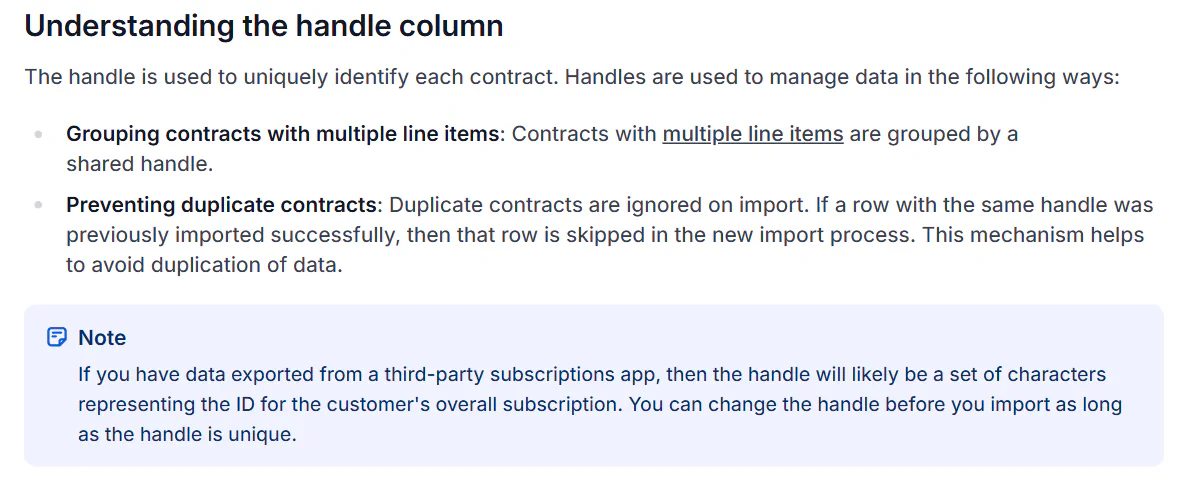
Data from a third-party subscription app usually arrives with that app's subscription ID in this column. Rename it if you like, as long as every handle stays unique. I'd recommend keeping the old ID to avoid bugs during migration. It’s also good for keeping track of historic subscription data if you need to reference a subscriber’s plan by its ID.
Contracts with multiple line items
Contracts with multiple line items take one row per product, all under the same handle. Row one carries the whole contract. Every row after it fills in only handle, line_variant_id, line_quantity and line_current_price (plus the optional selling plan ID and name) and leaves everything else blank.
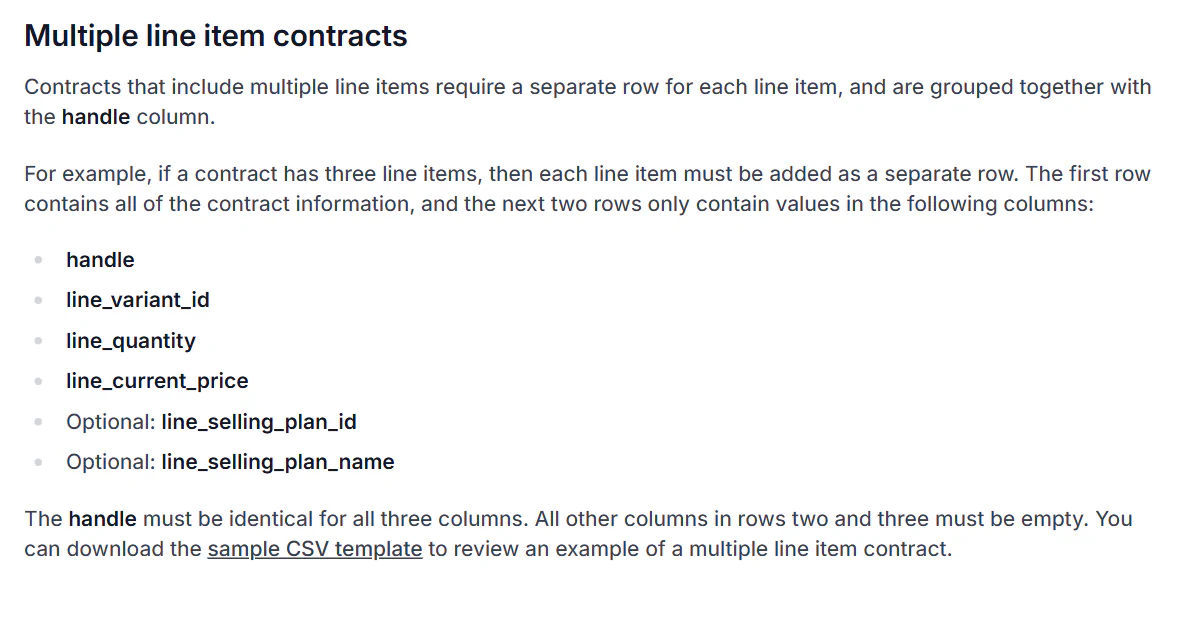
Three products create three rows. Each quantity counts that product alone. Shopify's sample file shows it with a beverage contract: one variant priced at 50, a second at 60, both sharing the handle Example-beverage-contract.
How to export subscriptions from Shopify Subscriptions
Exporting subscriptions from Shopify Subscriptions takes three clicks in the admin dashboard. The file serves as a record or as the input for an import into another Shopify store with the same app.
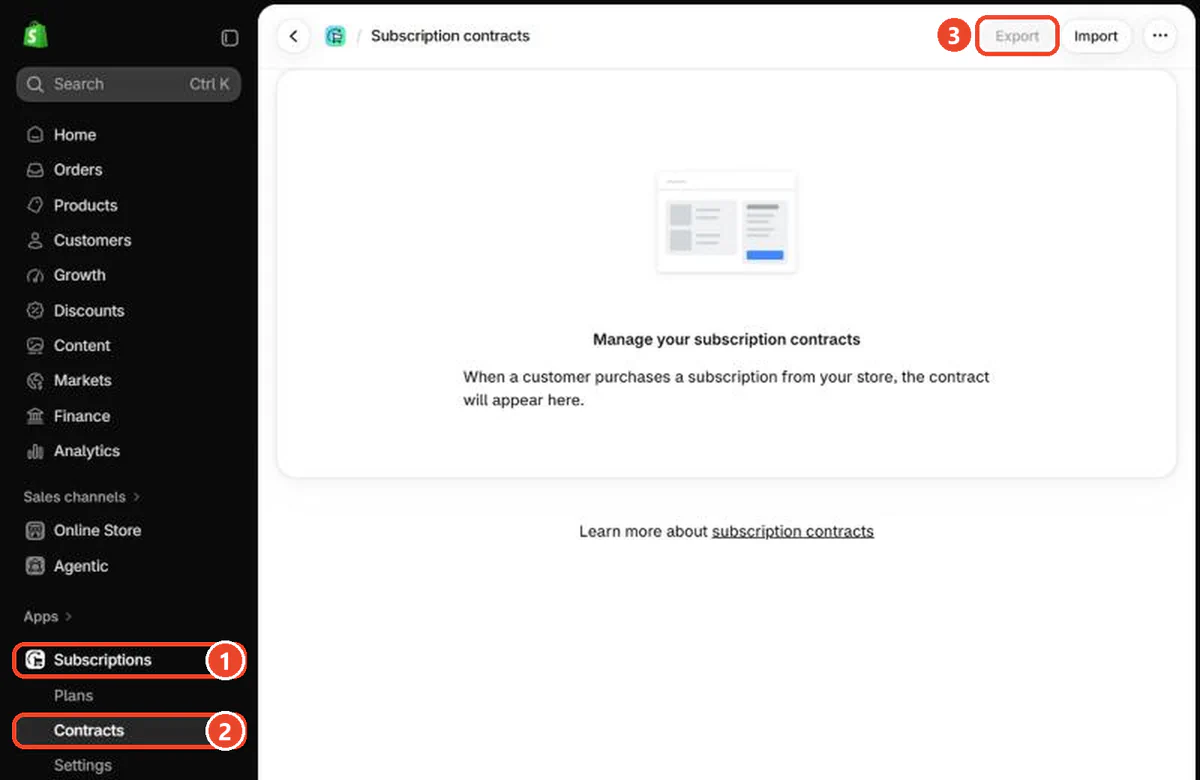
Step 1: Open the Shopify Subscriptions app
In your Shopify admin, go to Apps > Subscriptions. No app in the list means no contracts to export from it on this store.
Step 2: Go to the Contracts page
Click Contracts. Every subscription contract the app manages is listed here, and the Import button you'll need later on the receiving store lives on this same page.
Step 3: Click Export
Click Export. The button stays greyed out until the store has at least one contract. Shopify's help page mentions no filter or selection step for it, so expect the full contract list and trim it in a spreadsheet if you only want to move part of your subscribers.
Step 4: Check the CSV file before you reuse it
Open the file before it goes anywhere. Billing dates have to sit at least 24 hours after the moment you import, which matters for every subscriber due to renew tomorrow. Shopify caps an import file at 10 MB so split anything bigger into several files. Edited in Excel? Then check the export settings so the values are still separated by commas.
How to import subscriptions after an export
The route for importing subscriptions after an export depends on the app importing the data. Shopify Subscriptions gives you a self-serve upload. Kaching Subscriptions has its support team load the file. Both expect the payment methods to exist in Shopify already. If you are still evaluating subscription apps to use on Shopify my roundup of the best Shopify subscription apps compares nine best to help you pick the right one.
Into Shopify Subscriptions
In Shopify Subscriptions, go to Apps > Subscriptions, click Contracts, then Import, click Add file, pick the CSV and hit Upload file. A confirmation email goes to the address you set the store up with. Shopify suggests Google Chrome for the upload.
A CSV can't edit or overwrite contracts that already exist. Contracts from a third-party app only import if that app is Shopify Checkout integrated, and a file with missing or extra columns is rejected outright. Start from Shopify's sample template and paste your data into it, column by column.
Into Kaching Subscriptions
Kaching Subscriptions imports work through support: you export your contracts from the current app in Kaching's CSV format and send the file to Kaching's live chat, where the team runs the import. The five steps are in Kaching's import guide.
Kaching's template has its own columns. It wants the Shopify contract ID, a Shopify payment method ID in the gid://shopify/CustomerPaymentMethod format, billing and delivery frequency as two separate columns, the product ID next to the variant ID, and optional minimum and maximum billing cycles for fixed-term plans. ACTIVE and PAUSED contracts import, and the template says any other status is skipped.
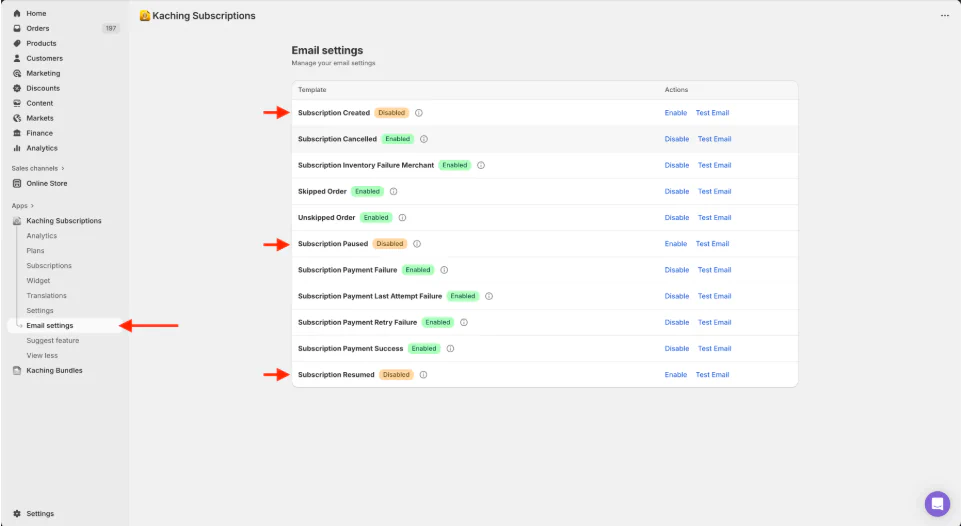
Everything lands paused, so nobody gets charged by the old app and by Kaching in the same cycle. Check the data, then activate. Activation emails customers a link to the customer portal, and if you'd rather keep the switch quiet, turn that email off in the app's Email Settings page beforehand.
After that, cancel the subscriptions in the old app and ask its support team to hold back cancellation emails. Keep the old app installed until the migration is done, Kaching's guide says, because you may need it to compare records against your export if something looks off. Alex&eve, a Shopify store and a client of Kaching Subscriptions, wrote in an October 2026 review that Kaching's support moved 500 subscriptions over from Seal with no issues.
The trade-off is that you can't upload the file yourself, and Kaching doesn't document a bulk export of contracts (its CSV export covers cancellation and pause reasons). I don't mind the chat step. An experienced support professional looks at the file before anyone gets billed so the risk of creating new bugs with subscription migration is significantly reduced.
How do payment methods move during an import?
During an import, payment methods move as references. The CSV carries an ID for a card that Shopify or the gateway already holds, and in Shopify's contract CSV the customer_payment_method_id must match a payment method in your admin that belongs to the customer_id on the same row.
When you migrate from an app that kept cards in its own gateway account, those cards have to be created in Shopify first, from that gateway's identifiers. Shopify's developer guide to migrating customer information lists what each third-party gateway needs. The Shopify Payments row comes from the contract CSV guide.
| Payment gateway | Reference Shopify needs | Watch out for |
|---|---|---|
| Shopify Payments | Shopify customer payment method ID (for example 24e8c839c47ef47d30ad28346d130e74) | Must belong to the customer in the same CSV row |
| Stripe | Stripe customer ID and payment method ID (cus_... and pm_...) | Credit cards only. No fallback to the default card |
| Braintree | Braintree customer ID and payment method token | Credit cards and Apple Pay only. PayPal stored in Braintree isn't supported directly |
| PayPal Express | Billing agreement ID beginning with B- | The merchant must be approved by PayPal for reference transactions |
| Authorize.net | Customer profile ID and customer payment profile ID | Both IDs are required |
I'd split the work in two. The CSV import links contracts to payment methods that already exist in Shopify. A developer-managed token transfer gets them there: someone calls Shopify's GraphQL Admin API with the identifiers above, waits for Shopify's background jobs to process each method (a fresh one can show incomplete details for a while), and only then pastes the resulting IDs into the CSV. Coming from an app that already ran on Shopify Checkout, you can usually skip that part. Shopify's subscription considerations name five gateways that take subscription payments: Shopify Payments, PayPal Express, Authorize.net, Adyen and Stripe.
FAQ
Can you export Shopify subscriptions to Excel?
Yes. It's a CSV file, so Excel, Google Sheets and Mac’s Numbers all open it. Saving from Excel is where people make mistakes. Check the export settings so the values stay comma-separated, or the import fails on its columns.
Do subscriptions import with their next billing date?
Yes, the next billing date is a required column. Shopify wants it in UTC as YYYY-MM-DDTHH:MM:SSZ (for example 2019-09-07T15:50:00Z) and at least 24 hours after the import. Copy it from the old app unchanged. A moved date moves the customer's charge, and subscribers spot that before anything else.
What are the most common import errors?
These four are the most common import errors I'd check first:
- UTC dates. A date in local time or without the T and Z fails as an invalid date time format. So does one less than 24 hours away.
- Variant ID vs handle. line_variant_id takes the numeric variant ID from your admin. A product handle or SKU in that column fails, and the contract handle in column one is a separate thing again.
- Currency and markets. currency_code has to be a currency that is active on your store. Anything else returns "Currency code not enabled", so look at your Markets settings before importing contracts in a second currency.
- Duplicate contracts. A row whose handle matches an existing contract gets skipped, and a file made only of duplicates won't import.
During your first billing cycle after a move is where you will spot most of the failed charges and bugs, so check out my guide on reducing Shopify subscription churn where I cover payment recovery for that issue.