







Shopify Maintenance: How to Keep Your Store Running Smoothly
Shopify maintenance is the routine work that keeps a store fast, secure and selling, from theme and app updates to checkout tests, broken-link fixes and data backups.

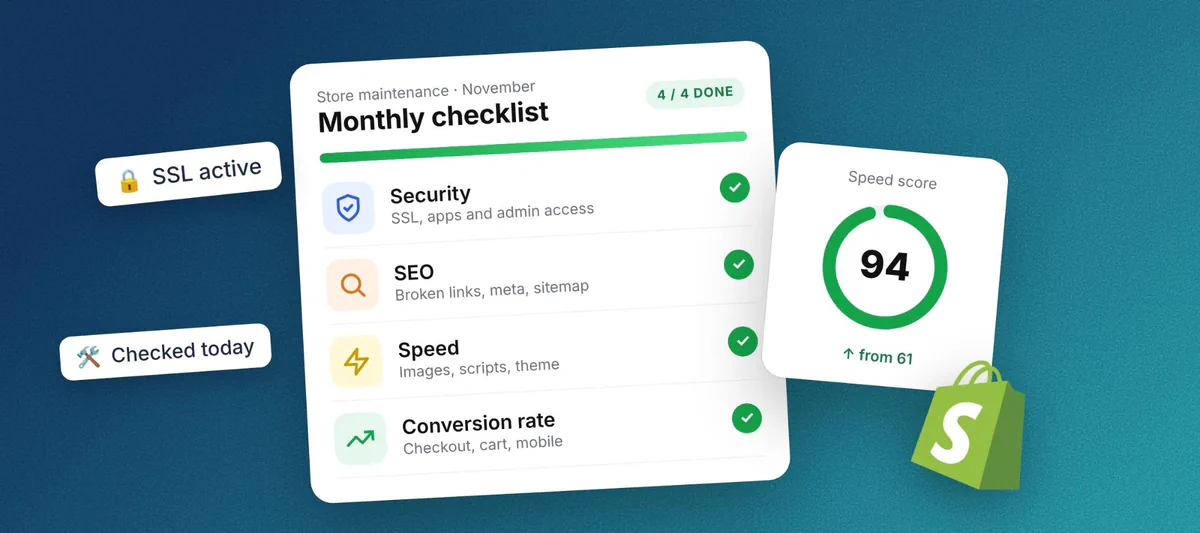
Shopify runs the servers. Everything you add on top of them is yours to look after, and that layer breaks quietly. A theme update can clash with an app script, or the express checkout button can stop loading on mobile for a week before a customer finally complains.
This guide brings together maintenance best practices from Shopify and from independent Shopify developers. I sorted the tasks into weekly, monthly, quarterly and yearly rounds, then priced out the done-for-you route so you can see when paying someone beats doing it yourself. If you'd rather hand the whole schedule to a specialist team, TheShopNinjas Shopify Maintenance Services run it on a fixed annual plan.
What is Shopify maintenance?
Shopify maintenance is the ongoing care of everything you control in your store, meaning the theme, installed apps, custom code, product data, content and checkout settings. Shopify website maintenance is a smaller job than looking after a self-hosted site because Shopify handles hosting, server security, PCI compliance and platform updates itself, and it posts its uptime on the Shopify Status page.
The apps and custom code you add on top are another story. Apps load their own scripts, staff edit products every day, and any one of those changes can slow a page or break a feature without a single error message. Maintenance means catching that on a schedule.
Why does a Shopify store need regular maintenance?
A Shopify store needs regular maintenance because small technical problems cost sales long before they look like an outage. Four areas take the hit first:
- Conversion rate. Baymard Institute puts the average documented cart abandonment rate at 70.22% across 50 studies. A discount field that throws an error or a slow checkout button pushes that number higher.
- Page speed. Every app can load its own scripts on every page, and some leave code in the theme after you uninstall them. Performance decays a few hundred milliseconds at a time, and the shopping experience gets worse with it.
- Search rankings. Deleted products and changed URLs leave 404 errors behind, and Google drops pages it can't reach.
- Security. Staff accounts for people who left months ago and apps with broad permissions are easy to forget and hard to justify.
Shopify maintenance checklist
A Shopify maintenance checklist sorts tasks by how fast things go wrong. Orders, apps and checkout change constantly and get a weekly look, while content, catalog data and backups can wait for a quarterly or yearly pass. Here are weekly, monthly, quarterly and yearly checklists to always keep your Shopify store running smoothly.
Weekly (about 15 minutes)
- Place a test order on desktop and mobile, including one express checkout such as Shop Pay, Apple Pay or PayPal, then refund it.
- Install app updates and read the changelog of anything that touches the product page, cart or checkout.
- Skim new reviews and support messages for repeated complaints like "code didn't work" or "page won't load".
- Check the Shopify Status page whenever orders dip for no obvious reason.
Monthly (1 to 2 hours)
- Run your home, collection and product pages through Google PageSpeed Insights and log the scores, so a drop stands out.
- Pull 404 errors and broken links from Google Search Console and add URL redirects in your Shopify admin for any product or collection you removed.
- Compare conversion rate, average order value and cart abandonment with last month. A sudden drop in conversion rates usually traces back to a recent app or theme change, and this list of Shopify conversion rate fixes helps when the rate drops.
- Remove staff accounts for anyone who left and review which apps still have access to your data.
Quarterly (half a day)
- Audit installed apps. Uninstall what you don't use, clear the code they left in the theme, and swap overlapping apps for one that covers both jobs.
- Look for a theme update from your theme developer. Duplicate the live theme first, apply the update to the copy and test it before you publish.
- Test the store on a real phone. A resized desktop browser hides tap-target problems and slow mobile scripts.
- Review accessibility basics, starting with alt text on product images, color contrast and forms you can finish with a keyboard alone.
Yearly (one full day)
- Back up your store. Export products, customers and orders to CSV, and download your theme as well. A theme download doesn't include products, collections, pages, blog posts or files, so you need both.
- Clean up the catalog. Archive dead products, merge duplicate tags and rewrite outdated descriptions.
- Refresh policy pages, shipping rates and tax settings.
- Walk the full customer journey yourself, from an ad landing page to the order confirmation email.
How much does Shopify maintenance cost?
Shopify maintenance costs anything from your own time to several thousand dollars a month. Shopify's own guide puts basic upkeep for small ecommerce businesses at $40 to $500 a month, with large stores paying thousands. How much it costs for you personally depends on how many apps and customizations the store runs and how often it changes. Also, the size of the store and your business matters, for example a single dropshipper can do most of the maintenance on his/her own with the help of easy to use apps. On the other hand, bigger stores and D2C brands may rely on developers to implement more complex website changes.
Agencies usually sell Shopify maintenance plans as monthly retainers, and plenty of them do not publish the price, so you have to ask for quotes individually. ShopNinjas publishes theirs, which makes it a handy benchmark. All three Shopify maintenance packages are billed annually:
| Plan | Price | Updates | Best fit |
|---|---|---|---|
| Explorer | $259/month ($2,999/year) | Monthly app, theme and Liquid updates | Smaller stores that need a steady baseline |
| Hiker | $379/month ($4,499/year) | Weekly, tested on a duplicate theme first | Growing stores with custom code and more apps |
| Climber | $509/month ($5,999/year) | Weekly, plus real-time checkout monitoring and staging | Revenue-critical and Shopify Plus stores |
Going from Explorer to Hiker is mostly about frequency. Updates move from monthly to weekly, and speed and Core Web Vitals work joins the plan.
Climber adds real-time uptime and checkout monitoring, a full staging workflow and a dedicated support manager. An hourly freelancer costs less up front, but they bill when something breaks and usually aren't watching the store between jobs. The full scope of each package, including a free store review before you choose, is on the TheShopNinjas Shopify Maintenance Services page.
Should you do Shopify maintenance yourself or buy a plan?
You should do Shopify maintenance yourself while the store runs a stock theme, a short app list and no custom code. The weekly and monthly rounds above take a couple of hours a month, and most of that is clicking through your own store the way a customer would.
A maintenance plan starts paying for itself once a broken checkout would cost the business more per day than the plan costs per month. These are the signs you've reached that point:
- custom Liquid code in the theme that nobody on your team can read
- a long app list with several apps touching the product page or cart
- enough daily revenue that an hour of downtime genuinely hurts
- theme updates you keep postponing because you're unsure what they'll break
When you compare Shopify store maintenance services, get the scope in writing and ask how fast they respond (ShopNinjas quotes 48 hours on priority tickets). I'd also ask whether updates get tested on a duplicate theme before going live, and whether the monthly report lists the fixes they made or only the issues they spotted.
Once the store runs cleanly, this guide to increasing Shopify average order value is where I'd look next.
FAQ
Does Shopify maintain my store for me?
Shopify maintains the platform itself, which covers hosting, server security, PCI compliance and checkout infrastructure. Your theme, apps, custom code, product data and content stay your responsibility.
How do I put my Shopify store in maintenance mode?
Shopify calls it private mode. You switch it on from the Online Store page in your Shopify admin and set the password and landing page message under Online Store > Preferences. Visitors and search engines see only that landing page until you turn private mode off.
How often should I back up my Shopify store?
Export your key data at least once a year and before any big change, such as a theme switch or a migration. Stores that edit products every day should add a backup app that runs automatically.