







How To Set Volume Discount for Separate Products (Shopify Tutorial)
Create volume discount bundles on Shopify with Kaching. Let customers mix and match, boost sales, and increase order value.
Want to encourage customers to buy more? Offering volume discounts is a proven strategy to increase order value and customer satisfaction.
If you're using Kaching Bundles, there's a handy feature that lets customers mix and match products from different collections to build their own custom bundles while still enjoying volume discounts.

It's flexible, fun for shoppers, and great for boosting sales. Ready to set it up? Let's dive in!
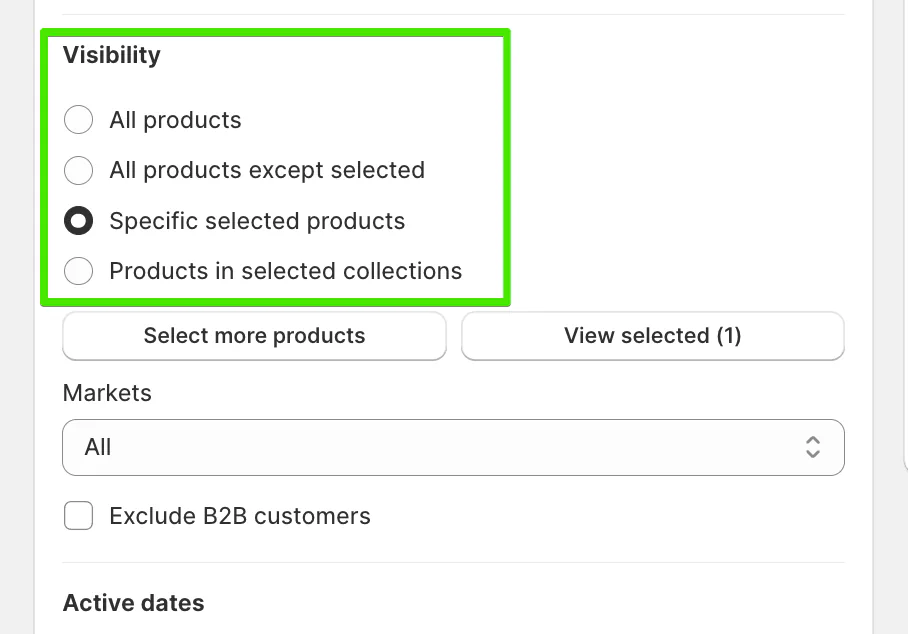
Step 1: Start by selecting the product(s) where you want the bundle to appear. Do this by editing the 'Visibility' options in the bundle editor.
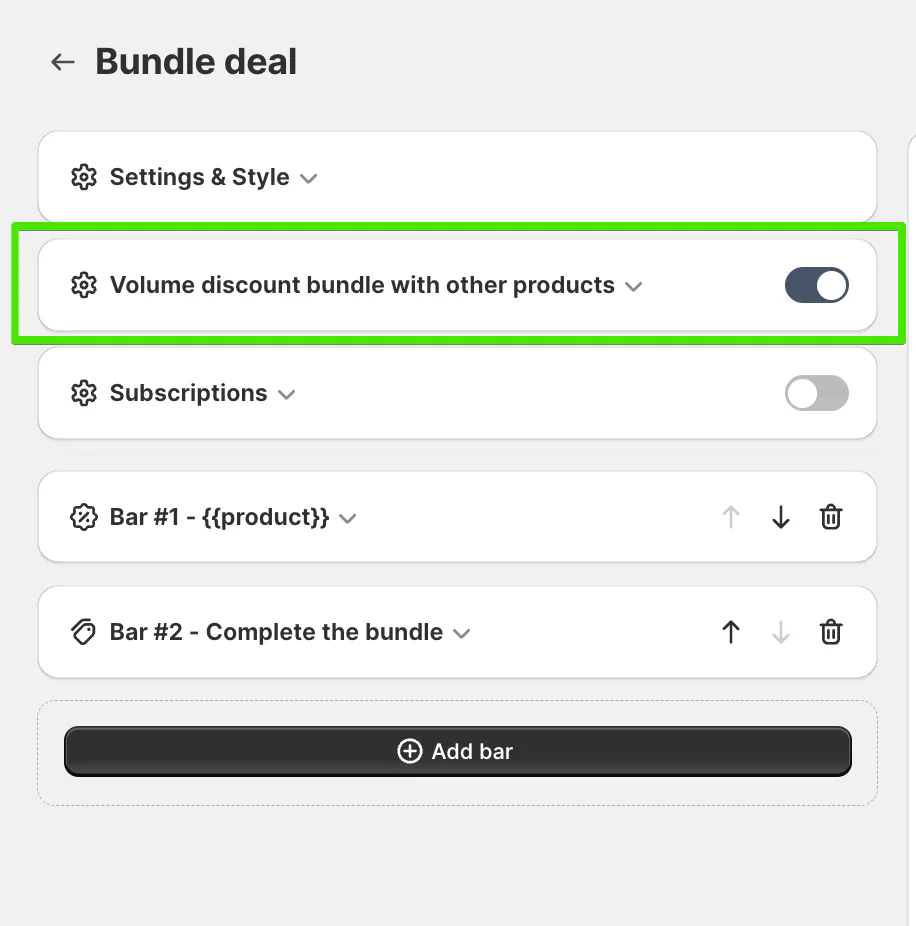
Step 2: Toggle the 'Volume discount bundle with other products' option.
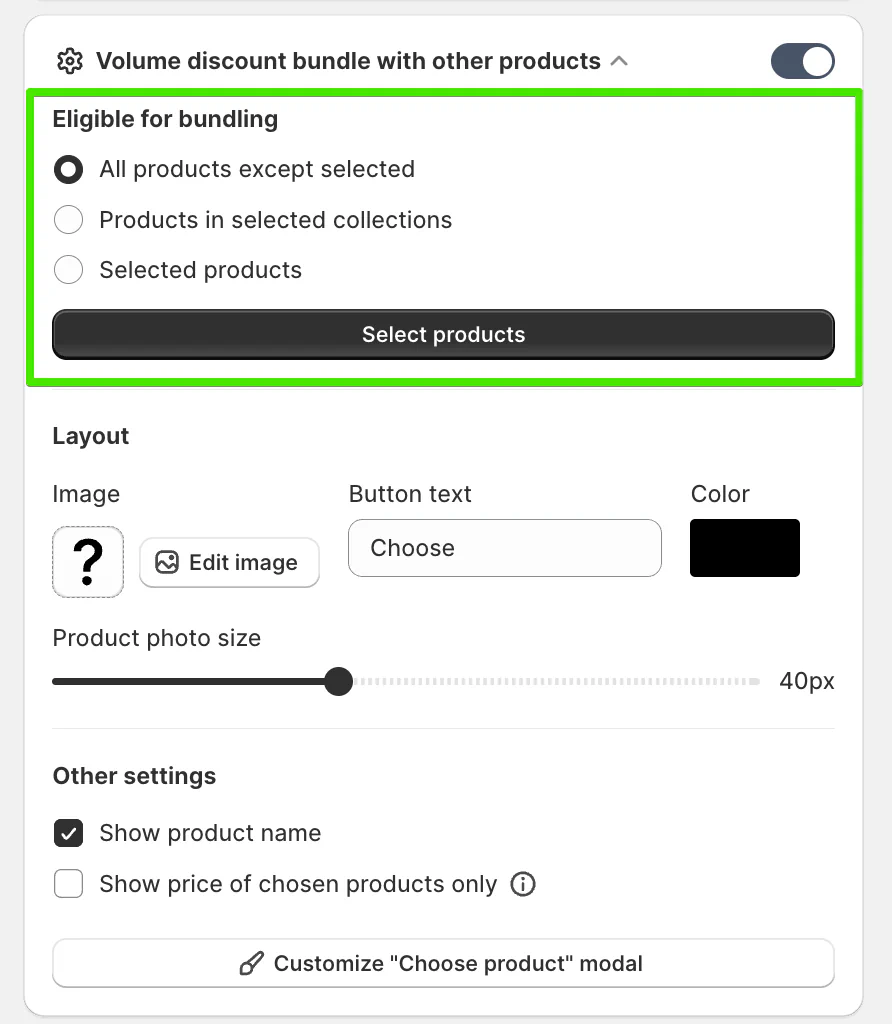
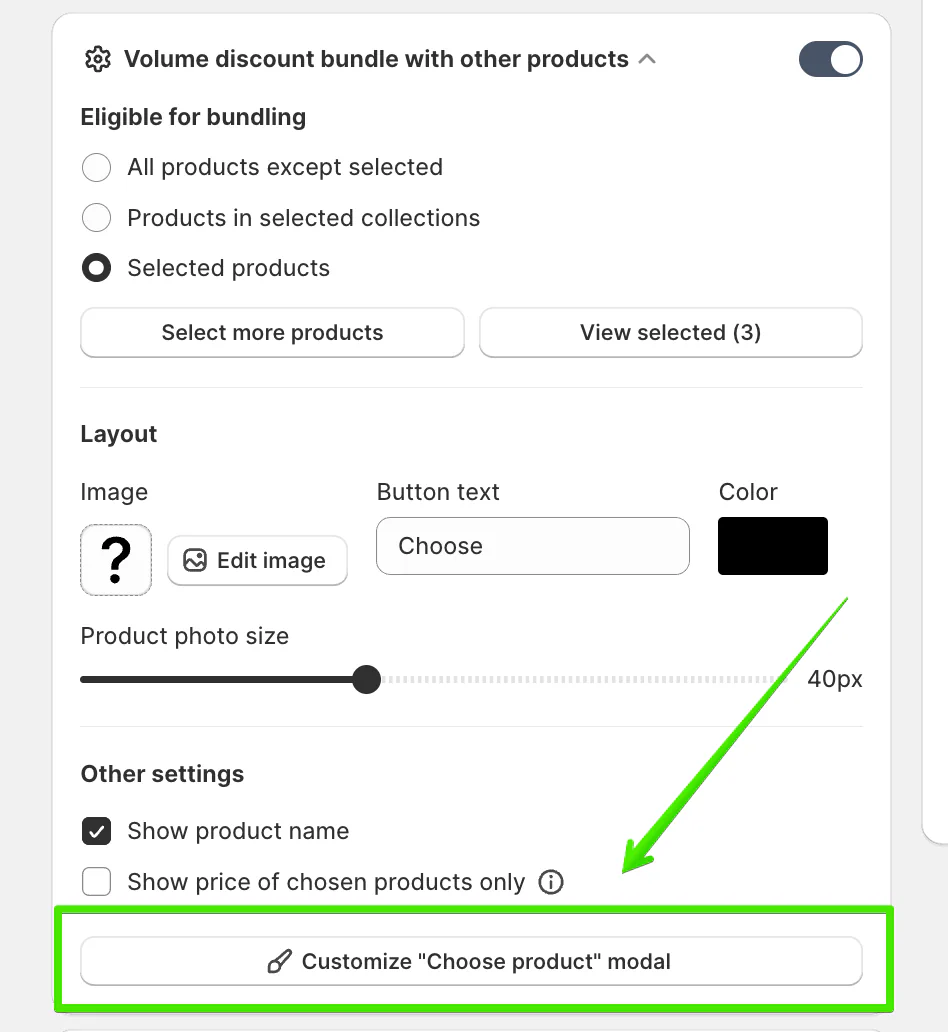
Step 3: Select the products eligible for bundling by choosing one of the options: 'All products except selected', 'Products in selected collections', or 'Selected products'.
Step 4: Time to give your bundle some glow-up:
- You can choose a different image if you'd like to use something else.
- You can also customize the button text, change its background color.
- Adjust the product photo size to fit your design.
- Or just leave everything as is, it's your call!
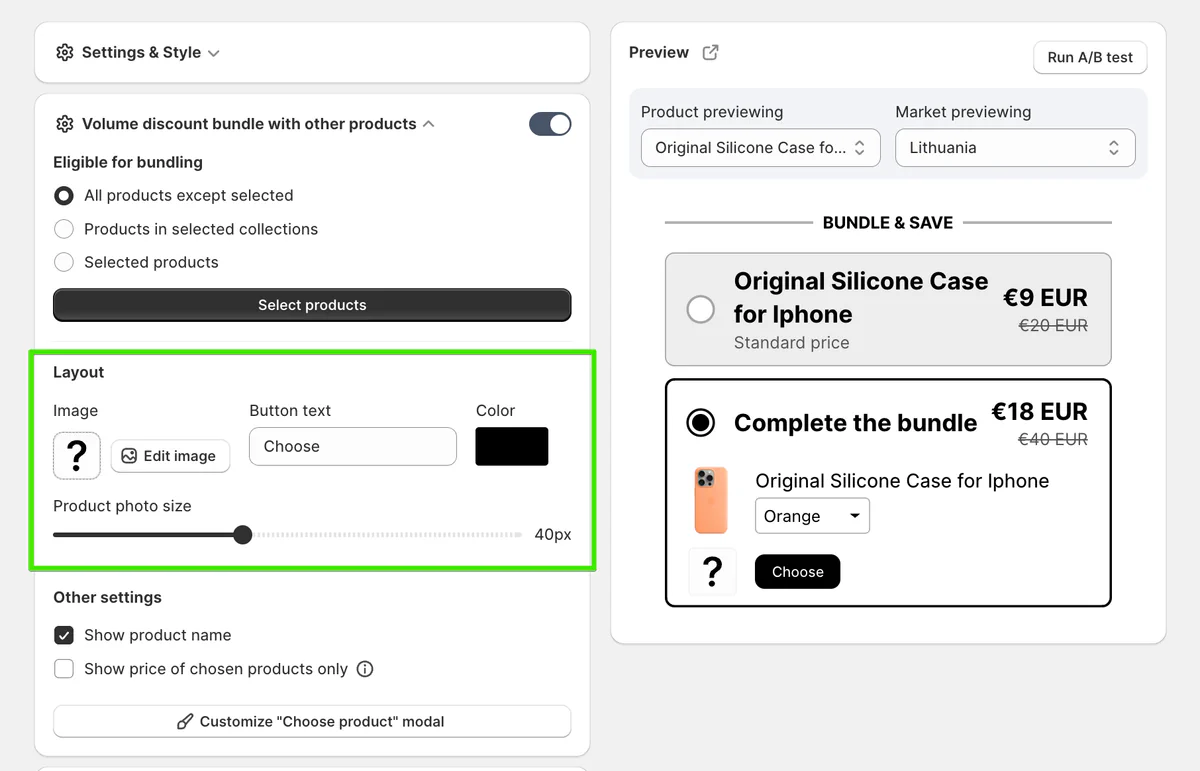
Step 5: Show or hide the product name by toggling the 'Show product name' option, depending on your preference.
Step 6: If 'Show price of chosen products only' is enabled, the price will reflect only the products the customer selects. If it's disabled, the price will always show the main product's price (multiplied by the quantity) and will update only if additional products are added.
Step 7: Customize the popup modal by selecting 'Customize "Choose product" modal'.
Step 8: In the Style and Settings sections, customize your modal by selecting your preferred colors for different elements. You can also change the image, button size, titles, and more.
Step 9: Don't forget to apply those changes. And that's it! Your volume discount bundle is ready to go. Customers can now mix and match their own deals while you sit back and watch your AOV climb.
Need help? Drop us a message in the live chat, and we'll sort it out together.