





Cart Drawer Doesn’t Open
Learn why Kaching cart might not be opening
If the Kaching Cart drawer doesn’t open when customers add products to the cart – there are a few key things to check. In most cases, the issue is due to configuration settings either in the app or theme.
1. Check If Kaching Cart Is Enabled
Start by confirming the Kaching Cart is actually activated in the app:
- Open the app and go to the Cart Editor
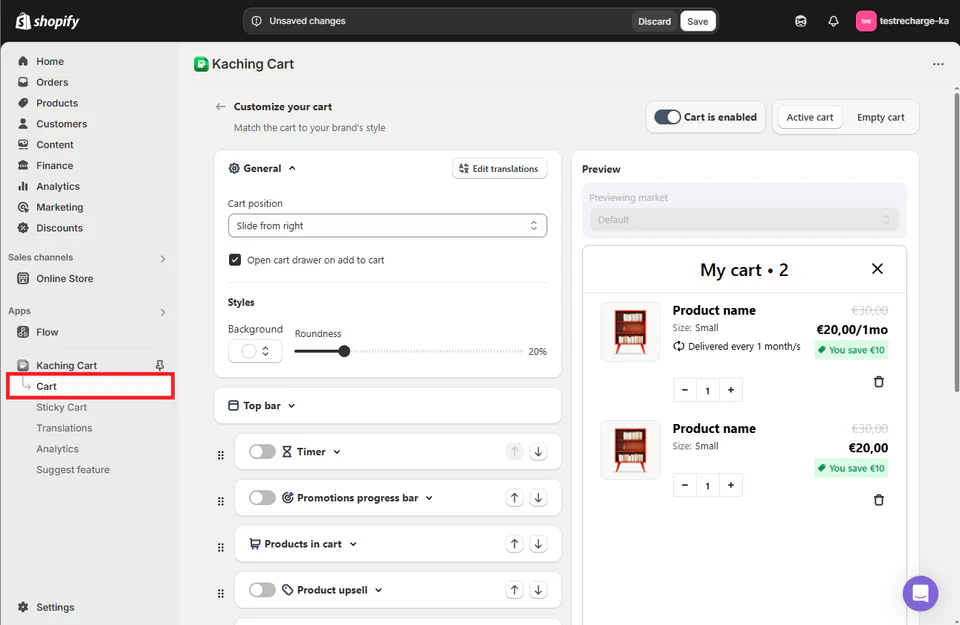
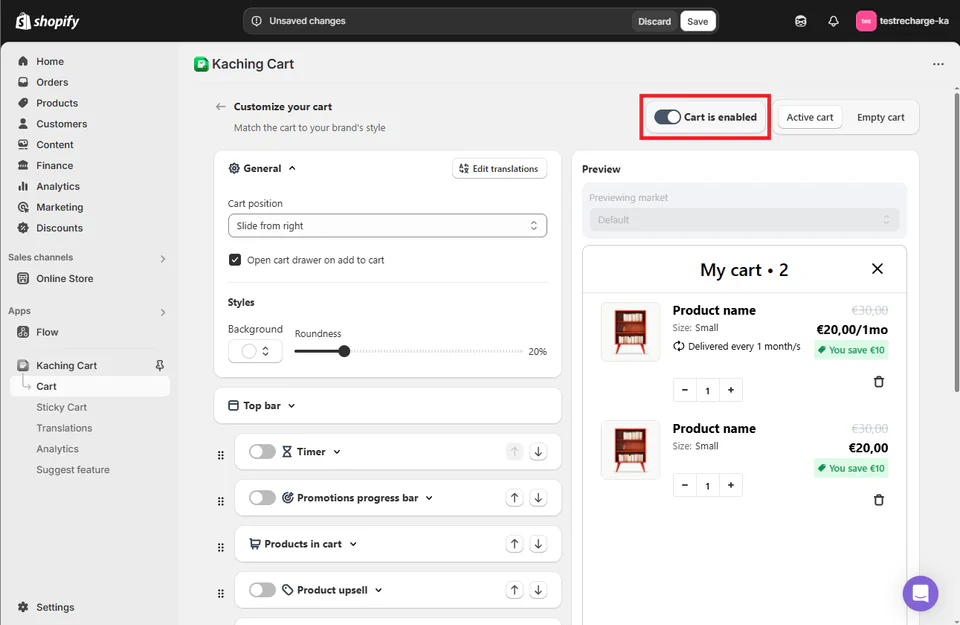
- Make sure the Cart is enabled toggle is turned on
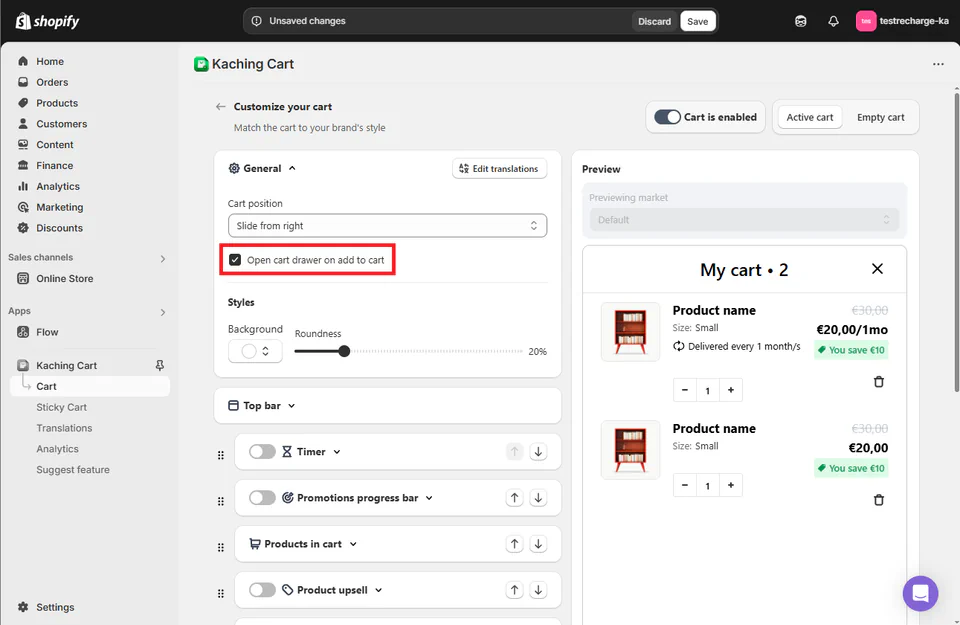
- Make sure the Open cart drawer on add to cart option is checked
2. Enable App Extension in Theme Settings
Next, double-check that the app embed is active:
- Go to Online Store > Customize
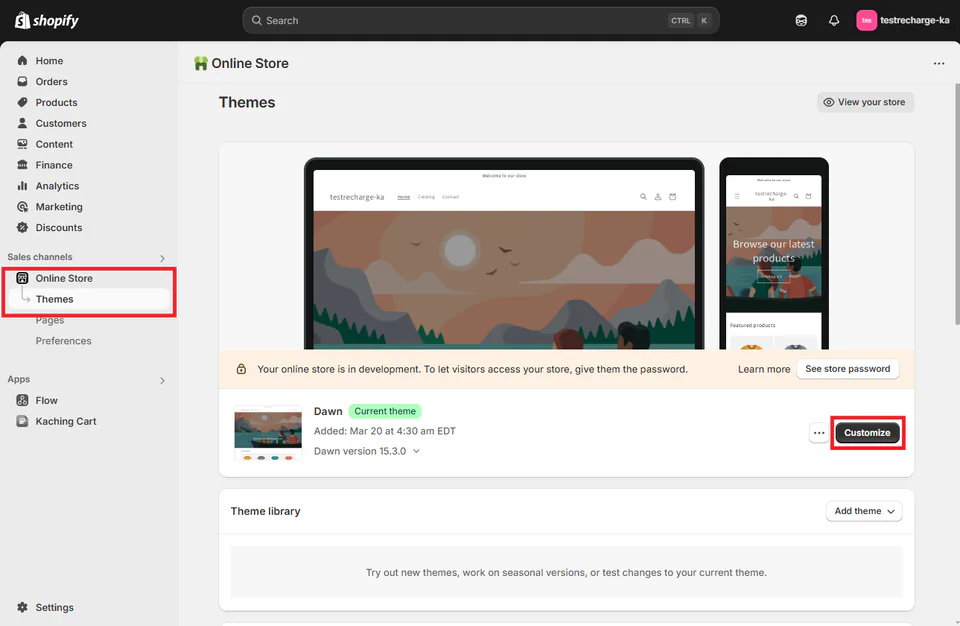
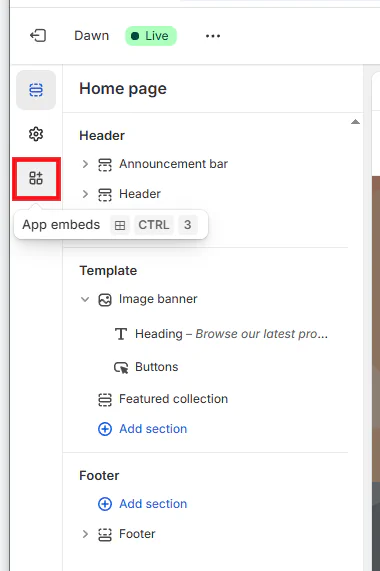
- Click on App Embeds (top-left panel)
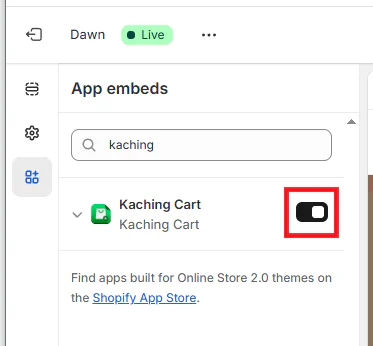
- Make sure Kaching Cart is toggled ON
3. Check Theme Settings
Most of official Shopify themes have a few key settings that affect how the cart works.
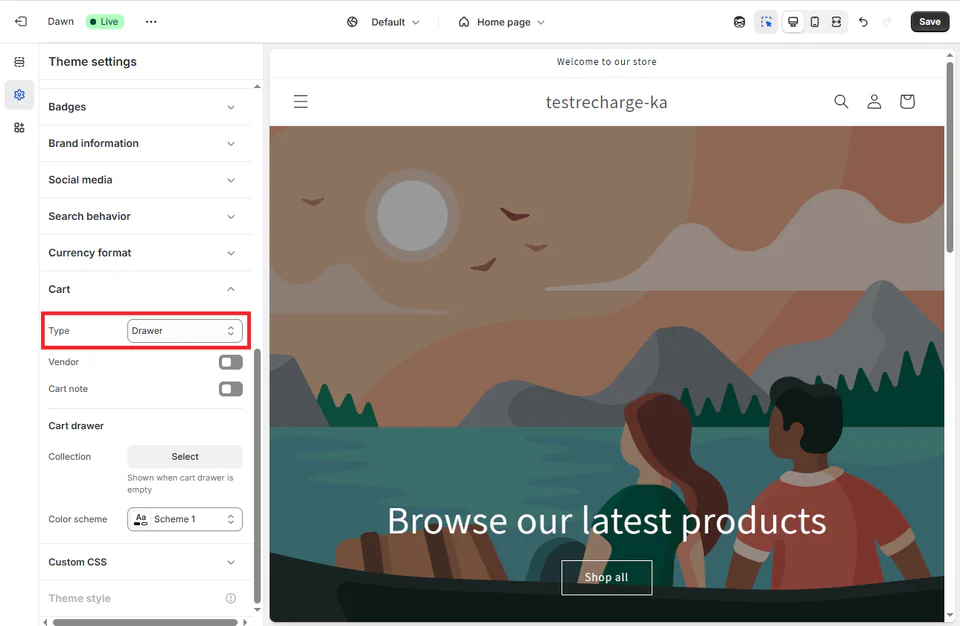
Cart Type Should Be Set to Drawer
- Go to Online store > Customize > Theme settings
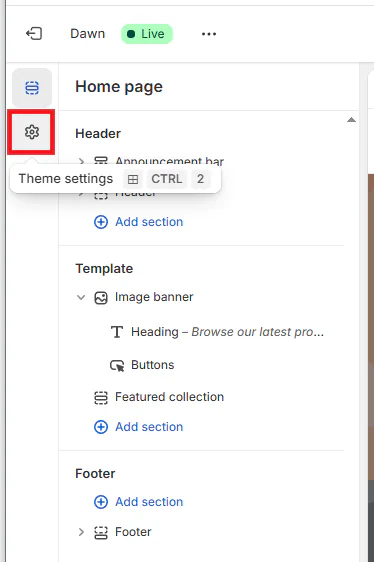
- Look for Cart or Cart settings section
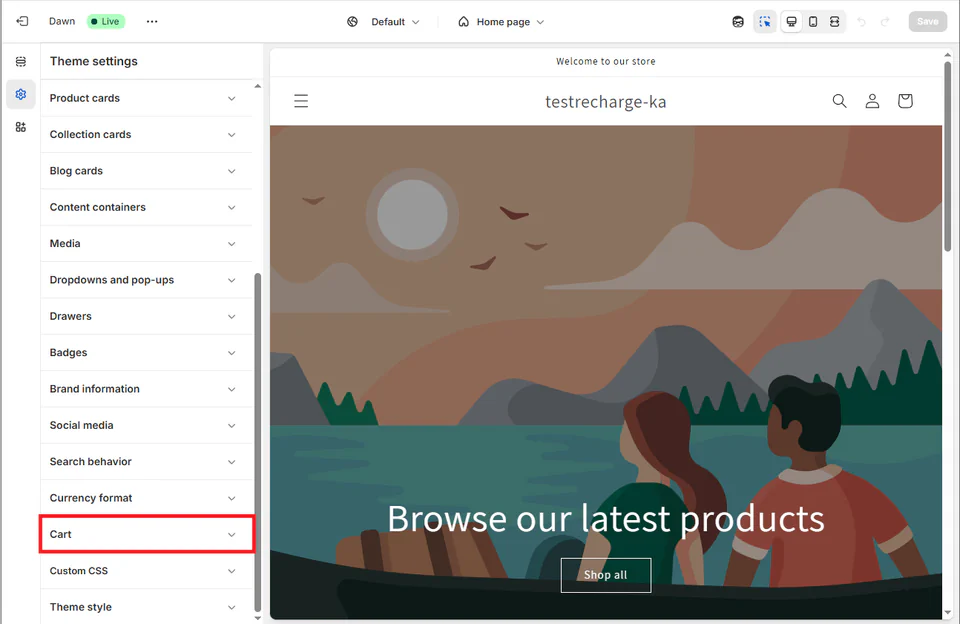
- Make sure Cart type is set to Drawer
“Skip Cart” Option
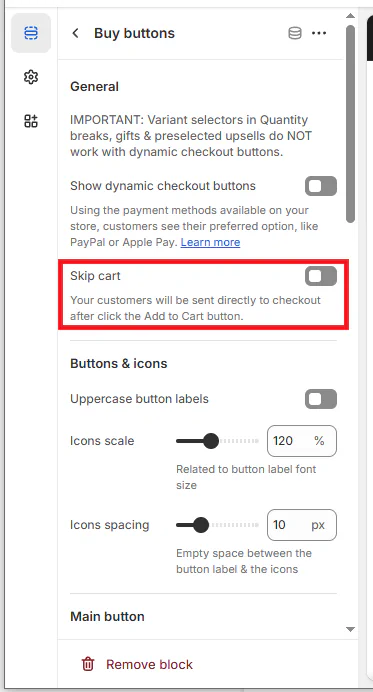
Some themes (e.g. Shrine) include this option:
- In the Product page template, click on the Buy Buttons block
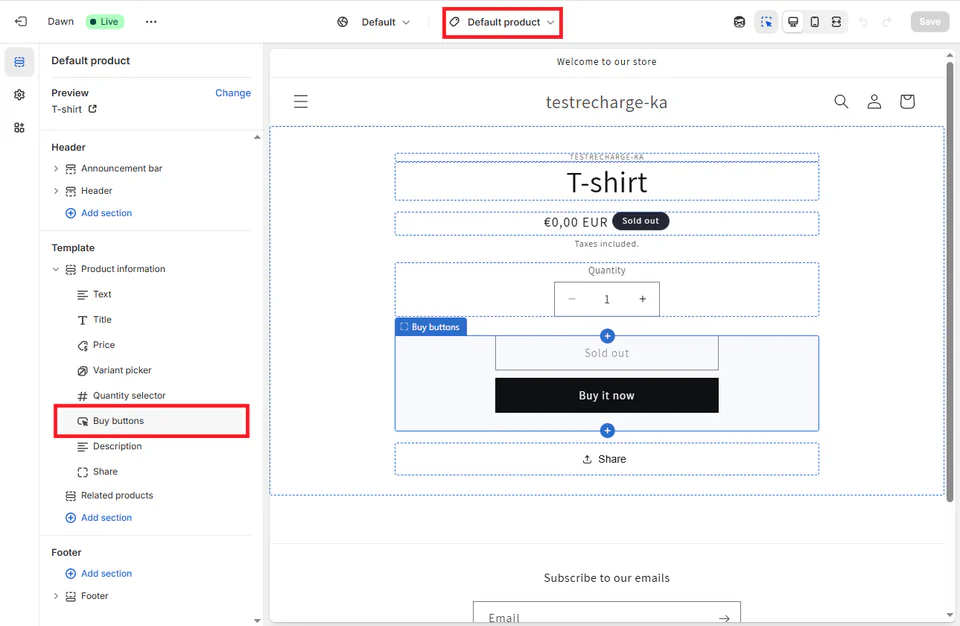
- Look for the option “Skip cart and go directly to checkout” or similar
- Make sure it’s turned off
4. If You’re Using Page Builders
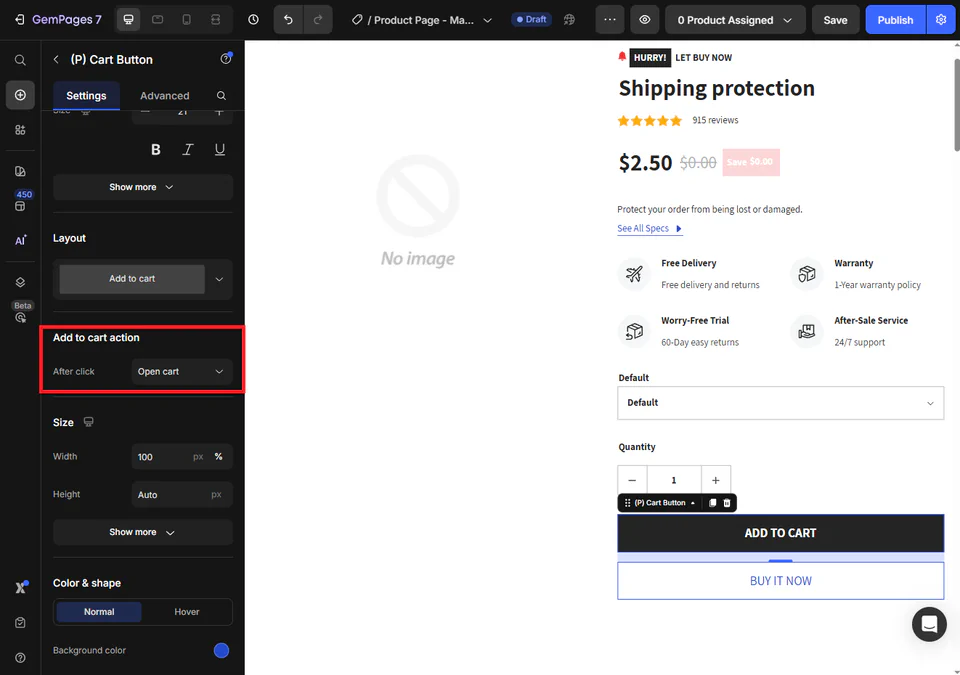
If you use any of Shopify page builder apps like GemPages or PageFly, make sure that Add to Cart button action is set to Open cart in their template editor.
💬 Still Not Working?
If none of these helped, we’re here for you.
Just reach out through the live chat in the app — we’ll get you sorted quickly.
Related articles
How to integrate Kaching Quantity Bundles with GemPages Page BuilderLearn how to integrate Kaching Quantity Bundles with GemPages Page BuilderBundles Why It’s Adding Only One Quantity to the CartLearn why Kaching bundles app might be adding only single item to the cartBundlesApp Is Adding the Wrong Bundle to the CartLearn why it might be adding wrong product to the cartBundlesHow to integrate Kaching Subscriptions with GemPages Page BuilderLearn how to integrate Kaching Subscriptions with GemPages Page BuilderSubscriptions
 How to reposition / display Kaching Subscriptions widget in a page builder, landing page, or any other custom placement in the store.Learn about the Kaching Subscriptions widget snippet and its positioning.Subscriptions
Why It’s Adding Only One Quantity to the CartLearn why Kaching bundles app might be adding only single item to the cartBundlesApp Is Adding the Wrong Bundle to the CartLearn why it might be adding wrong product to the cartBundlesHow to integrate Kaching Subscriptions with GemPages Page BuilderLearn how to integrate Kaching Subscriptions with GemPages Page BuilderSubscriptionsHow to reposition / display Kaching Subscriptions widget in a page builder, landing page, or any other custom placement in the store.Learn about the Kaching Subscriptions widget snippet and its positioning.Subscriptions