





App Is Adding the Wrong Bundle to the Cart
Learn why it might be adding wrong product to the cart
If your storefront is showing the wrong bundle — or if your cart is adding a bundle from an entirely different product — this issue is usually caused by a setting in the theme editor when the Kaching app block is added manually.
Why This Happens
When customizing your Product Page Template in the Shopify theme editor, it’s possible to manually add the Kaching Bundles app block.
This is great for repositioning the bundle widget — for example, placing it above or below specific elements on your product page.
However, there’s one important setting to watch out for:
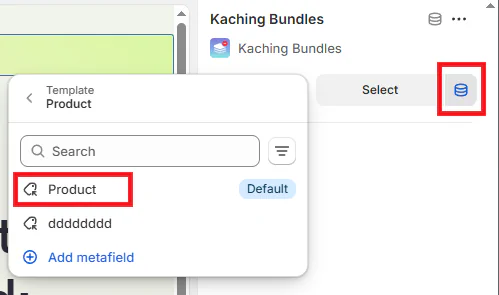
➡️ The product field must be set to “Product” (the dynamic metafield) — not a specific product.
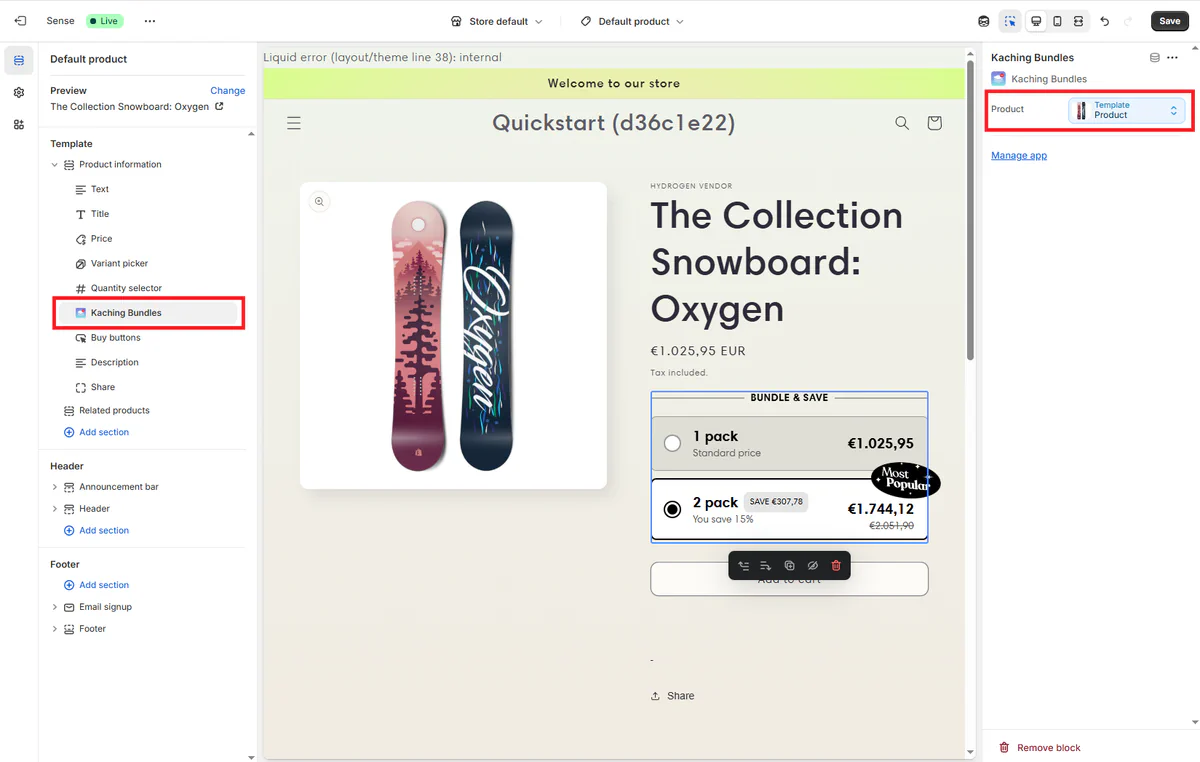
What Goes Wrong
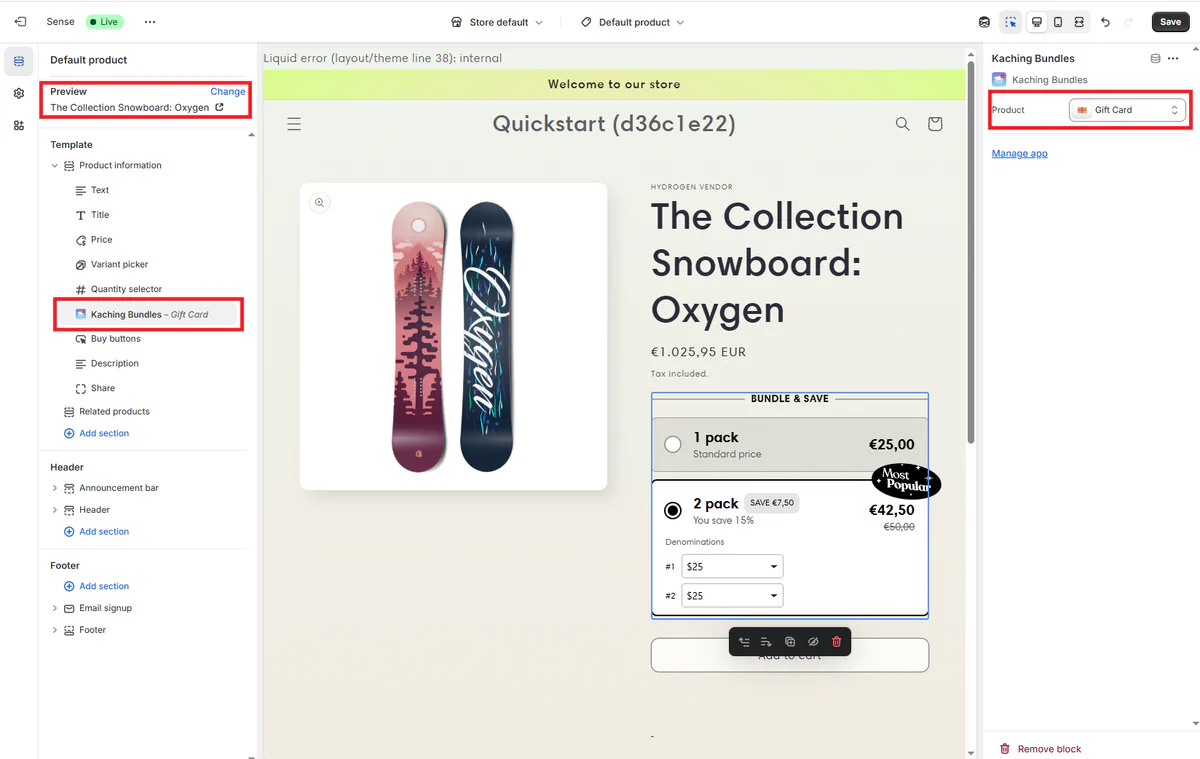
Sometimes merchants accidentally select a specific product there while editing the app block in the theme editor. When that happens, our app thinks you’re trying to show the same bundle on every product page — leading to the wrong bundle showing and being added to the cart.
Here’s an example how it could be set incorrectly
How to Fix It
Here’s how to fix the issue in just a few steps:
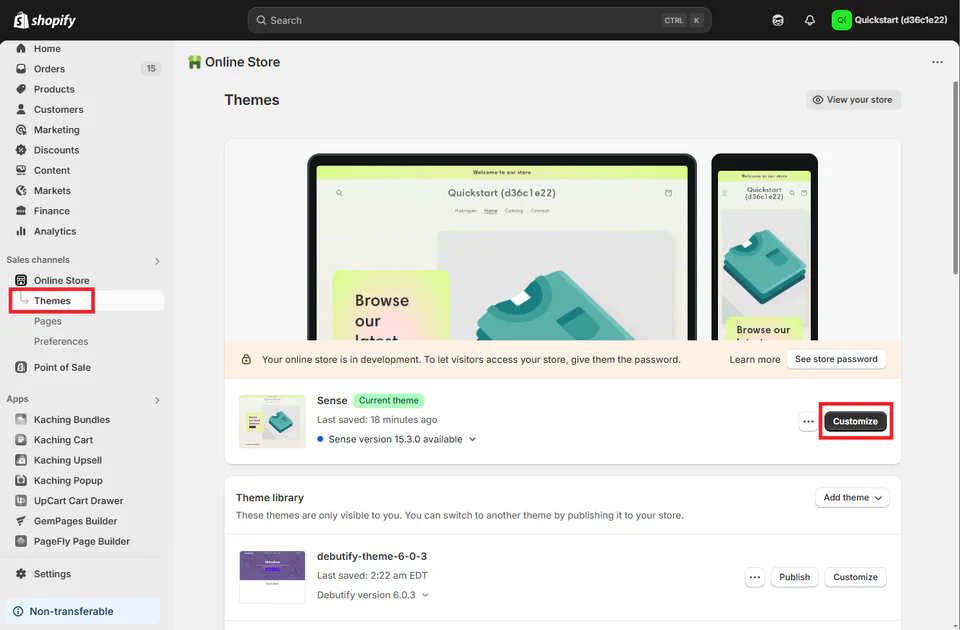
- Go to Shopify Admin > Online Store > Customize
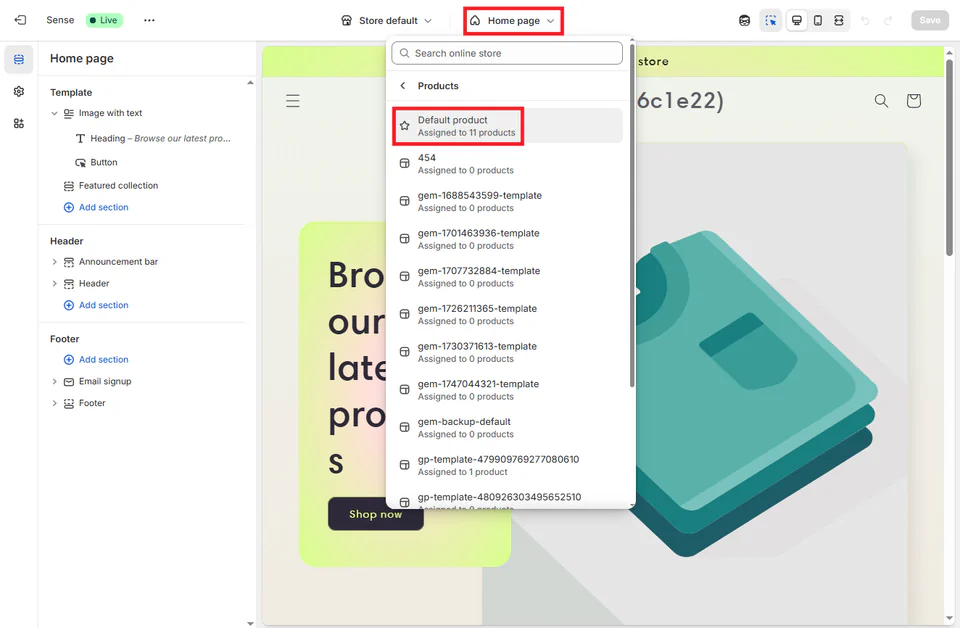
- Open the Product page template
- Click on the Kaching Bundles app block
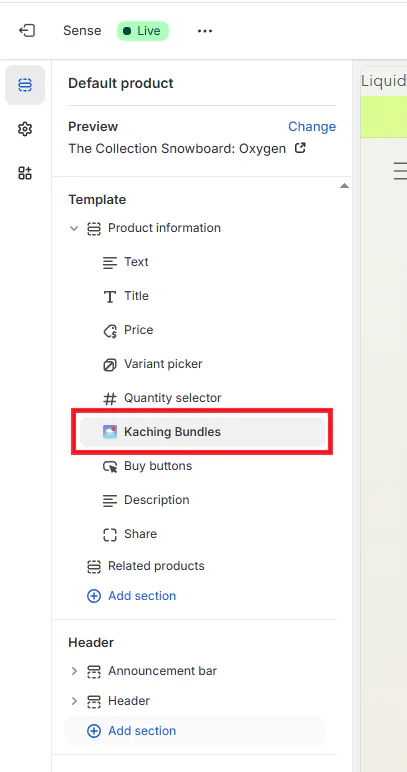
- Check the “Product” field in the block settings
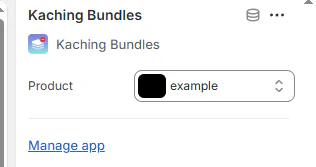
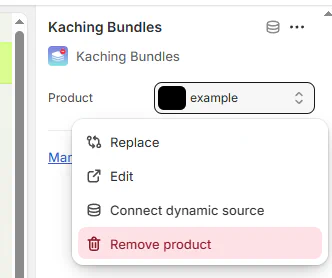
- If a specific product is selected — remove it
- Select the default Product metafield (from dynamic sources)
- Click Save
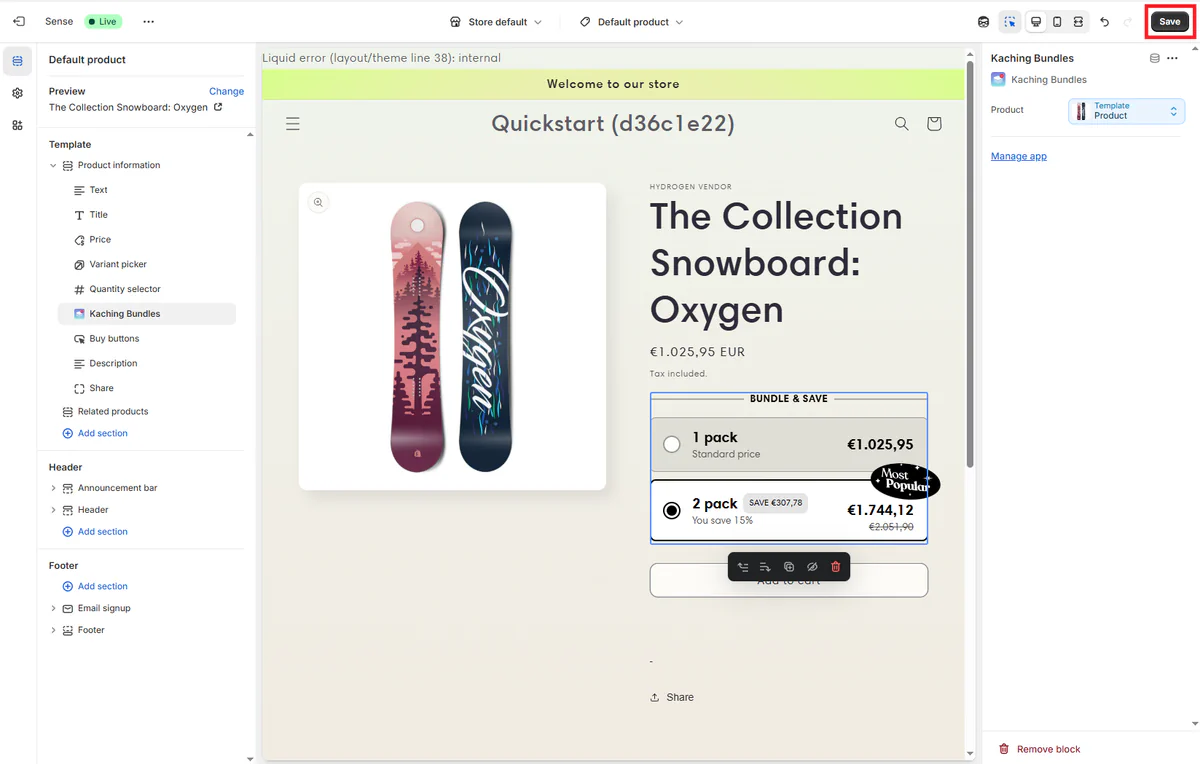
Once you’ve saved this setting, the app will dynamically load the correct bundle based on the product the customer is viewing.
Still Seeing the Wrong Bundle?
If the issue persists even after correcting this setting, it might be due to a product page caching issue. Try clearing your browser cache or previewing in an incognito window.
Still no luck? Reach out to us via the in-app live chat — we’ll be happy to take a look for you.
Related articles
How to dynamically display product/discount details in the bundle dealLearn more about Kaching Quantity bundles dynamic personalizations ( variables )Bundles How to Add a Bundle Widget to a Featured Product SectionLearn how to add the Kaching quantity bundles widget to the featured product sectionBundlesWhy It’s Adding Only One Quantity to the CartLearn why Kaching bundles app might be adding only single item to the cartBundlesHow to Validate if the Issue Is Related to Kaching Bundles AppLearn how to confirm if the issue is caused by Kaching bundles appBundlesCart Drawer Doesn’t OpenLearn why Kaching cart might not be openingCart

How to Add a Bundle Widget to a Featured Product SectionLearn how to add the Kaching quantity bundles widget to the featured product sectionBundlesWhy It’s Adding Only One Quantity to the CartLearn why Kaching bundles app might be adding only single item to the cartBundlesHow to Validate if the Issue Is Related to Kaching Bundles AppLearn how to confirm if the issue is caused by Kaching bundles appBundlesCart Drawer Doesn’t OpenLearn why Kaching cart might not be openingCart