





Subscription offers in Post Purchase page
Learn how to add subscription upsells to your post-purchase page and turn one-time buyers into recurring customers
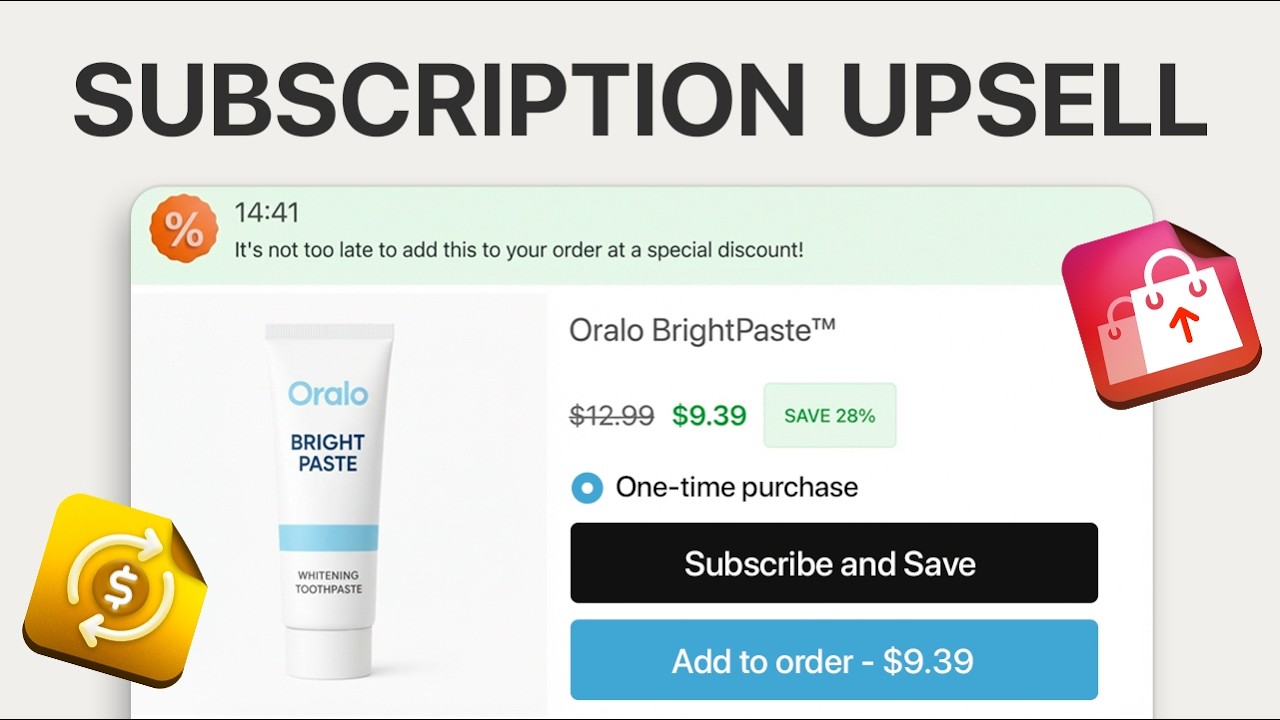
If you're running subscription products and not offering them in post-purchase upsells, you're leaving recurring revenue on the table with every order. This is one of the most effective ways to increase customer lifetime value, and the setup is quick.
Step 1. Create a new upsell offer.
Open the Kaching Post Purchase app and click Create New Upsell Offer. Choose Manual Setup, then select your upsell type and define when the offer should be shown (e.g., when a customer orders any product).
Step 2. Select your product.
Choose the product you want to upsell.
Step 3. Choose a selling type.
You'll see three selling type options:
- One-time only — standard one-off purchase
- One-time + Subscription — customer can choose either
- Subscription only — subscription is the only option
If you're just getting started, One-time + Subscription is recommended. It reduces friction while still introducing the recurring option. You can also set which option is pre-selected by default.
Step 4. Set up the discount.
The offer pulls existing discounts from your subscription app, and you can stack an additional discount on top.
Make sure to enable "Apply discount to subscription."
Step 5. Configure shipping (optional).
You can set a recurring shipping price that applies to every subscription delivery. If you'd like a custom shipping label, enable the custom shipping title option to keep things clear and predictable for the customer.
Step 6. Finalize and publish.
Adjust your upsell/downsell flow, customize the design, and hit Publish.
Need help? Drop us a message in the live chat, and we'll sort it out together.
Related articles
 Kaching Post-Purchase Upsell - PayPal Automatic PaymentsLearn about Paypal payment method for post-purchase offers.Post-purchaseKaching Subscriptions ExplainedKaching Subscriptions ExplainedSubscriptions
 Set Up Post-Purchase Upsells in Minutes (Shopify Tutorial)Get your first upsell offer live in minutes. Here's the quick walkthrough.Post-purchaseSwap to subscription: turn a one-time purchase into a subscriptionSwap to subscription is a post-purchase offer. Right after checkout, the customer sees an offer to change the product they just bought into a subscription of…Post-purchase