





Set Up Post-Purchase Upsells in Minutes (Shopify Tutorial)
Get your first upsell offer live in minutes. Here's the quick walkthrough.
Post-purchase upsells are an easy way to increase your average order value without slowing down checkout. With Kaching Post-Purchase Upsell app, customers see an extra offer right after they complete their purchase and they can accept it with just one click.
Here’s a quick step-by-step video tutorial on how to set up your first upsell offer:
Step 1: Enable the App in Shopify
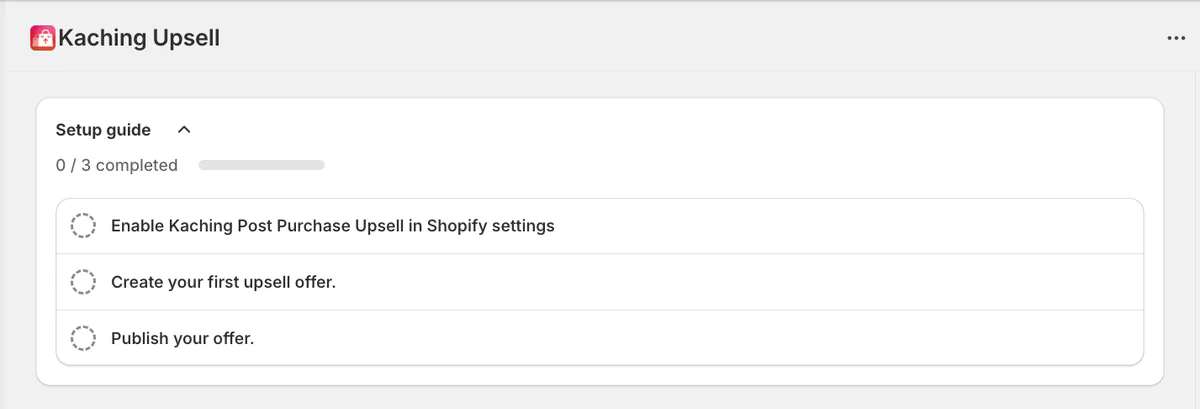
- Click Enable Kaching Post Purchase Upsell in Shopify settings
- Pick Kaching Upsell
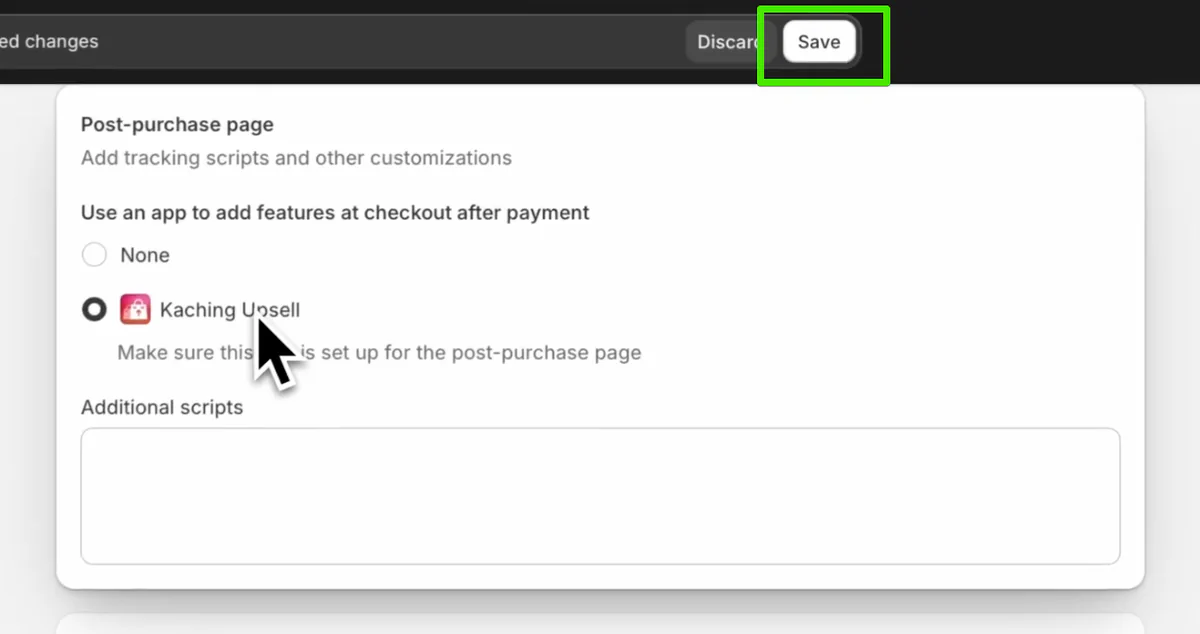
- Click Save
Step 2: Choose Setup Method
- Open Kaching Upsell app
- Click Create new offer
- Select Manual Setup (or choose Automatic AI or Kaching Bundles)
🔹The Automatic AI setup is the fastest.
🔹The Kaching Bundles setup lets you upsell your existing bundles directly in the post-purchase step, a power move if you already use bundles.
🔹The full Manual setup gives you the most customization.
🔹Shopify’s post-purchase upsell flow does not support orders completed in currencies different from your store’s base currency. As a workaround, use a Thank You page upsell instead. New offers add the accepted product to the original order and the customer pays the difference. An offer set to create a separate order creates one for the upsell products instead.
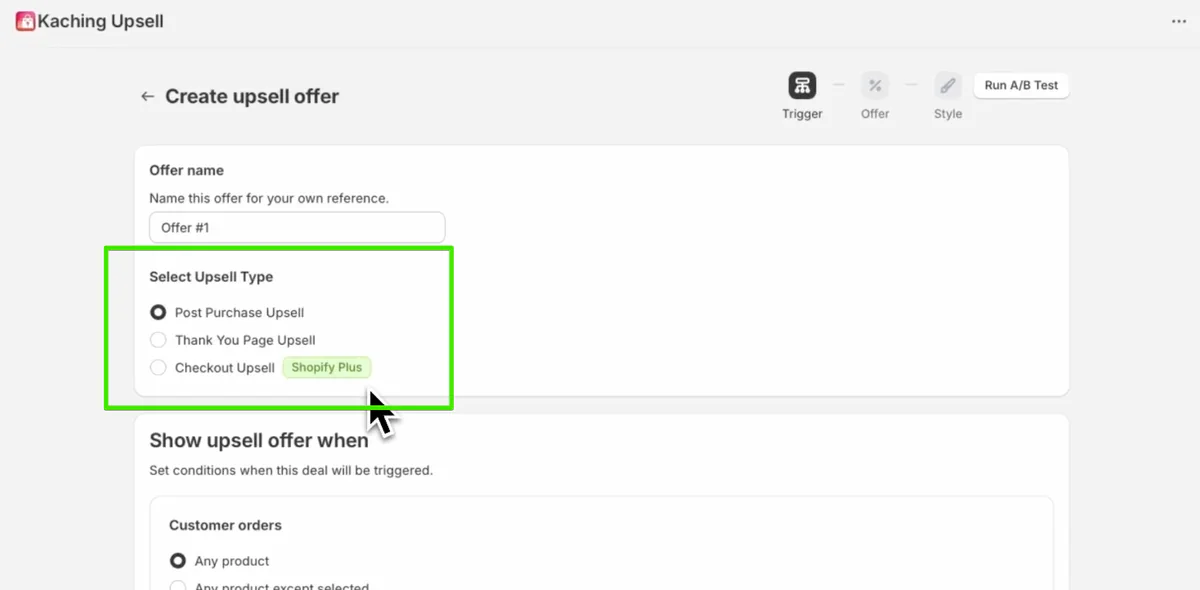
Step 3: Select Upsell Type
- Choose Post-Purchase Upsell
- Click Continue
Step 4: Set Trigger Conditions
- Choose when this offer appears:
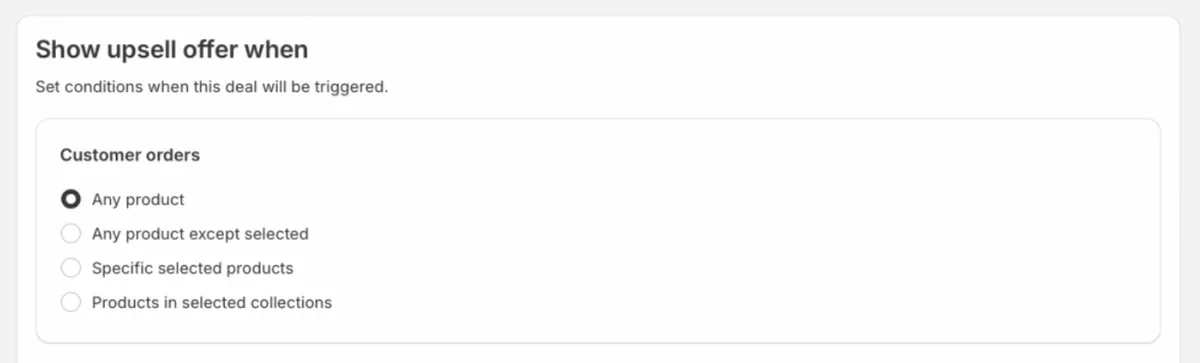
This time let’s choose Specific selected products option
- Choose your product from the list
- Let's Add condition (optional)
- Set Order total above $50 (or your preferred amount)
- Click Next step
Step 5: Choose which products will be shown in the offer
- Select products to upsell
- Adjust discount percentage if needed
- Check Exclude products already in order (optional)
- Enable the Quantity Input Option to allow customers to add multiple items from the offer.
- Click Next step
Step 6: Create Downsell Offer
It shows up if the customer declines the first offer.
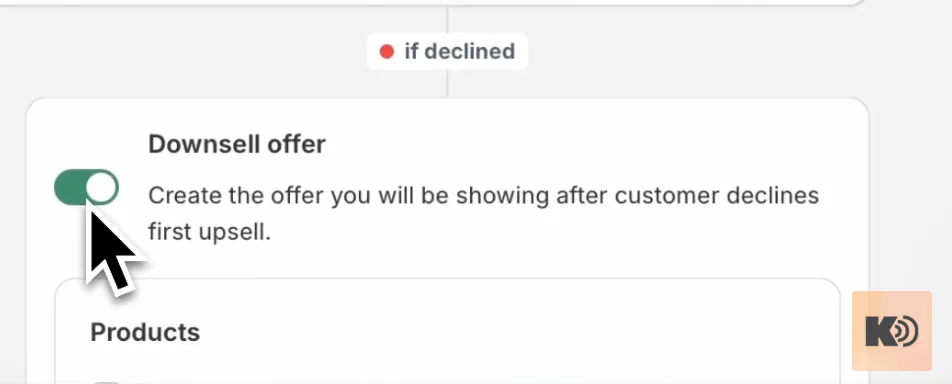
- Select downsell products
- Set discount to 15-20%
- Check Exclude products already in order
- Click Next step
Step 7: Customize Design
- Set your brand colors
- Add timer (e.g., 10 minutes)
- Choose layout style
- Enable Show reviews and Show review count
- Select your reviews platform
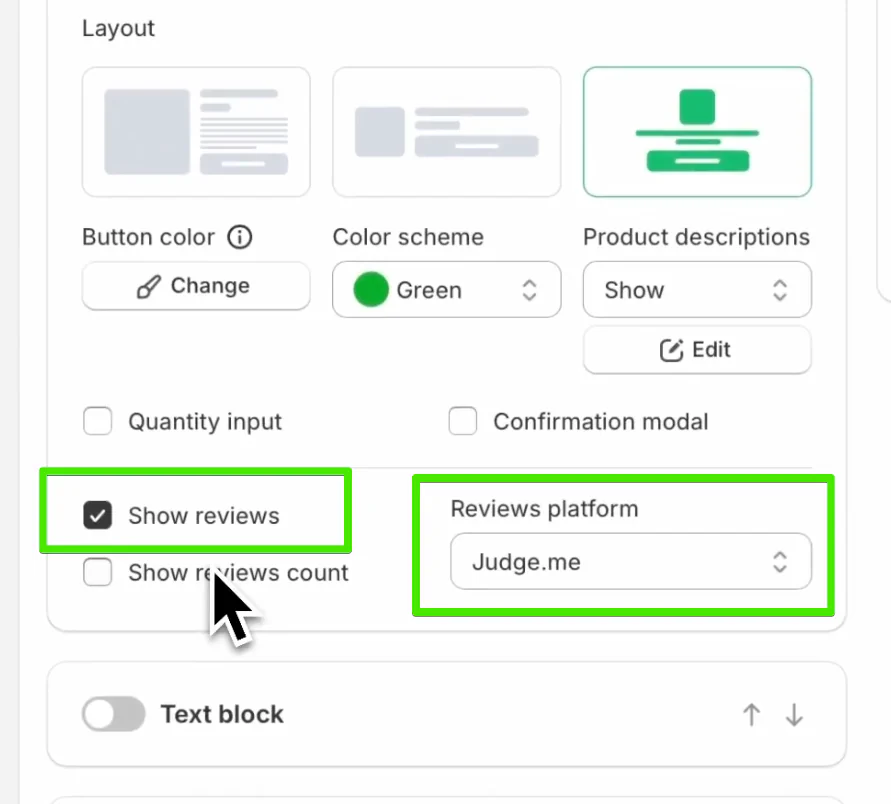
- Check mobile preview
Step 8: Publish
- Review all settings
- Click Publish
Step 9: Test Your Offer
- Place a test order that meets your trigger conditions
- Complete checkout
- Verify upsell appears
- Decline to see downsell
- Accept downsell to confirm it adds to order
- If the upsell does not display, check the app’s settings and verify the display status on the Orders page.
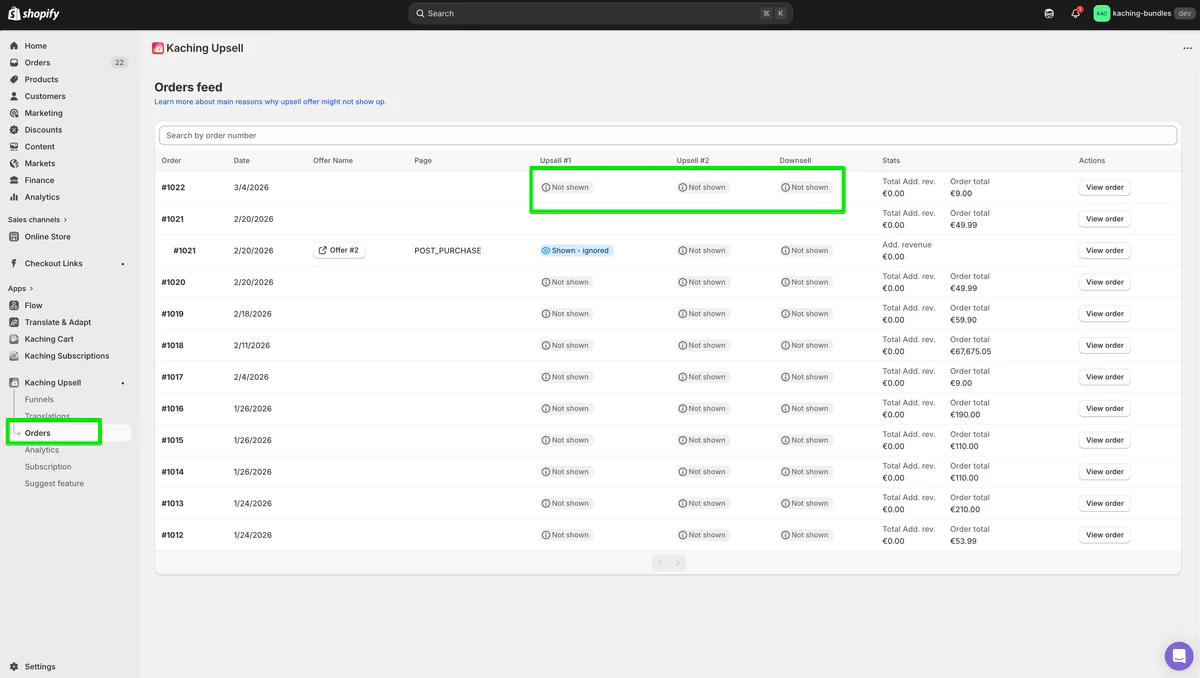
Need help? Drop us a message in the live chat, and we'll sort it out together. You can also check the Orders page in the app to see specific reasons why an upsell did not appear.
Related articles
Kaching post-purchase upsell do not show up for the customer ( status is "NOT SHOWN" )Learn about the main reasons why Kaching post-purchase upsell ( 1-click offer ) might not show up for the customer.Post-purchase Kaching Post-Purchase Upsell - PayPal Automatic PaymentsLearn about Paypal payment method for post-purchase offers.Post-purchaseHow To Upsell Bundles in Your Shopify Product PageLearn how to effectively upsell product bundles directly on your Shopify product pages using high-converting tactics.Bundles
 Subscription offers in Post Purchase pageLearn how to add subscription upsells to your post-purchase page and turn one-time buyers into recurring customersPost-purchaseFunnels: connect your upsell offers across checkout, post-purchase and thank you pageDecide what a customer sees next, based on what they did with your last offer.Post-purchase
Kaching Post-Purchase Upsell - PayPal Automatic PaymentsLearn about Paypal payment method for post-purchase offers.Post-purchaseHow To Upsell Bundles in Your Shopify Product PageLearn how to effectively upsell product bundles directly on your Shopify product pages using high-converting tactics.BundlesSubscription offers in Post Purchase pageLearn how to add subscription upsells to your post-purchase page and turn one-time buyers into recurring customersPost-purchaseFunnels: connect your upsell offers across checkout, post-purchase and thank you pageDecide what a customer sees next, based on what they did with your last offer.Post-purchase