





How to create a different subscription plan for each quantity break
Learn how to create a different subscription plan for each quantity break

You can offer unique subscription options for each bundle deal by combining Kaching Bundles: Quantity Breaks with Kaching Subscriptions. This method uses product variants to link each bundle deal with a different subscription plan.
This article assumes you are using both Kaching Bundles: Quantity Breaks and Kaching Subscriptions apps.
In this article:
- Step 1: Create product variants for each subscription plan
- Step 2: Assign selling plan groups to variants
- Step 3: Set up the quantity breaks bundle deal
Step 1: Create product variants for each subscription plan
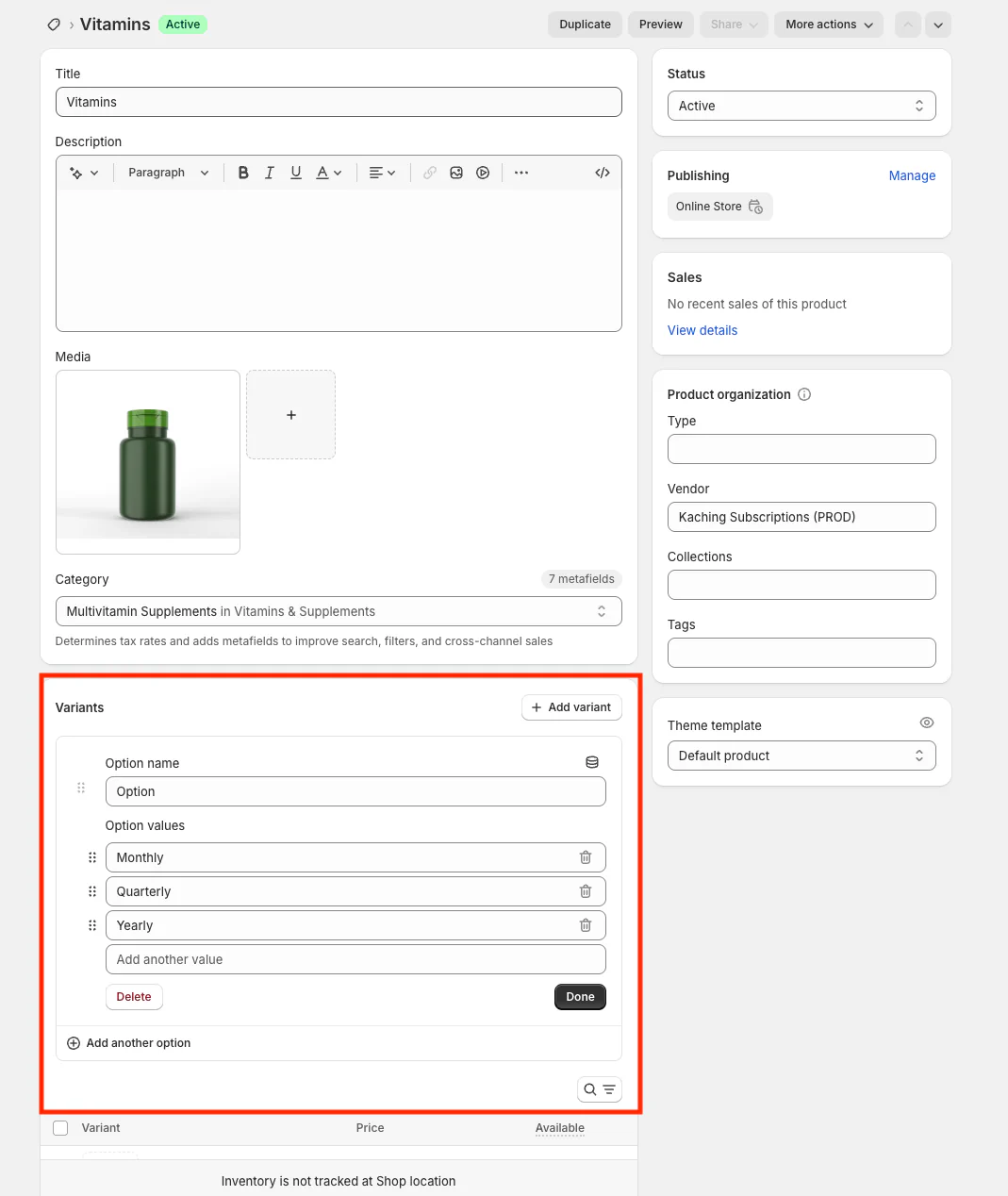
To create a unique subscription plan for each bundle deal, start by setting up separate product variants that will act as subscription plan anchors.
Example (for a product called Vitamins):
- Variant 1 – “Monthly $20”
- Variant 2 – “Quarterly $20”
- Variant 3 – “Yearly $20”
In this example all product variants have the same price.
These variants will be used to connect your subscription plans and bundle logic:
Step 2: Assign selling plan groups to variants
Now, go to Kaching Subscriptions and:
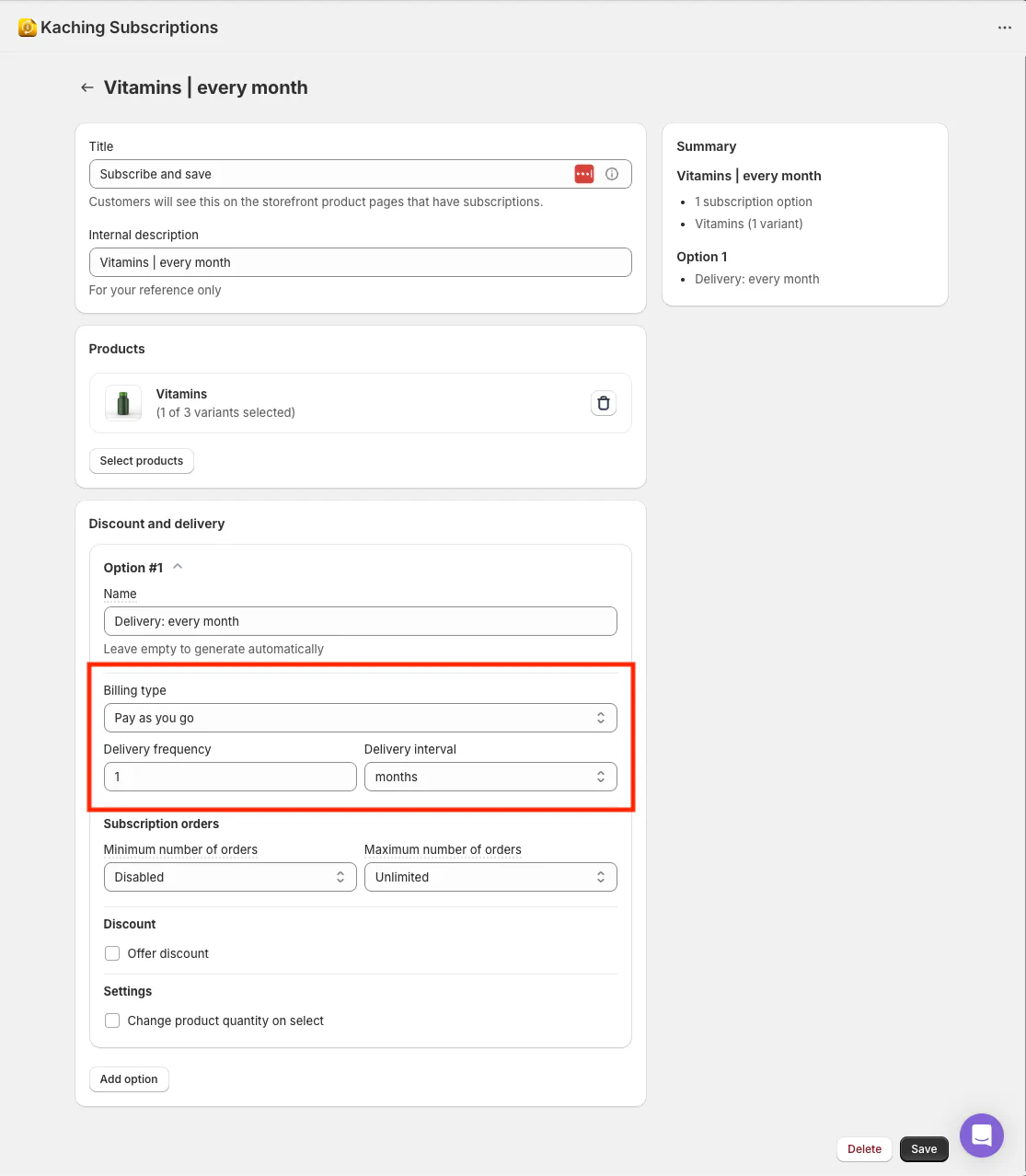
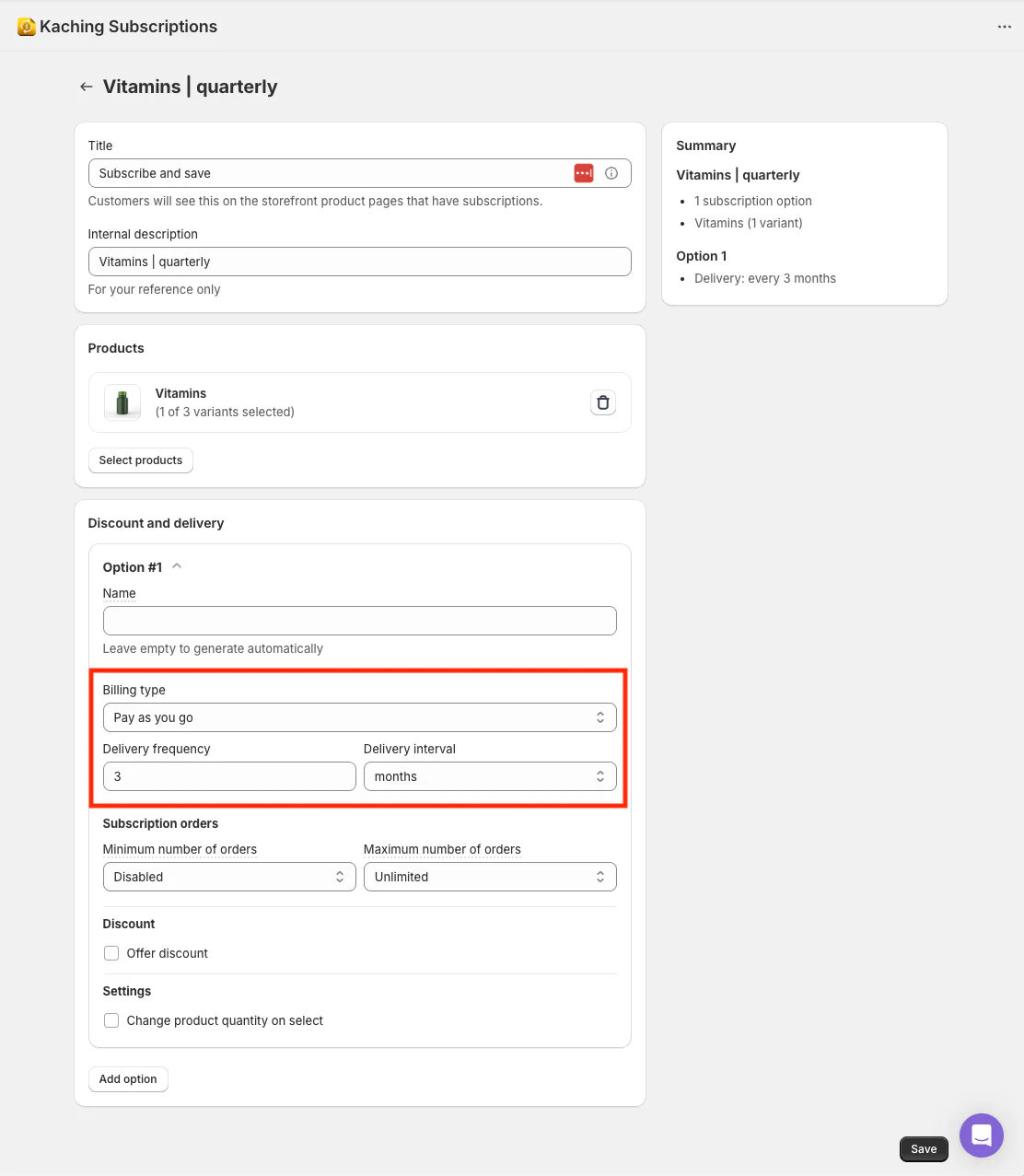
- Create a new selling plan group for each variant
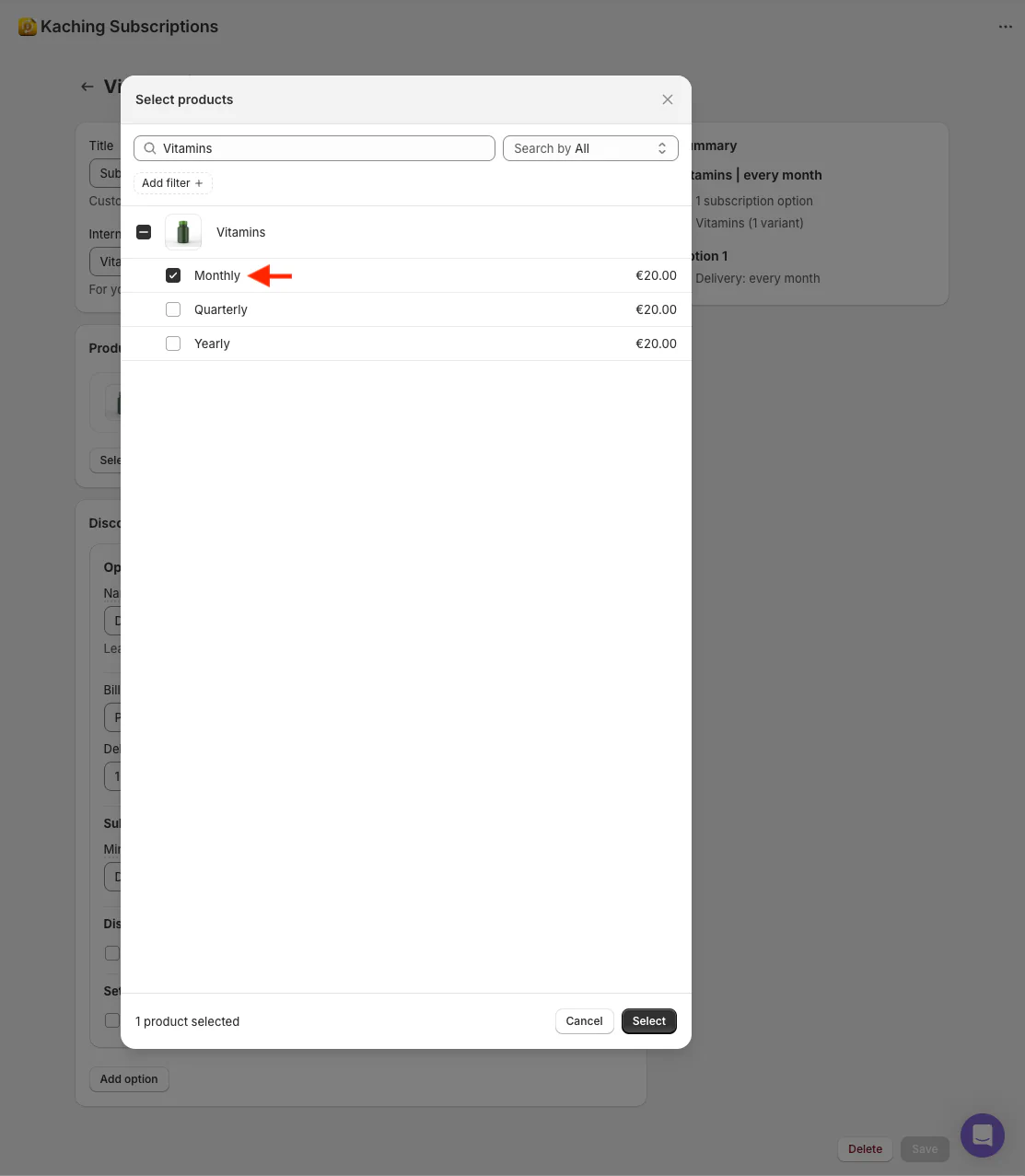
- Assign the corresponding product variant to each group
This way, every variant has its own subscription logic and schedule.
Create selling plan group for 'Monthly' variant:
Assign 'Monthly' product variant to the selling plan group:
Create selling plan group for 'Quarterly' variant:
Assign 'Quarterly' product variant to the selling plan group:
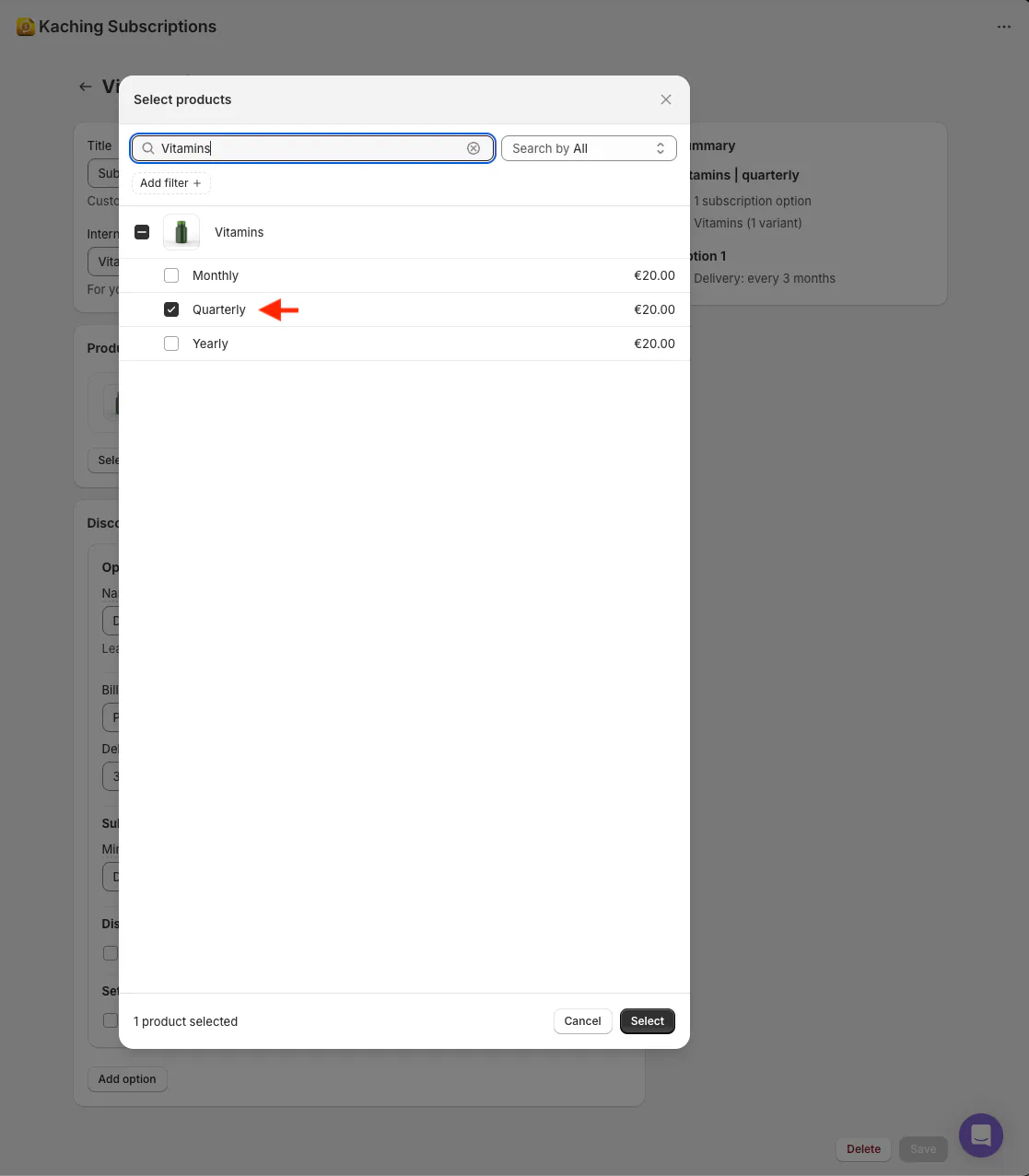
Create selling plan group for 'Yearly' variant:
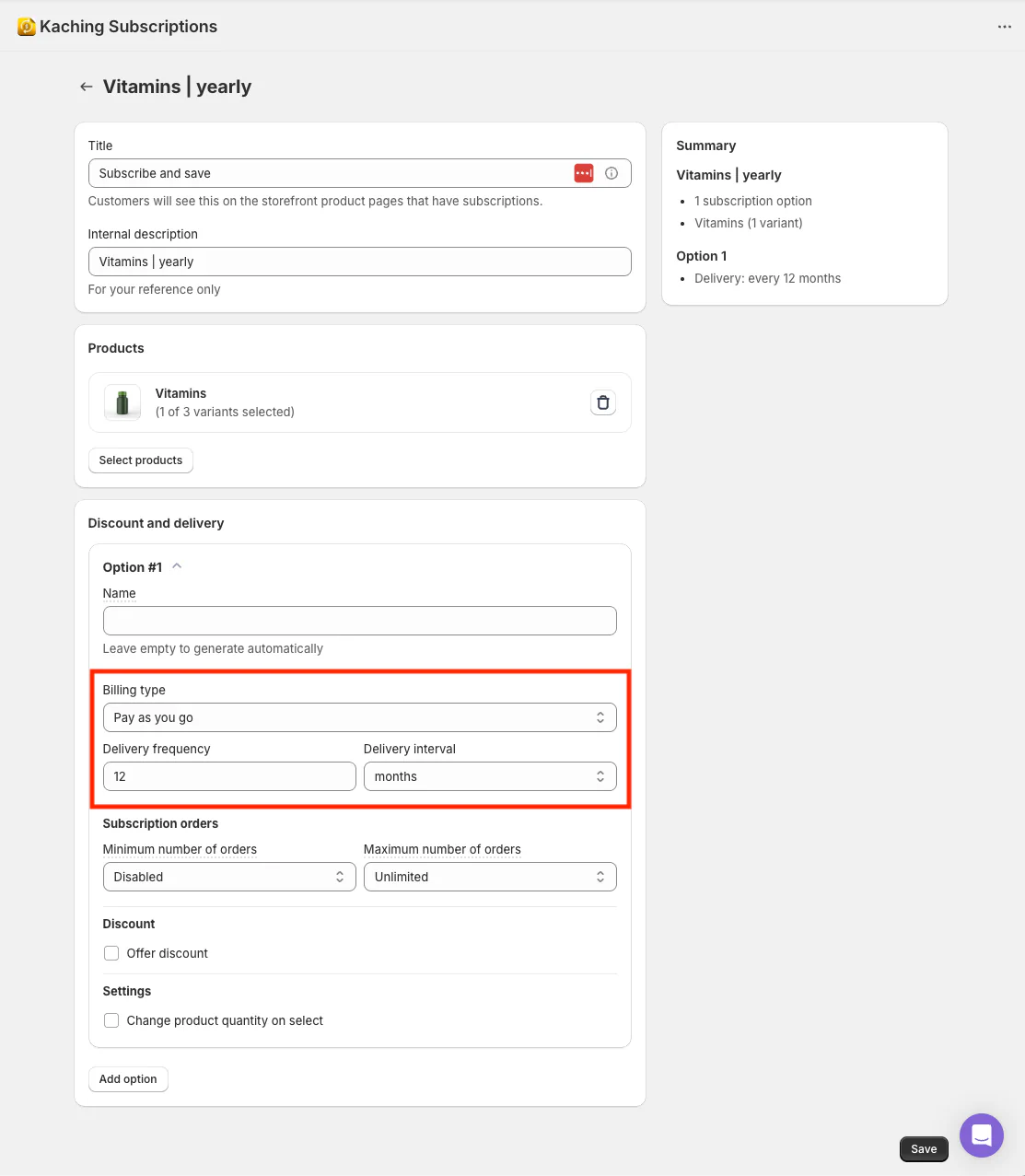
Assign 'Yearly' product variant to the selling plan group:
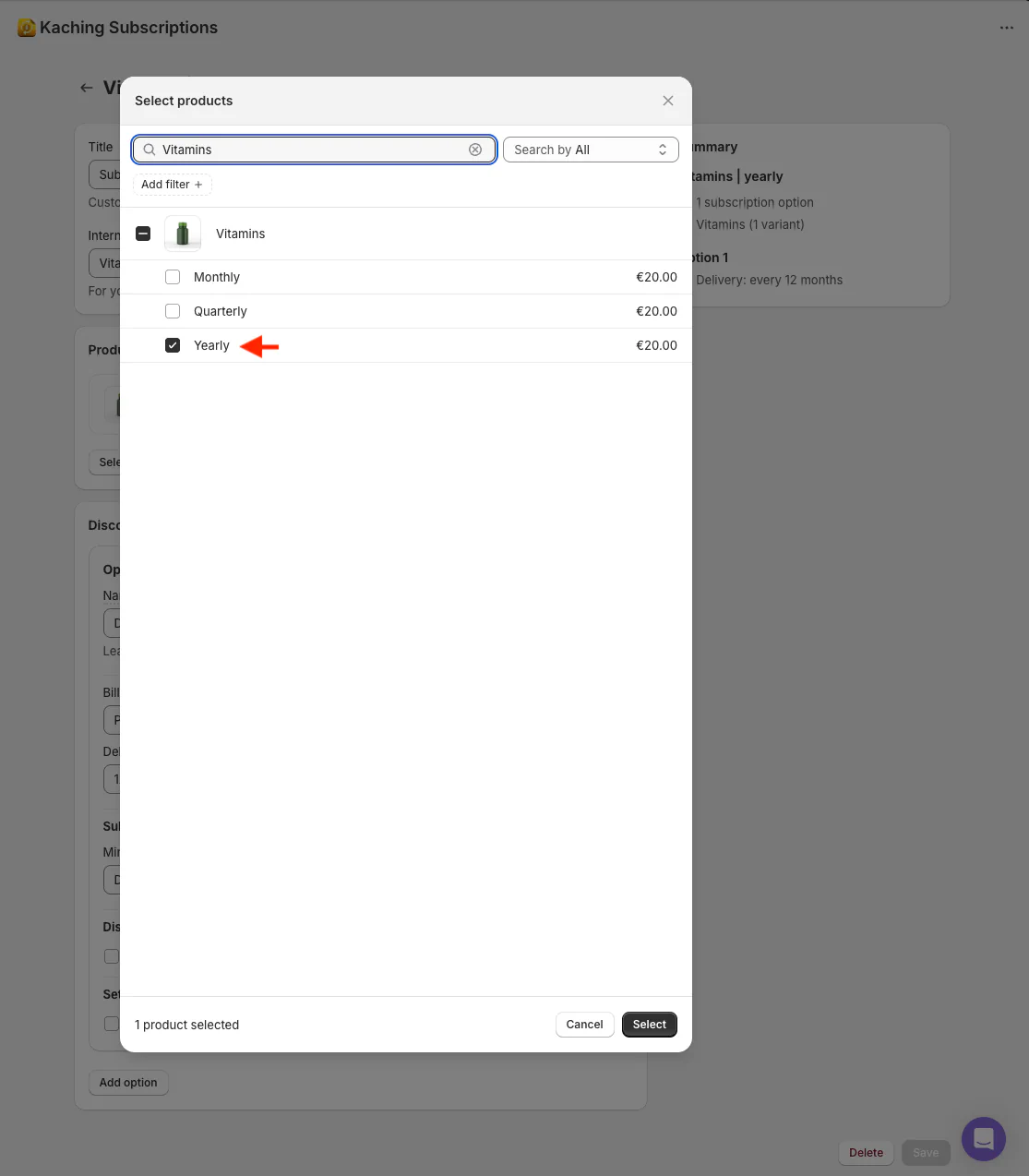
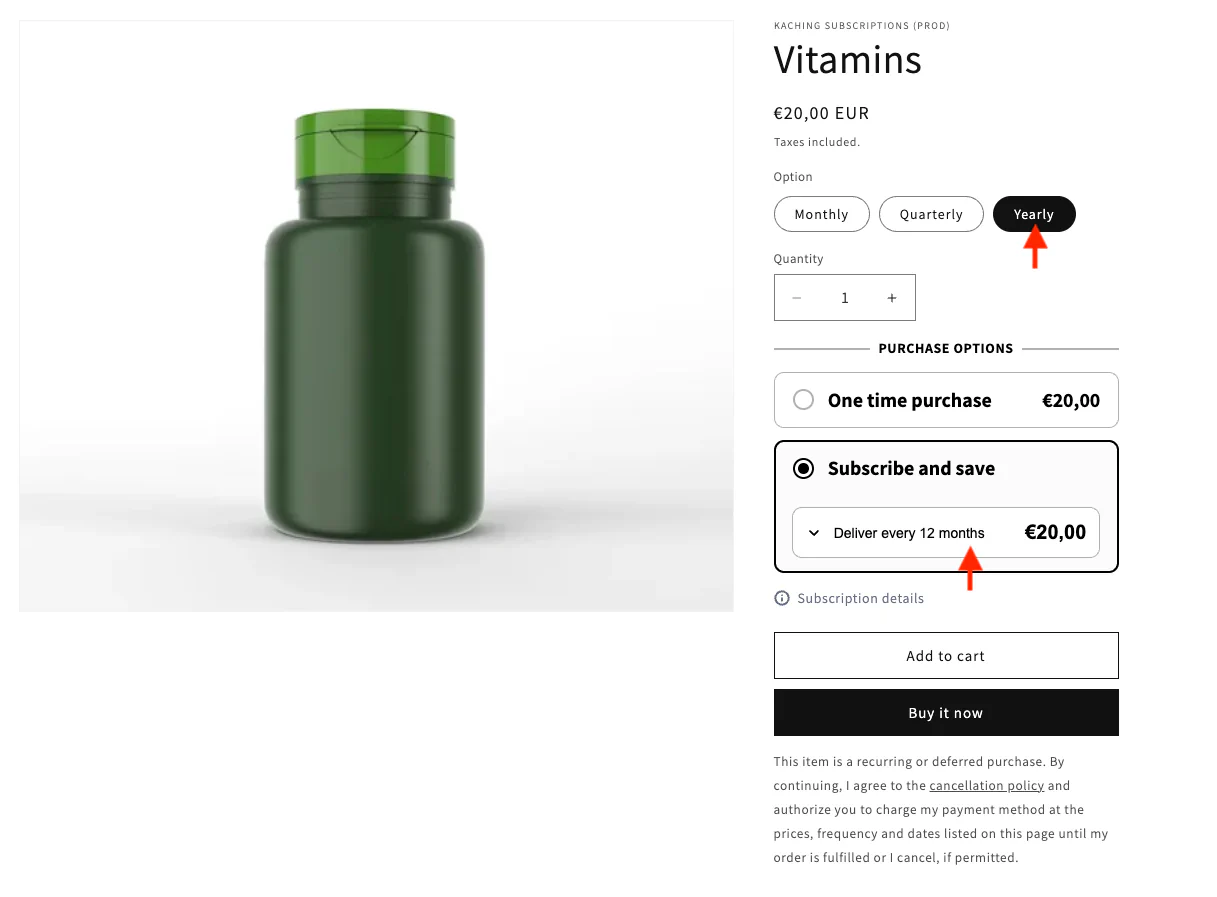
If you test the product page and change variants, you’ll see the subscription plan update automatically:
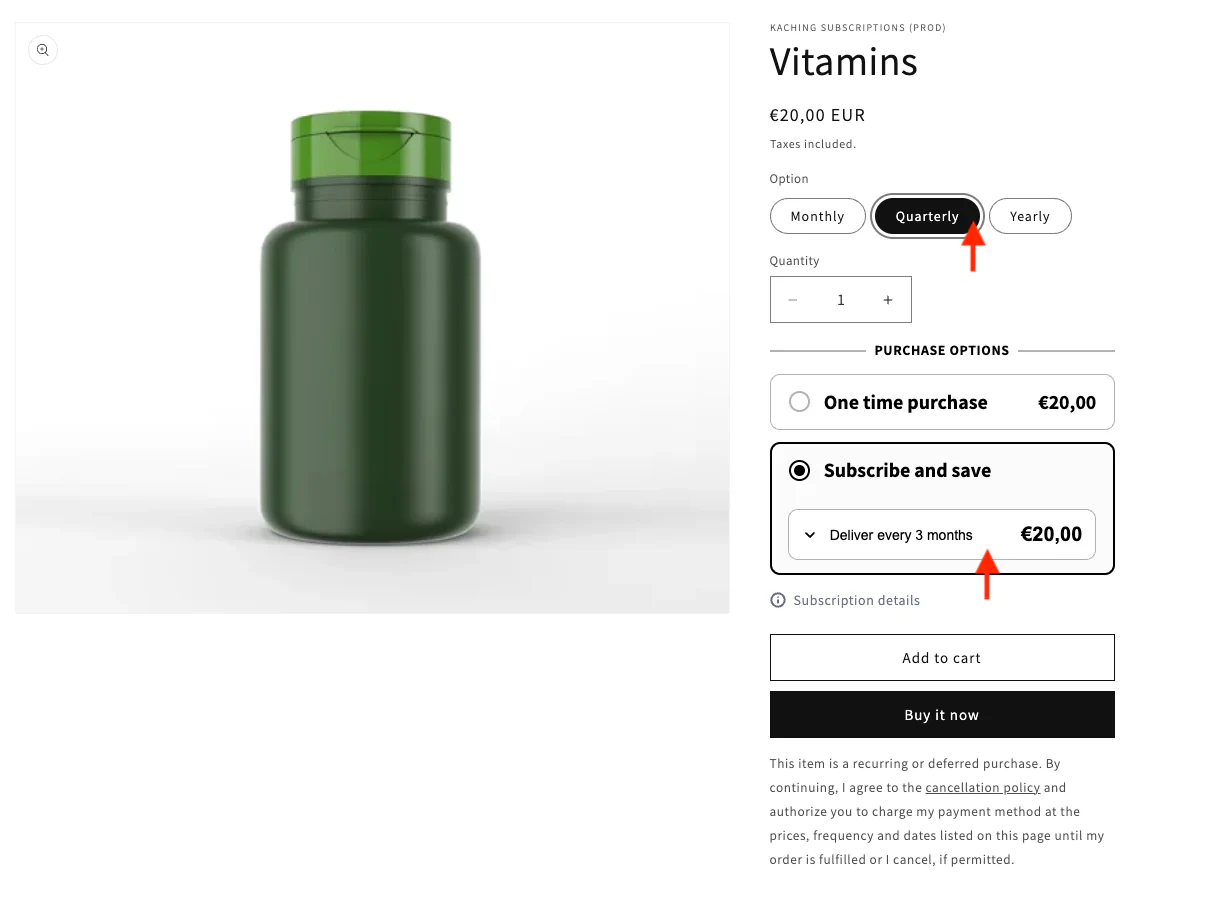
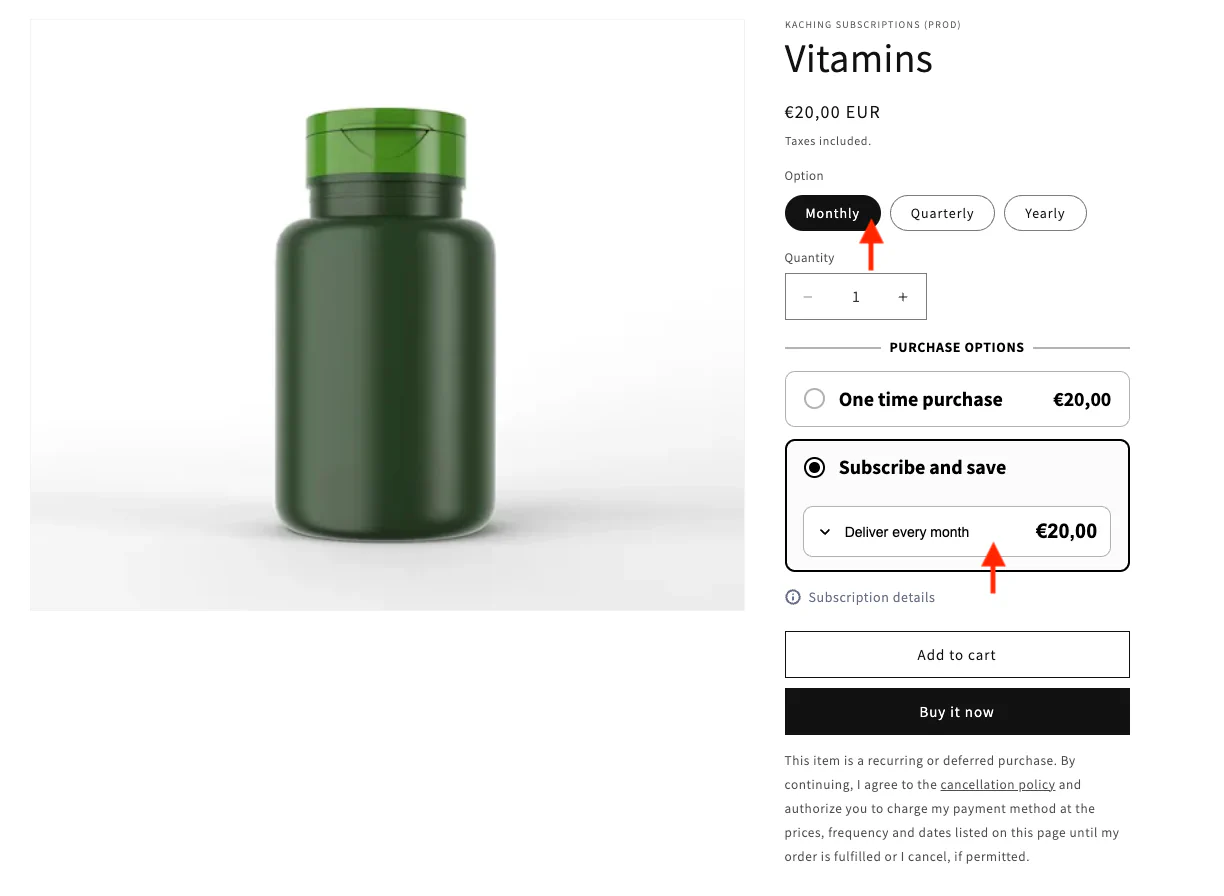
Step 3: Set up the quantity breaks bundle deal
Open the Kaching Bundles: Quantity Breaks app and configure the bundle:
- Select the Vitamins product
- Enable the Subscriptions bar:
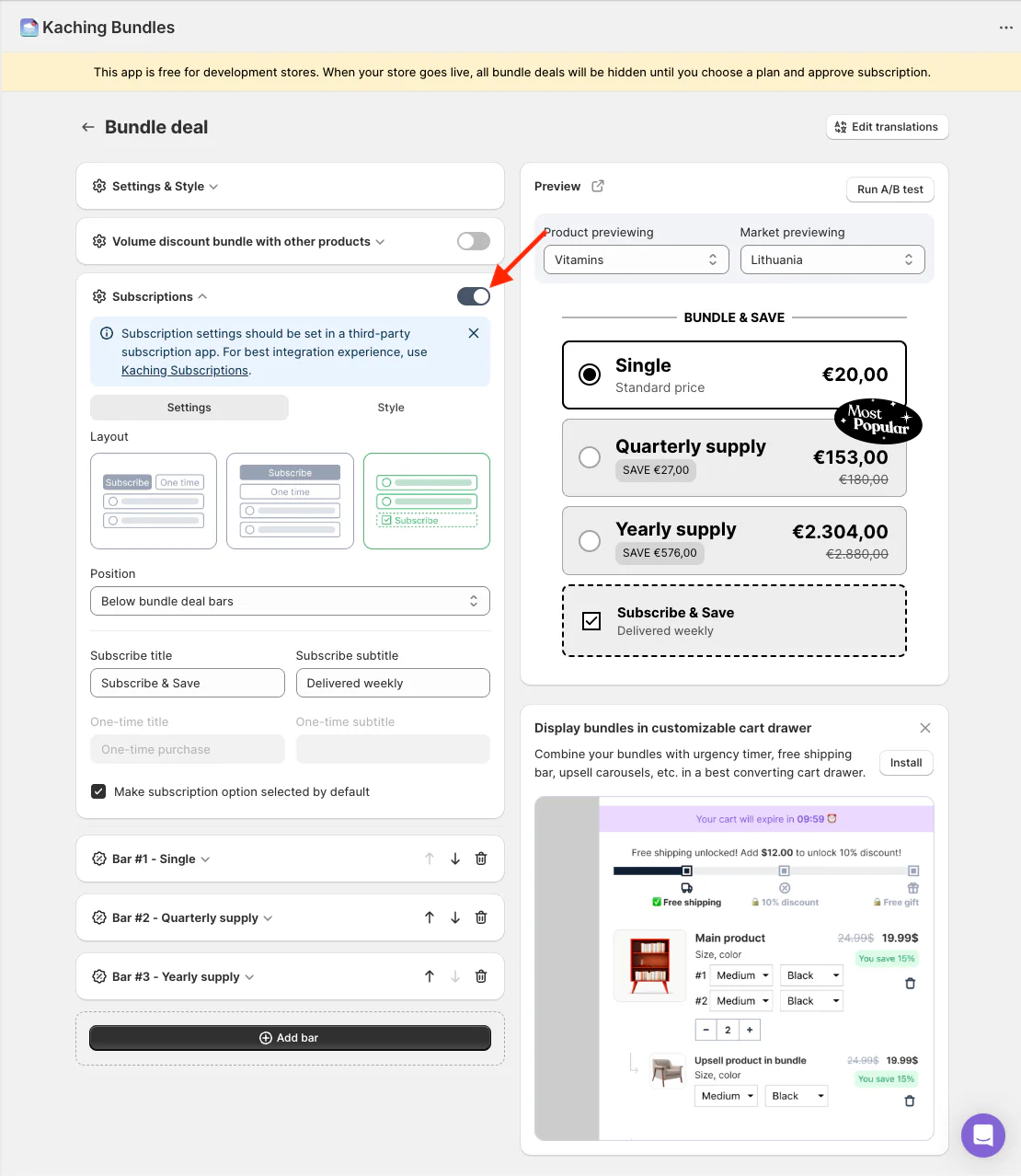
- Add quantity breaks that mimic monthly, quarterly and yearly product variants:
Monthly - quantity of 1 item
Quarterly - quantity of 3 items
Yearly - quantity of 12 items
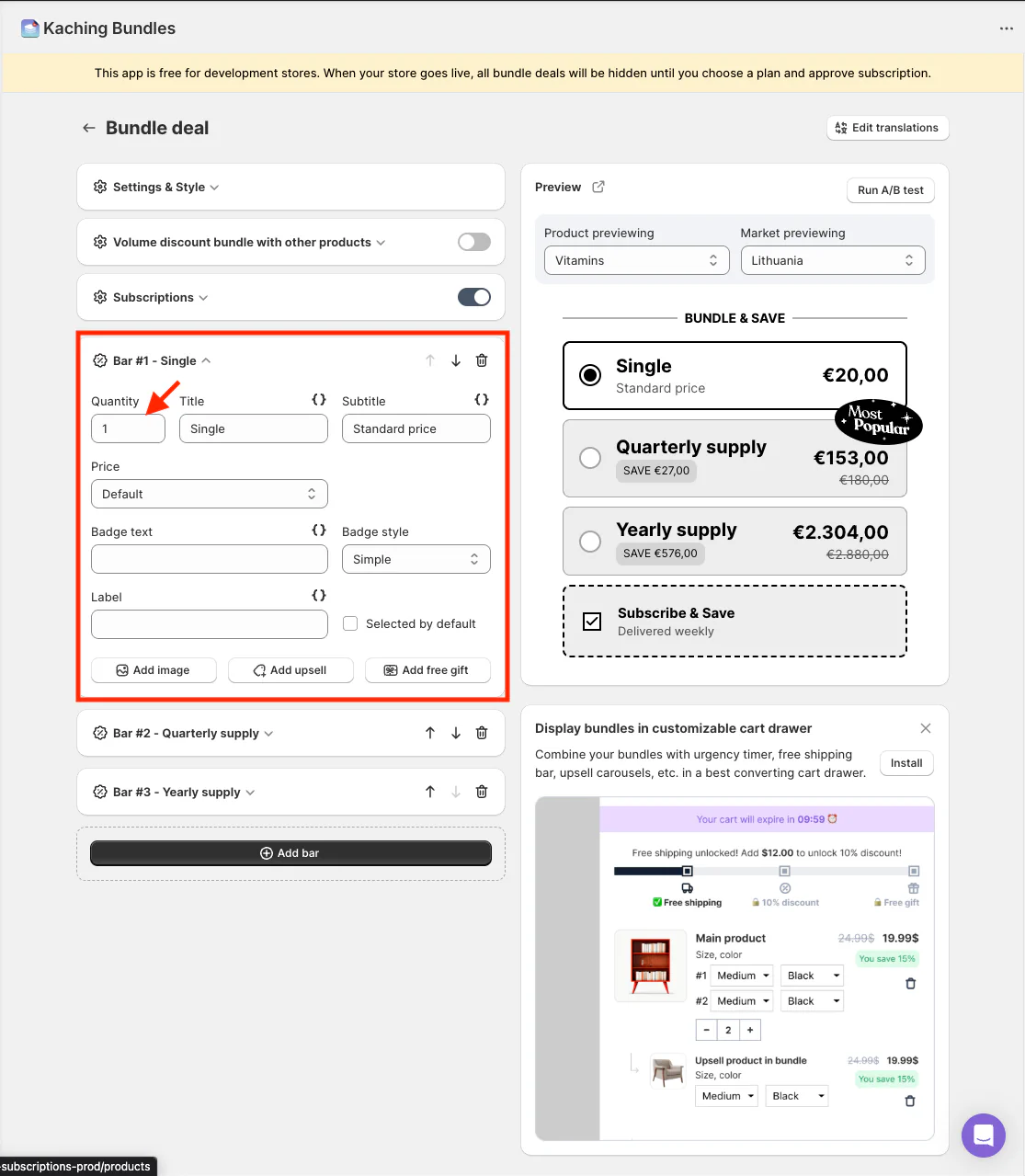
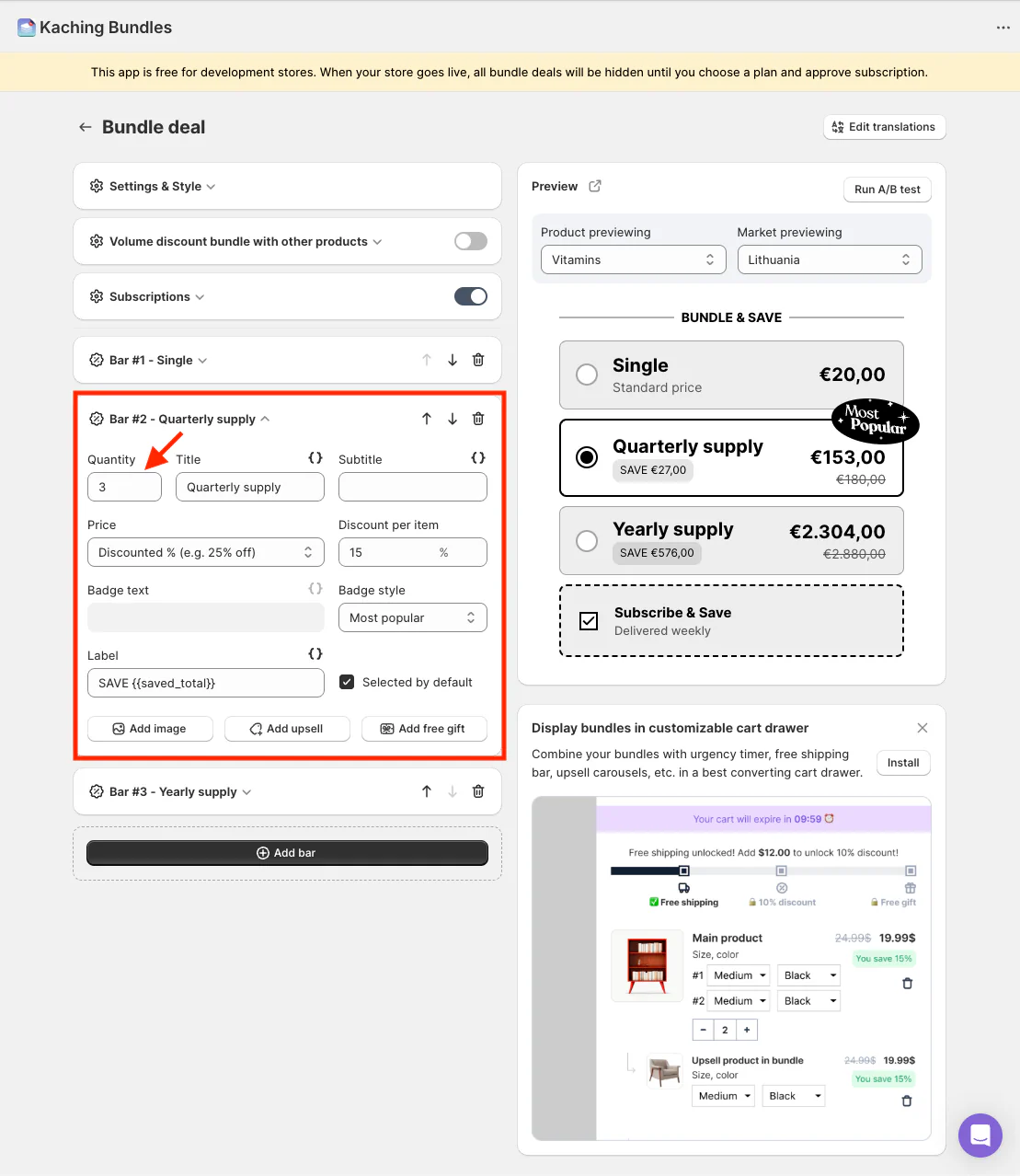
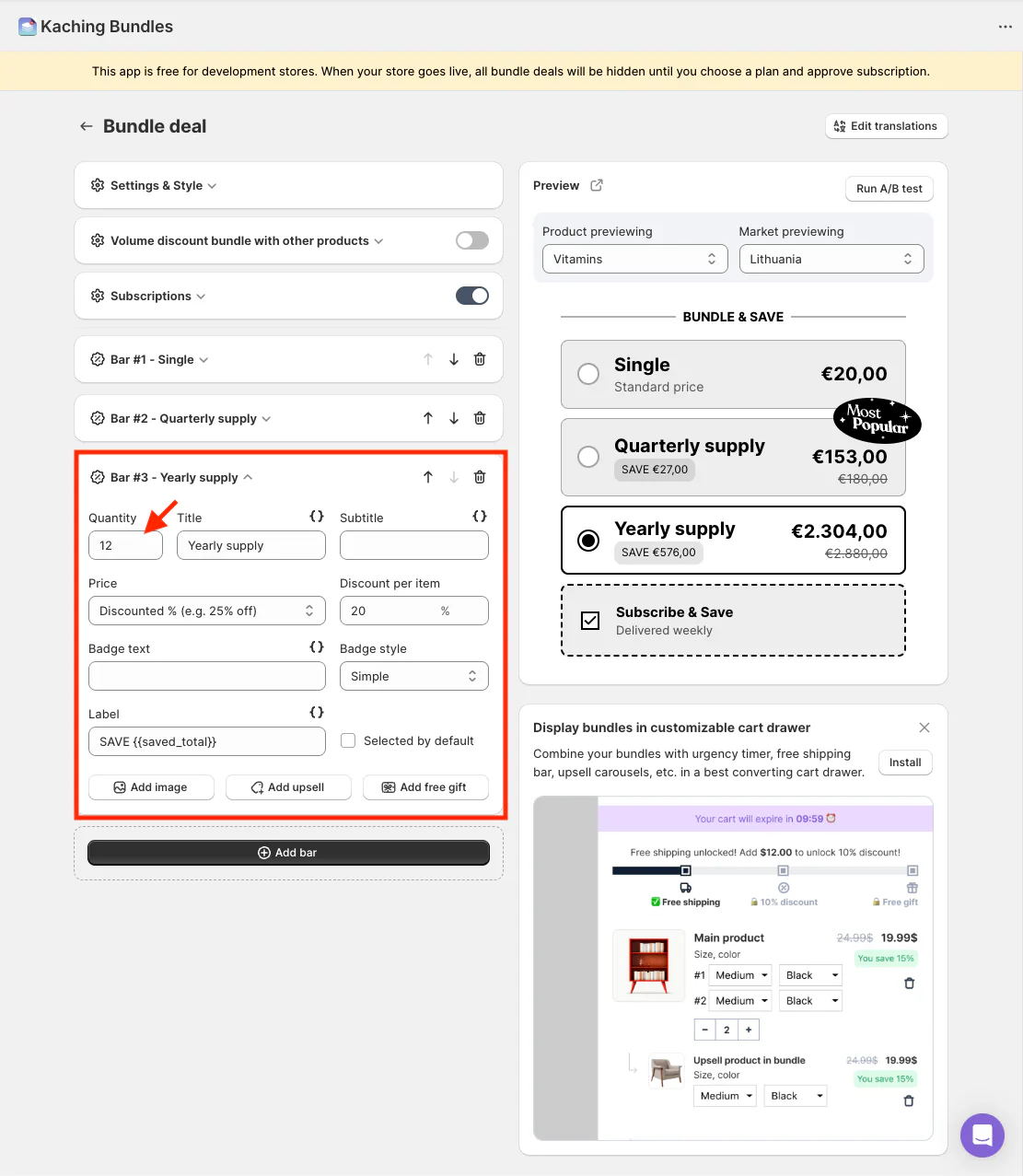
As you can see in the images - I have also created a quantity break discounts for quantities of 3 and 12 items - to make the offer more attractive to the customers.
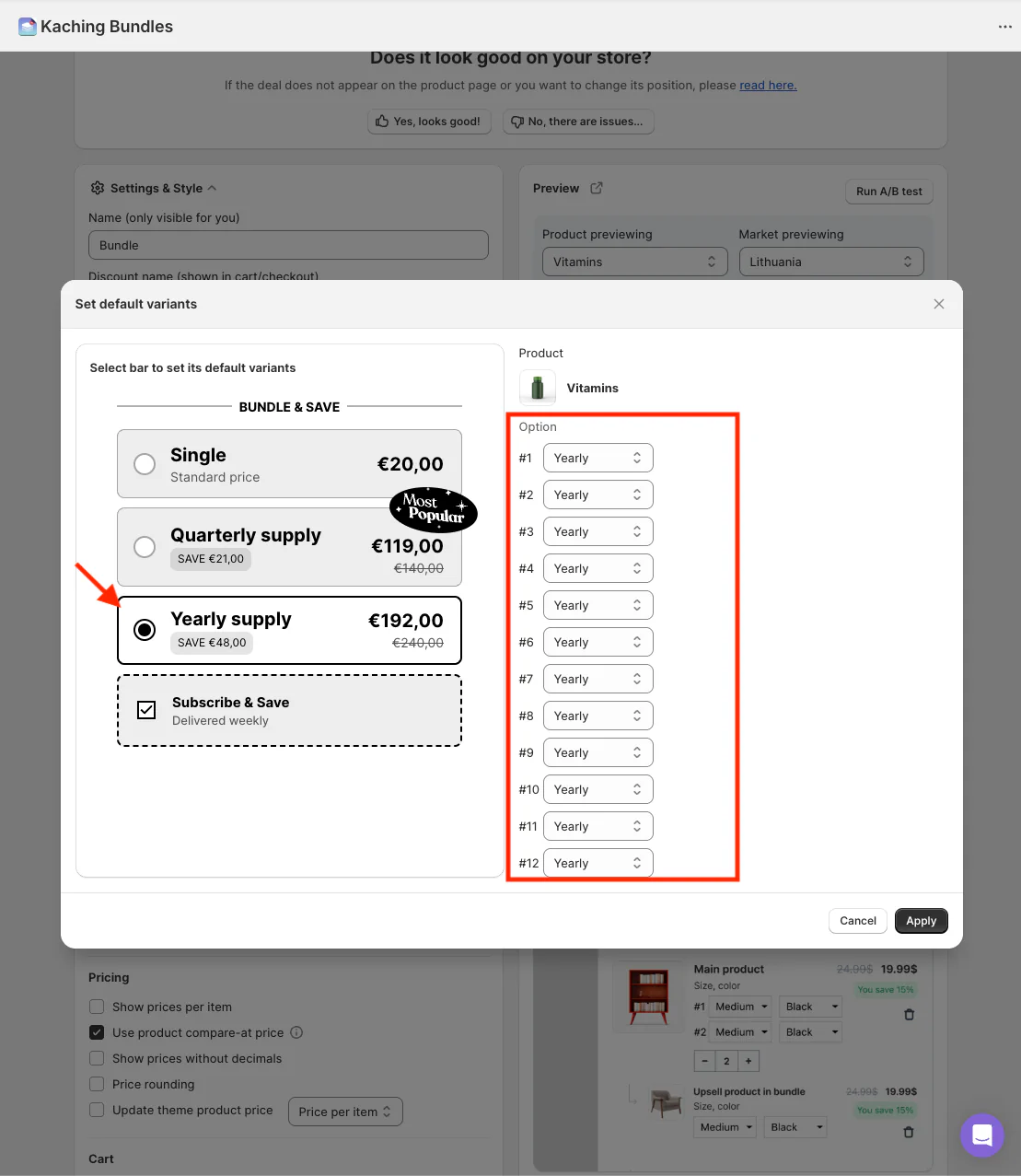
- Choose the default variants for each quantity break:
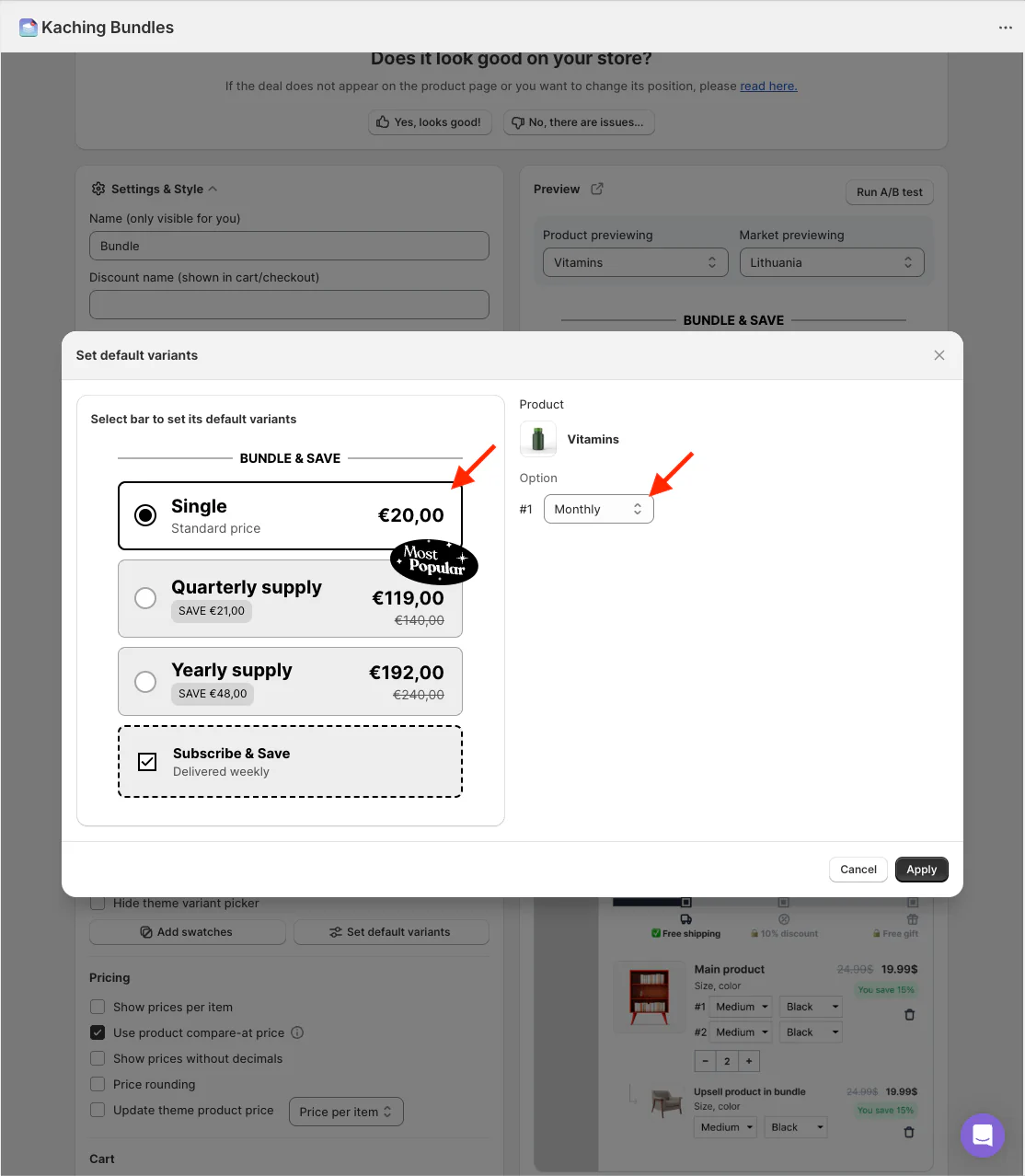
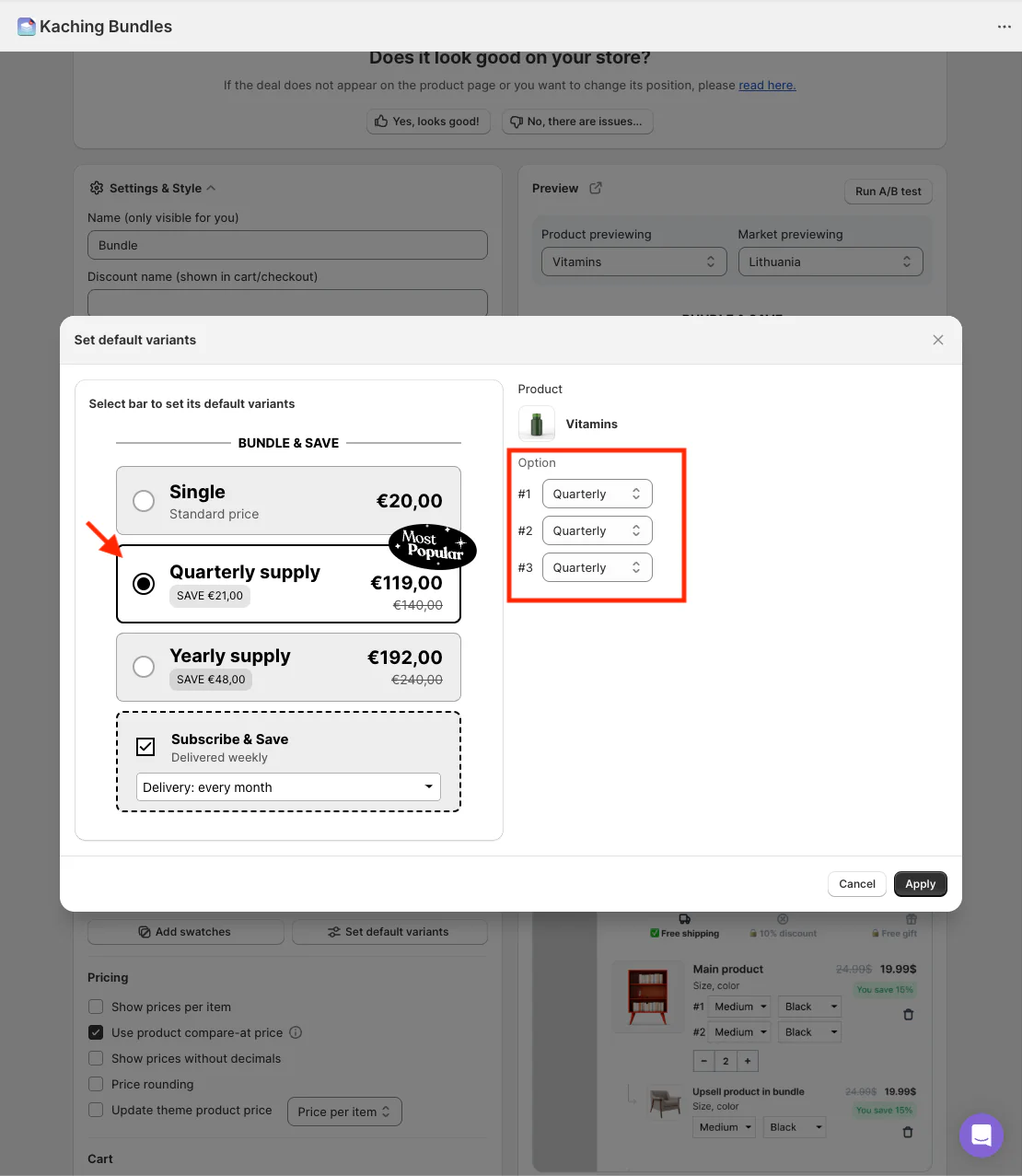
- Hide the theme variant picker
- Disable “Let customers choose different variants for each item”
- Save & publish your bundle
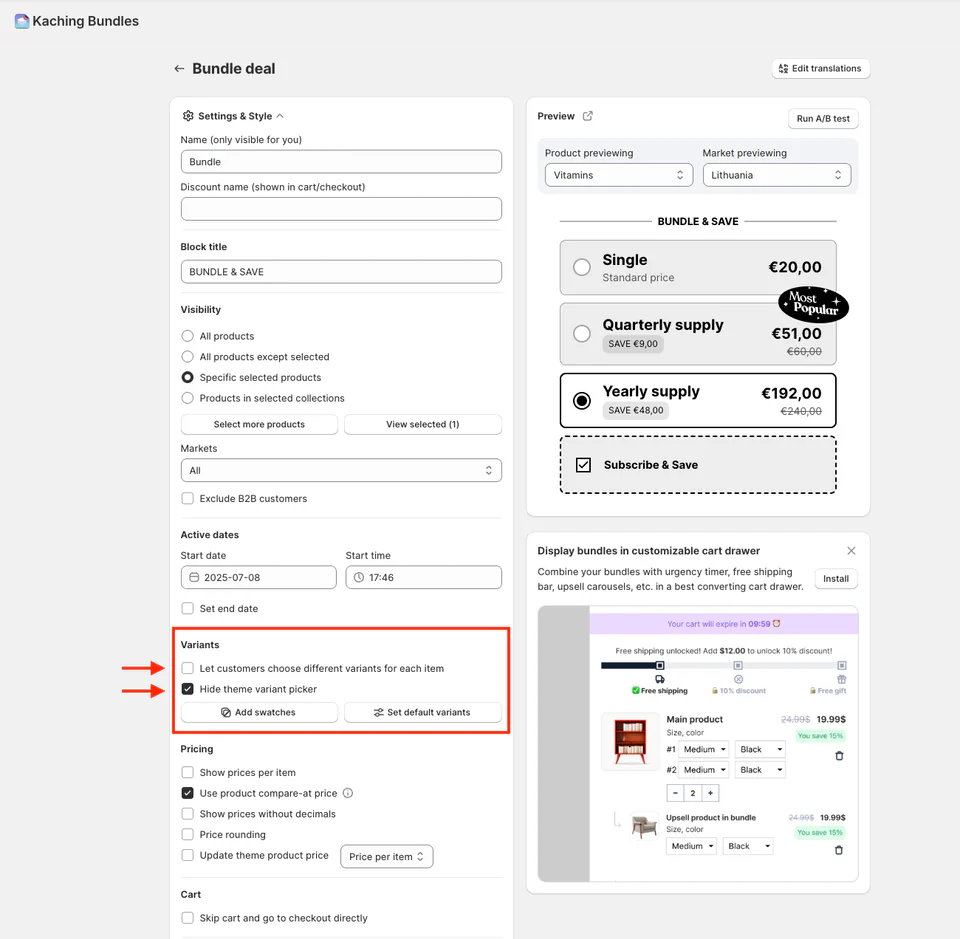
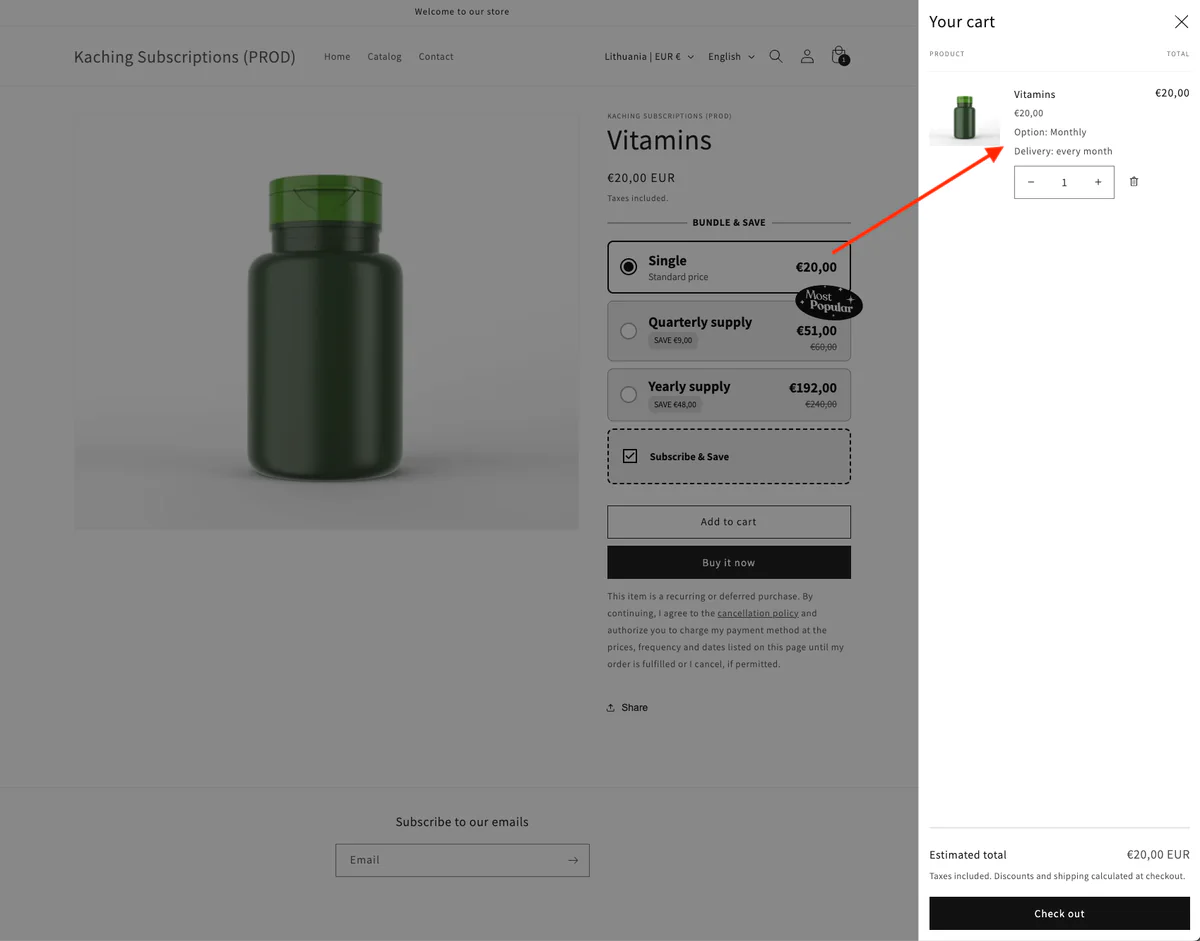
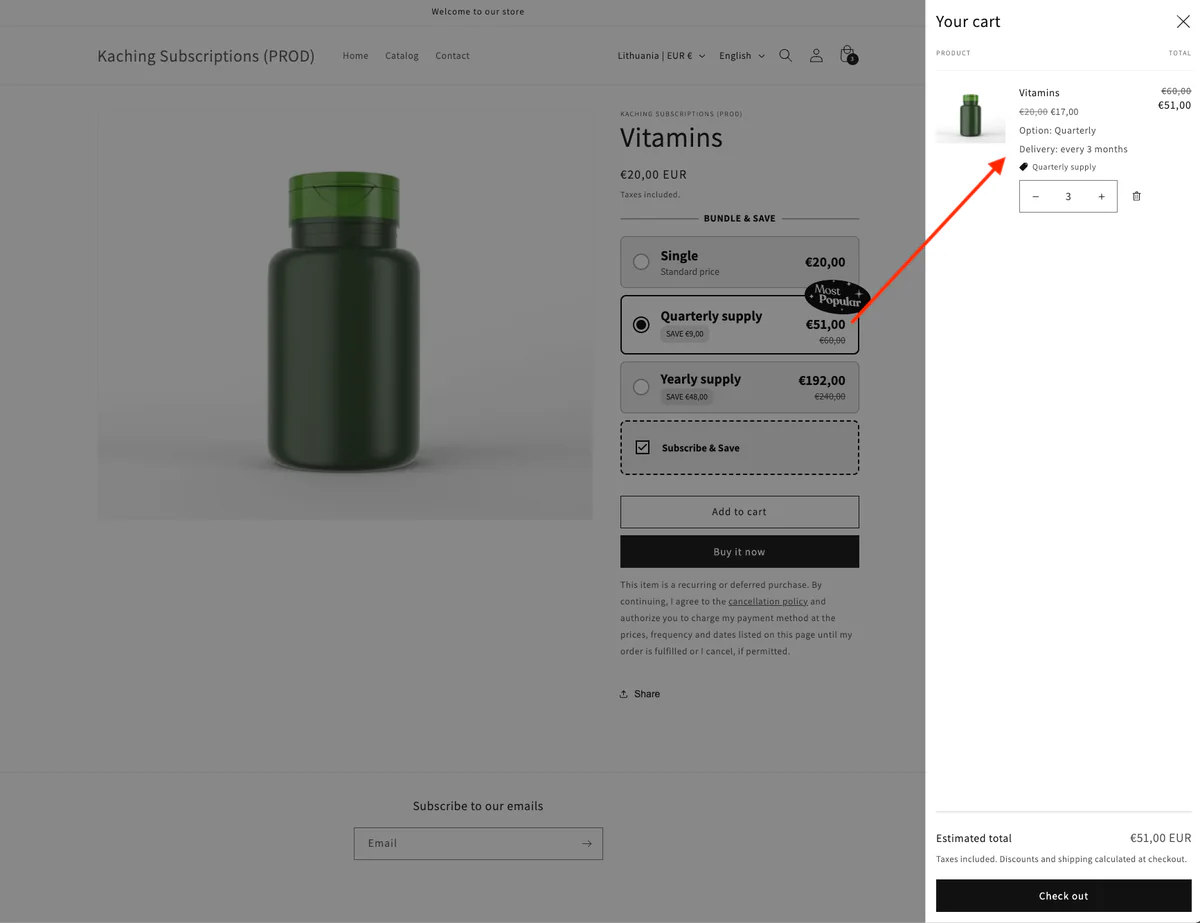
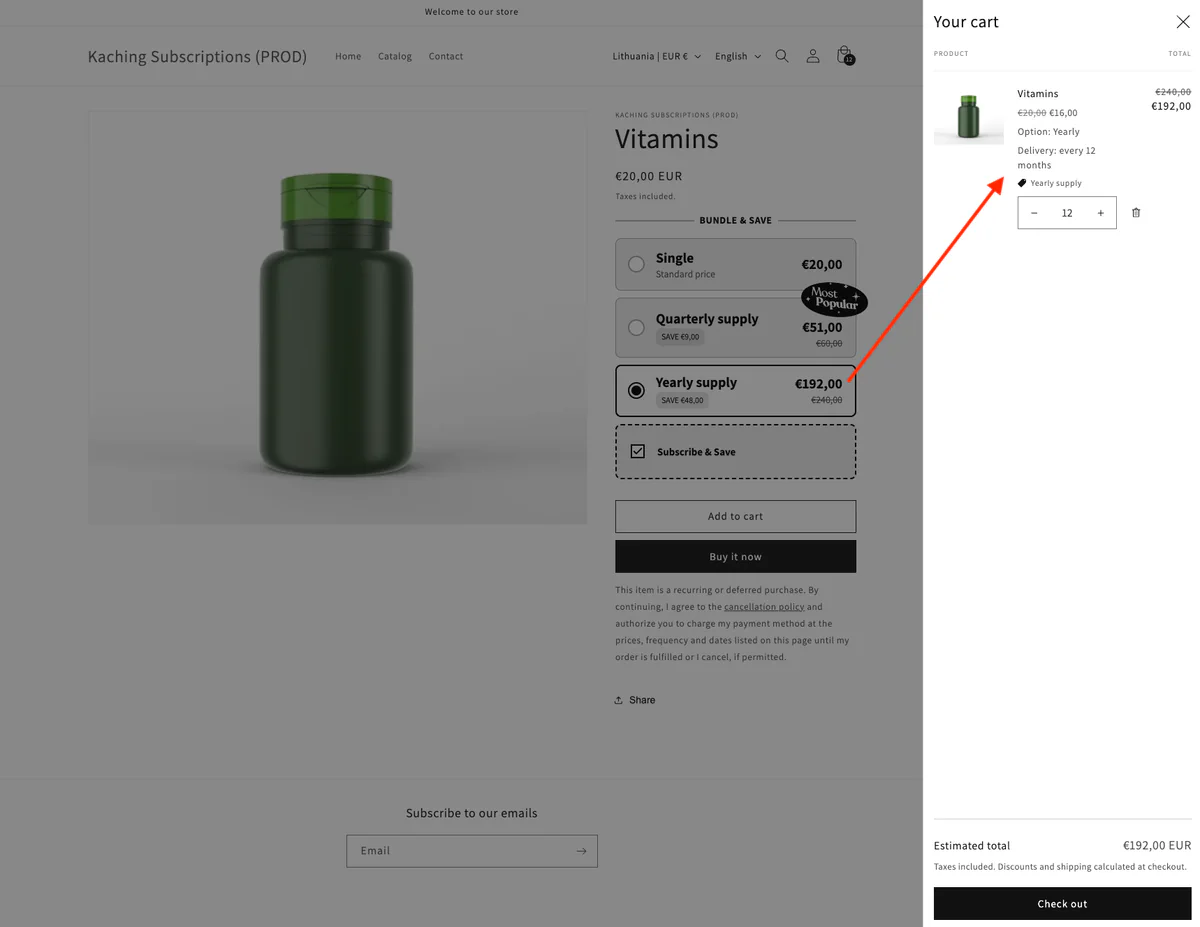
Once published, your product page will show:
- A bundle deal with multiple quantity break options
- Each quantity break option linked to a specific variant
- Each variant tied to a unique subscription plan
Need help? Drop us a message in the live chat, and we'll sort it out together.
Related articles
Variant picker is not visible in the single quantity dealLearn about variant picker in the single quantity dealBundles Event listeners for Kaching Quantity bundles widgetLearn about event listeners for Kaching Quantity bundles.BundlesDifferent bundle types: Quantity Break, BXGY Discount and Bundle UpsellLearn what's the difference between different discount typesBundlesHow to set a minimum quantity for subscriptionsLearn how to set minimum product quantity for subscriptionsSubscriptions
 How to Apply Volume Discounts Across Multiple Product Pages (Collection Breaks)Learn how to use the "Same products as deal visibility" option in Collection Breaks to automatically apply volume discounts when customers add products from different product pages not just through the bundle widget.Bundles
Event listeners for Kaching Quantity bundles widgetLearn about event listeners for Kaching Quantity bundles.BundlesDifferent bundle types: Quantity Break, BXGY Discount and Bundle UpsellLearn what's the difference between different discount typesBundlesHow to set a minimum quantity for subscriptionsLearn how to set minimum product quantity for subscriptionsSubscriptionsHow to Apply Volume Discounts Across Multiple Product Pages (Collection Breaks)Learn how to use the "Same products as deal visibility" option in Collection Breaks to automatically apply volume discounts when customers add products from different product pages not just through the bundle widget.Bundles