




How to Investigate a “Sold Out” Issue on a Shopify Product Page
Troubleshoot products showing as "Sold Out" when they're actually in stock. Covers inventory, locations, shipping zones, and market settings.
Products incorrectly displaying as sold out is one of the most frequently reported Shopify issues. It is almost always caused by Shopify's own inventory, location, or shipping settings — not the storefront theme or any third-party app.
Shopify determines whether a product is purchasable by cross-referencing inventory data with the customer's location against the store's shipping zones and market settings. If any link in that chain is broken, the product shows as unavailable.
If you would like to quickly confirm whether the issue is related to the bundles app, you can temporarily disable the app embed:
- Go to Online Store → Themes
- Click Customize
- Open App embeds
- Turn off the bundles app
- Save and refresh the product page
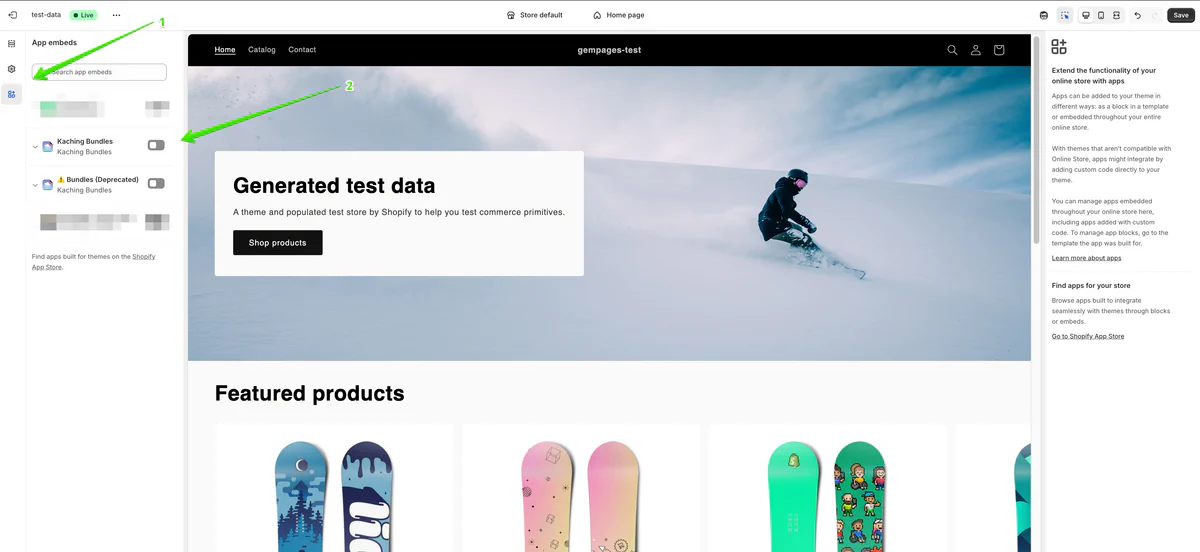
If the product still shows as Sold Out after disabling the app embed, the issue is coming from Shopify’s inventory or shipping configuration. You can then safely re-enable the app embed and continue troubleshooting using the steps below.
Step 1: Confirm the Product Is Actually In Stock
Go to Products → Select the product → Variants
Check:
- Inventory tracking is enabled
- Quantity is greater than 0
- The correct variant is not set to 0
If inventory is 0, the product will correctly show as Sold Out.
Step 2: Check Inventory Locations
- Go to Settings → Locations
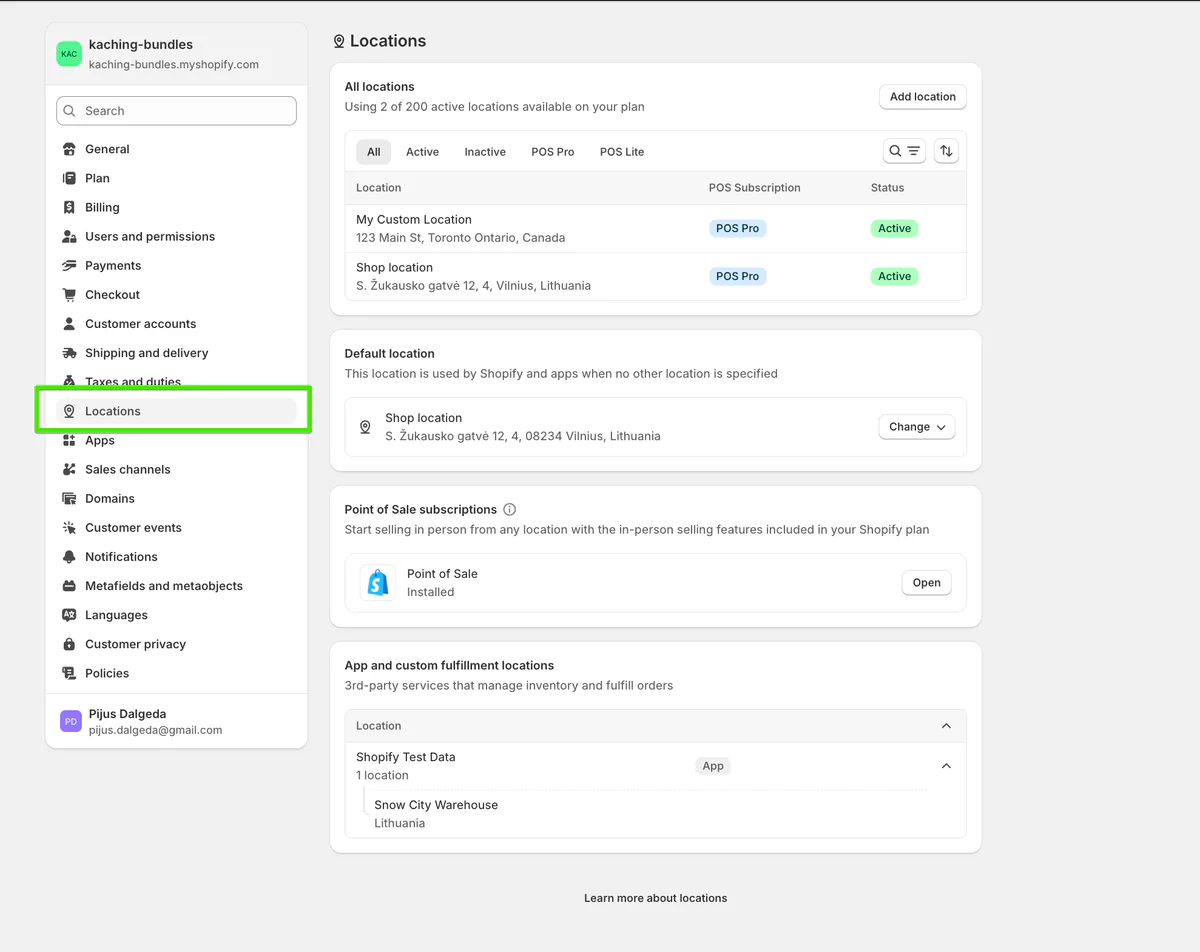
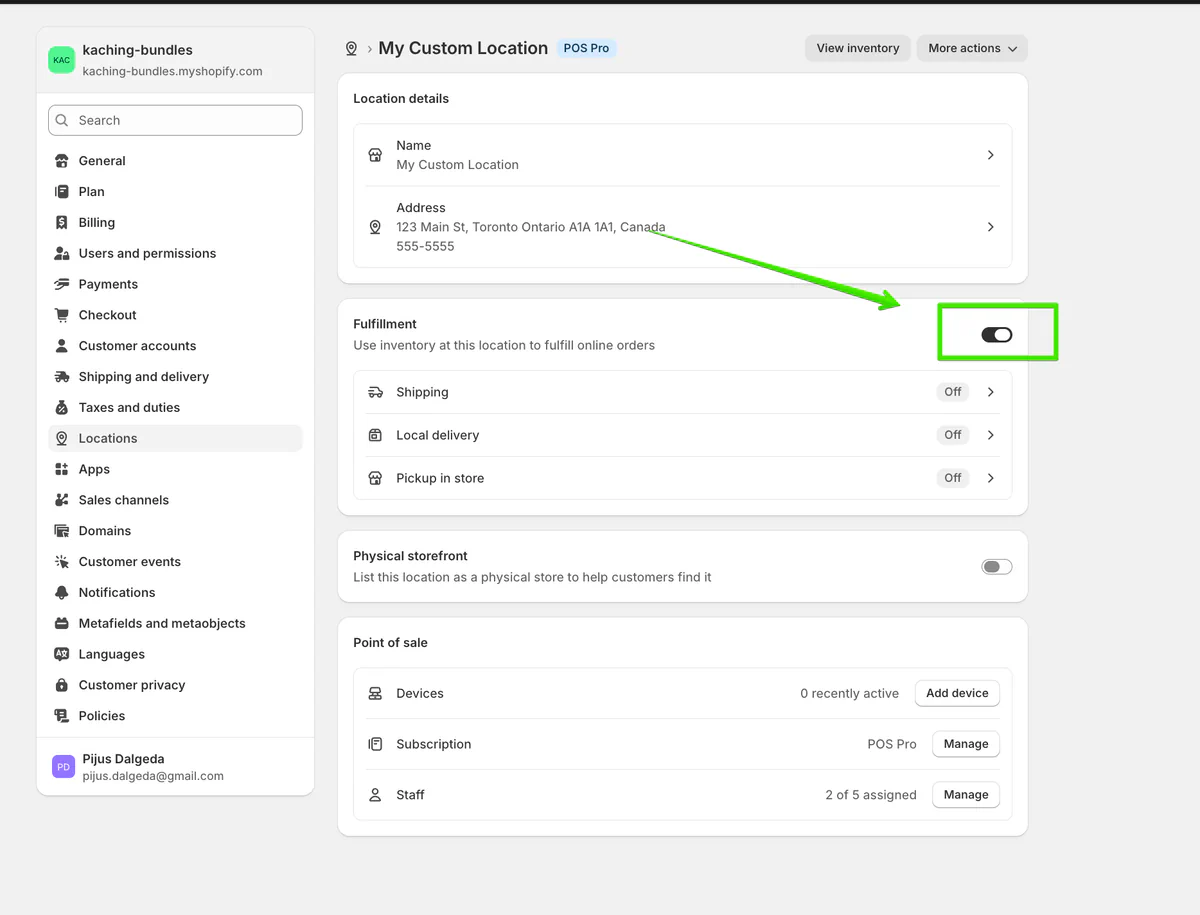
- Check all the locations you have in store and make sure the location holding stock has “Use inventory at this location to fulfill online orders” enabled
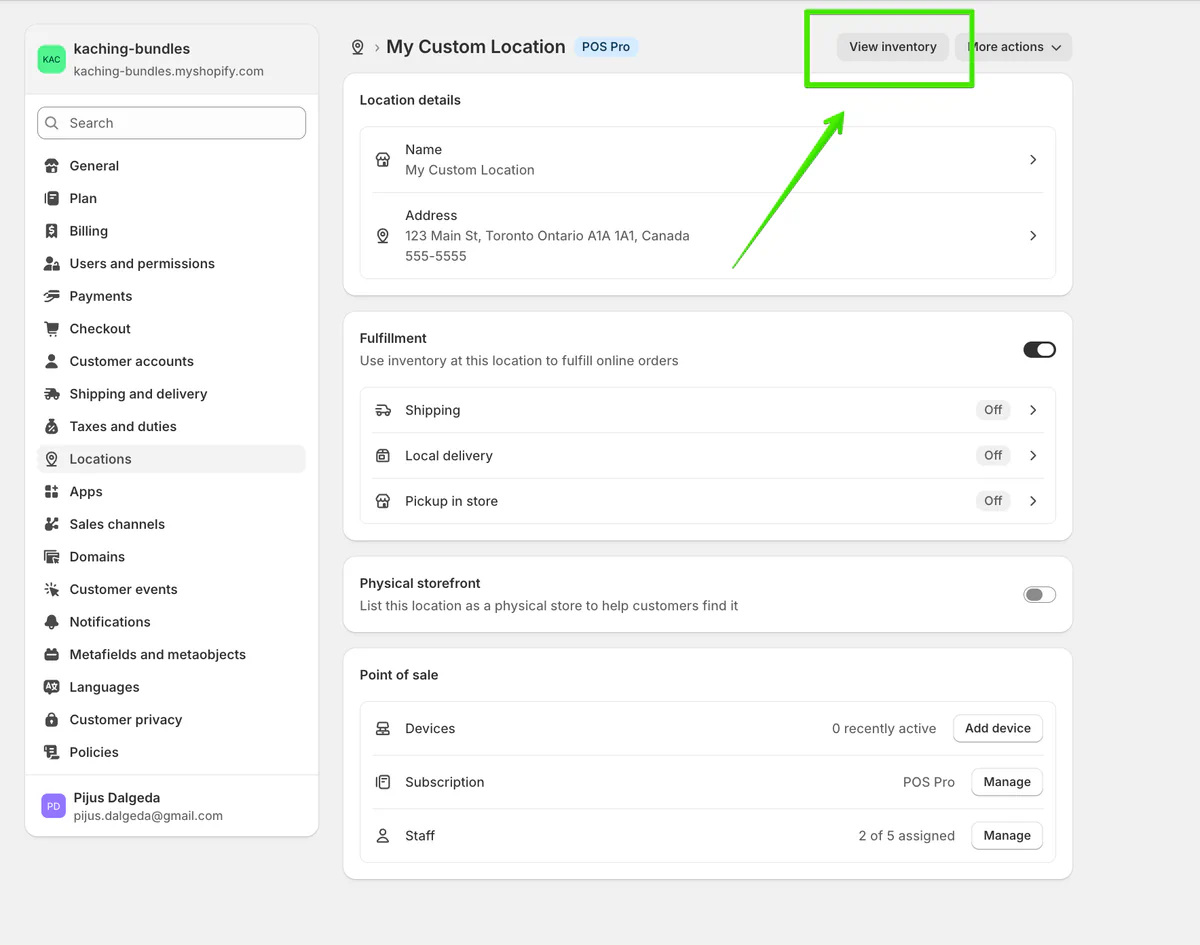
- Once you've done that, click View Inventory and verify: The product has positive stock in the active online fulfillment location
- Check that the quantities here match the actual quantities of inventory you have on hand. If they don’t match, you can edit the quantities directly from this page. Remember to save your changes before you leave the page.
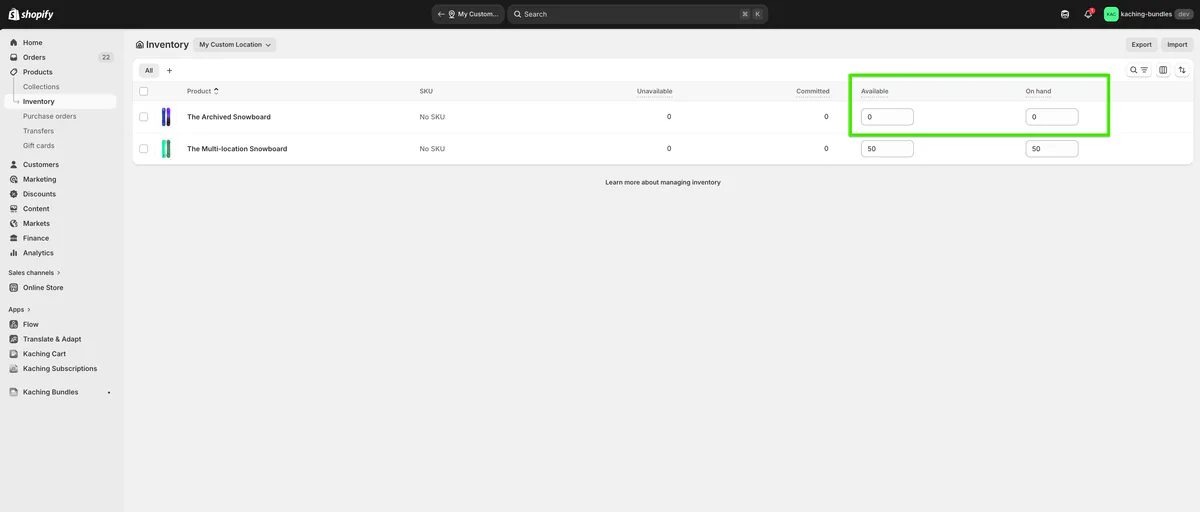
Step 3: Verify Shipping Rates
Even if inventory exists, Shopify requires at least one shipping rate for the customer’s country/location.
Go to Settings → Shipping and Delivery
- Open the shipping profile containing the product
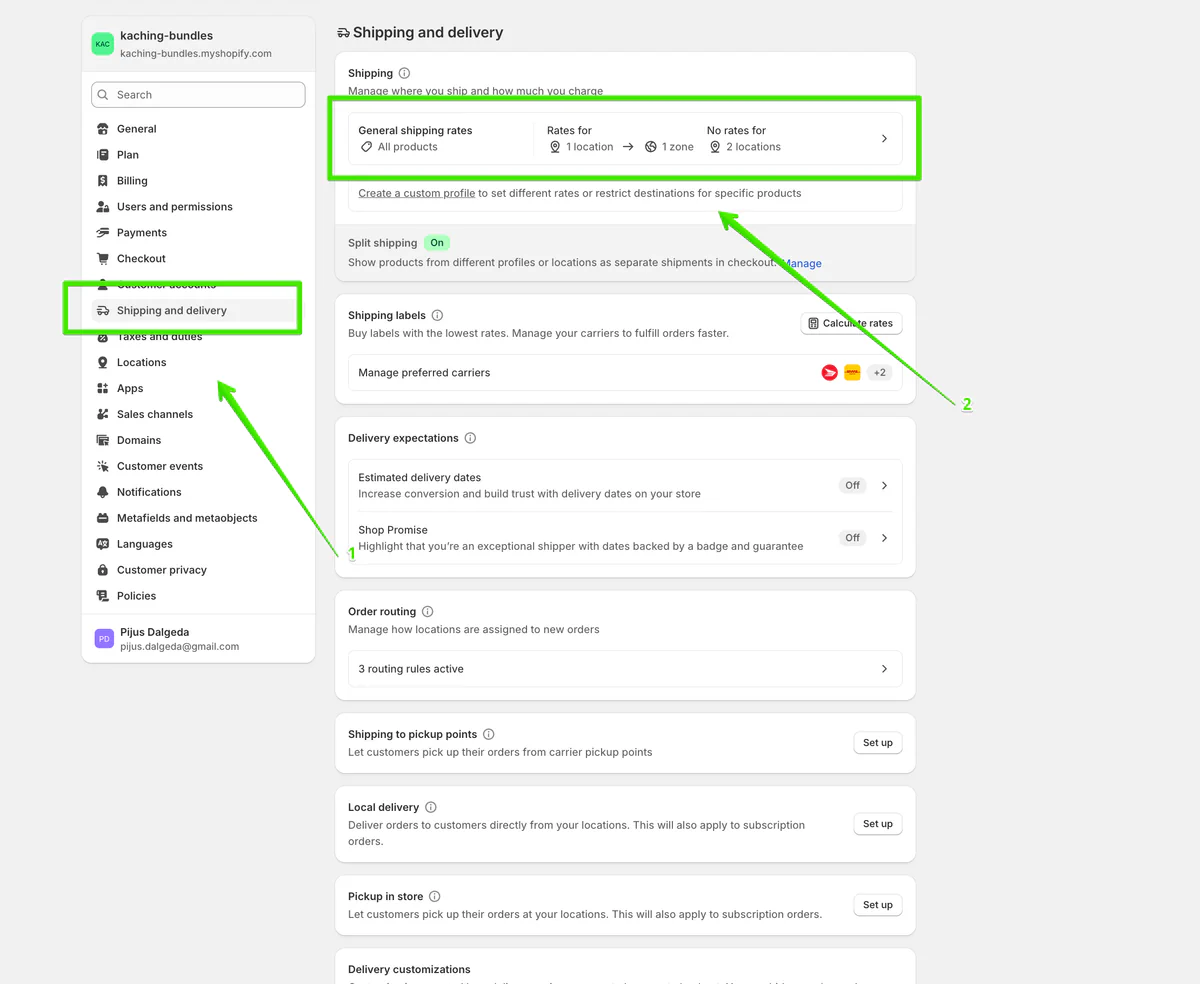
- Confirm the customer’s country (or the one you're accessing the store from) is included in a shipping zone
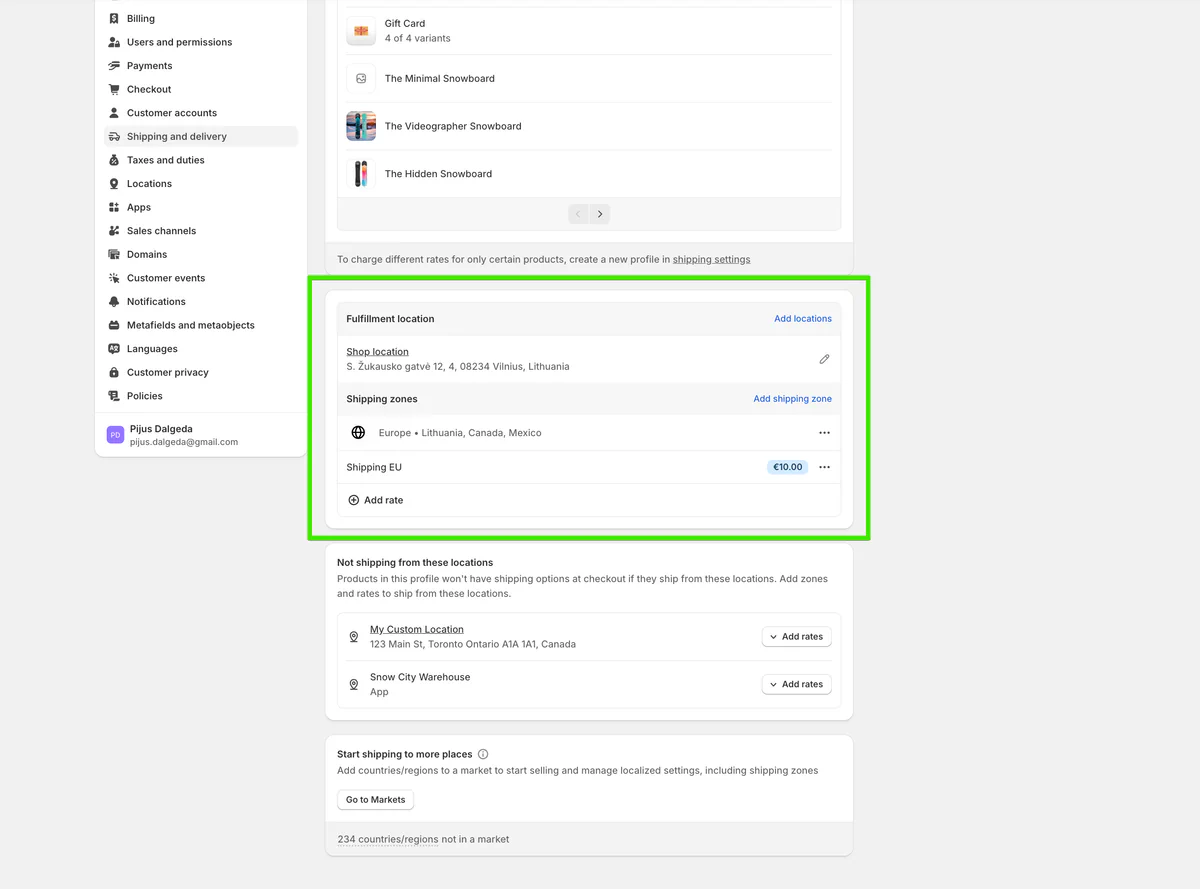
- Confirm at least one shipping rate exists for that zone
If no shipping rate is configured for the customer's country or market, Shopify may treat the product as unavailable and display Sold Out.
Step 4: Check Market Settings
Shopify Markets control which products are available in which countries. If a product is not published to a specific market, customers in that region will see it as Sold Out — even if inventory and shipping are correctly configured.
Go to Markets
- Confirm the relevant market is Active
- If the market has a Catalogs section (Advanced/Plus plans), click into it and verify the product is included
- For stores without Catalogs, ensure the product is published to the Online Store sales channel and the market is active for the customer's country
Most Common Root Causes
In real-world cases, 90% of “Sold Out” complaints come from one of these:
- The variant is actually out of stock
- Inventory is assigned to the wrong location
- Shipping rates are not configured for the customer’s country
If these steps don't resolve the issue, we recommend contacting Shopify Support — they can investigate and fix store-side settings directly.
If you've gone through all the steps above and still suspect the issue might be related to our app, feel free to reach out to us and we'll be happy to take a closer look.
Related articles
Why isn’t the compare-at price showing on my product pages or bundles?The "compare-at price" is a key feature for displaying discounts and original prices on your product pages and bundles. If this price isn’t showing as…Bundles How to set up a free shipping progress bar with a threshold in Kaching CartShow customers how much more to add for free shipping or other rewards, with tiers per market.Cart
 App Is Adding the Wrong Bundle to the CartLearn why it might be adding wrong product to the cartBundlesCompare-at price is not showing up in the first quantity dealShopify does not show compared-at-price if a certain setting is enabled. Learn how to fix that.BundlesHow to Fix an Incorrect Recurring Subtotal Price at CheckoutIf you combine a bundle deal with a subscription, Shopify's checkout can show a misleading recurring price. The first charge is correct, but the "Recurring…Subscriptions

How to set up a free shipping progress bar with a threshold in Kaching CartShow customers how much more to add for free shipping or other rewards, with tiers per market.CartApp Is Adding the Wrong Bundle to the CartLearn why it might be adding wrong product to the cartBundlesCompare-at price is not showing up in the first quantity dealShopify does not show compared-at-price if a certain setting is enabled. Learn how to fix that.BundlesHow to Fix an Incorrect Recurring Subtotal Price at CheckoutIf you combine a bundle deal with a subscription, Shopify's checkout can show a misleading recurring price. The first charge is correct, but the "Recurring…Subscriptions