




How to Set Up Auto-Add to Cart Rules (Free Gifts)
The article is about the Auto-add to Cart Rules feature
Kaching Cart lets you automatically add free gift products to your customers' carts when certain conditions are met — no third-party app needed.
This feature is built directly into the cart's lifecycle, so it works seamlessly without the sync issues or rate-limiting errors that other free gift apps can cause.
How It Works
- Go to the Auto-add to cart rules page in your Kaching Cart dashboard
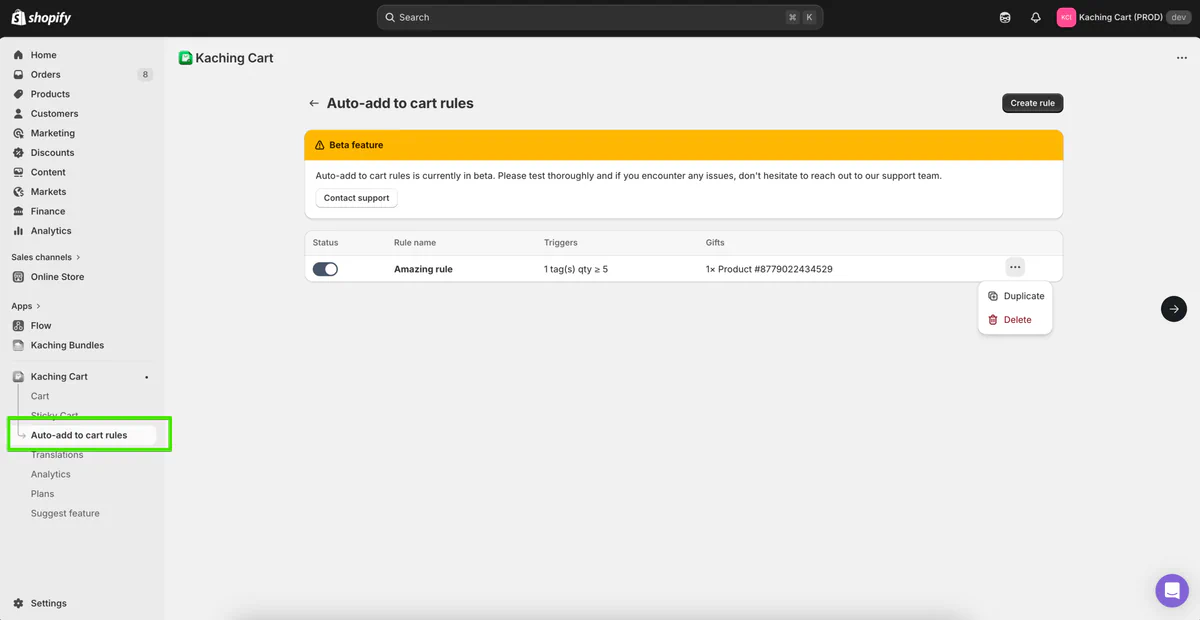
- Create a new rule with triggers (conditions) and actions (gifts to add)
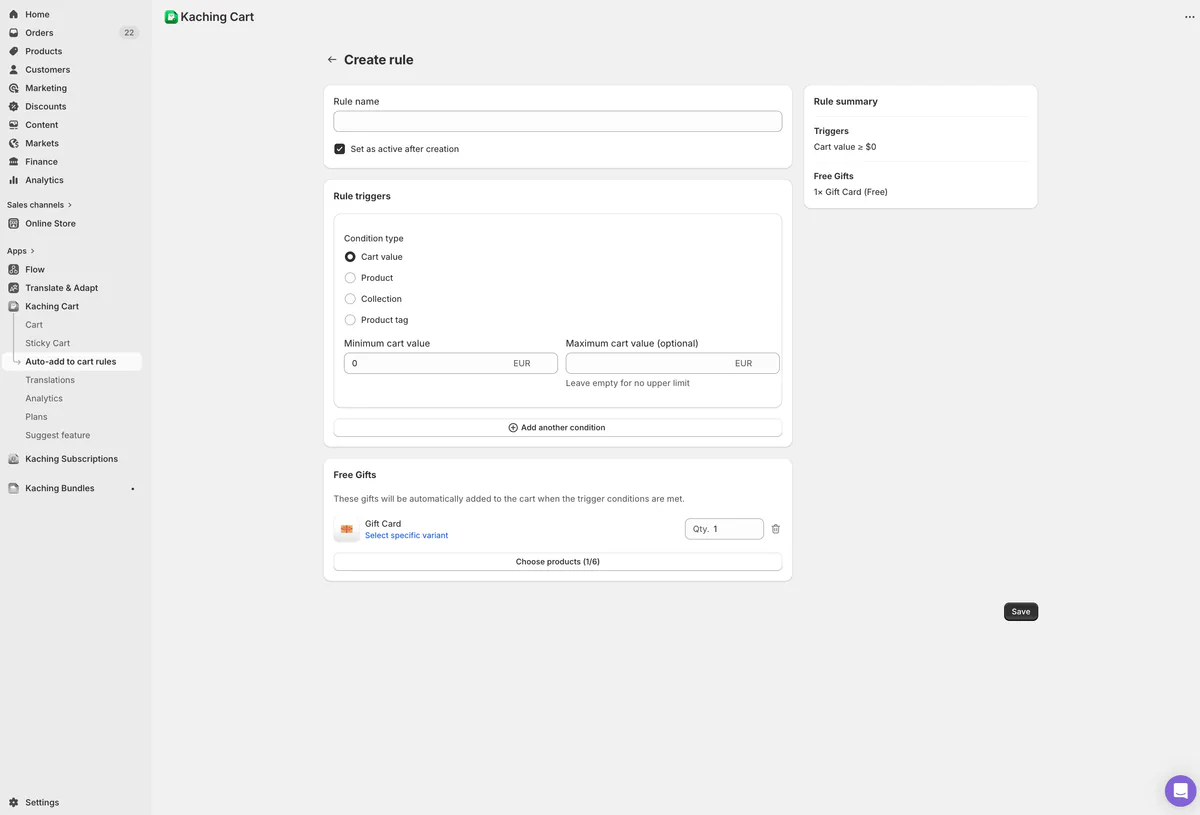
- When a customer's cart meets the trigger conditions, the gift products are automatically added
Trigger Types
You can use 4 types of triggers to define when gifts should be added:
- Cart value — e.g. cart total is above $100
- Specific products — certain products are in the cart (with quantity or value thresholds)
- Collections — products from specific collections are in the cart (with quantity or value thresholds)
- Product tags — products with specific tags are in the cart (with quantity or value thresholds)
Gift Settings
- Add up to 6 gift items per rule
- Each gift can be a specific product or variant
- Gifts appear in the cart with the same styling as tiered promo bar free gifts
- Gifts are automatically removed when the conditions are no longer met
- Customers cannot manually remove gift items from their cart
Need Help? Still have questions? Reach out via the in-app live chat, and our team will be happy to help you set things up.
Related articles
Quickstart Guide: Setting Up Kaching CartQuick Set Up tutorialCart Set Up Buy X Get Y DiscountsLearn how to set up Buy X, Get Y discounts to drive more sales with less effortBundles
 Set Up Post-Purchase Upsells in Minutes (Shopify Tutorial)Get your first upsell offer live in minutes. Here's the quick walkthrough.Post-purchase
 Why Your META Pixel Events Look Different With BundlesLearn why bundle add-to-cart events may duplicate, go missing, or show up in unexpected ways, and what is really happening behind the scenes.BundlesHow to set up a free shipping progress bar with a threshold in Kaching CartShow customers how much more to add for free shipping or other rewards, with tiers per market.Cart
Set Up Buy X Get Y DiscountsLearn how to set up Buy X, Get Y discounts to drive more sales with less effortBundlesSet Up Post-Purchase Upsells in Minutes (Shopify Tutorial)Get your first upsell offer live in minutes. Here's the quick walkthrough.Post-purchaseWhy Your META Pixel Events Look Different With BundlesLearn why bundle add-to-cart events may duplicate, go missing, or show up in unexpected ways, and what is really happening behind the scenes.BundlesHow to set up a free shipping progress bar with a threshold in Kaching CartShow customers how much more to add for free shipping or other rewards, with tiers per market.Cart