





How to set up a BOGO deal with subscriptions
How to set up a BOGO deal for recurring orders
This article will walk you through the process of setting up a Buy One, Get One (BOGO) deal with Kaching Subscriptions, ensuring that free items are only included in the initial order and removed from all recurring orders. Let’s get started!
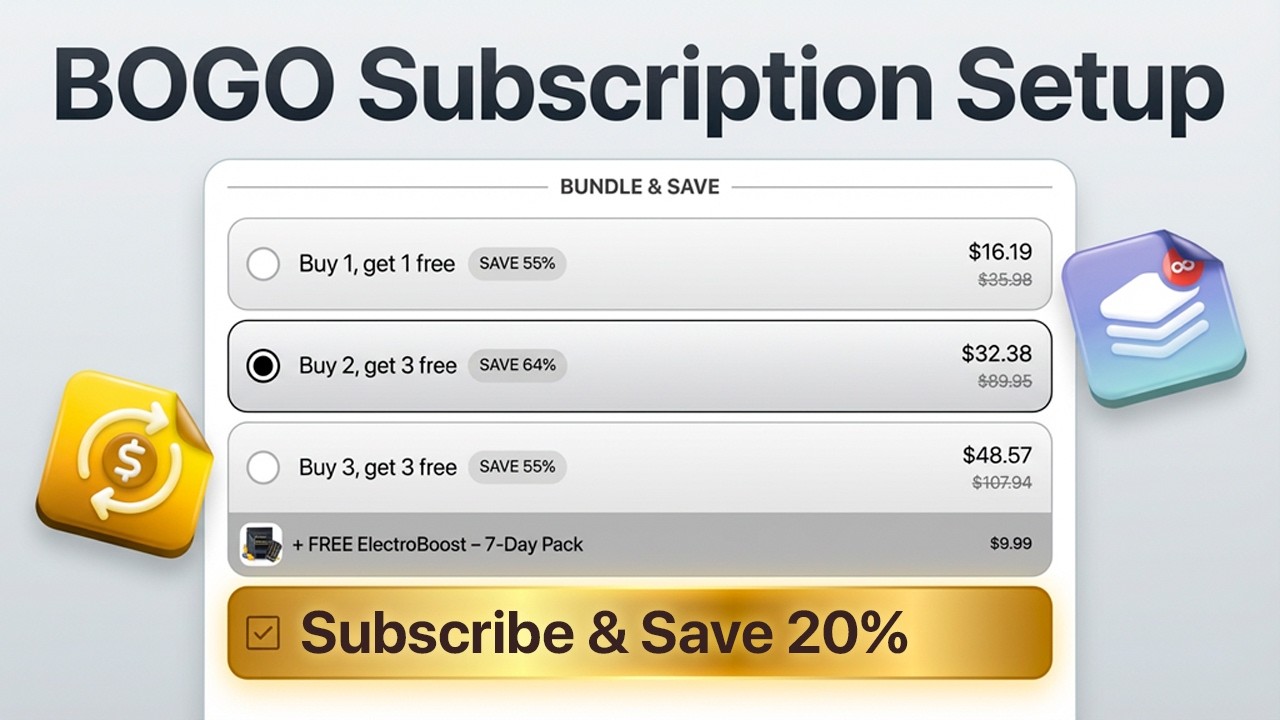
BOGO Deal Setup
- Create a Standard BOGO Deal First, set up your BOGO deal as you normally would:
- Go to Kaching Bundles and create a new deal
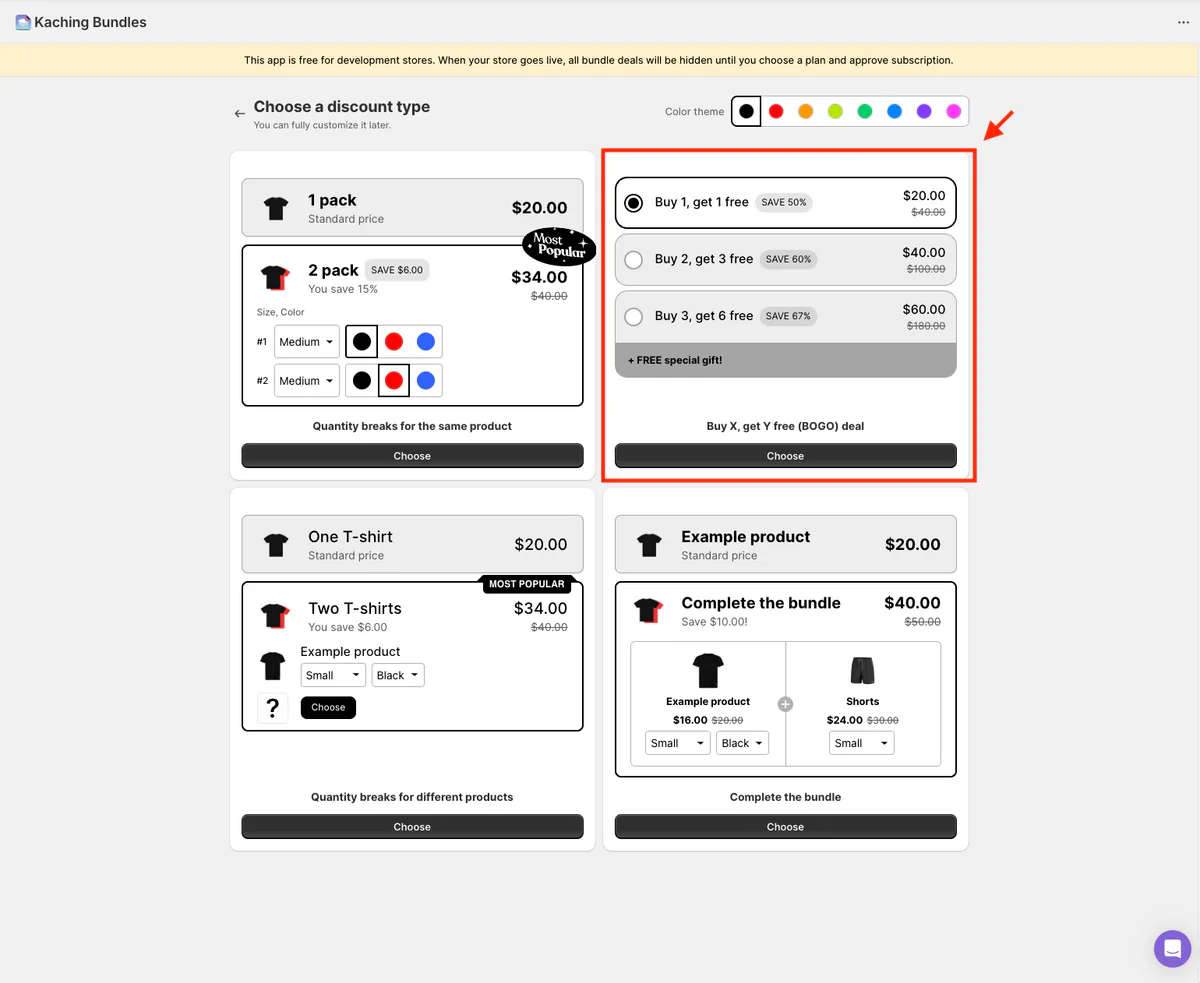
- Select Buy One, Get One (BOGO) as your discount type:
- Turn on the "Subscriptions" setting:
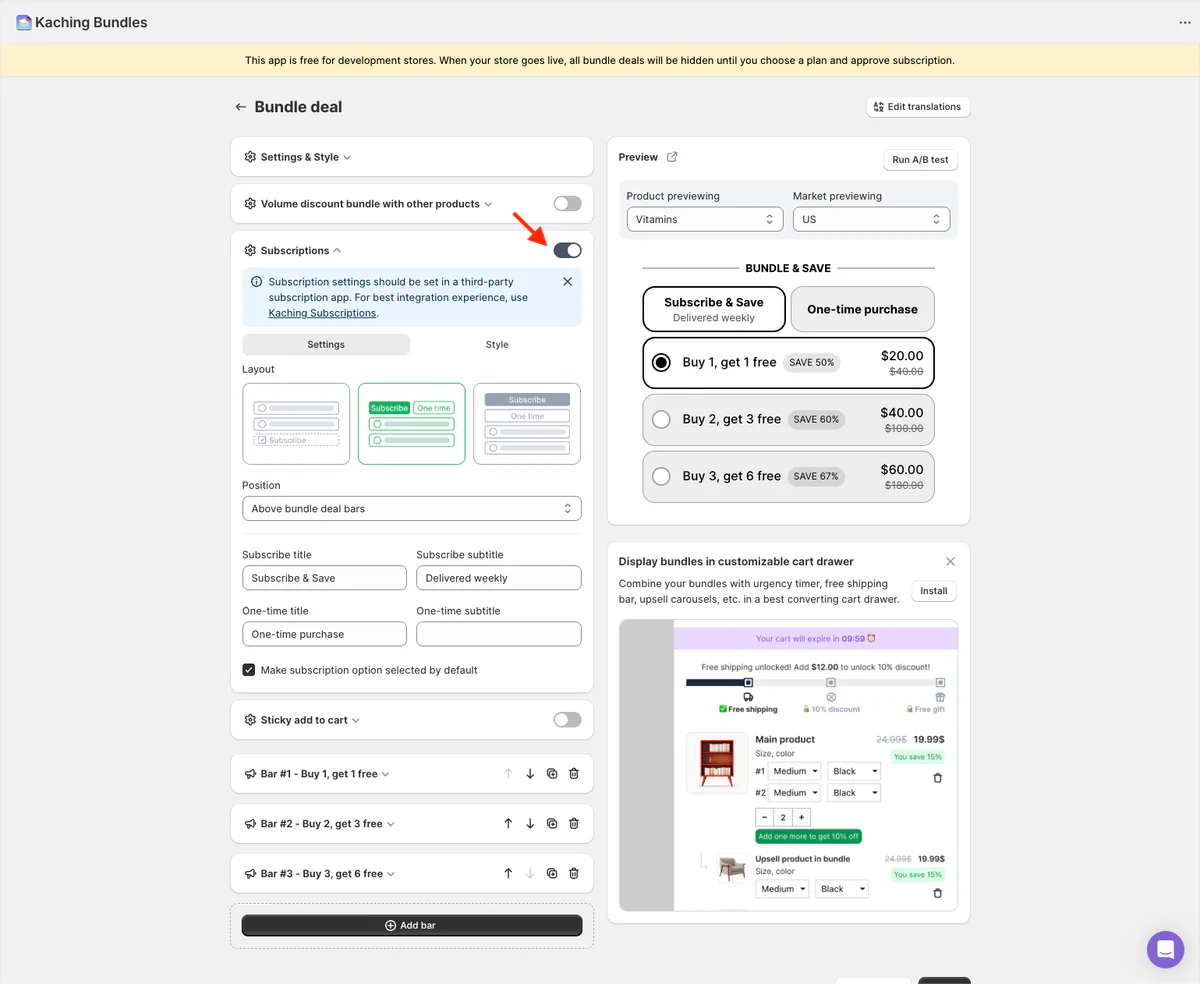
- Choose the quantity of items involved in the promotion (e.g., “Buy 1, Get 1 Free”).
- Click "Publish"
Subscription Setup
This section assumes you are using Kaching Subscriptions to manage subscriptions.
- Set Up a Subscription Plan
- Navigate to the Plans page in Kaching Subscriptions app
- Create a new subscription plan or modify an existing one
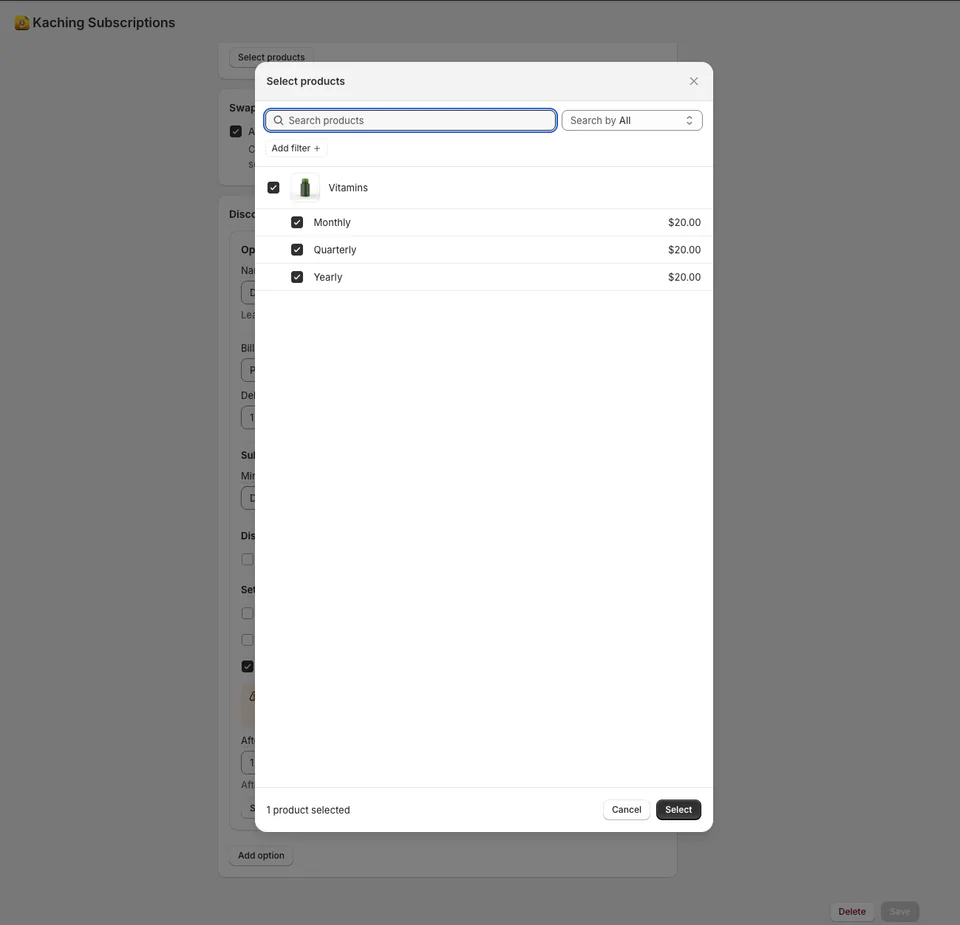
- Choose the products eligible for subscription and ensure they match the BOGO deal setup
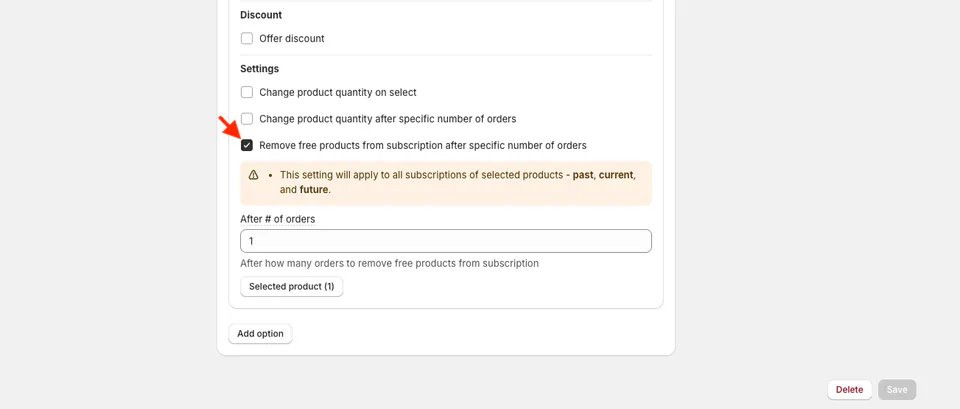
- Enable the "Remove Free Products After Specific Number of Orders" setting
- Specify the number of orders after which the free products will be removed (e.g., after the first order or after two orders). This ensures that the free item from the BOGO deal is only included in the initial order and is removed from future recurring orders:
Testing the Setup
Once you’ve completed the setup, it’s essential to test the subscription to confirm that the free product is applied to the first order and removed from all future orders.
Let’s walk through the Buy 2, Get 3 Free deal.
- Step 1: Complete the checkout. The order should show that the customer is charged for 2 items and receives 3 free:
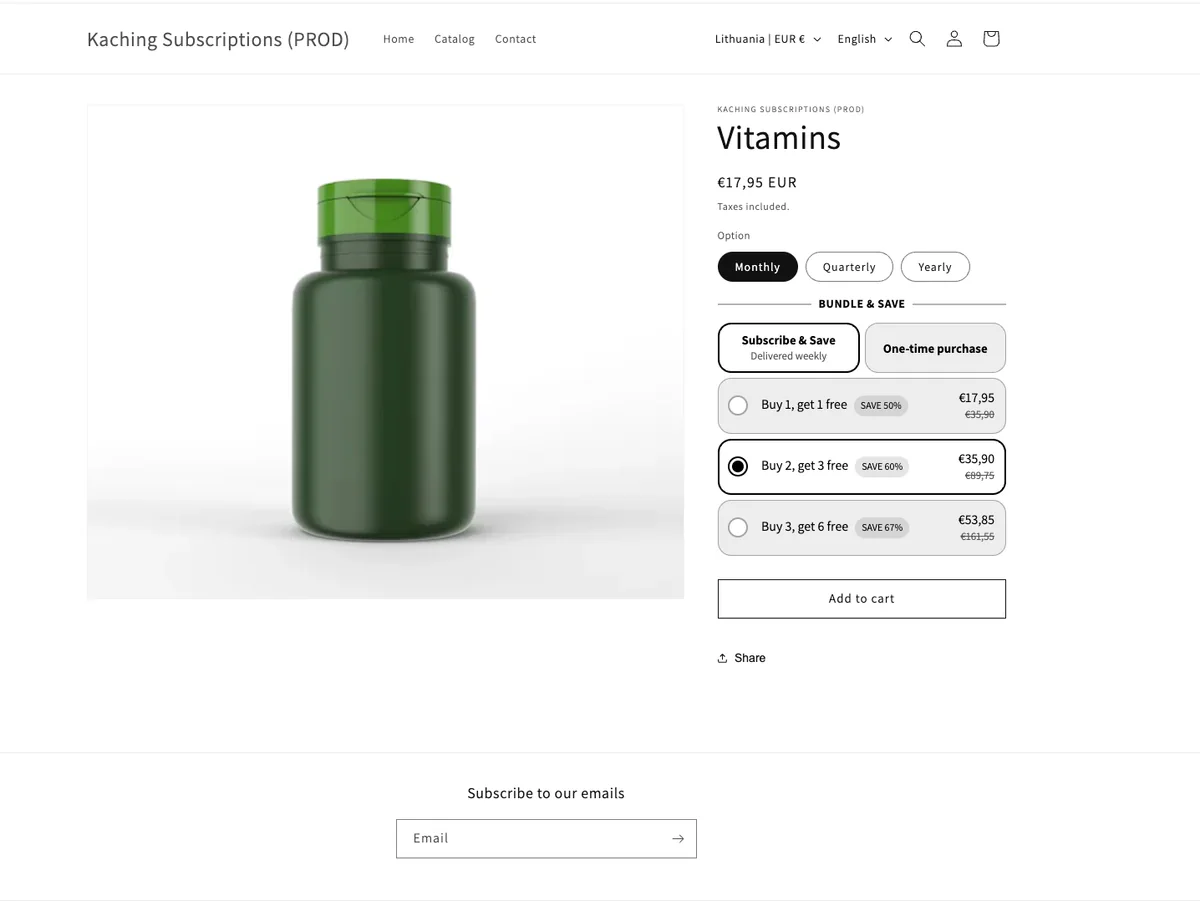
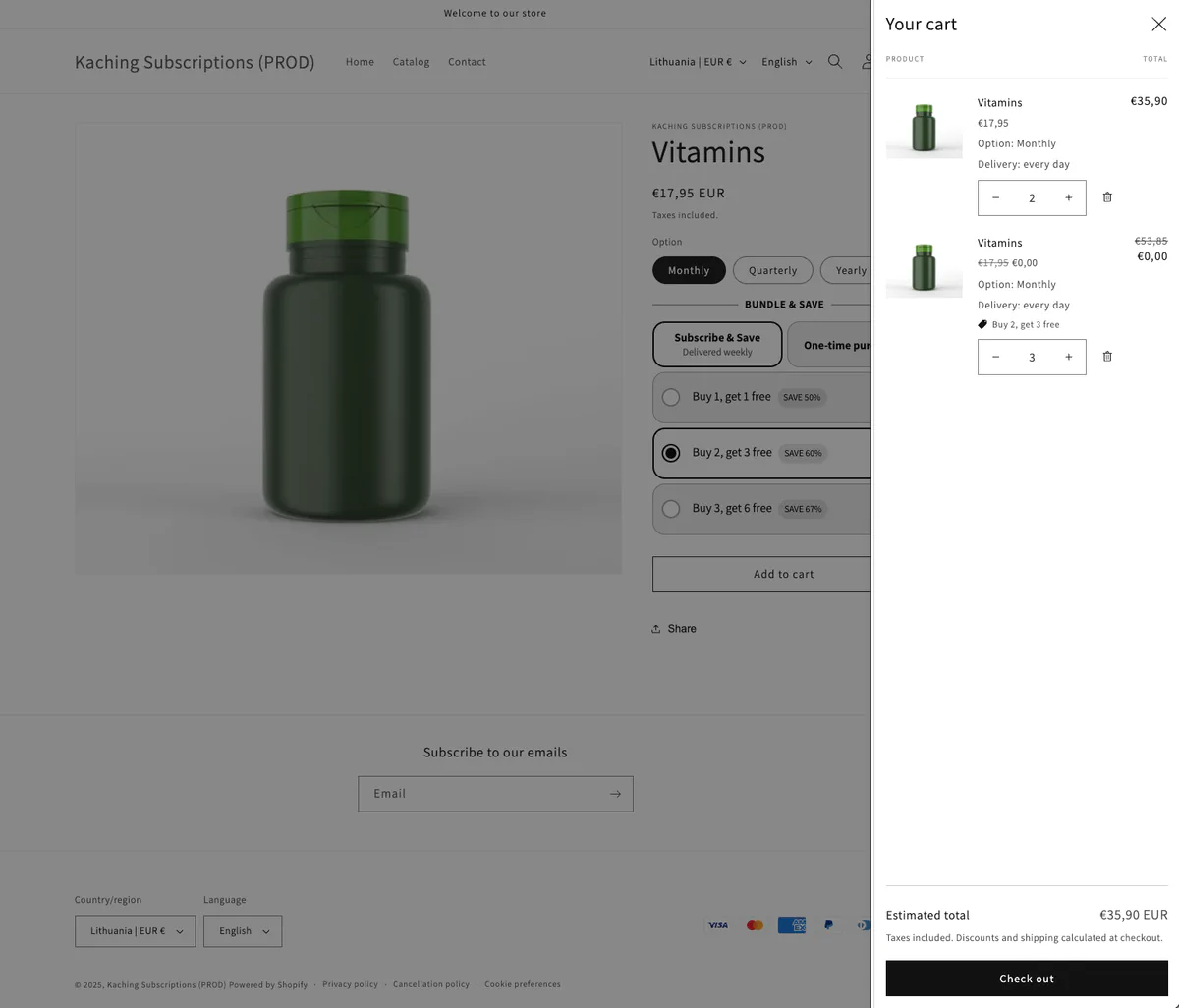
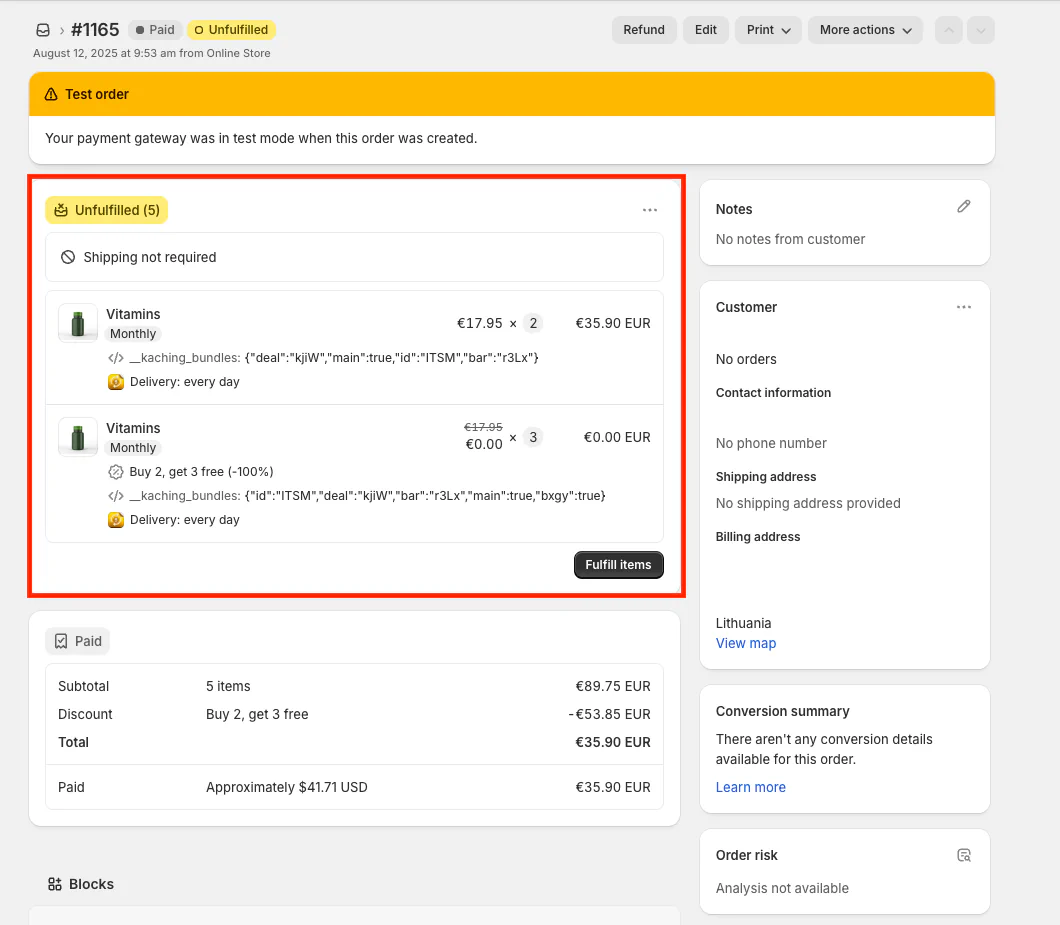
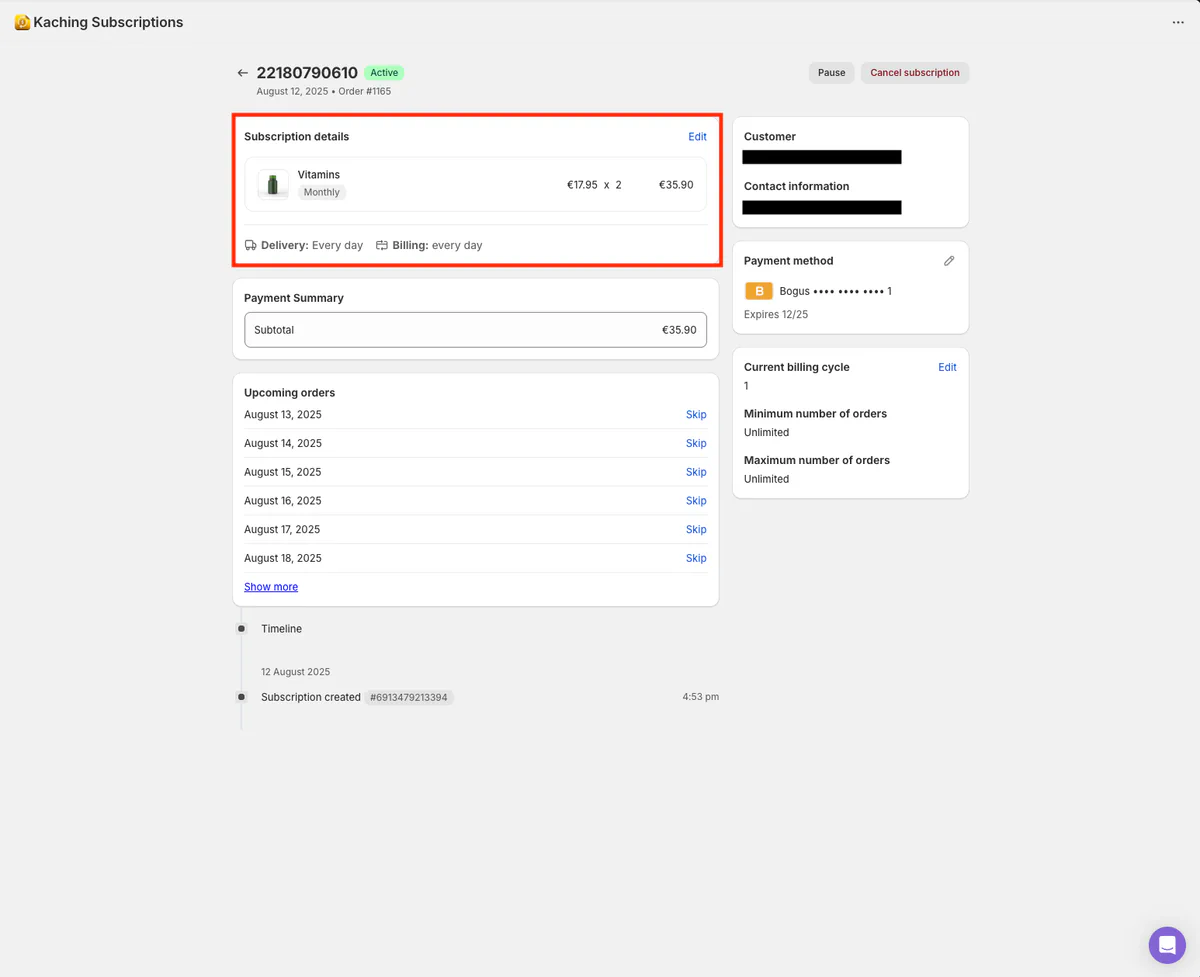
- Step 2: Go to the Subscription Contract in Kaching Subscriptions. Under the "Subscription details", you’ll see that only the paid items are listed, and the free items have been removed from future recurring orders:
Need help? Drop us a message in the live chat, and we'll sort it out together.
Related articles
How to set up a quantity BOGO dealBuy-One-Get-One-Free - learn how to create basic and advanced BOGO deals in the Kaching Quantity bundles app.Bundles How to set additional discount for BOGO dealsLearn how to add higher discount for Buy one, Get one free offerBundlesHow to show items as Free for BOGO dealsLearn how to set up bundle so that BOGO deals appears as FREE in checkoutBundlesSet Up Buy X Get Y DiscountsLearn how to set up Buy X, Get Y discounts to drive more sales with less effortBundlesHow to ensure free gifts are included in recurring subscriptionsAre free gifts included in recurring orders?Subscriptions

How to set additional discount for BOGO dealsLearn how to add higher discount for Buy one, Get one free offerBundlesHow to show items as Free for BOGO dealsLearn how to set up bundle so that BOGO deals appears as FREE in checkoutBundlesSet Up Buy X Get Y DiscountsLearn how to set up Buy X, Get Y discounts to drive more sales with less effortBundlesHow to ensure free gifts are included in recurring subscriptionsAre free gifts included in recurring orders?Subscriptions