







How to show items as Free for BOGO deals
Learn how to set up bundle so that BOGO deals appears as FREE in checkout
Want to make sure your BOGO deal shows the “Get” item as FREE (or $0.00) in the cart and checkout? You’ll need to use the BXGY Discount type when creating your bundle deal.
This is the only discount type that integrates with Shopify in a way that displays free items directly — just like customers expect to see.
How to Set It Up
Follow these steps to create a BOGO deal where the bonus item appears as free:
- Open the Kaching Bundles App From your Shopify admin, launch the Kaching Bundles app.
- Create or Edit a Bundle Click Add new deal to create a new bundle or edit an existing one.
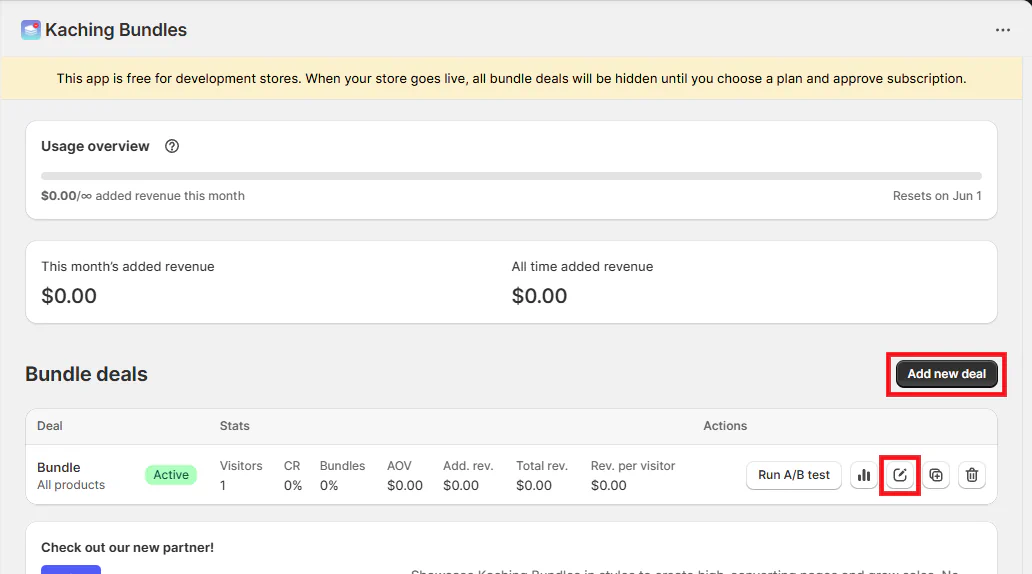
- Click “Add Bar” and Choose BXGY Discount In the bundle setup, click on Add Bar button
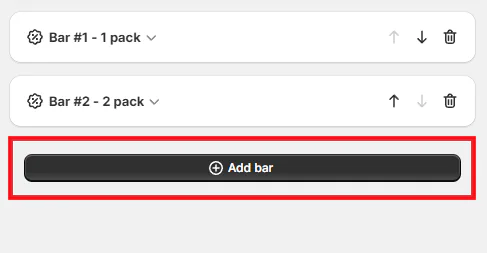
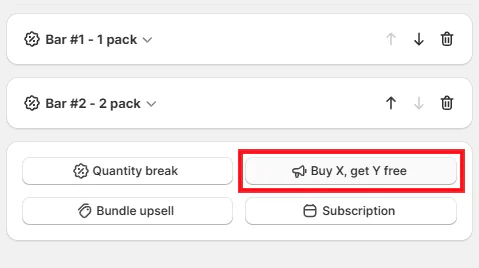
Select BXGY Discount
- Set Your BOGO Logic Choose how many items the customer needs to Buy and how many they will Get for Free. Example:
- Buy 2
- Get 1 Free
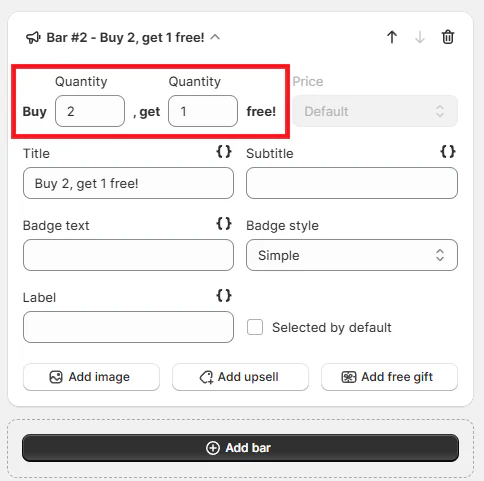
- Customize Text and Appearance Add a title like “Buy 2, get 1 free” and adjust label and / or badge as needed.
- Save and Publish Click “Save” and then “Publish” your bundle to make it live.
Once active, your “Get” item will show as free ($0.00) in the cart and checkout — just like a true BOGO deal should.
Related Article
Want to understand the difference between all bundle types in detail?
➡️ Read: What’s the difference between Quantity Break, BXGY Discount and Bundle Upsell?