




How to add an upsell to your deal bar
Bundle upsells let you attach an additional product offer inside a Kaching Bundles deal bar, prompting customers to add more to their order and raising AOV…

Bundle upsells let you attach an additional product offer inside a Kaching Bundles deal bar, prompting customers to add more to their order and raising AOV. It's one of the simplest AOV wins on Shopify.
Setup
- Install the Kaching Bundles app from the Shopify App Store (if not already installed).
- Click Create Bundle Deal and select your discount type: e.g. Quantity Breaks.
- Choose where you want your bundles to appear, then customize your bundle deals. (There's a separate full setup video/article if more detail is needed.)
- Once your bundles are ready, open one of your Deal Bars.
- Click Add Upsell.
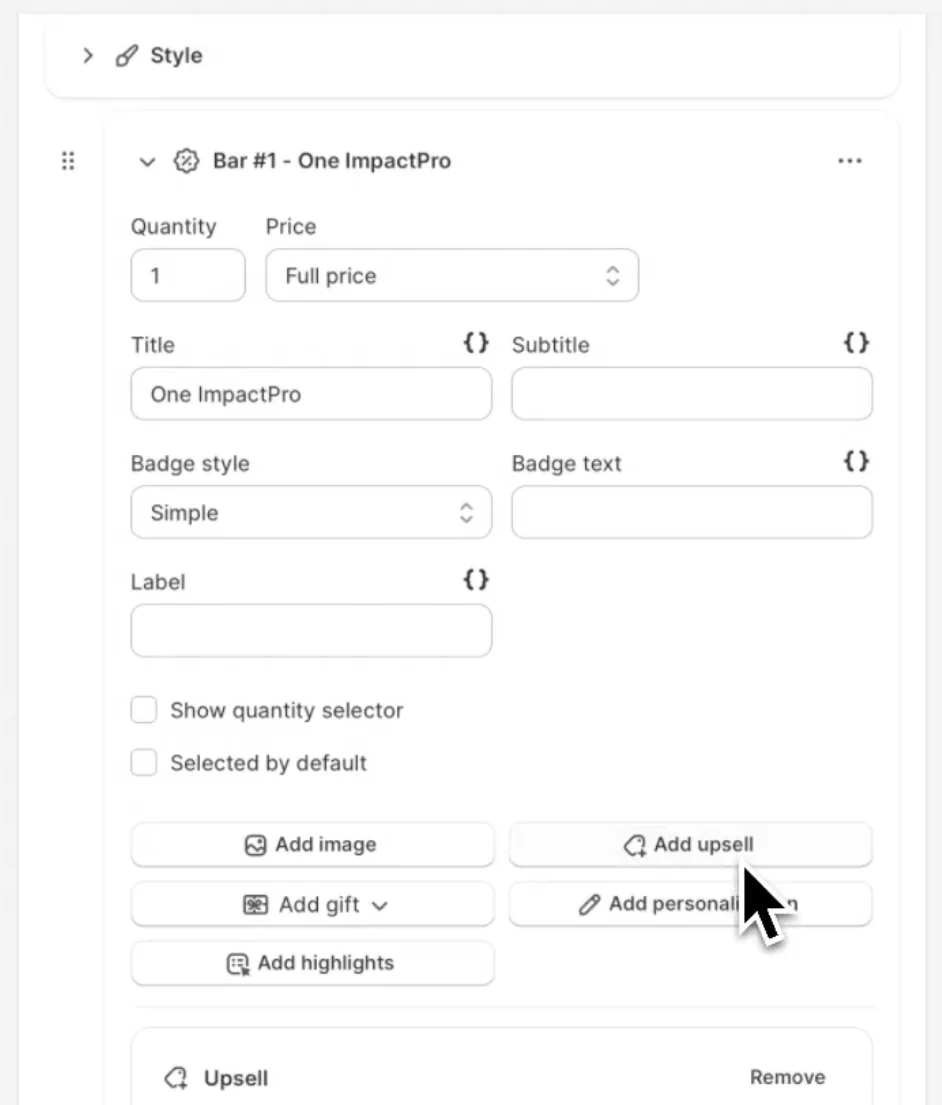
Configuring the upsell
- You can either select a product by hand, or use complementary products if you've already set those up in Shopify.
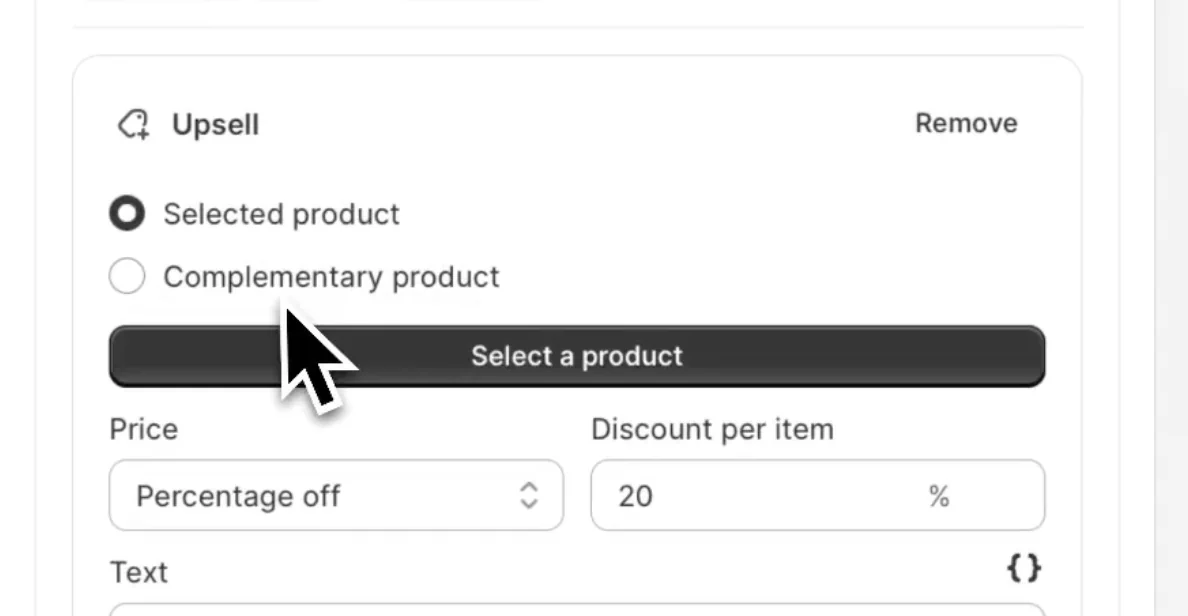
- To target a specific item, choose the Selected Product option. From there you can:
- Adjust the price
- Add custom text
- Edit the image
- Set it to selected by default
- Make it visible only when the bar is selected
- Enable it for subscription customers
- When everything's set, hit Publish and you're all set!
Need help? Drop us a message in the live chat, and we'll sort it out together.
Related articles
Different bundle types: Quantity Break, BXGY Discount and Bundle UpsellLearn what's the difference between different discount typesBundles How to show items as Free for BOGO dealsLearn how to set up bundle so that BOGO deals appears as FREE in checkoutBundlesHow To Upsell Bundles in Your Shopify Product PageLearn how to effectively upsell product bundles directly on your Shopify product pages using high-converting tactics.BundlesSet Up Post-Purchase Upsells in Minutes (Shopify Tutorial)Get your first upsell offer live in minutes. Here's the quick walkthrough.Post-purchase
 How To Change Upsell Products Based On What's In the Cart?Learn how to set up cart-aware upsell recommendations using Shopify's Search & Discovery app.Cart

How to show items as Free for BOGO dealsLearn how to set up bundle so that BOGO deals appears as FREE in checkoutBundlesHow To Upsell Bundles in Your Shopify Product PageLearn how to effectively upsell product bundles directly on your Shopify product pages using high-converting tactics.BundlesSet Up Post-Purchase Upsells in Minutes (Shopify Tutorial)Get your first upsell offer live in minutes. Here's the quick walkthrough.Post-purchaseHow To Change Upsell Products Based On What's In the Cart?Learn how to set up cart-aware upsell recommendations using Shopify's Search & Discovery app.Cart