





Is It Possible to Change the Discount Name (Tag) Shown in Cart / Checkout?
Learn how to change Kaching bundles discount tag shown in the cart
Yes – you can customize the discount name (also known as the discount tag) that appears in the cart and checkout when a bundle deal is applied.
By default, our app is set to use the deal bar title (e.g., “2 pack”) as the discount name that gets passed to Shopify’s automatic discount system. Shopify then displays this name in the cart and checkout summary when the discount is applied.
How to Set a Custom Discount Name
If you'd rather control how this discount appears at checkout (e.g., use a shorter or branded name), you can now set it manually in the app.
Here’s how:
- Open the Kaching Bundles app
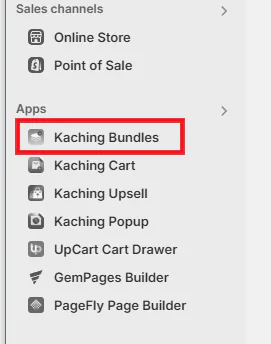
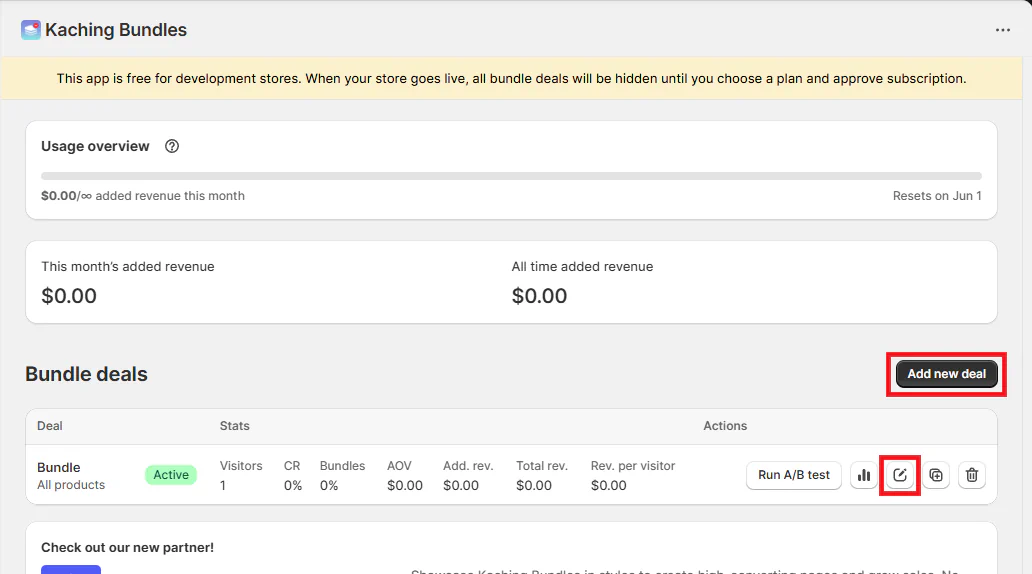
- Create or edit a bundle
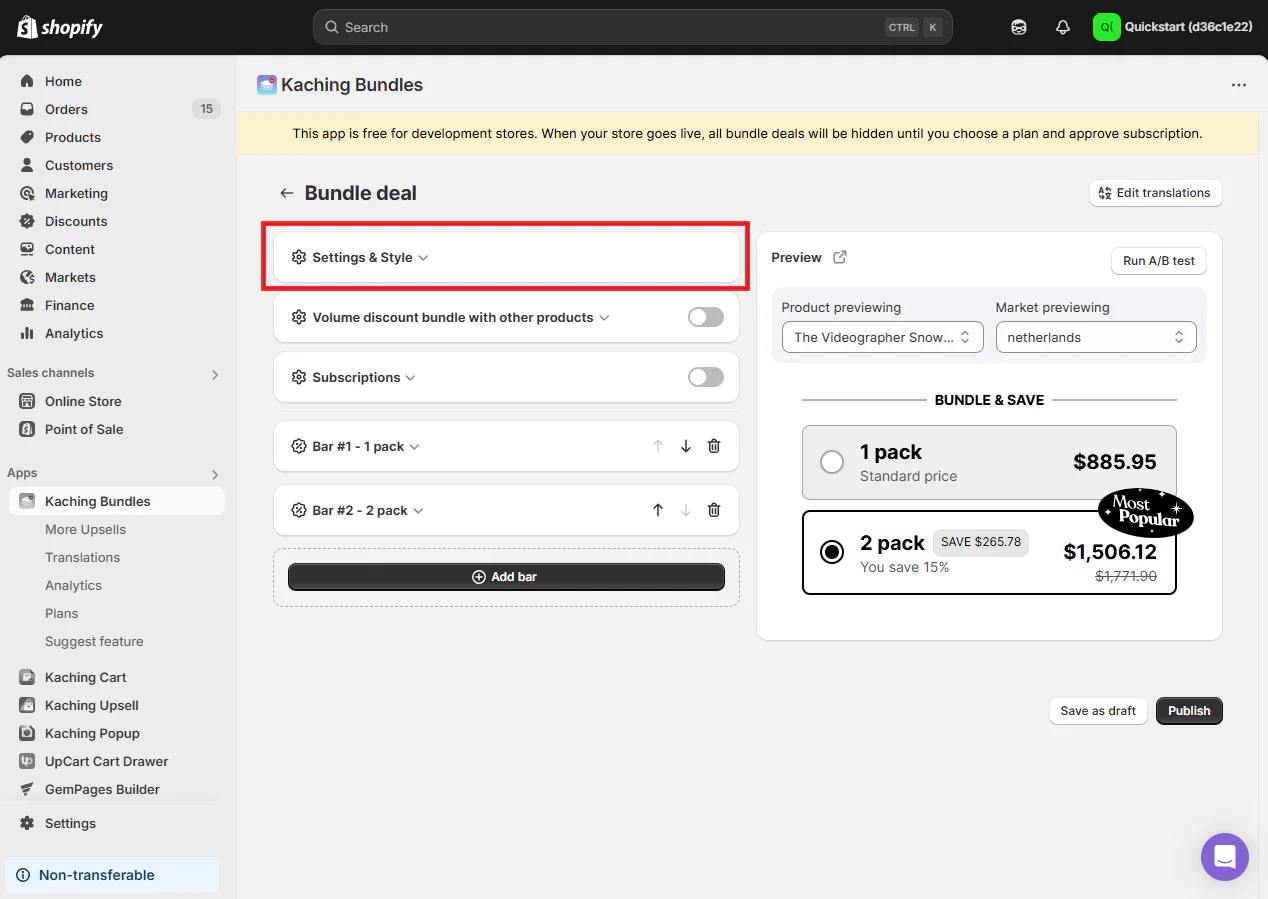
- Scroll to the Settings & Style section at the top
- Look for the field labeled “Discount name (shown in cart/checkout)”
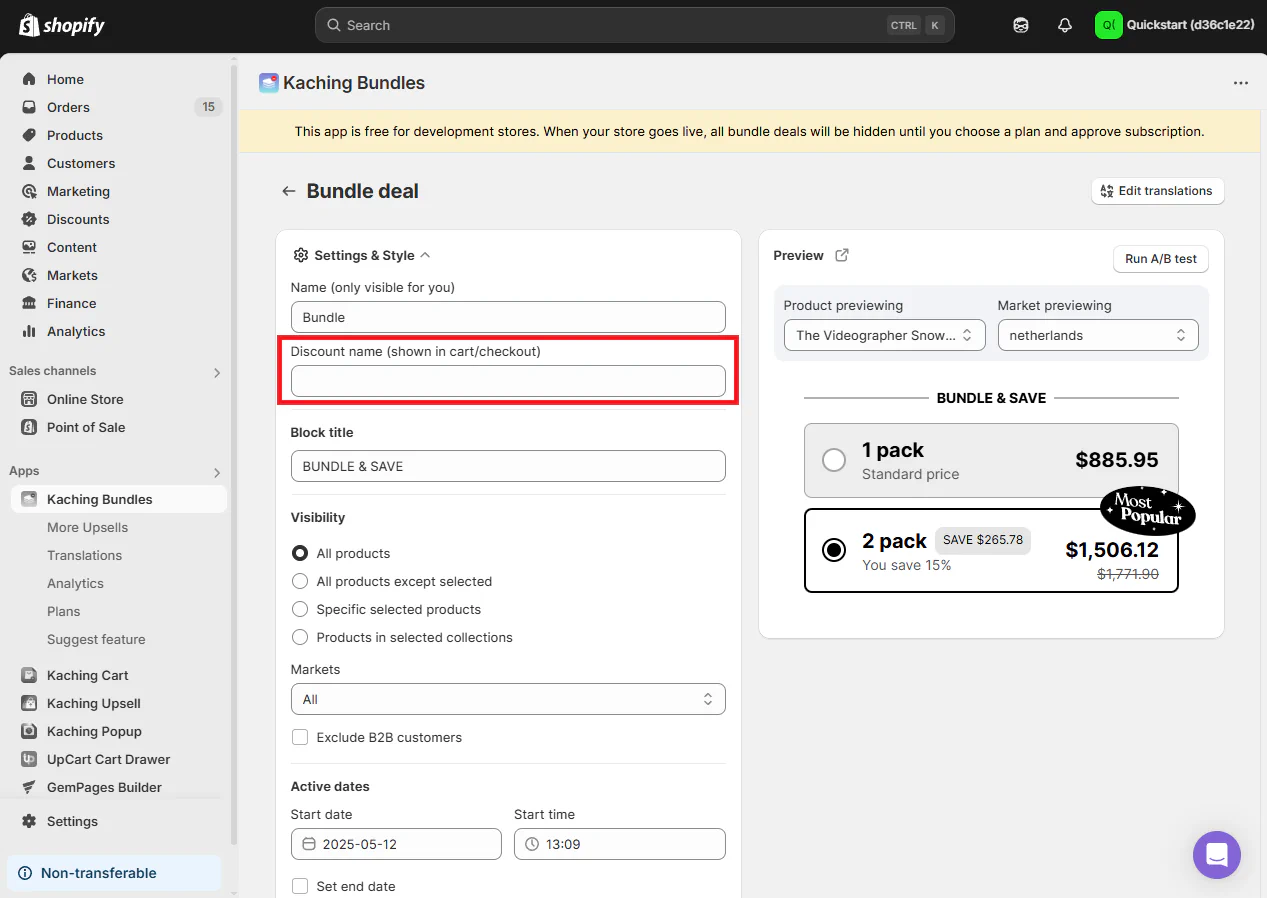
- Enter your preferred label (e.g., “Spring Promo” or “Bundle Deal”) and click on Save
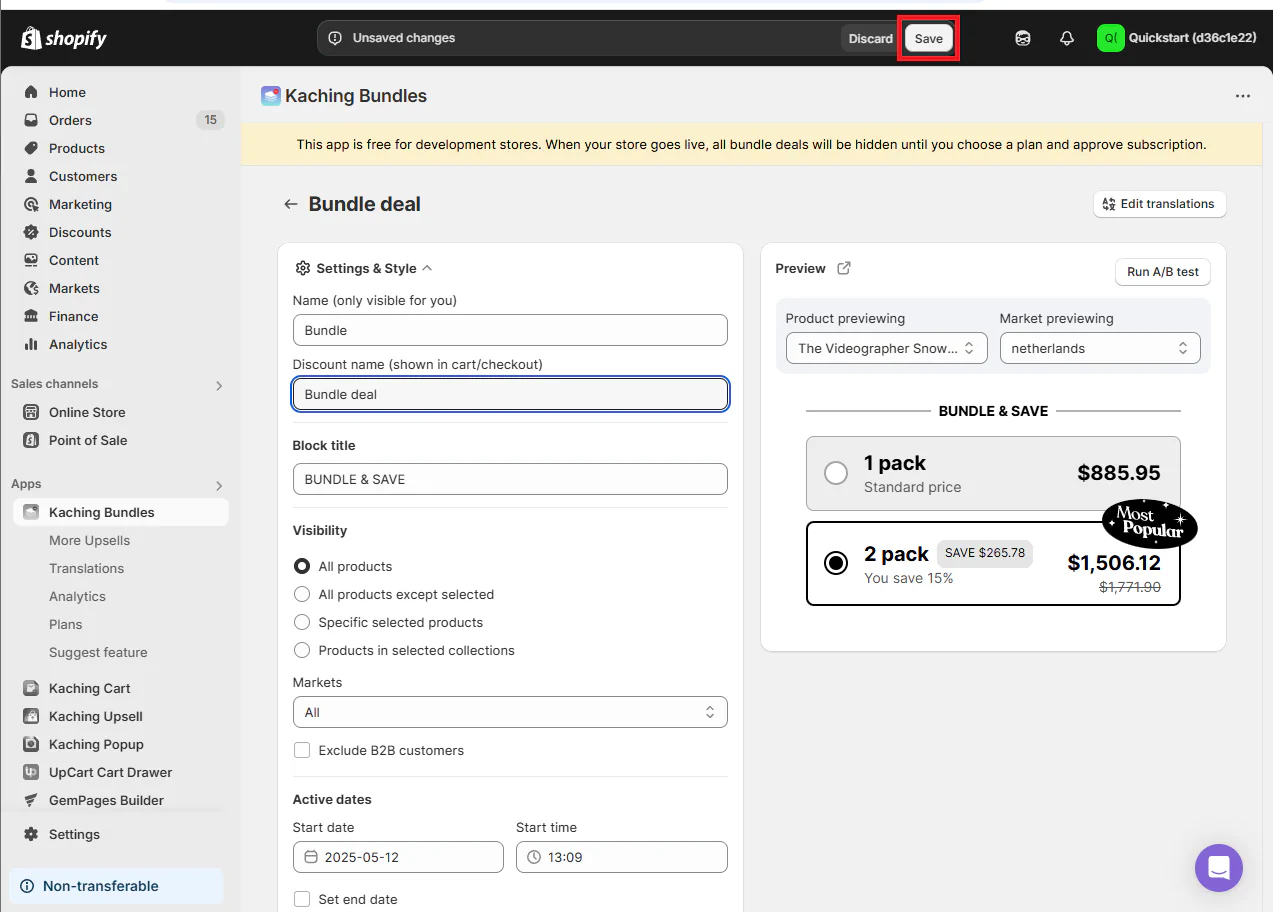
This custom discount name will override the default deal title when the discount is shown in the cart and checkout.
Is This Optional?
Yes!
If you leave that field empty, the app will continue using the deal title as the discount name — just like before.
Need Help or Have Questions?
Feel free to reach out through the in-app live chat if you have any questions about how this works – or if you'd like suggestions for how to name discounts based on your promotion.
Related articles
How to combine a Kaching discount with a Shopify discountLearn how to combine Kaching Bundles discounts with other Shopify discountsBundles How to reposition / display Kaching Quantity Bundles widget in a page builder, landing page, or any other custom placement in the store.Learn about the Kaching Quantity Bundles widget snippet and its positioning.BundlesHow to dynamically display product/discount details in the bundle dealLearn more about Kaching Quantity bundles dynamic personalizations ( variables )BundlesHow to show items as Free for BOGO dealsLearn how to set up bundle so that BOGO deals appears as FREE in checkoutBundlesCart Drawer Doesn’t OpenLearn why Kaching cart might not be openingCart

How to reposition / display Kaching Quantity Bundles widget in a page builder, landing page, or any other custom placement in the store.Learn about the Kaching Quantity Bundles widget snippet and its positioning.BundlesHow to dynamically display product/discount details in the bundle dealLearn more about Kaching Quantity bundles dynamic personalizations ( variables )BundlesHow to show items as Free for BOGO dealsLearn how to set up bundle so that BOGO deals appears as FREE in checkoutBundlesCart Drawer Doesn’t OpenLearn why Kaching cart might not be openingCart